|
VOOZH | about |
|
VOOZH | about |
Query Manager keeps track of all your MongoDB queries in Studio 3T and allows you to organize your queries and scripts into folders. You can access Query Manager from the Collection Tab, IntelliShell, SQL Query, the Aggregation Editor, or the My resources sidebar. Displaying the Query Manager To display the Query Manager, click Load Query and…
Introducing Team Sharing and shared folders
Do you want to collaborate on MongoDB queries with other team members? With Studio 3T’s Team Sharing you can create private folders so that you can share queries with other Studio 3T users. Choose queries to add to the shared folders. Your colleagues can modify and save them, making them available to everyone.
Query Manager keeps track of all your MongoDB queries in Studio 3T and allows you to organize your queries and scripts into folders.
You can access Query Manager from the Collection Tab, IntelliShell, SQL Query, the Aggregation Editor, or the My resources sidebar.
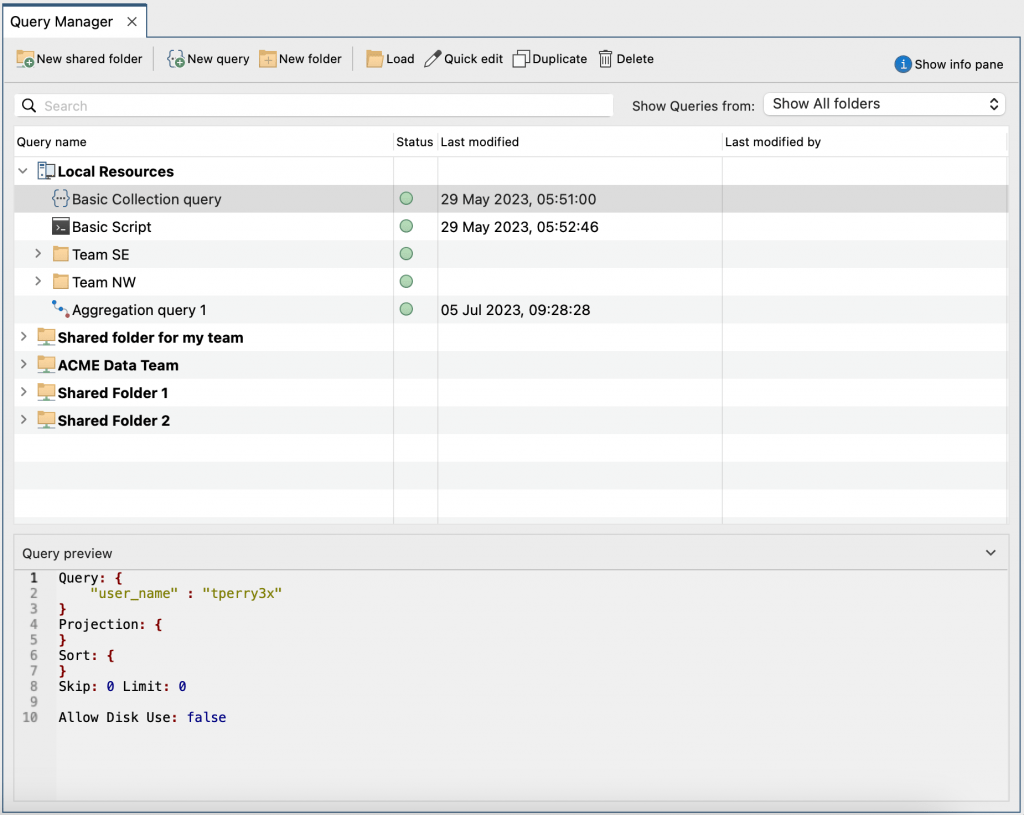
To display the Query Manager, click Load Query and select Open Query Manager from the list.
The Query Manager displays a list of all your saved queries, grouped into folders. Local Resources are queries that are saved on your local machine.
To filter the list of queries:
The Query preview panel at the bottom of the Query Manager shows the query details for the selected query.
You can organize your queries by creating folders and then dragging and dropping queries to the required location.
To add a folder, click New folder and type the folder name in the Add Query folder dialog.
You can create shared folders so that you can share MongoDB connections, SQL connections, queries, and scripts with other team members that are Studio 3T users.
To add a shared folder, click New shared folder.
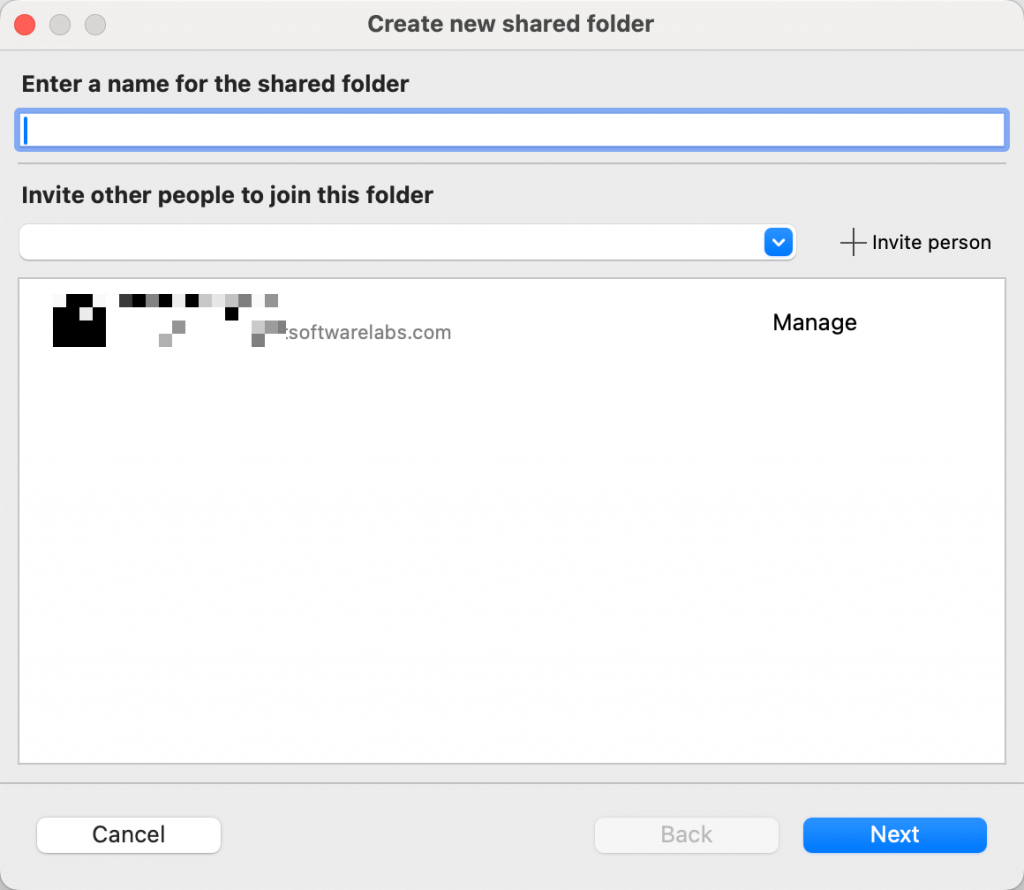
In the Create new shared folder dialog, type the name of the folder in the Enter a name for the shared folder box.
Type or select the email address of the person you want to share the folder with in the Invite other people to join this folder box, and click Invite person. For each person that you add, choose their level of access: Manage, Edit, or View. Click Next.
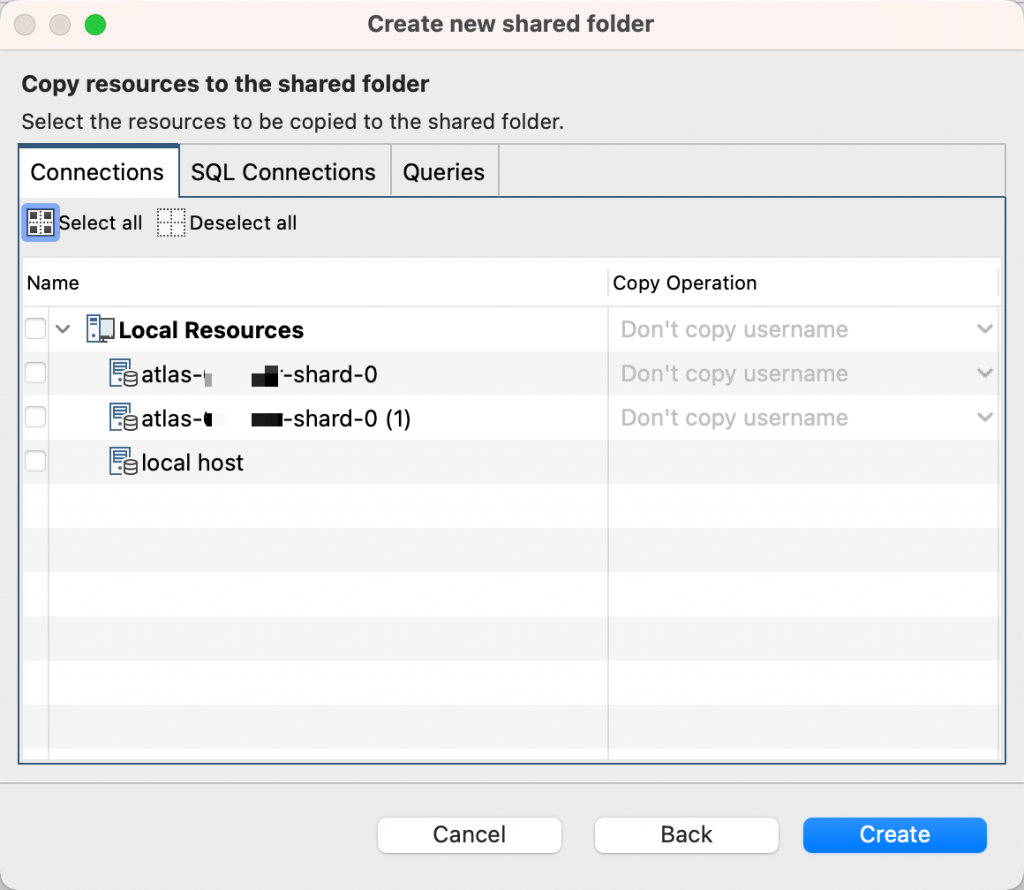
On the next page of the dialog, use the checkboxes to select the resources you want to share:
When you have finished choosing resources, click Create. You’ll get a notification in Studio 3T informing you that your shared folder has been created. Invited team members will receive a notification to join the shared folder.
To quickly create a MongoDB query, SQL Query, or script:
1. Click New query.
2. In the Add new query dialog, type a name for the query in the Query name box.
3. In the Location list, select the folder where you want to save your query.
4. In the Query type list, choose from Collection query, IntelliShell script, SQL Query, or Aggregation query.
5. In the Query target box, click Select target if you want to associate a query with a particular database and collection name.
6. Type your query or script in the box.
If you are writing a collection query, Projection, Sort, Skip, and Limit boxes are displayed for you to further refine your query.
7. When you have finished writing your query, click Save.
To run a query:
1. Double-click it or click Load.
2. In the Load query dialog, select the collection (or database if it’s a SQL Query) where you want to run the query, and click Open.
Studio 3T runs the query and displays the results in a new Collection Tab (or SQL tab).
To run a script:
1. Double-click it or click Load.
2. In the Load script dialog, select the server, database or collection where you want to run the script, and click Open.
Studio 3T runs the script and displays the results in a new IntelliShell Tab.
To quickly edit a query or script:
1. Select it and click Quick edit.
2. In the Edit query or Edit script dialog, make the required changes and click Save.
To duplicate a query:
Select the query and click Duplicate.
The new query is displayed in the list with (1) appended to its name. Whenever you duplicate a query, its name will always be unique. You can rename a query by right-clicking and selecting Rename.
To delete a query:
Select the query and click Delete.
Whenever you run a query or script in Studio 3T, it is automatically saved. To view your query history, click Query history in the toolbar in the Collection Tab, SQL Query, or Aggregation Editor. To view your script history, click Script history in the IntelliShell toolbar.
You can search through your history, save an item as a query or script so that you can use it again in Studio 3T, or load the item ready for use in the tab from which you opened the history, and more.
Run a query in the Collection Tab, SQL Query, or the Aggregation Editor, and click Save query. In the Save query dialog, type a name for the query, and click Save. The Save query dialog also allows you to:
In IntelliShell, run your query or script and click Save script. The Save script dialog is displayed and works in the same way as the Save query dialog.
You can store the associated connection, database, and collection or view name when you save a query (or the associated connection and database when you save a script). To do this, on the Save query or Save script dialog in the Collection Tab, SQL Query, Aggregation Editor, or IntelliShell, select the Save target details checkbox. Or, in the Query Manager click Select target in the Query target box.
You’ll see the stored database name and collection name when you:
To change or remove the saved target details, you’ll need to edit the query or script. To change the details, click Change target or to remove the details, click the arrow and select Remove query target.
For every collection, you can specify a query that is automatically loaded and run whenever you open a new Collection Tab for that collection. To set the default query for a collection, in the Collection Tab toolbar, click Set default query.
Kirsty Burgess
With your consent, we and third-party providers use cookies and similar technologies on our website to analyse your use of our site for market research or advertising purposes ("analytics and marketing") and to provide you with additional functions (“functional”). This may result in the creation of pseudonymous usage profiles and the transfer of personal data to third countries, including the USA, which may have no adequate level of protection for the processing of personal data. Please choose for which purposes you wish to give us your consent and store your preferences by clicking on “Accept selected”. You can find further information in our Privacy Policy.
Essential cookies are strictly necessary to provide an online service such as our website or a service on our website which you have requested. The website or service will not work without them.
Performance cookies allow us to collect information such as number of visits and sources of traffic. This information is used in aggregate form to help us understand how our websites are being used, allowing us to improve both our website’s performance and your experience.
Functional cookies collect information about your preferences and choices and make using the website a lot easier and more relevant. Without these cookies, some of the site functionality may not work as intended.
Social media cookies are cookies used to share user behaviour information with a third-party social media platform. They may consequently effect how social media sites present you with information in the future.