Note: Make sure you're signed in to the same Apple Account on each device. If you're not signed in to your Apple Account on a device, or the device has Messages for iCloud turned off, your messages won't be kept up to date on the device.
Set up iCloud for Messages on your iPhone or iPad
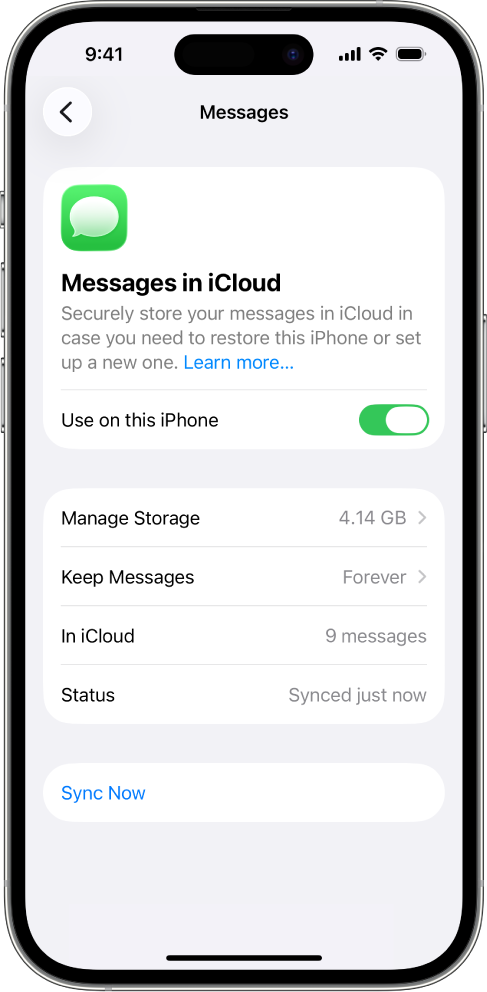
On your iPhone or iPad, go to Settings > [your name] > iCloud.
Do one of the following:
iOS 17.2, iPadOS 17.2, or later: Tap See All (or Show All), tap Messages in iCloud, then turn on “Use on this iPhone.”
iOS 16 to 17.1 or iPadOS 16 to 17.1: Tap Show All, tap Messages, then turn on Sync this [device].
Any messages currently stored in iCloud are now accessible on your device, and any new messages you receive on your device will be stored in iCloud.
To make sure you can see your messages on all your devices, also check the following:
iMessage account: On your iPhone or iPad, go to Settings > Messages > Send & Receive. Make sure that you're signed in to the same Apple Account. You can choose which email addresses and phone numbers you want to send and receive messages from on each device.
Text message forwarding: If you want to receive SMS and MMS messages on all your devices, go to Settings > Messages > Text Message Forwarding on your iPhone. Turn on text message forwarding for each device. For more information, see the Apple Support article Forward text messages from your iPhone to other devices.
To see messages stored in iCloud, open the Messages app.
For more information on how to use Messages on your iPhone or iPad, see any of the following:
To see Messages stored in iCloud, open the Messages app.
Note: If you want to turn off Messages in iCloud on your Mac, deselect Enable Messages in iCloud. You can choose to disable Messages in iCloud for all your devices, or just your Mac.
For more information on how to use Messages on your Mac, see the Send a message on Mac.
When you first turn on Messages in iCloud, it may take some time for all your messages to appear on each device. You can send and receive messages during this time.