Note: Make sure you're signed in to the same Apple Account on each device. If you're not signed in to your Apple Account on a device, or the device has iCloud Photos turned off, you won't be able to access your photos and videos on the device.
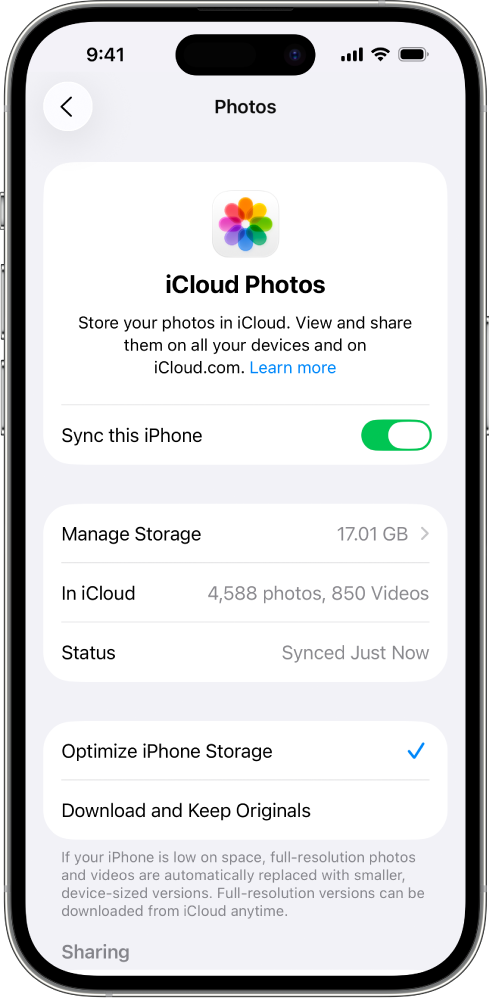
Set up iCloud Photos on your iPhone or iPad
On your iPhone or iPad, go to Settings > [your name] > iCloud.
All the photos and videos in the Photos app on your device are added to iCloud. Also, any photos and videos already stored in iCloud Photos are now available on your device.
To view photos and videos stored in iCloud Photos, open the Photos app, then tap Library. All the photos and videos you see are stored in iCloud Photos.
Tip: To see the syncing status of your photos, tap your account profile in the top-right corner of the screen. The status appears below your name. See the Apple Support article If your iCloud Photos aren't syncing to your device.
For more information on how to use iCloud Photos and optimize photo storage on your iPhone or iPad, see any of the following:
In the Photos app on your Mac, choose Photos > Settings, then click iCloud.
Select iCloud Photos.
The photos and videos in the Photos app on your Mac are added to iCloud. Also, any photos and videos already stored in iCloud Photos are now available on your Mac.
Note: If you have multiple photo libraries on your Mac, iCloud Photos keeps only the photos and videos in the System Photo Library up to date.
To view photos and videos stored in iCloud Photos, open the Photos app, then click Library in the sidebar. All the photos and videos you see are stored in iCloud Photos.
Choose Users and Accounts, then select your account.
Choose iCloud, then turn on iCloud Photos.
To view photos and videos stored in iCloud Photos, open the Photos app, then navigate to the Photos category in the menu bar. All the photos and videos you see are stored in iCloud Photos.