
iPad User Guide
- Welcome
- What’s new in iOS 12
-
- Wake and unlock
- Learn basic gestures
- Learn gestures for models with Face ID
- Explore the Home screen and apps
- Change the settings
- Take a screenshot
- Adjust the volume
- Change or turn off the sounds
- Search for content
- Use and customize Control Center
- View and organize Today View
- Access features from the Lock screen
- Travel with iPad
- Set screen time, allowances, and limits
- Sync iPad using iTunes
- Charge and monitor the battery
- Learn the meaning of the status icons
-
- Accessories included with iPad
- Connect Bluetooth devices
- Stream audio and video to other devices
- Connect to a TV, projector, or monitor
- Control audio on multiple devices
- Apple Pencil
- Use Smart Keyboard and Smart Keyboard Folio
- Use Magic Keyboard
- AirPrint
- Handoff
- Use Universal Clipboard
- Make and receive Wi-Fi calls
- Instant Hotspot
- Personal Hotspot
- Transfer files with iTunes
-
-
- Get started with accessibility features
- Accessibility shortcuts
-
-
- Turn on and practice VoiceOver
- Change your VoiceOver settings
- Learn VoiceOver gestures
- Operate iPad using VoiceOver gestures
- Control VoiceOver using the rotor
- Use the onscreen keyboard
- Write with your finger
- Control VoiceOver with Magic Keyboard
- Type onscreen braille using VoiceOver
- Use a braille display
- Use VoiceOver in apps
- Speak selection, speak screen, typing feedback
- Zoom
- Magnifier
- Display settings
- Face ID and attention
-
- Guided Access
-
- Important safety information
- Important handling information
- Zoom an app to fill the screen
- Get information about your iPad
- View or change cellular settings
- Learn more about iPad software and service
- FCC compliance statement
- ISED Canada compliance statement
- Class 1 Laser information
- Apple and the environment
- Disposal and recycling information
- ENERGY STAR compliance statement
- Copyright
Hide ads and distractions in Safari on iPad
In the Safari app 👁 Image
, use Safari Reader to view a page without ads, navigation, or other distracting items.

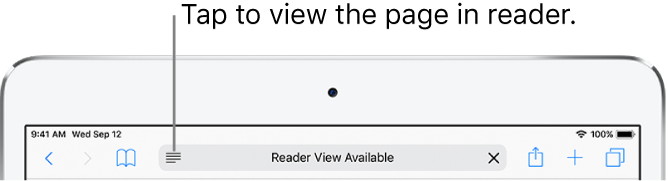
Show Reader view
Reader view formats a webpage to show just the relevant text and images.
Tap 👁 the Reader button
at the left end of the address field.

To return to the full page, tap 👁 the Reader button
in the address field again.
Note: If you don’t see the icon, Reader isn’t available for the page you’re looking at.
Share the article text and the link to it
Tap 👁 the Share button
while viewing the page in Reader.

Use Reader automatically
On a supported website, touch and hold 👁 the Reader button
.Choose to use Reader automatically on the current website or on all websites.
Block pop-ups
Go to Settings 👁 Image
> Safari, then turn on Block Pop-ups.

Thanks for your feedback.