👁 Image

Send email messages in Mail on Mac

You can send email messages to individuals or groups, hide your recipient’s email addresses, schedule a message to send later, or unsend a message.

Open Mail for me

Send an email

  1. Go to the Mail app 👁 Image
    on your Mac.

  2. Click 👁 the New Message button
    in the Mail toolbar.

  3. In the To field, type the email address you want to send the email to.

  4. Enter the subject of your email in the Subject field.

  5. In the Message field (below the subject), type your message.

    Tip: If you’re not ready to send your message, you can save it as a draft. In the message that you want to save, choose File > Save. You can find it in the Drafts mailbox (from the Favorites bar or the Mail sidebar).

  6. Click 👁 the Send button
    .

You can format the text of your message and send photos and other files as attachments to your email.

Send emails to a group

If you use lists in the Contacts app—for example, for a book club or cycling team—you can send messages to a group.

  1. Go to the Mail app 👁 Image
    on your Mac.

  2. Choose Mail > Settings, click Composing, then deselect “When sending to a group, show all member addresses.”

  3. In an address field (such as To or Cc) of your message, type a list name.

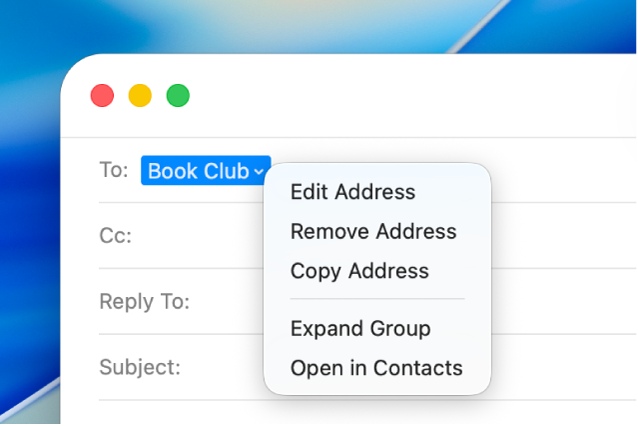
    If you decide you want to use individual contacts instead of the list—maybe you want to omit a few people—click the arrow next to the list name, then choose Expand Group.

    👁 An email showing a list in the To field and the pop-up menu showing the Expand Group command.

Tip: If someone in a list has multiple email addresses, you can choose which one to always use when you email the group. See Edit the distribution list for lists and Smart Lists.

Hide email addresses using Bcc

You can help protect the privacy of your recipients by sending your message so that “Undisclosed-recipients” is shown in the To field, instead of everyone’s email addresses.

  1. Go to the Mail app 👁 Image
    on your Mac.

  2. Make sure the Bcc (Blind carbon copy) field is shown in the message window.

    If the field isn’t listed, click 👁 the Header Fields button
    in the toolbar of the message window, then choose Bcc Address Field.

  3. Type your recipients’ addresses in the Bcc field.

    You can leave the To field blank.

Schedule an email

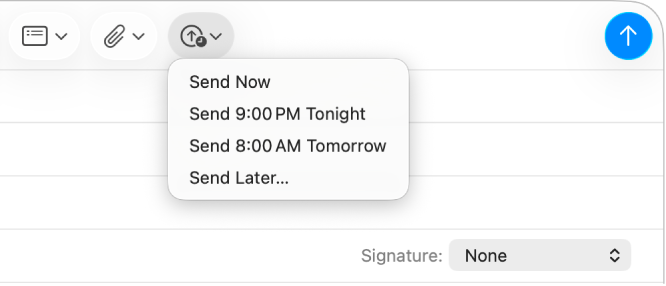
👁 A menu in the message window showing different options for sending an email—Send Now, Send 9:00 PM Tonight, Send 8:00 AM Tomorrow, and Send Later.
  1. Go to the Mail app 👁 Image
    on your Mac.

  2. Do one of the following:

    • Schedule an email: Click 👁 the Send Later button
      ;
      then choose a time, or choose Send Later to set a date and time.

      The email appears in the Send Later mailbox in the Mail sidebar.

    • Change the scheduled time for an email: Double-click the email in the Send Later mailbox, then click Edit in the top-right corner.

    • Prevent a scheduled email from sending: Select the email in the Send Later mailbox, then click 👁 the Delete button
      .

Unsend with Undo Send

  1. Go to the Mail app 👁 Image
    on your Mac.

  2. At the bottom of the sidebar, click Undo Send within 10 seconds of sending an email (or choose Edit > Undo).

    Note: To change the amount of time you have to unsend emails or to turn Undo Send off, choose Mail > Settings, click Composing, click the “Undo send delay” pop-up menu, then choose an option.

Some mail servers won’t send a message if even just one address is incorrect. If your message won’t send, try to remove or correct invalid addresses, then send the message again.

You can import email addresses from other email apps into the Contacts app, to make the addresses available in Mail. See Import contacts.

Thanks for your feedback.