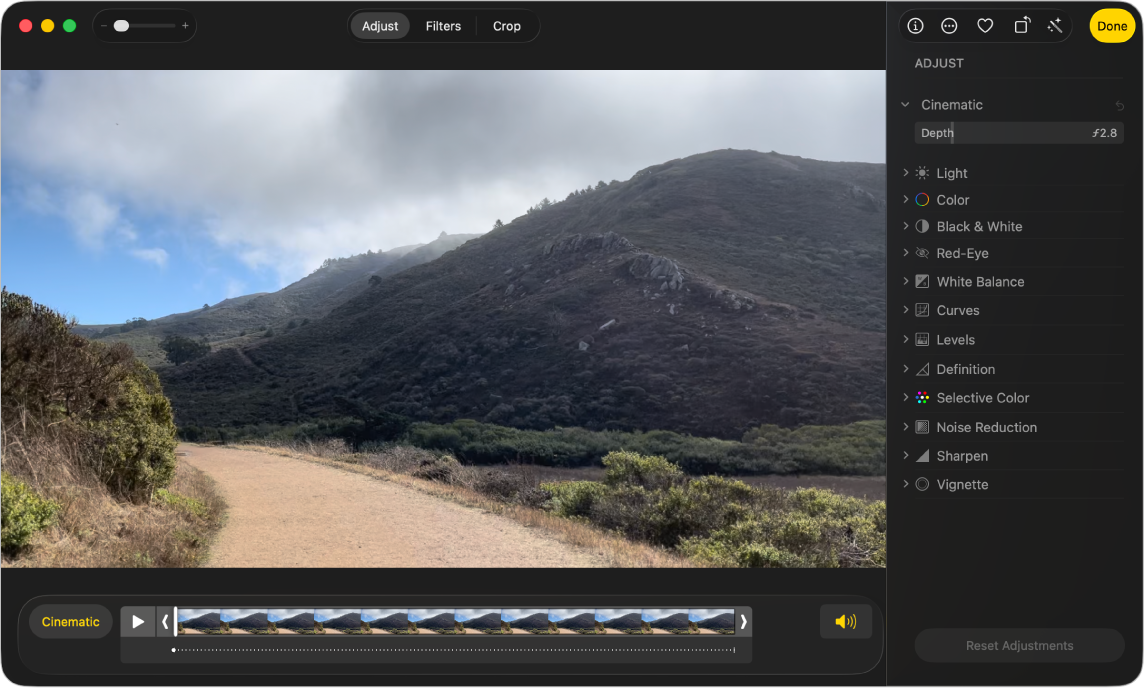
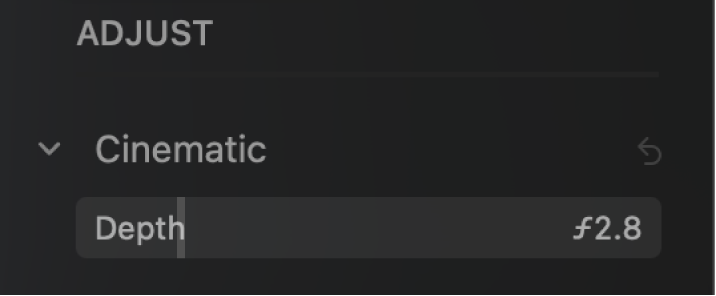
On iPhone 13 and later models, Cinematic mode applies a depth-of-field effect that keeps the focus point of your video sharp while creating a beautifully blurred foreground and background. In Photos on your Mac, you can turn off the Cinematic effect, adjust where focus point changes occur, and adjust the level of blur, or depth of field, in a Cinematic mode video.
Note: To edit depth of field or focus points in a Cinematic mode video, you need a device with iOS 16, iPadOS 16, macOS 13, or later. You can view the video on any device.
When recording a video using Cinematic mode, the camera identifies where to focus and can automatically change the focus if a new subject is identified. White dots below the frame viewer (or scrubber) show where focus point changes occur. When editing a Cinematic mode video, you can change the focus point manually.
Double-click a Cinematic mode video, then click Edit in the toolbar.
Click Adjust in the toolbar, then play the video or drag the playhead to the frame where you want to change the focus point.
A yellow box appears on the screen around the current point of focus. A gray box appears when another subject is detected as a possible focus point.
To change the focus point, do any of the following:
Choose a detected focus point: Click the gray box around the detected focus point.
The box turns yellow, and a yellow dot appears below the frame viewer, indicating the manual change in focus. You can make multiple manual changes in focus, and each appears as a yellow dot below the frame viewer.
Choose a focus point anywhere in the frame: Double-click an item on the screen where you want the focus point to be.
Choose a focus point a specific distance from the camera: Position the pointer over an item that represents the focal distance you want, then click and hold until a yellow box appears.