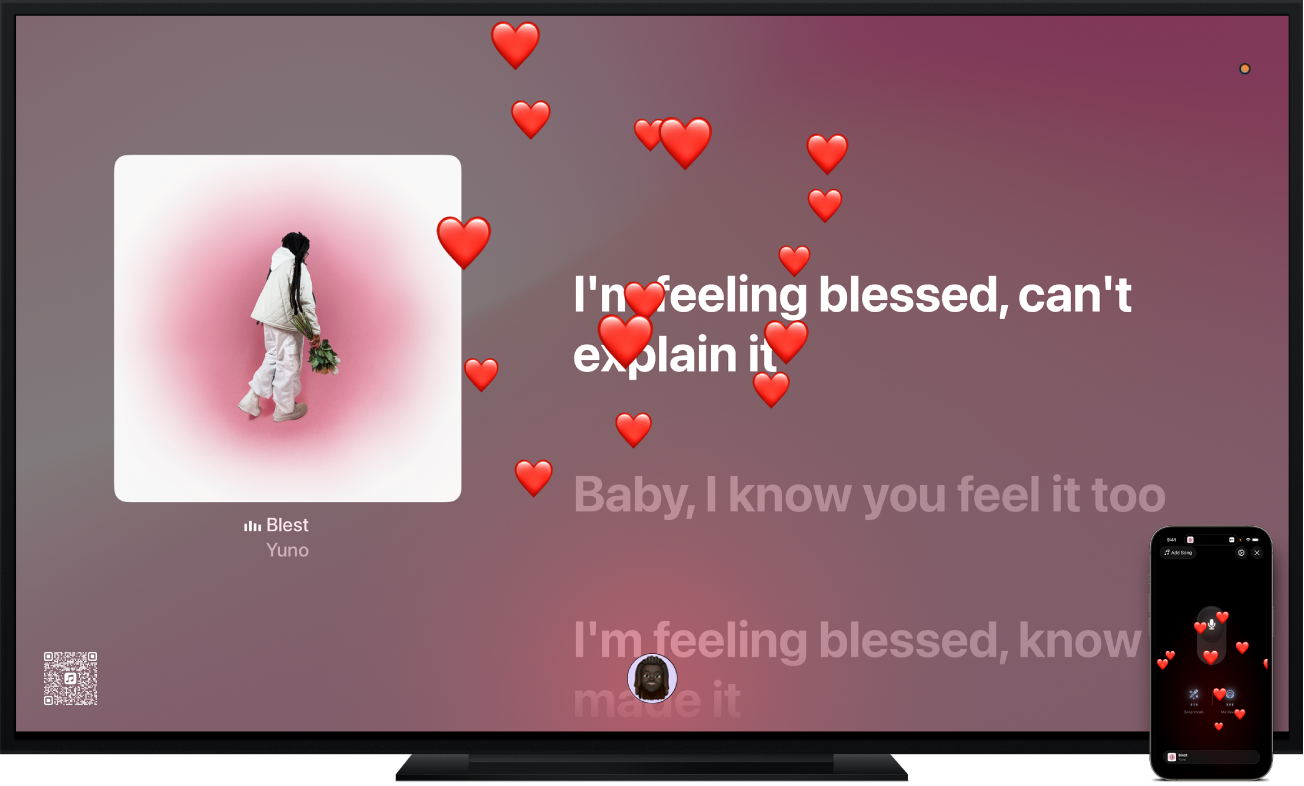
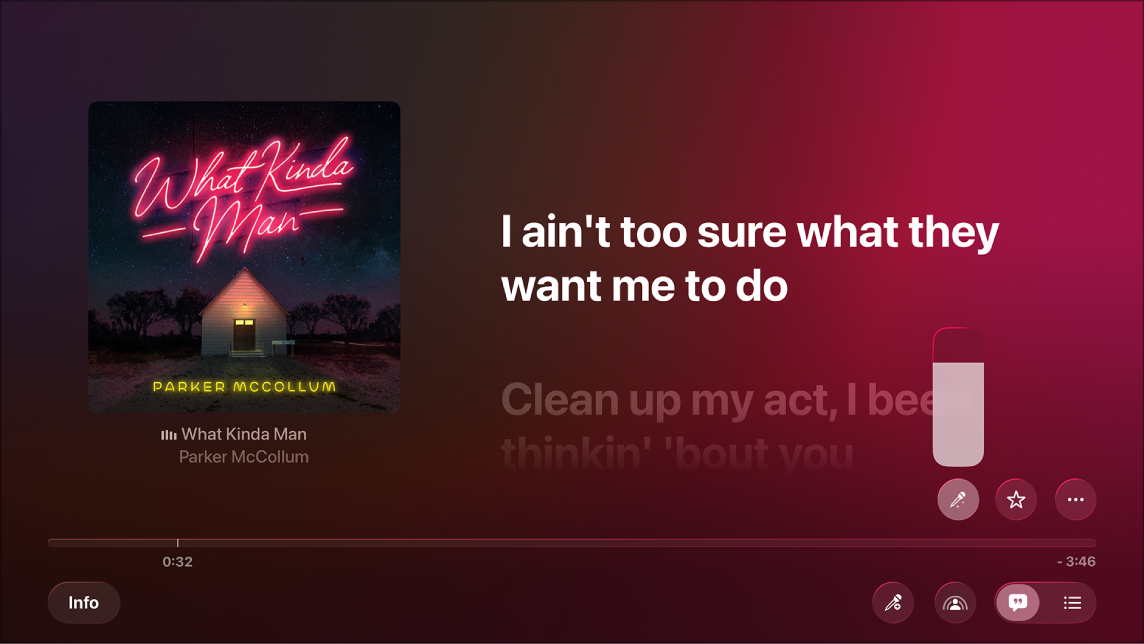
Apple Music Sing 👁 Image lets you sing along to millions of songs with real-time, beat-by-beat lyrics. You can sing along by simply adjusting the volume of a song’s vocals, or for more fun, use your iPhone as a mic that amplifies your voice through your TV. You can also use your iPhone as a Continuity Camera to see yourself singing onscreen along with lyrics and visual effects.
Note: Apple Music Sing requires a subscription to Apple Music and an Apple TV 4K (3rd generation) with tvOS 26 or later. Anyone on Wi-Fi and iOS 26 or later can connect their iPhone SE (2nd generation or later) or iPhone 11 or later to use as a mic, no subscription required. See Which Apple TV model do I have?
Browse Apple Music Sing
Do either of the following:
Select the Apple Music Sing icon 👁 Image on the Apple TV 4K Home Screen.
Go to the Music app 👁 Image on Apple TV 4K, then navigate to Sing at the top of the screen.
Scroll down to see curated rows of music especially picked for Apple Music Sing, including songs by genre, artist, or decade.
Navigate left and right in a row to view available options, then select a mix or playlist to see the song list.
Do any of the following:
Start playing a mix or playlist: Select Play or select 👁 the More Options button , then choose Play to begin playing from the top.
Add items to a playlist: Select 👁 the More Options button , choose Add to a Playlist, then select a playlist or choose New Playlist.
Get additional options for a song: Navigate to a song in the list, press and hold the clickpad or touch surface to view more options, then choose Go to Artist, Go to Album, Add to a Playlist, View Lyrics, or Create Station.
When you start playing music, the Now Playing screen opens, where you can control playback, get more information, and view lyrics (if available). See Control music playback on Apple TV 4K.
Sing along with lyrics
Do either of the following:
Select the Apple Music Sing icon 👁 Image on the Apple TV 4K Home Screen.
Go to the Music app 👁 Image on Apple TV 4K, then navigate to Sing at the top of the screen.
Start playing a song, or navigate to Now Playing at the top of the screen.
If you’re listening to a song playing with Dolby Atmos and you turn on Apple Music Sing, Dolby Atmos turns off and the song plays without surround sound. If you turn off Apple Music Sing, the song plays with Dolby Atmos again.
Use an iPhone as a microphone
You can connect your iPhone to use as a mic with Apple Music Sing so that you can hear your voice amplified through your TV speakers. When you’re connected, you can access controls on your iPhone to add reverb, lower the vocals, or turn your volume up. Anyone on the same Wi-Fi network using an iPhone with iOS 26 or later can join the party—only the host needs an Apple Music subscription.
Note: All participants must have an iPhone SE (2nd generation or later), or iPhone 11 or later.
Do either of the following:
Select the Apple Music Sing icon 👁 Image on the Apple TV 4K Home Screen.
Go to the Music app 👁 Image on Apple TV 4K, then navigate to Sing at the top of the screen.
Do either of the following:
If you’re browsing the Apple Music Sing screen: Select a mix or playlist to see the song list, then select Connect iPhone Mic.
Use your iPhone’s camera to scan the QR code on your TV screen.
Microphone controls appear on your iPhone. You can now view lyrics and hear your voice on your TV speakers while you sing along to a song.
When an iPhone mic is connected, the QR code remains visible on Apple TV 4K. Up to 30 additional people can scan the QR code to join the party, but only one person can use the microphone at any time.
Note: Apple Music Sing does not support wireless speakers such as HomePod. To use the iPhone as a mic, follow the onscreen instructions when you scan the QR code to change your speaker output to your TV or wired receiver speakers. After your Sing session has ended, Apple TV 4K automatically switches your speakers back to wireless. To change speaker settings manually, see Change audio settings on Apple TV 4K.
When you finish adding yourself or additional people to the party, select Start Singing on Apple TV 4K, or press 👁 the Back button or 👁 the Menu button on the remote.
Adjust the microphone volume: Press the volume up and down buttons on your iPhone.
Adjust the song vocals (optional): Tap Song Vocals up to three times to cycle through preset vocal levels.
Adjust the mic reverb: Tap Mic Reverb up to three times to cycle through preset reverb levels.
Add a song: Select Add Song, browse or search for songs, then tap 👁 Add button next to a song to add it to the Sing Queue. When you’re finished adding songs, tap Done.
React to the singer’s live performance with animated emojis: While someone else is singing, tap any of the featured emojis or tap 👁 Add button to browse or search your emoji collection (if your mic is on, tap 👁 the Mic button to turn it off first).
To add visual effects to the background on the Now Playing screen on Apple TV 4K, show playback controls on Apple TV 4K, select 👁 the More Options button , choose Visual Effects, then select an effect from the Filters list.
When you have a Continuity Camera set up, you can see yourself singing onscreen along with lyrics. For more fun, you can add visual effects to your image and lyrics to enhance the sing-along experience.
Note: An iPhone can be connected as either a Continuity Camera or a microphone but not as both at the same time. Visual effects are available during both Continuity Camera and microphone sessions.
Do either of the following:
Select the Apple Music Sing icon 👁 Image on the Apple TV 4K Home Screen.
Go to the Music app 👁 Image on Apple TV 4K, then navigate to Sing at the top of the screen.
Start playing a song, or navigate to Now Playing at the top of the screen.
Tip: To get help pronouncing or translating the lyrics (if available), select 👁 Pronunciation and translation button , then choose Show Pronunciation, Show Translation, or both.
Swipe up on the clickpad or touch surface, select 👁 the More Options button , choose Sing with Camera, then select Connect iPhone or iPad.
Note: If onscreen effects aren’t available for the current song, or if you haven’t set up Continuity Camera, the Sing with Camera option is dimmed.
On the Continuity Camera screen, do either of the following:
If you already appear in the list of profiles: Select your profile, then confirm on your iPhone or iPad.
If you don’t appear in the list of profiles: Select Other to reveal a QR code, then open the Camera app on your iPhone or iPad, scan the QR code, tap Connect to Apple TV, and confirm on your iPhone or iPad.
Position your iPhone or iPad near the TV in landscape orientation so that the rear camera (iPhone) or front camera (iPad) faces you and you’re satisfied with the way you appear in the preview on your TV screen.
After a short countdown, your iPhone or iPad camera is ready to use with Apple Music Sing on Apple TV 4K, and the live image from your camera appears onscreen along with lyrics.
Turn Center Stage on or off: Choose Sing with Camera, then select Center Stage, which keeps everyone in the room perfectly framed, even as they move around.
Add visual effects to the background: Choose Visual Effects, then select an effect from the Filters list.
Disconnect the camera: Choose Sing with Camera, then select Disconnect Camera.
To stop seeing yourself on screen, do either of the following:
In the Music app, select 👁 the More Options button , choose Sing with Camera, then select Disconnect Camera.
Tap Pause or Disconnect on your iPhone or iPad Lock Screen.
Note: This feature requires Apple TV 4K (3rd generation) with tvOS 17 or later, and any of the following: iPhone XR or later (including iPhone SE 2nd generation) with iOS 17; iPad (8th generation and later), iPad mini (5th generation and later), iPad Air (3rd generation and later), iPad Pro 11-inch (1st generation and later), or iPad Pro 12.9-inch (3rd generation and later) with iPadOS 17.