|
VOOZH | about |
|
VOOZH | about |
We’re so glad you’re here. You can expect all the best TNS content to arrive Monday through Friday to keep you on top of the news and at the top of your game.
Check your inbox for a confirmation email where you can adjust your preferences and even join additional groups.
Follow TNS on your favorite social media networks.
Become a TNS follower on LinkedIn.
Check out the latest featured and trending stories while you wait for your first TNS newsletter.
In this post I’ll be explaining how to “roll your own” SVG Line Charts in React using Server-side rendering. To use Server-side rendering with React, you can use either Next.js or Gatsby.
On the following links you will find a Live Preview and GitHub Repository for the completed Line Charts using both frameworks.
I won’t be covering how to get started with either framework, so please consult the docs if you’re not familiar with these technologies.
I’ve also used Tailwind to style the Charts. If you’d like to do the same, the Tailwind docs have installation guides for both Gatsby and Next.js.
In the demo sites I’ve used the GitHub REST API as a data source, if you’d like to do the same you’ll need a GitHub Personal Access Token; or if you prefer, I’ve provided some sample data on the links below.
You can use either of the sample data Gists below.
Server-side rendering (SSR) is an application’s ability to convert HTML files on the server into a fully rendered HTML page for the client (the browser). Combining SSR with Server-side data fetching means you can generate the charts on the server with data that’s been “fetched”, also on the server.
Creating charts this way means all data fetching and rendering will work when either JavaScript is disabled in the browser, or before React has hydrated the DOM.
Rendering charts this way means they’ll never appear blank while data is “fetching” and you won’t see a “jump” or layout shift after data has loaded; using this method also ensures your Lighthouse CLS scores aren’t affected.
In the sections below you’ll be creating a number of different parts that make up a Line Chart. These are described in the diagram below.
Create a new component called <LineChart /> and name the file line-chart.js. In the demo sites I’ve saved this file in a directory called “components.”
The <LineChart /> component accepts a prop called data. The shape of the data prop is defined using propTypes.
Import the <LineChart /> into your page component and return it. The destructured page props will be different depending on if you’re using Gatsby or Next.js. Replace … with the framework-specific props.
In this step, you’ll define the variables that are used to control the different parts of the Line Chart.
Here’s a short explanation for each of the variables.
The properties array is created using a combination of values from the data prop and variables defined in the previous step. Each of the returned values are used in different parts of the Line Chart.
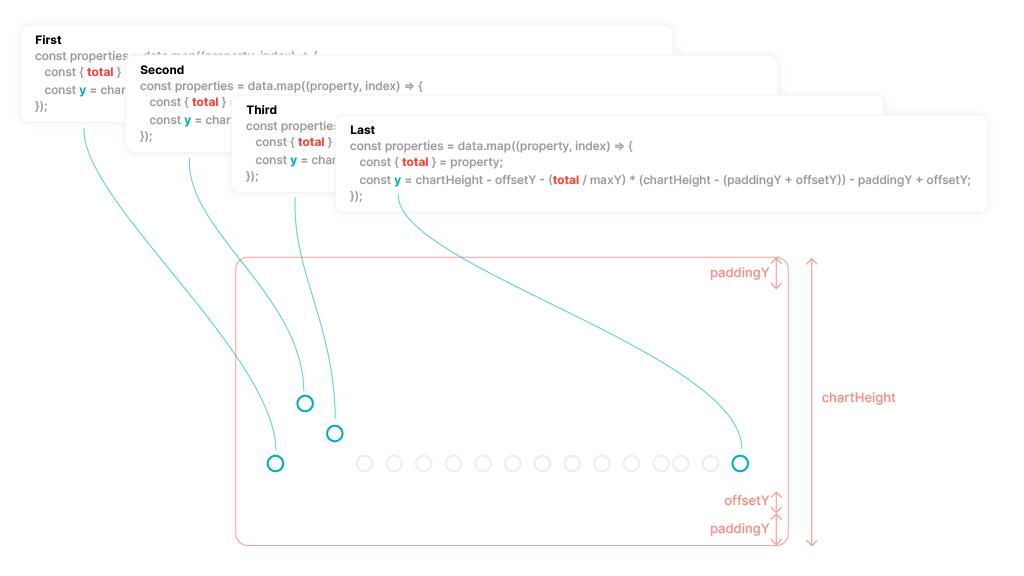
The two important values to look at here are x, and y. These variables are created by combining a number of the variables defined earlier and the index value from the .map.
The total and date values are returned without modification.
The x coordinate is used to create a position for the marker, value and the x value for a Polyline point.
The x coordinate is created by using the index value from the .map and dividing it by the length of the data passed in on the data prop. Multiplying it by the chartWidth and subtracting the paddingX value ensures the x coordinate value never exceeds the bounds of the chart width.
The y coordinate is used to create a position for the marker, value and the y value for a Polyline point.
The y coordinate is created by dividing the total by the maxY value and multiplying it by the chartHeight minus the paddingY value. As an extra step, the paddingY plus the offsetY values are subtracted, this creates some extra space for the ticks at the bottom of the chart.
The SVG Polyline element can be used to create a line connected by points. To create the points for the Polyline line you can use the x and y values from the properties array and return them as an array of x, y positions.
The points array will return something similar to the below. Each index in the array contains both an x and y coordinate.
Create a new <svg /> element, define the viewBox attributes and set the role to presentation.
Create a new <polyline /> element, set the fill to none and add relevant classes to style the stroke. You can also define the strokeWidth using an attribute. Using the points attribute you can pass on the values returned by the points array.
Using the returned values from the properties array you can now add and position svg elements to display the total(s) from the data array.
The <circle /> element is positioned using the x and y property using the cx and cy attributes and is given a radius of 12 using the r attribute. You can add your own class names and a value for the strokeWidth to achieve the desired look.
The <text /> element is also positioned using the x and y property using the x and y attributes. The <text /> element accepts children, so add the total property to display it. I’ve added an additional 2.8 to the y to ensure the text is vertically centered within the <circle />. You can add your own class names or attributes to achieve the desired look.
The ticks are created in a slightly different way, you’ll notice the <text /> element is wrapped within a <g />.
This is to create a new coordinate system so that when the rotation is applied to the text, its top / left positions are calculated from the top and left position of the <g /> rather than the <svg /> element.
The <g /> element doesn’t support the x or y attributes, so you’ll use the transform attribute and provide a translate value for both the x and y positions. I’ve also subtracted the paddingY and offsetY values to position the ticks correctly.
The guides are the last element to add; but rather than iterating over the properties array, this time you’ll iterate over the guides array.
This is just an empty array and the index is used to provide a key for React. The y coordinate is created in a similar way as before, where a ratio is created to ensure the y positions stay within the bounds and don’t overlap the ticks.
Using the values returned from the properties array, it’s possible to add any number of different SVG elements to help display different values from different types of data.
The x and y properties should be all you need. Whilst it is a little tricky to create them, they create the boundaries for any new elements you’d like to add to the chart.
Thanks for reading, and if you have any questions please come and find me on Twitter: @PaulieScanlon or checkout my site paulie.dev, where I have more React/Jamstack tutorials.