|
VOOZH | about |
|
VOOZH | about |
We’re so glad you’re here. You can expect all the best TNS content to arrive Monday through Friday to keep you on top of the news and at the top of your game.
Check your inbox for a confirmation email where you can adjust your preferences and even join additional groups.
Follow TNS on your favorite social media networks.
Become a TNS follower on LinkedIn.
Check out the latest featured and trending stories while you wait for your first TNS newsletter.
Containers have embedded themselves in the landscape of IT. In fact, the containerization of applications and services has made it possible for businesses to become even more agile than they were before.
And who doesn’t want a bit more agility for their company?
But what is a container? A container is a way of rolling software into small, self-contained packages that include all of the libraries and settings required for the software to work as though it were installed via the standard method. For example, if you want to deploy an NGINX server, instead of installing the server and all of its dependencies on either standard or virtual hardware, you can simply pull the NGINX image and deploy a container based on that image. In seconds you’ll have that NGINX web server ready to work with.
You might be thinking, “Why not just use a virtual machine?” Unlike a virtual machine, a container doesn’t require a full-blown operating system to make it run. In fact, containers are platform-neutral. As long as you have a system that supports your container, it can be deployed. Even better, containers always run the same way, regardless of what platform they are deployed on.
But what is used to deploy containers? One system is Docker. Docker is one of the easiest tools available for rolling out containerized software. It’s free and available for installation on most platforms.
The advantages of using containers (over either traditional methods or virtual machines) are many. Here are just a few:
Now that you have a bit more understanding of what containers are and why you should use them, let’s find out how to install Docker on two of the most popular open source server operating systems, Ubuntu Server (version 18.04) and CentOS 7.
First, we’ll install Docker CE (Community Edition) on CentOS 7. The installation is done via the command line, so log into your CentOS 7 server and get ready to type.
The first step is to install any necessary dependencies for Docker. To do this, issue the following command:
sudo yum install -y yum-utils device-mapper-persistent-data lvm2
Once that command completes, you’ll need to add the docker-ce repository with the command:
sudo yum-config-manager --add-repo https://download.docker.com/linux/centos/docker-ce.repo
With the repository in place, install docker-ce with the command:
sudo yum install docker-ce
You will be asked to okay the installation (and the import of its GPG key — Figure A).
When this completes, you’ll need to add your user to the Docker group. If you skip this step, you’ll only be able to run Docker commands using sudo, which is a security risk. To add your user to the Docker group, issue the command:
sudo usermod -aG docker $(whoami)
Log out of CentOS 7 and log back in for the change to take effect.
Finally, you need to start the Docker daemon and enable it so that it will start at system boot. This can be done with the following two commands:
sudo systemctl enable docker

sudo systemctl start docker
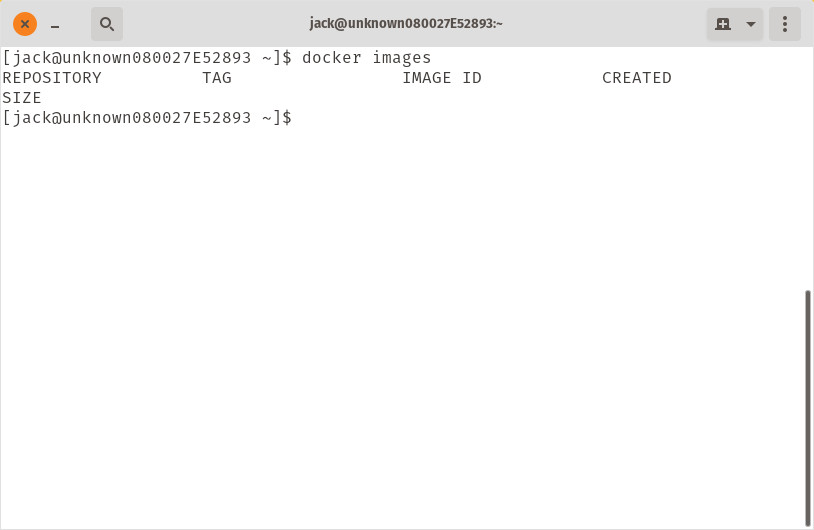
If you issue the command docker images (which is the command to list any available images found on the system), you’ll not only see Docker is working, but currently has no available images (Figure B).
Docker is up and running, but contains no images.
If you want to pull the NGINX image from Docker Hub, issue the command:
docker pull nginx
Issue the docker images command again and you’ll see the newly pulled image available (Figure C).
The NGINX image is ready to be used for container deployment.
Installing Docker on Ubuntu Server is actually quite a bit easier. Since Docker is found in the standard repository, all you have to do is log into your Ubuntu Server and issue the command:
sudo apt-get install docker.io -y
The above command will install all necessary dependencies for Docker to run. Once that completes, enable and start the docker service with the commands:
sudo systemctl enable docker

sudo systemctl start docker
Finally, add yourself to the docker group with the command:
sudo usermod -aG docker $(whoami)
Log out of the server and log back in. You can now issue the same commands as you did on CentOS 7. List available images with the command:
docker images
As expected, you’ll see no images listed (Figure D).
No images are available yet to Ubuntu Server.
Pull the NGINX image down with the command:
docker pull nginx
Once the image is downloaded, issue the docker images command again to see it listed (Figure E).
The NGINX image available on Ubuntu Server.
And that’s how you install Docker on both CentOS 7 and Ubuntu Server 18.04. In our next installation of this series, we’ll learn how to deploy a container, using the NGINX image pulled from Docker Hub.