|
VOOZH | about |
|
VOOZH | about |
We’re so glad you’re here. You can expect all the best TNS content to arrive Monday through Friday to keep you on top of the news and at the top of your game.
Check your inbox for a confirmation email where you can adjust your preferences and even join additional groups.
Follow TNS on your favorite social media networks.
Become a TNS follower on LinkedIn.
Check out the latest featured and trending stories while you wait for your first TNS newsletter.
I occasionally need to copy files between computers on my local network. It might be sound files for my robotic skull’s voice (on a Raspberry Pi), screenshot graphics captured for a tech article or any number of text configuration files. Since all my machines are Linux based, the easiest way to do it is with the scp command. scp stands for secure copy.
scp is part of the SSH family of remote network access services, native to Linux/Unix operating systems. If ssh is installed, you’ll probably already have scp as well. We discussed working with ssh in a recent TNS article. To use scp you simply need to have an operational ssh server on your remote machine and an ssh client running on the machine you are using, such as your Linux notebook.
scp on the open internet works fine, since ssh works there too, considering the above-mentioned requirements. I used to scp files from my Linux notebook up to my GoDaddy web site. Even though scp is hardened and encrypted be sure to practice appropriate security measures when venturing past the safety of your firewalled local-area network.
Today, we’ll look at using scp to copy files from one machine to another on a local network.
Using scp requires an ssh server on one end and an ssh client on the other end. Many of my Raspberry Pi-based projects have the ssh server set up for automatic operation after boot-up. That way, I only need an ssh client on my Linux notebook when I want to transfer some files.
I normally don’t run the ssh server on my everyday ASUS Linux notebook because it takes up computing resources and I don’t want anybody to be able to ssh into my machine. The ssh-client software is installed and I usually connect to other machines FROM the notebook.
After making sure the ssh server is running on your remote machine, you should also note its IP address. You’ll need that over on your local machine to connect using scp. Use the ifconfig command on the remote machine to get the IP address. If the remote machine is on wifi use the IP address for the wlan0 interface. A wired connection will have an IP address for the eth0 interface, which likely has a faster transfer speed. You can also use the ip command with the a option.
pi@raspberrypi: ifconfig
Here’s what the ifconfig command returns on one of my Raspberry Pi projects.
If you need to load the ssh client (scp included) on your local (my Linux notebook) machine use apt-get at the command line.
rob@rob-N80Vm:~$ sudo apt-get install ssh-client
Once the ssh client software is installed you can use the scp command to connect and transfer files to/from the remote machine (the Raspberry Pi running the ssh server).
The basic form of the command isscp, the source file name, then the destination file name. Here is an example.
rob@rob-N80Vm:~$ scp robnet.htm pi@192.168.1.101:/home/pi/robnet.htm
In this case, robnet.htm is a local HTML file I use for my home page and the remainder is the fully qualified file name on the destination Raspberry Pi.
Notice the destination used includes a user name, pi and the IP address of the destination machine. Notice I’m using the eth0 or “wired” connection. I also used the pathname with directories explicitly spelled out. Enter the password for the user (in this case pi) when prompted.
You can use the full pathname in the source reference if you like. Since I frequently copy several files at a time, it usually makes sense to just cd over to the source directory and then not include it in the command. scp will look for the source file in your current directory. If you get a “can’t find the file” error make sure you are in the right directory and that everything is spelled correctly. Using command line history and cutting/pasting commands helps tremendously with your typing accuracy and speed of use.
Copying from the remote machine to your local notebook is just as easy. Simply flip the source and destination references.
rob@rob-N80Vm:~$ scp pi@192.168.1.101:/home/pi/robnet.htm robnet.htm
Keep in mind that scp overwrites files during the process. You won’t get a warning, so be careful. This is influenced by local file permissions. For example, if the local robnet.htm is read-only it won’t be overwritten and will return a “permission denied” warning. The bottom line is to always stay focused and deliberate in your actions when working on the command line.
You can also copy files using wildcards such as the * symbol. At the command line, the * symbol means match anything.
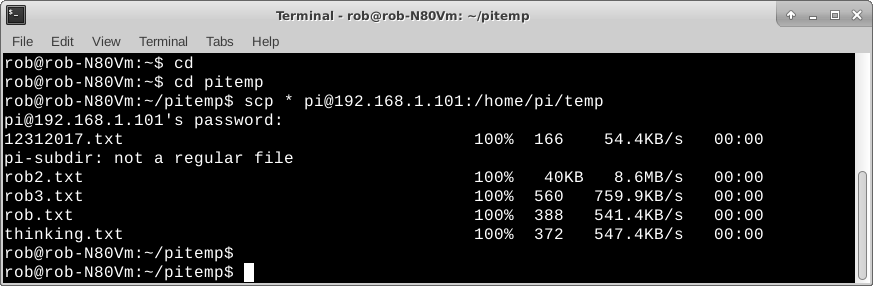
Say I have a small collection of files in the pitemp directory on my Linux notebook. I want to copy that collection over to the temp directory on a Raspberry Pi project. I could change directory to pitemp on the notebook and then do the scp to the Pi.
rob@rob-N80Vm:~$ cd

rob@rob-N80Vm:~$ cd pitemp

rob@rob-N80Vm:~/pitemp$ scp * pi@192.168.1.101:/home/pi/temp
Notice the error saying that pi-subdir is not a file. It is, in fact, a directory with some files inside. In this case, it isn’t included in the copy. We may only want to copy the files and not the files plus any lower-level directories.
For copying files, including any sub-directories, from one machine to another we use the -r command line option. Here we’ll refer to the files in the aforementioned pitemp directory on my Linux notebook.
rob@rob-N80Vm:~$ cd

rob@rob-N80Vm:~$ cd pitemp

rob@rob-N80Vm:~$ scp -r * pi@192.168.1.101:/home/pi/temp
We’ve seen how to copy files from one machine to another on a local network using scp. It works great for the occasional single or handful of files. Once you get beyond a dozen or so at a time or something with lots of individual files and/or directories, you probably should use tar to bundle everything up into one big file, then scp that over to the other machine. We covered using tar in a recent TNS story.
I think you’ll find scp a practical addition to your Linux command line toolbox.
Contact Rob “drtorq” Reilly for consultation, speaking engagements and commissioned projects at doc@drtorq.com or 407-718-3274.