Claude Code Plan Mode: The Complete Guide to Planning Before You Build
Plan Mode is Claude Code's secret weapon for complex projects. Learn why the future of AI-assisted development is 80% planning and 20% execution, and how to master the read-only mode that separates amateurs from pros.

The way we build software with AI is changing. Fast.
A year ago, developers would prompt an AI coding assistant and immediately start accepting file changes. Today, the best AI-assisted developers do something different. They plan first. They let the AI analyze, research, and map out the work before a single line of code gets written.
This shift isn't just a preference, it's becoming essential. As AI coding tools get more powerful (compare the leading AI code editors and you'll see the gap widen monthly), the cost of letting them run without direction increases. An AI that can modify 50 files in seconds can also break 50 files in seconds.
The developers seeing the best results have figured out the new ratio: 80% planning, 20% babysitting the AI during execution.
Related Course on Vibe Coding Academy
Master Course: Build and Ship a Production-Ready App with Lovable and Cursor
Claude Code Plan Mode is built for exactly this workflow. It's the feature that separates developers who use AI as a tool from developers who leverage AI as a thinking partner.
Key Takeaways
- Plan Mode is a read-only permission state in Claude Code where the AI can analyze codebases, search files, and create detailed plans, but cannot modify any files until you explicitly allow it.
- The best AI-assisted developers follow an 80/20 workflow: spending 80% of time planning (understanding requirements, mapping dependencies, identifying edge cases) and only 20% supervising code execution.
- Use Plan Mode for complex feature planning, codebase exploration, refactoring, security audits, and building custom commands, any scenario where analysis before modification prevents costly mistakes.
- Access Plan Mode instantly with Shift+Tab (press twice) or start sessions with `claude --permission-mode plan`, you can switch modes mid-conversation as your workflow requires.
- Unlike other AI coding tools, Claude Code enforces true read-only constraints at the tool level, not just as a suggestion, combined with deep analysis capabilities including web documentation fetching.
- The industry shift toward planning-first workflows appears across major tools (Cursor, Replit, Windsurf, GitHub Copilot Workspace), fast code isn't the bottleneck, correct code is.
Learn this hands-on
Become a 10x PM by learning how to use Claude Code in your daily work as a Product Manager, through 3 highly efficient live sessions of 1h30. Join the Claude Code for PMs live cohort.
👁 Claude Code for PMs live cohort session
What Is Claude Code Plan Mode?
Plan Mode is a permission state in Claude Code where the AI operates in read-only mode. Claude can analyze your entire codebase, search through files, ask clarifying questions, and create detailed implementation plans, but it cannot modify a single file.
Think of it as putting Claude in "architect mode." It can study the blueprints, walk through the building, and draft renovation plans. But it cannot pick up a hammer until you explicitly allow it.
What Claude Can Do in Plan Mode
- Read files: Full access to view any file in your project
- Search code: Use Glob patterns and Grep searches to find anything
- Analyze architecture: Map dependencies, trace data flows, identify patterns
- Create plans: Write detailed, step-by-step implementation strategies
- Ask questions: Gather requirements and clarify ambiguities with you
- Research: Use web search and documentation fetching for context
What Claude Cannot Do in Plan Mode
- Edit existing files
- Create new files
- Execute bash commands that modify state
- Run build tools, tests, or scripts
- Make any changes to your codebase whatsoever
This constraint is the point. Plan Mode forces both you and Claude to think before acting.
Understanding All Claude Code Modes
Plan Mode is one of several permission modes in Claude Code. Here's a quick overview of all available modes:
| Mode | Indicator | Behavior |
|---|---|---|
| Interactive Mode | (default) | Claude asks for confirmation before each change |
| Plan Mode | ⏸ plan mode on | Read-only analysis, no modifications allowed |
| Auto-Accept Mode | ⏵⏵ accept edits on | Claude makes changes without asking (YOLO mode) |
Each mode serves a different purpose. Plan Mode for research and strategy. Auto-Accept for trusted, repetitive tasks. Interactive for balanced control.
If you're brand new to the tool, start with our Claude Code tutorial for a step-by-step setup walkthrough before going deeper on Plan Mode.
How to Activate Claude Code Plan Mode
There are four ways to activate plan mode in Claude Code:
- Press Shift+Tab twice mid-session to toggle into plan mode from any prompt.
- Type
/planat the start of your prompt to enter plan mode for that turn. - Start the session with
claude --permission-mode planto default every prompt to plan mode. - Use headless plan mode:
claude --print --permission-mode plan "your task"for scripted/CI workflows.
When to Use Claude Code Plan Mode
Plan Mode is useful whenever you want Claude to analyze without modifying. But there are specific scenarios where it becomes indispensable.
When Claude Nails It on the First Try
Sometimes you give Claude a clear task, and it delivers a perfect plan immediately, no follow-up questions needed. This happens when your request is specific enough and your codebase has clear patterns to follow.
Here's a real example. The task: add GitHub SSO alongside existing Google OAuth.
👁 Claude Code Plan Mode - Complete implementation plan
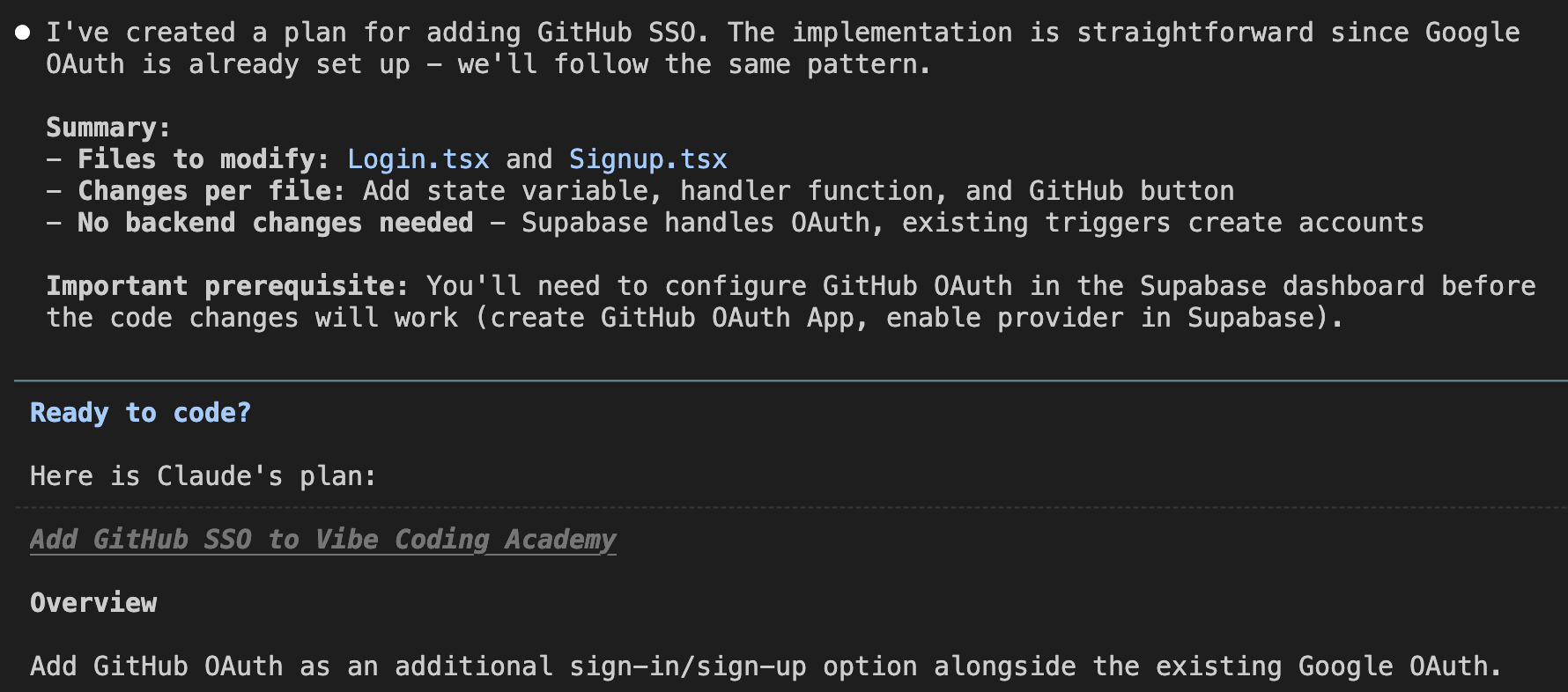
Claude analyzed the existing OAuth implementation, identified the pattern, and produced a complete plan. The summary includes:
- Files to modify: Login.tsx and Signup.tsx
- Changes per file: Add state variable, handler function, and GitHub button
- Backend changes needed: None (Supabase handles OAuth, existing triggers create accounts)
- Prerequisites: Configure GitHub OAuth App in Supabase dashboard
No clarification needed, it understood the scope immediately and presents verification steps before proceeding.
👁 Claude Code Plan Mode - Verification steps and options to proceed
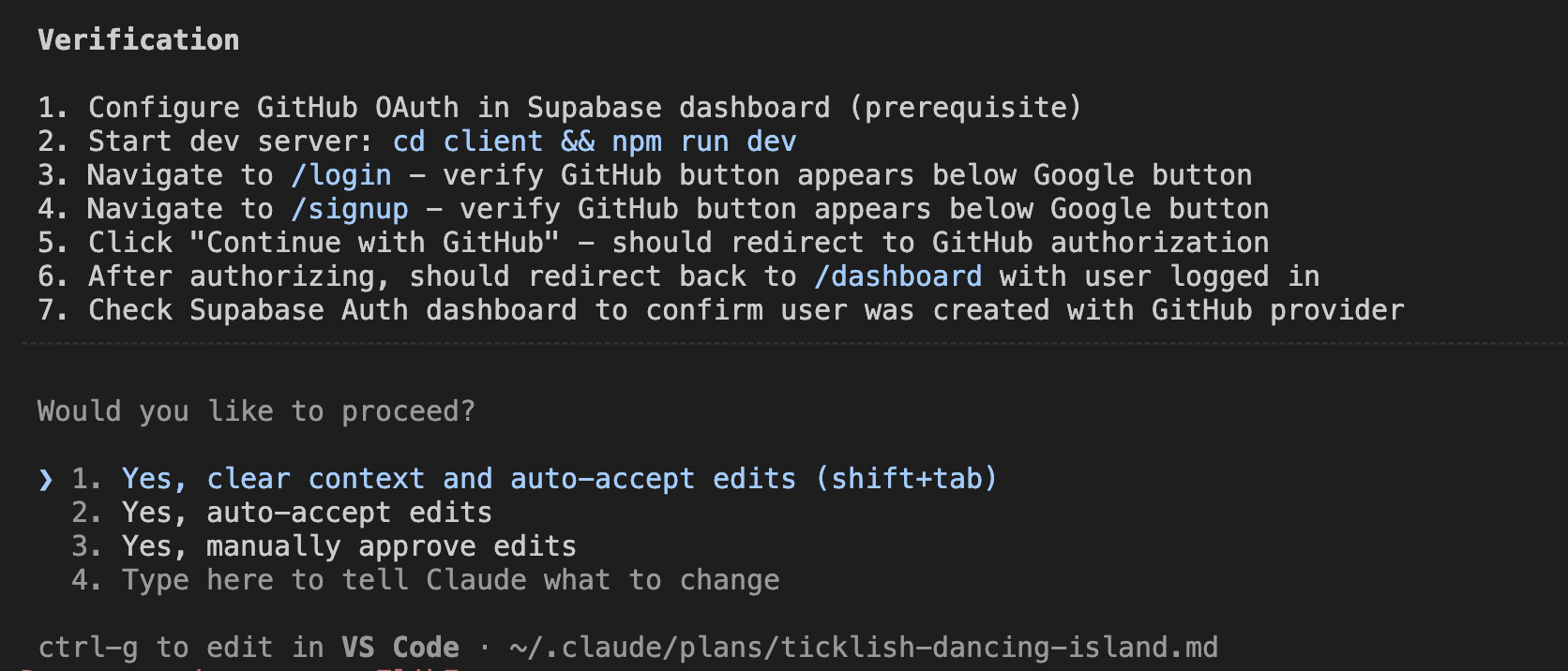
This is Plan Mode at its best, Claude researches your codebase, follows existing patterns, and delivers an actionable plan you can approve with confidence.
When Claude Needs to Ask Questions First
Not every task has a clear-cut solution. For complex features with multiple valid approaches, Claude uses Plan Mode to gather requirements before creating a plan. This interactive workflow ensures the final plan actually matches your needs.
Here's a real example: building a custom /seo command that generates SEO task suggestions.
👁 Claude Code Plan Mode - Domain question
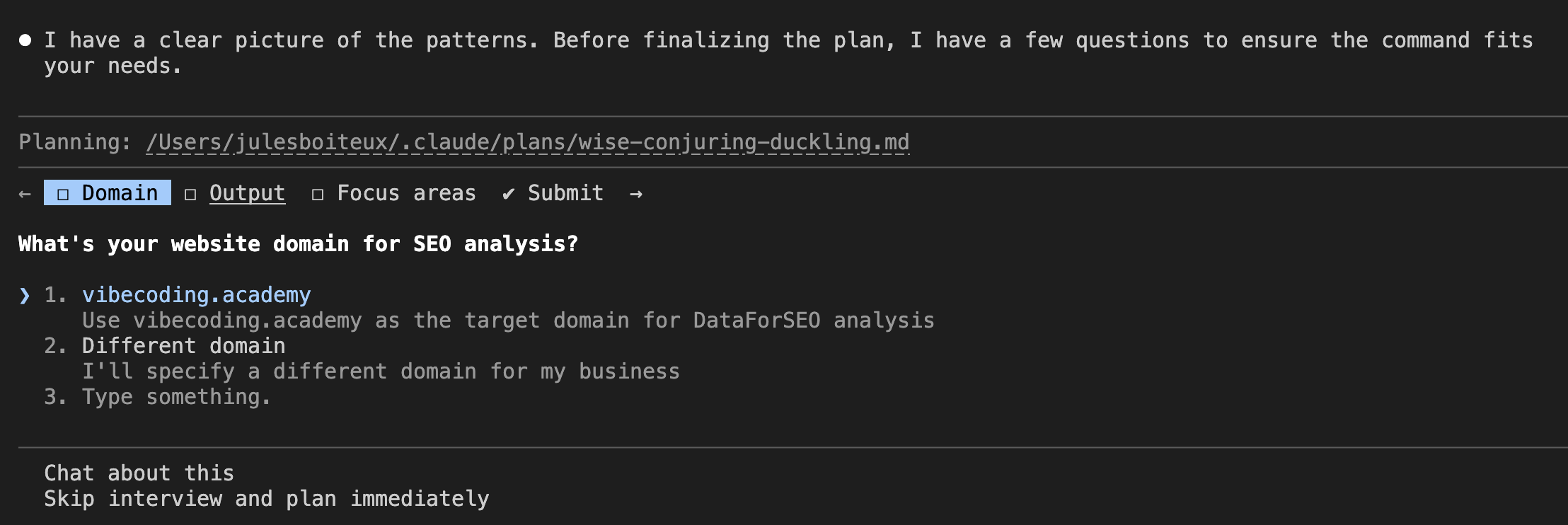
Claude starts by asking essential questions. First: "What's your website domain for SEO analysis?" It offers sensible defaults (it detected the project domain) but lets you specify something different.
👁 Claude Code Plan Mode - Output format question
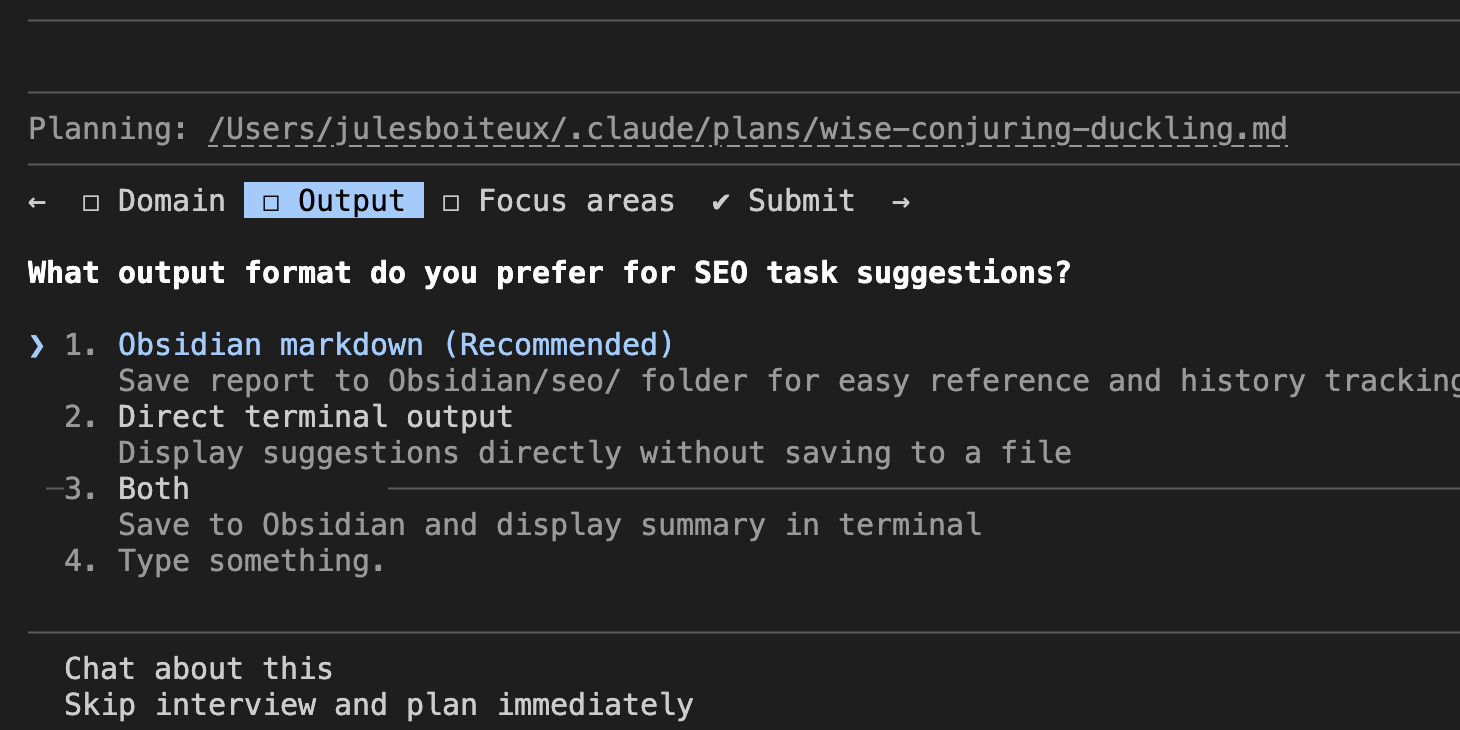
Next: "What output format do you prefer for SEO task suggestions?" The options include saving to Obsidian (recommended for history tracking), direct terminal output, or both. Claude even explains why each option makes sense.
👁 Claude Code Plan Mode - Review and submit
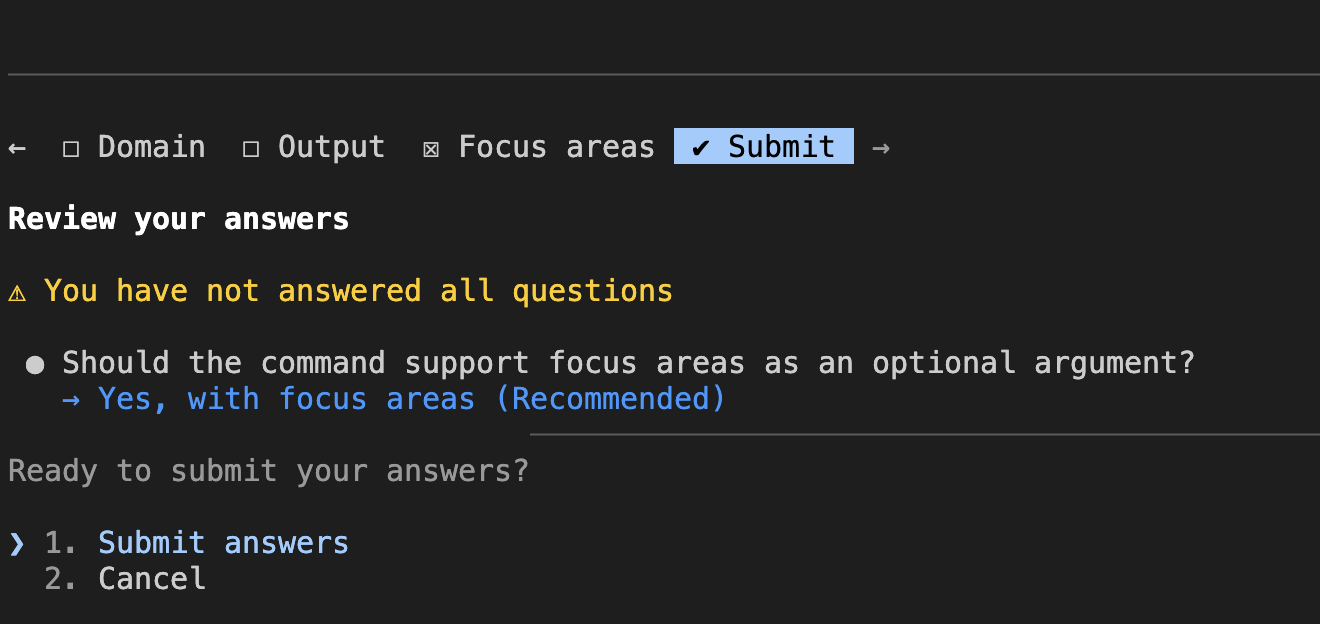
Finally, Claude asks about optional features, like whether the command should support focus areas as an argument, then presents a review screen before finalizing.
This multi-step interview ensures Claude builds exactly the command you need, not a generic one that misses your workflow.
Planning a New Feature (UX + Technical Discovery)
For more complex features where you need discovery first, Plan Mode shines even brighter. Before writing any code, you need to understand:
- UX implications: How will this feature affect the user experience? What screens need to change? What's the user flow?
- Technical scope: What files need modification? What dependencies exist? Are there potential conflicts with existing code?
Plan Mode lets you run a complete discovery phase with Claude as your research partner. You iterate on the plan, asking follow-up questions, refining scope, identifying edge cases, all before touching any code.
The result? When you finally exit Plan Mode and start building, you have a clear roadmap. No surprises. No "oh wait, I forgot about this component." Just focused execution.
Building Complex Custom Commands
Claude Code supports custom slash commands that can orchestrate complex workflows. But building these commands requires careful planning, especially when they need to coordinate multiple agents or execute multi-step processes.
Plan Mode is essential here because:
- You need to understand what agents are available and their capabilities
- You need to map out the orchestration logic before implementing it
- Mistakes in command design can cascade into broken workflows
Exploring Unfamiliar Codebases
Inherited a legacy project? Joining a new team? Plan Mode lets you explore without risk.
You can ask Claude to map out the architecture, explain how different modules connect, trace a request through the system, or identify where specific logic lives, all without any possibility of accidentally modifying something you don't understand yet.
Complex Refactoring and Migrations
Before refactoring authentication from sessions to JWT, before migrating from REST to GraphQL, before upgrading a major dependency, use Plan Mode to understand the full scope.
Claude can identify every file that needs to change, flag potential breaking changes, and create a phased migration plan. This preparation prevents the "refactor that never ends" scenario where you keep discovering new things that need to change.
Security and Code Audits
When reviewing code for vulnerabilities or compliance issues, you want analysis without modification. Plan Mode ensures Claude examines your code thoroughly but cannot introduce new code, intentionally or accidentally.
When to Use Plan Mode (Decision Matrix)
Not every task needs a plan. Use this quick reference to decide when Plan Mode pays off and when it just adds friction:
| Scenario | Use Plan Mode? |
|---|---|
| Multi-file refactor across 3+ files | Yes |
| Single-function bug fix | Skip it |
| Working in an unfamiliar codebase | Yes |
| Quick prototype / throwaway script | Skip it |
| Adding a new feature with multiple touchpoints | Yes |
| Renaming a variable or simple find/replace | Skip it |
| Architectural change (data model, auth, schema) | Yes |
| Iterating on UI copy or styles | Skip it |
The pattern: Plan Mode shines when scope is uncertain or change is wide. It gets in the way when the task is small, isolated, or trivially reversible.
How to Access Claude Code Plan Mode
Getting into Plan Mode is simple. You have several options depending on your workflow.
Keyboard Shortcut (Fastest)
Press Shift+Tab to cycle through permission modes:
| Press | Result |
|---|---|
| Shift+Tab once | Auto-Accept Mode (⏵⏵ accept edits on) |
| Shift+Tab twice | Plan Mode (⏸ plan mode on) |
| Shift+Tab again | Back to Interactive Mode |
This works mid-conversation. You can start exploring in Plan Mode, then switch to Interactive or Auto-Accept when you're ready to execute.
Command Line Flag
Start a session directly in Plan Mode:
claude --permission-mode plan
Or run a single query in Plan Mode (headless):
claude --permission-mode plan -p "Analyze the authentication system and create a security audit report"
Settings Default
If you prefer to always start in Plan Mode, add this to .claude/settings.json:
{
 "permissions": {
 "defaultMode": "plan"
 }
}
Pro Tip: Combine with Opus 4.5
For complex planning tasks, use Claude's most powerful model. The /model command lets you select "Use Opus 4.5 in plan mode, Sonnet 4.5 otherwise", giving you maximum reasoning power during planning and faster execution afterward.
Best Practices for Plan Mode
1. Be Specific About What You Want Planned
Vague prompts get vague plans. The more specific your request, the more likely Claude nails it on the first try, like in the GitHub SSO example above.
2. Iterate on the Plan
Plan Mode is conversational. Don't accept the first plan, refine it. Ask about edge cases, error handling, or alternative approaches.
3. Save Your Plans
Export important plans as Markdown files in your repository. They serve as:
- Implementation guides for the current task
- Documentation for future developers
- Reference material for similar future work
4. Set Clear Exit Criteria
Before leaving Plan Mode, ensure you have:
- A clear sequence of implementation steps
- All files that need modification identified
- Edge cases and error scenarios documented
- A testing strategy outlined
Is Plan Mode a Claude Code Specificity?
No, the industry has recognized that planning before execution is critical. Most major AI coding tools now offer some form of planning mode.
Cursor's Plan Mode
Cursor offers a planning feature through its Composer interface. When enabled, the AI researches your codebase and proposes a plan of changes before executing. You review the proposed modifications and can iterate on the plan before giving Cursor permission to proceed. It's particularly useful for multi-file refactors where you want to see the full scope before committing. Combine it with well-defined Cursor rules and the planner produces dramatically tighter scopes.
Replit Agent's Planning
Replit's AI agent includes built-in planning capabilities. Before making changes, the agent outlines what it intends to do and waits for confirmation. This is especially valuable in Replit's collaborative environment where changes affect shared workspaces and multiple team members.
Windsurf (Codeium) Cascade
Windsurf's Cascade feature includes a planning step called "Thinking." Before executing changes, it displays its reasoning and planned approach. Users can review this thinking process and redirect before any code is modified. The integration is seamless within their IDE experience.
GitHub Copilot Workspace
GitHub's Copilot Workspace takes planning further with a dedicated planning interface. It analyzes issues, creates a specification, generates an implementation plan, and only then proceeds to code generation. Each step is reviewable and editable, making it highly structured but potentially slower for quick tasks.
Aider's Architect Mode
Aider, the popular open-source AI coding tool, offers an "architect" mode that separates planning from implementation. In this mode, a more capable model creates the plan, then a faster model executes it, similar to how you might use Opus 4.5 for planning and Sonnet for execution in Claude Code.
What Makes Claude Code Different
Claude Code's Plan Mode stands out for several reasons:
- Depth of analysis: Claude can search your entire codebase, fetch web documentation, and synthesize information from multiple sources during planning
- True read-only enforcement: Not just a suggestion, Claude literally cannot modify files in Plan Mode. The constraint is enforced at the tool level
- Seamless mode switching: Shift+Tab lets you move between planning and execution fluidly within the same conversation
- Agent orchestration: Plan Mode works with Claude's managed agents, letting you plan complex multi-agent workflows before execution
The 80/20 Future of AI Development
The developers getting the most from AI coding tools have internalized a new workflow:
80% of the work happens in planning. This includes:
- Understanding requirements deeply
- Mapping the codebase and dependencies
- Identifying edge cases and potential issues
- Creating detailed implementation plans
- Validating the approach before writing code
20% is babysitting execution. Once the plan is solid:
- Switch out of Plan Mode
- Let Claude execute the plan
- Review changes as they happen
- Handle unexpected issues as they arise
This ratio might seem counterintuitive. Why spend so much time planning when AI can write code so fast?
Because fast code isn't the bottleneck. Correct code is. The time you save by letting AI write code quickly is lost many times over when that code is wrong, incomplete, or breaks something unexpected.
Plan Mode enforces the discipline that produces better outcomes: think first, build second.
Frequently Asked Questions
What is Claude Code Plan Mode?
Claude Code Plan Mode is a read-only exploration phase where Claude analyzes your codebase, drafts a step-by-step plan, and waits for your approval before writing any code. It separates thinking from doing.
How do you activate Plan Mode in Claude Code?
Press Shift+Tab twice mid-session, type /plan in your prompt, or start the session with claude --permission-mode plan for default-on behavior.
What is the difference between Plan Mode and Auto-Accept Mode?
Plan Mode pauses for human approval before making any changes. Auto-Accept Mode skips the approval step and applies edits as soon as Claude generates them. Plan Mode is safer for refactors; Auto-Accept is faster for trivial tasks.
What is ultraplan in Claude Code?
Ultraplan is an extended planning workflow introduced in April 2026 that runs deeper context analysis and produces a more granular plan. It is invoked by adding /ultraplan instead of /plan, and trades latency for plan quality on complex multi-system tasks.
Does Plan Mode work with CLAUDE.md?
Yes. Plan Mode reads CLAUDE.md as part of its context-gathering phase, so the conventions, constraints, and architectural notes you put there directly shape the plan Claude proposes.
What's the best Claude model for Plan Mode?
For planning and complex architectural decisions, Claude Opus 4.5 provides the deepest reasoning. For execution and general coding tasks, Claude Sonnet 4.5 offers the best balance of speed and capability. Use /model to switch between them, or configure "Use Opus 4.5 in plan mode, Sonnet 4.5 otherwise" for the best of both.
Can I set Plan Mode as my default?
Yes. Add "defaultMode": "plan" to your permissions in .claude/settings.json. This starts every session in Plan Mode, useful if you prefer the "plan first" workflow.
Does Plan Mode work with custom commands?
Yes. Plan Mode is especially valuable when designing custom commands that orchestrate complex workflows. Use it to plan the command structure, identify required agents, and map out error handling before implementation.
Conclusion
The AI coding landscape is maturing. The era of "prompt and pray", asking AI to write code and hoping for the best, is ending. The developers who thrive with AI tools are the ones who've learned to plan first.
Claude Code Plan Mode isn't just a safety feature. It's a workflow enabler. It creates space for thinking, researching, and strategizing before a single line of code changes.
Try it on your next feature. Before you ask Claude to build anything, enter Plan Mode and ask it to plan. Map out the UX implications. Identify the technical scope. Create a step-by-step implementation guide.
Then, when you're confident in the plan, switch modes and watch Claude execute with precision.
That's the 80/20 future. And it starts with Shift+Tab.