|
VOOZH | about |
|
VOOZH | about |
We offer easy, convenient returns with at least one free return option: no shipping charges. All returns must comply with our returns policy.
Learn more about free returns.| Brand | Motorola |
| Model Name | MG7550 |
| Special Feature | Beamforming, Wps |
| Frequency Band Class | Dual-Band |
| Wireless Communication Standard | 802.11ac, 802.11b, 802.11g, 802.11n |
| Compatible Devices | Smartphone, Tablet |
| Recommended Uses For Product | Security |
| Included Components | Cable, Power Adapter, Router, Tools, User Manual, Warranty |
| Connectivity Technology | Ethernet, Wi-Fi |
| Color | black |
| Other Special Features of the Product | Beamforming, Wps |
|---|---|
| Frequency Band Class | Dual-Band |
| Wireless Compability | 802.11ac, 802.11b, 802.11g, 802.11n |
| Compatible Devices | Smartphone, Tablet |
| Antenna Location | Security |
| Connectivity Technology | Ethernet, Wi-Fi |
| Antenna Type | Internal |
| Operating System | Linux |
| Security Protocol | WPA, WPA2 |
| Number of Ports | 4 |
| Control Method | App |
| Data Transfer Rate | 686 Megabits Per Second |
| LAN Port Bandwidth | 10/100/1000 megabits_per_second |
| Maximum Upstream Data Transfer Rate | 171 Megabits Per Second |
| Number of Antennas | 3 |
| Smart Home Compatibility | Smart Home Compatible |
| Wi-Fi Generation | Wi-Fi 4 |
| Has Internet Connectivity | Yes |
| Router Network Type | hybrid |
| Is Modem Compatible | Yes |
| Connectivity Protocol | Wi-Fi, Ethernet |
| Coverage | Great |
| Frequency | 5 GHz |
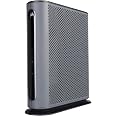
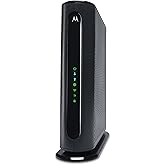
Motorola MG7550 16x4 Cable Modem Plus AC1900 Dual Band WiFi Gigabit Router with Power Boost and DFS, 686 Mbps Maximum DOCSIS 3.0 - Approved by Comcast Xfinity, Cox, Charter Spectrum, More (Black)
Share:
Found a lower price? Let us know. Although we can't match every price reported, we'll use your feedback to ensure that our prices remain competitive.
Fields with an asterisk * are required
| Brand | Motorola |
|---|---|
| Model Name | MG7550 |
| Built-In Media | Cable, Power Adapter, Router, Tools, User Manual, Warranty |
| Model Number | MG7550 |
| UPC | 855631006057 042822163211 042822162238 |
| Manufacturer | Motorola |
| Mfr Part Number | MG7550-10 |
| Item Type Name | Gateway Router |
| Unit Count | 1.0 Count |
| Warranty Description | 2 YEAR MANUFACTURER |
| Best Sellers Rank |
|
| ASIN | B01JGT2JI6 |
| Customer Reviews |
4.3 out of 5 stars |
| Item Weight | 2.65 Pounds |
|---|---|
| Item Dimensions L x W x H | 10.2"L x 2.8"W x 10.9"H |
| Color | black |
|---|
👁 Certified by Xfinity, Cox, and Spectrum.
Certified by Comcast Xfinity, Cox, Charter Spectrum, and other cable providers.*†
* Not compatible with Verizon, AT&T, CenturyLink, and other fiber optic, satellite, or DSL services.
† This cable modem/router does not have telephone jacks for the support of voice calls.
👁 Recommended for Comcast Internet speeds up to 300 Mbps.
For other service providers, supported service speeds are similar to Comcast.
👁 Man and woman playing video games.
The built-in router provides high-speed shared Internet access to smartphones, HDTVs, computers, tablets, game stations, streaming media devices, and other Ethernet and WiFi devices.
👁 MG7550 delivers extended WiFi range vs a standard router.
Power Boost technology amplifies the wireless signal to the limit set by the Federal Communications Commission (FCC) to deliver higher WiFi speeds and extend the WiFi range.
👁 MG7550 focuses wireless signal on wireless devices.
AnyBeam WiFi beamforming at 2.4 GHz and 5 GHz focuses the wireless signal on your wireless devices to further enhance wireless performance.
👁 MG7550 easy setup diagram: connect coax cable, power adapter, and WiFi.
Integrating the modem and router saves space, reduces wires and power cubes, and provides a single user interface.
|
MG7315
|
MG7540
|
MG7550
|
MG7700
|
MT7711
|
|
|---|---|---|---|---|---|
| Customer Reviews |
4.3 out of 5 stars 4,162
|
4.3 out of 5 stars 7,360
|
4.3 out of 5 stars 7,250
|
4.3 out of 5 stars 11,521
|
4.3 out of 5 stars 5,533
|
| Price | $159.99$159.99 | $199.71$199.71 | $119.00$119.00 | $207.99$207.99 | $48.99$48.99 |
| Product Type (This table only includes cable modems with a built-in WiFi router) | 8x4 Cable Modem plus N450 WiFi Router | 16x4 Cable Modem plus AC1600 WiFi Router | 16x4 Cable Modem plus AC1900 WiFi Router | 24x8 Cable Modem plus AC1900 WiFi Router | Cable Modem plus AC1900 WiFi Router plus Phone Service |
| DOCSIS 3.0 Channel Bonding | 8x4 | 16x4 | 16x4 | 24x8 | 24x8 |
| Certified for These Cable Internet Services. Typically Works with Many Others. | Comcast Xfinity, Cox, Spectrum, Sparklight (CableOne), WOW! | Comcast Xfinity, Cox, Spectrum, Sparklight (CableOne) | Comcast Xfinity, Cox, Spectrum, Suddenlink, WOW!, Sparklight (CableOne) | Comcast Xfinity, Cox | Comcast Xfinity (Exclusively for Xfinity, not other cable services.) |
| Recommended by Comcast Xfinity for Internet Service This Speed Tier or Below | 200 Mbps | 300 Mbps | 300 Mbps | 600 Mbps | 600 Mbps |
| Maximum Internet Download Speed (Actual speeds are lower) | 343 Mbps | 686 Mbps | 686 Mbps | 1000+ Mbps | 1000+ Mbps |
| Built-in WiFi Router | N450 3x3, Power Boost | AC1600 3x3 / 2x2, Dual Band, Beamforming, DFS | AC1900 3x3, Dual Band, Power Boost, Beamforming, DFS | AC1900 3x3, Dual Band, Power Boost, Beamforming | AC1900 3x3, Dual Band, Power Boost, Beamforming |
| WiFi Power Boost for Extended Range and Faster WiFi | Yes | No | Yes | Yes | Yes |
| Gigabit Ethernet Ports | 4 | 4 | 4 | 4 | 4 |
| Telephone Ports (for Xfinity Voice) | No | No | No | No | Yes |
| Is There a No-Router Version of This Product? | Yes, MB7220 (8x4 Cable Modem) | Yes, MB7420 (16x4 Cable Modem) | Yes, MB7420 (16x4 Cable Modem) | Yes, MB7621 (24x8 Cable Modem) | Yes, MB7621 (24x8 Cable Modem) |
For over 40 years, people have welcomed Motorola Network into their homes, and we don’t take that lightly.
We’ve combined our class-leading hardware with intelligent software to deliver the ultimate connected experience for all.
Customer Reviews, including Product Star Ratings help customers to learn more about the product and decide whether it is the right product for them.
To calculate the overall star rating and percentage breakdown by star, we don’t use a simple average. Instead, our system considers things like how recent a review is and if the reviewer bought the item on Amazon. It also analyzed reviews to verify trustworthiness.
Learn more how customers reviews work on AmazonReplacing a rented Comcast/Xfinity cable-modem/router with this Motorola 16x4 AC1900 WiFi cable-modem/router saves $14 per month and provides improved WiFi coverage and download speeds. It was also relatively easy to install using the provided instructions and the smart-phone app provided by Comcast/Xfinity.
After almost four years of renting a relatively old Comcast/Xfinity cable-modem/router, rental fees totaled more than $500. I purchased this Motorola cable-modem/router for $116 during a lightning deal. This cost will be recovered after 9 months. The 5 GHz band provided equivalent nearby WiFi download speeds (273 Mbps), improved speeds two rooms away (77 Mbps), and actually reached a far-away bedroom that the prior cable-modem/router did not. I already have a TP-Link AX1500 booster which I still needed and now have the highest WiFi download speeds I have ever seen (67 Mbps) from the farthest corner of my house. This required changing the booster to use the 5 GHz band from the new cable-modem/router and using its 5 GHz output band. Download speeds were measured using one of our Windows laptops.
It was relatively easy to install the new Motorola cable-modem/router. The instructions that came in the package were clear and easy to follow except that Comcast/Xfinity now has an easy-to-use app that you must download to a smartphone to activate your own personal router.
The steps I followed were as follows.
1. Connect my laptop to the Motorola cable-modem/router with the provided ethernet cable to personalize the WiFi network name (SSID) and security keys. For me, I kept the existing SSID and security key for the 2G WiFi band and created a new network name (with ”5G” at the end) and password for the 5G band. This means that devices using the old 2G WiFi network could still work without changes but that the new 5G WiFi network could be used to provide greater download speeds for some devices such as laptops and smartphones. The instructions provided describe how this is done.
2. Connect the Motorola cable-modem/router to the internet cable, provide power, and turn it on. I downloaded the Xfinity app to my Android smartphone, ran it, and followed instructions. You need to provide your cell-phone number to confirm your Xfinity login, enter an identification number from the bottom of the Motorola cable-modem/router and then wait for it to upload software and reboot. You now have WiFi from your personal router. This new device worked fine for all our laptops, smart Android phones, OBi200 VoIP phone adapter, thermostat, and other small devices. The photograph shows the new cable-modem/router with the OBi200 plugged it to provide phone service using Google Voice.
3. Log into the Motorola cable-modem/router using the provided default username and password and change the username and password for security to make them more difficult to guess.
4. Package the old Comcast/Xfinity router carefully in a cardboard box and take it to a UPS store to ship using the UPS pre-paid mailing label from Comcast/Xfinity that you can print yourself.
5. I had added a new WiFi network name for the new 5G band as described in (1) because it provided much better coverage and download speeds. This required changing the WiFi network name and security keys on our laptops, smartphones, and the WiFi booster to take advantage of the new 5G band. I kept the old network name active so I wouldn't have to change small internet-enabled devices such as a thermostat, water flow monitor, and numerous Raspberry Pi’s used for teaching.
Replacing a rented Comcast/Xfinity cable-modem/router with this Motorola 16x4 AC1900 WiFi cable-modem/router saves $14 per month and provides improved WiFi coverage and download speeds. It was also relatively easy to install using the provided instructions and the smart-phone app provided by Comcast/Xfinity.
After almost four years of renting a relatively old Comcast/Xfinity cable-modem/router, rental fees totaled more than $500. I purchased this Motorola cable-modem/router for $116 during a lightning deal. This cost will be recovered after 9 months. The 5 GHz band provided equivalent nearby WiFi download speeds (273 Mbps), improved speeds two rooms away (77 Mbps), and actually reached a far-away bedroom that the prior cable-modem/router did not. I already have a TP-Link AX1500 booster which I still needed and now have the highest WiFi download speeds I have ever seen (67 Mbps) from the farthest corner of my house. This required changing the booster to use the 5 GHz band from the new cable-modem/router and using its 5 GHz output band. Download speeds were measured using one of our Windows laptops.
It was relatively easy to install the new Motorola cable-modem/router. The instructions that came in the package were clear and easy to follow except that Comcast/Xfinity now has an easy-to-use app that you must download to a smartphone to activate your own personal router.
The steps I followed were as follows.
1. Connect my laptop to the Motorola cable-modem/router with the provided ethernet cable to personalize the WiFi network name (SSID) and security keys. For me, I kept the existing SSID and security key for the 2G WiFi band and created a new network name (with ”5G” at the end) and password for the 5G band. This means that devices using the old 2G WiFi network could still work without changes but that the new 5G WiFi network could be used to provide greater download speeds for some devices such as laptops and smartphones. The instructions provided describe how this is done.
2. Connect the Motorola cable-modem/router to the internet cable, provide power, and turn it on. I downloaded the Xfinity app to my Android smartphone, ran it, and followed instructions. You need to provide your cell-phone number to confirm your Xfinity login, enter an identification number from the bottom of the Motorola cable-modem/router and then wait for it to upload software and reboot. You now have WiFi from your personal router. This new device worked fine for all our laptops, smart Android phones, OBi200 VoIP phone adapter, thermostat, and other small devices. The photograph shows the new cable-modem/router with the OBi200 plugged it to provide phone service using Google Voice.
3. Log into the Motorola cable-modem/router using the provided default username and password and change the username and password for security to make them more difficult to guess.
4. Package the old Comcast/Xfinity router carefully in a cardboard box and take it to a UPS store to ship using the UPS pre-paid mailing label from Comcast/Xfinity that you can print yourself.
5. I had added a new WiFi network name for the new 5G band as described in (1) because it provided much better coverage and download speeds. This required changing the WiFi network name and security keys on our laptops, smartphones, and the WiFi booster to take advantage of the new 5G band. I kept the old network name active so I wouldn't have to change small internet-enabled devices such as a thermostat, water flow monitor, and numerous Raspberry Pi’s used for teaching.
Super easy to setup. One call with Xfinity and up and running. Reboots faster than Xfinity's modem. Great way to save money.
This is definitely a top tier router/modem/gateway, and should be forward compatible with any cable service. The included wi-fi router is fast and strong. The unit itself is well built and the front panel indicators are clear. It may be larger than what you like if it's going on your desk, but it's relatively attractive and stable when standing vertically.
There are only four wired Ethernet connections on the back, rather than the usual five. I used three right away for a fairly simple home network and computer shop.
The paper documentation provided in the package is scant; beyond a quick-start guide telling you how to get it connected and how to get into the GUI , you're on your own with the rest of the settings. The GUI does help a bit further, but unless there's a guide to download you might be doing some Googling to learn how to use all the settings.
The settings themselves aren't organized as intuitively as I've seen in other routers, and lack some granularity. For instance, you are stuck with assigning a password to your wifi network, regardless of what security settings you use. It's true enough that a password SHOULD be used, but there's no option whether or not to do so.
It's still a great router, even the cable installer remarked favorably on it. But if you're a newbie to setting up routers, you might be in for a headache.
There is a reason why this router gets such high reviews. It is a well-made (mine was made in America, by the way, although some others report other manufacturing locales), well-operating router/wireless combination that ticks off all the boxes. I switched to this router from the router I was renting from my cable provider because the wireless on that system (an Arris router less than three years old) was so poor and undependable that it was causing all kinds of problems. When I connected this unit and got it initialized, the entire house could easily pick up the wireless signal, and transfer rates were significantly improved.
Set up was a breeze. I simply plugged it into a/c power, connected my cable line to it, and turned it on. After waiting about five minutes or so, I connected a computer directly to the router with an Ethernet cable, and when I opened up a browser, it automatically took me to my cable company's activation page. I logged in to my cable company's page, and that activated the unit. From that point on, I was connected to the Internet via the router.
The only next step was to set up a wireless network, which was also easy. I used the web browser again, went to the router's address (given on the instructions page) logged in with the default credentials (also on the login page), and named a new wireless network with a password, selected "save," and that was it!
Here's a neat little trick. You can easily set up two wireless networks, one at 2.4GHz and one at 5.0GHz. If you put "2.4" and "5.0" at the end of the name of each of the two networks, you can easily log into the wireless system of your choice. (2.4GHz networks are sometimes impacted by microwave ovens, etc., so it's nice to have a separate 5.0GHz network set up separately: so, if you set up two wireless networks with different names, one ending in "2.4" and the other ending in "5.0," doing so FORCES your client, i.e, the computer or tablet, etc., to connect at 5.0GHz if you select that network. Nifty!) You can set individual specifications (bandwidth, power, etc.) for each wireless network once you have the networks established.
That leads me to another thing about this router that is very nice. The web interface on this router is actually pleasant to look at and is laid out so that you don't have to be a networking expert to customize settings. There is help available for most every setting, and if you hover your mouse over an option, a pop-up window comes up and explains the setting. Really, really nice touch. The interface makes it a pleasure to use, the first time I can ever say that of a router, and I've set up plenty of them over the years. It makes the Arris router I was using look like it came from the Stone Age.
So, great wireless coverage, lots of options, wonderful interface with built-in help make this easily a five-star rating. It is well worth what it costs!
For years I have been saying that I would invest in my own modem because "renting" one just seemed like a money grab. Anywho, Xfinity increased the equipment rental fee and that was enough for me...amongst a few other things. My hesitation was always service disruptions and/or incompatibility, but again I was ready to take on that risk. Fast forward to this device. The installation is the EXACT same as my current (now former) modem which is the power cord and and COAX cord, so as long as you know how to plug in two things, you're fine. I've always elected self-installation with Xfinity so that's why I was comfortable with the process. You don't need to be a tech to plug in two cords, LOL!
ACTIVATION---That's where I was also nervous, but the process ended up being quick and smooth. I had to download the Xfinity app on my phone and follow the instructions for activating a new device. It took maybe 5 minutes for the activation process and all I had to do was input one of the codes from the new modem. I took a pic of the codes because everything is located on the bottom and I didn't want to have to lift it up while inputting. There was also an option to scan the QR code, but I only saw bar codes. (It may have worked either way, but again I only had to input one thing so no biggie). The instructions even said that the modem would restart and then be ready to go, which it did twice and I was up and running.
Added perk--I liked being able to change the network (modem) name as well as the password. Xfinity always "forced" me to do it, which is my preference anyway, but glad to know I had the option with this new modem. It's not apart of the installation, but is included in the guide with the modem. Note: Once you change the password, you'll be knocked offline so you'll have to reconnect with the new password. Common sense isn't so common so that's why I said that. LOL
So far the speed has been fine. I just set it up about 2 hours ago and I have connected 4 out of 6 devices with no lags/issues. If I ever run into major problems, I'll provide an update.
Also, it is more lightweight and the cord is much shorter. I was able to put in the same place, but keep that in mind and/or you may need an extension cord.
Last but not least, I almost opted for something cheaper, but I saw in the comments that it was just the modem and not a router(?), so I ended up getting this one because I needed it to get Wifi and didn't want to have to buy multiple devices.
There is a huge hole in the security of this modem, wherein during provisioning the ISP can change the default (factory-reset) admin password, thus disallowing you access to its configuration settings. Motorola customer support is well aware of the issue and even knew exactly what my ISP had changed the admin password to ("badjuju9" for all the Metrocast users out there). Motorola's excuse is that they need to provide the ISP with access to the firmware during provisioning, which makes some sense. However, the default admin password should be stored in read-only memory, which should be accessed when the modem is hard/factory reset (by holding down the reset button for 10 seconds). As it exists, a factory reset only resets the password to the ISP-modified value. Yes, my ISP deserves ire for their actions, but Motorola also deserves criticism for enabling ISPs to hijack their customers' personal property by means of their slipshod firmware security.
Had Motorola customer support not already known what my ISP changed the default password to from prior experiences with my ISP (my ISP would not acknowledge to me that they had changed it, let alone tell me what they had changed it to), I would have been unable to configure my modem's security settings. This would have left me wide-open to attacks by not being able to change default wifi passwords, enable MAC-filtering, access firewall settings, etc. Furthermore, should my ISP feel like it, they can still re-provision my modem at any time, altering the default admin password to some unknown value, and essentially brick my modem - at least as far protecting my security goes.
I realize that there may be instances when entities want to change what the default factory-reset admin password is, such as when employees who have physical access to the modem should not be allowed to arbitrarily reset the password. That is a rare situation, and does not apply to most end-users of this product (maybe it's an option to consider in a high-end commercial model, not this consumer model). However if that is a required feature, then altering the default factory-reset admin password should also require physical access to the modem. In order to avoid abuses and security issues, it should not be possible to remotely alter said password, especially from outside the device's local intranet.
Called Xfinity to switch to this modem/router from my failing equipment, which took a few minutes. Then I went onto the Motorola modem page and changed my modem name and password, along with some necessary remote access codes for my sec cams. Seems to deliver quick response internet but I may be over excited just because my internet doesn't lose connection multiple times daily anymore because of 10 y/o equipment. This seems like solid equipment but I've only had it for 1 week so far.
Had to replace my aging Net Gear. This is the first time I have used Motorola, and i am very pleased so far. It connected quickly and has a strong signal. Things seem to be a little faster also.