👁 announcement - icon
If you're working on a Spring Security (and especially an OAuth) implementation, definitely have a look at the Learn Spring Security course:
>> LEARN SPRING SECURITY |
VOOZH | about |
Mocking is an essential part of unit testing, and the Mockito library makes it easy to write clean and intuitive unit tests for your Java code.
Get started with mocking and improve your application tests using our Mockito guide:
Handling concurrency in an application can be a tricky process with many potential pitfalls. A solid grasp of the fundamentals will go a long way to help minimize these issues.
Get started with understanding multi-threaded applications with our Java Concurrency guide:
Spring 5 added support for reactive programming with the Spring WebFlux module, which has been improved upon ever since. Get started with the Reactor project basics and reactive programming in Spring Boot:
Since its introduction in Java 8, the Stream API has become a staple of Java development. The basic operations like iterating, filtering, mapping sequences of elements are deceptively simple to use.
But these can also be overused and fall into some common pitfalls.
To get a better understanding on how Streams work and how to combine them with other language features, check out our guide to Java Streams:
Get started with Spring and Spring Boot, through the Learn Spring course:
>> LEARN SPRINGExplore Spring Boot 3 and Spring 6 in-depth through building a full REST API with the framework:
Yes, Spring Security can be complex, from the more advanced functionality within the Core to the deep OAuth support in the framework.
I built the security material as two full courses - Core and OAuth, to get practical with these more complex scenarios. We explore when and how to use each feature and code through it on the backing project.
You can explore the course here:
Spring Data JPA is a great way to handle the complexity of JPA with the powerful simplicity of Spring Boot.
Get started with Spring Data JPA through the guided reference course:
Refactor Java code safely — and automatically — with OpenRewrite.
Refactoring big codebases by hand is slow, risky, and easy to put off. That’s where OpenRewrite comes in. The open-source framework for large-scale, automated code transformations helps teams modernize safely and consistently.
Each month, the creators and maintainers of OpenRewrite at Moderne run live, hands-on training sessions — one for newcomers and one for experienced users. You’ll see how recipes work, how to apply them across projects, and how to modernize code with confidence.
Join the next session, bring your questions, and learn how to automate the kind of work that usually eats your sprint time.
In this tutorial, we’ll be setting up SAML2 with Spring Boot. SAML is a long-trusted technology for implementing secure applications. Setting up SAML requires configurations of multiple parties, hence making the process somewhat complex. We have to move back and forth a few times between our Service Provider and Identity Provider, so it requires patience as we follow a step-by-step guide. Let’s dive into each of the steps to create our working app.
In our case, the Spring Boot application is our Service Provider. Let’s set up a Spring Boot app with Spring Security, Spring MVC, and OpenSAML dependencies. A key dependency is Spring Security SAML2. The new SAML2 support in the Spring Security framework is provided via a single dependency:
<dependency>
 <groupId>org.springframework.security</groupId>
 <artifactId>spring-security-saml2-service-provider</artifactId>
</dependency>Let’s now add the necessary configurations for SAML2 in our application.yml. The most important configuration is the metadata from the Identity Provider. Although we’ve added the metadata-uri to our configurations for completion, at this moment, it isn’t available yet:
spring:
 security:
 saml2:
 relyingparty:
 registration:
 okta:
 signing:
 credentials:
 - private-key-location: classpath:local.key
 certificate-location: classpath:local.crt
 singlelogout:
 binding: POST
 response-url: "{baseUrl}/logout/saml2/slo"
 assertingparty:
 metadata-uri: "classpath:metadata/metadata-idp.xml"
The singlelogout configuration defines the endpoint where our Identity Provider will redirect after successful logout. Furthermore, the signing credentials configuration adds the key and the certificate that our app will use to sign the logout request to the Identity Provider. We use the OpenSSL tool to generate the local.key and local.crt files:
openssl req -newkey rsa:2048 -nodes -keyout local.key -x509 -days 365 -out local.crtIn this step, let’s add a security filter to our filter chain. This filter adds the Identity Provider metadata to our security context. In addition to this, let’s also add saml2Login() and saml2Logout() method calls on our http object to enable login and logout, respectively:
Saml2MetadataFilter filter = new Saml2MetadataFilter(relyingPartyRegistrationResolver, new OpenSamlMetadataResolver());

http.csrf(AbstractHttpConfigurer::disable).authorizeHttpRequests(authorize -> authorize.anyRequest()
 .authenticated())
 .saml2Login(withDefaults())
 .saml2Logout(withDefaults())
 .addFilterBefore(filter, Saml2WebSsoAuthenticationFilter.class);

return http.build();
We’re using the withDefaults() method to configure the default behaviors for saml2Login and saml2Logout. This is the real power of using the Spring Boot platform. Only a few lines of code complete all our SAML2 application setup. Next, we’re going to set up our Identity Provider in Okta.
In this step, let’s set up Okta as our Identity Provider. The Identity Provider is the party that authenticates our users and generates a SAML assertion as a result. Then, this SAML assertion is communicated back to our User Agents. The User Agents present this SAML assertion to the Service Provider for authentication. The Service Provider verifies it from the Identity Provider and allows the users to access its resources.
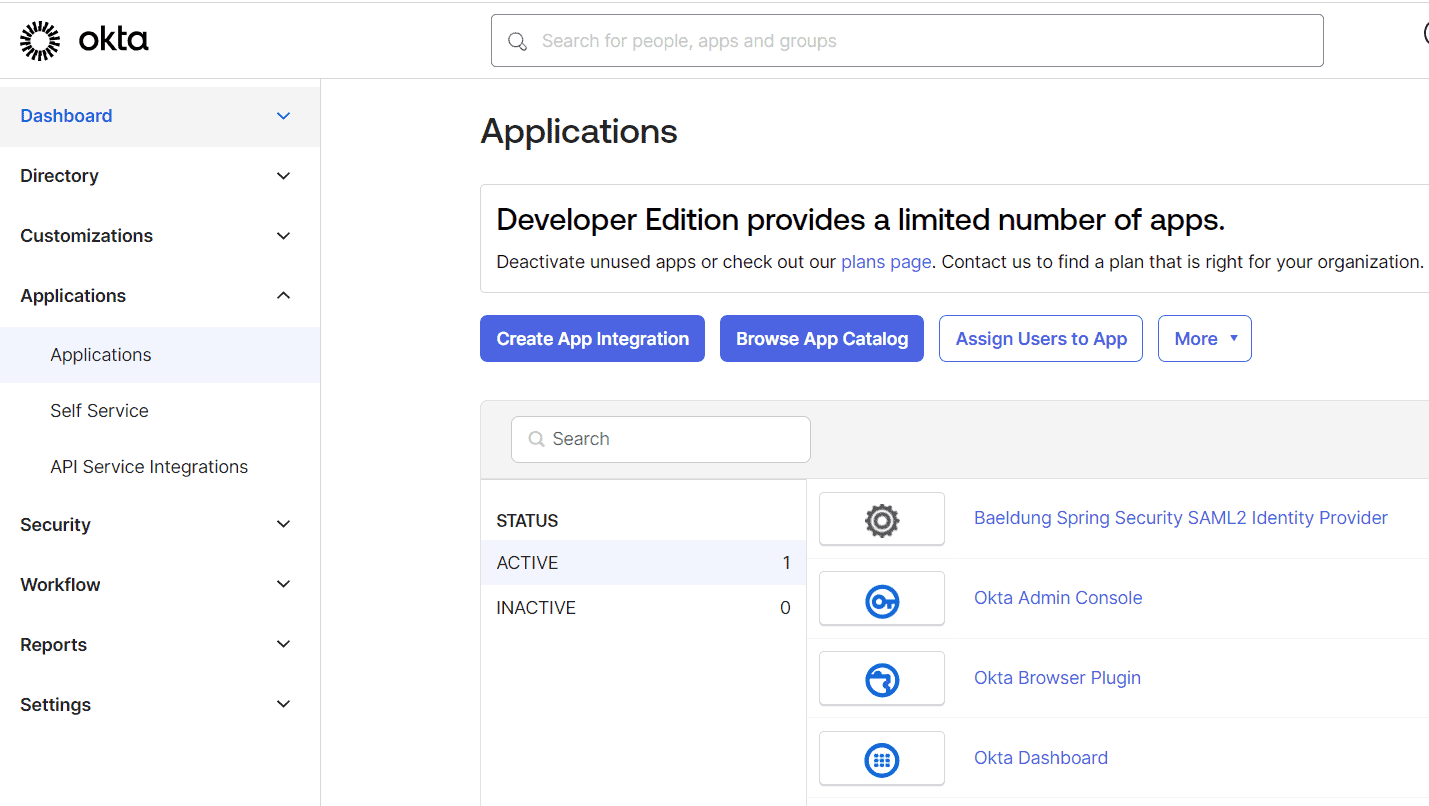
On the Okta developer account after signup and login, we get a screen with a left sidebar. In this sidebar, let’s navigate to the Applications page and start our SAML application integration process:
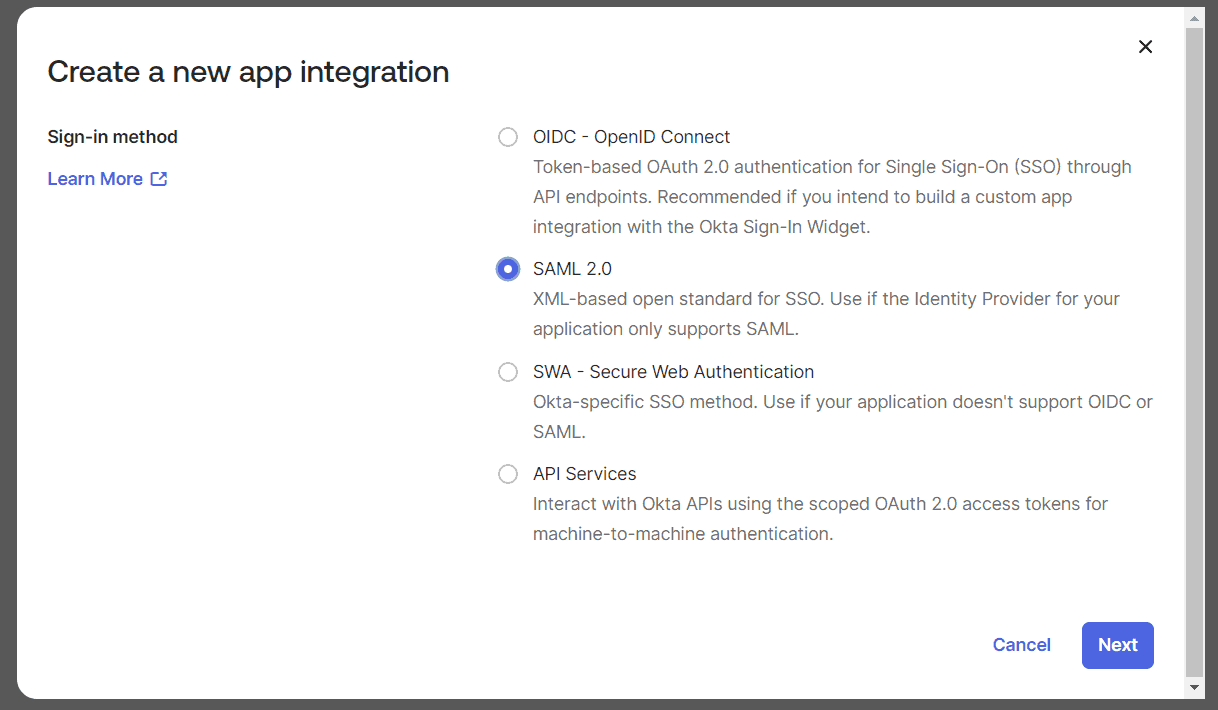
👁 Okta dashboardNext, let’s click ‘Create App Integration’ to open the ‘Create a new app integration’ dialog and choose SAML 2.0:
👁 Okta create a new app integrationWe’ll click on ‘Next’ to start the ‘Create SAML Integration’ wizard. This is a three-step wizard. Let’s complete each step to finish our setup.
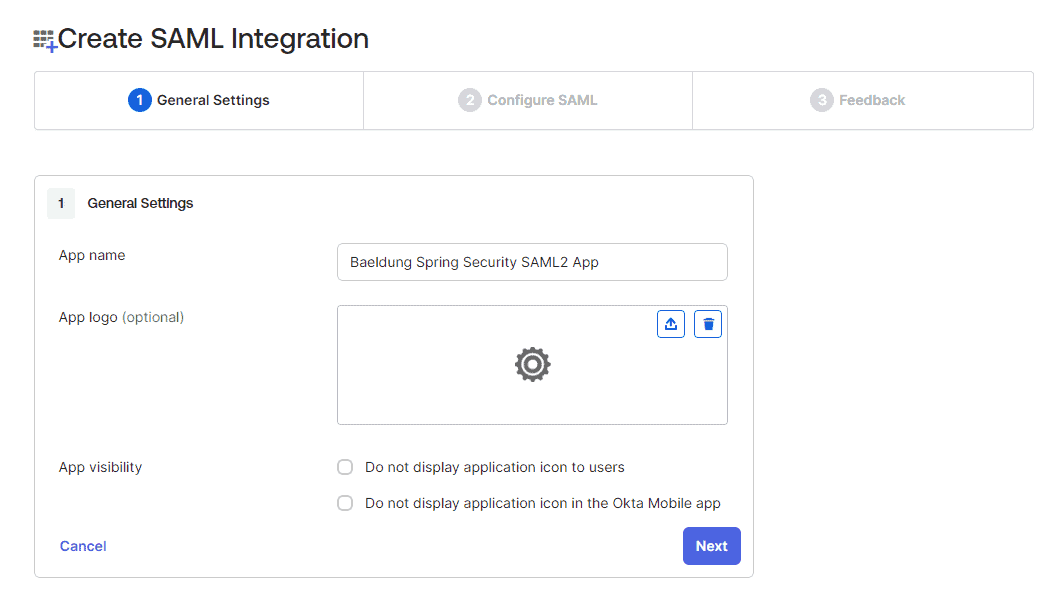
We enter our app name in this step as ‘Baeldung Spring Security SAML2 App‘:
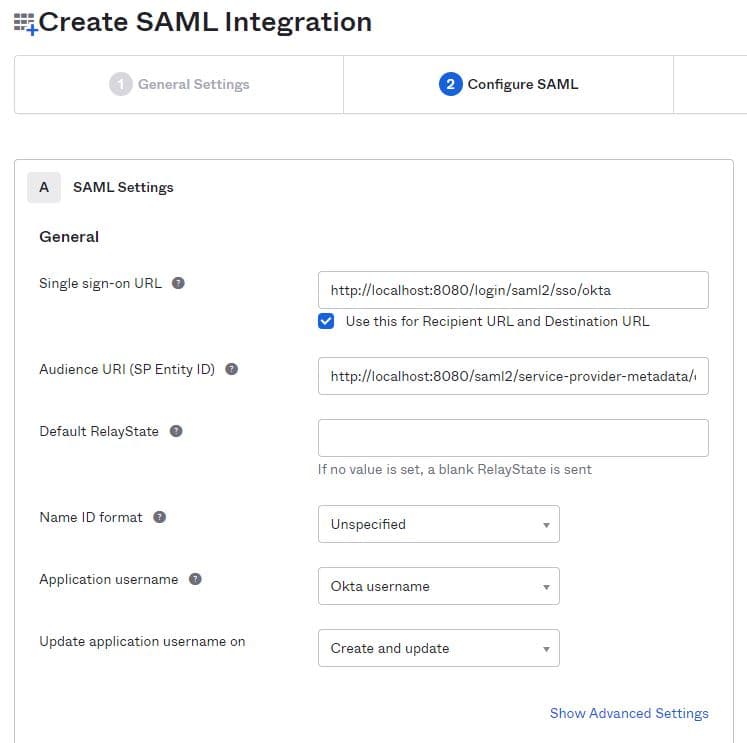
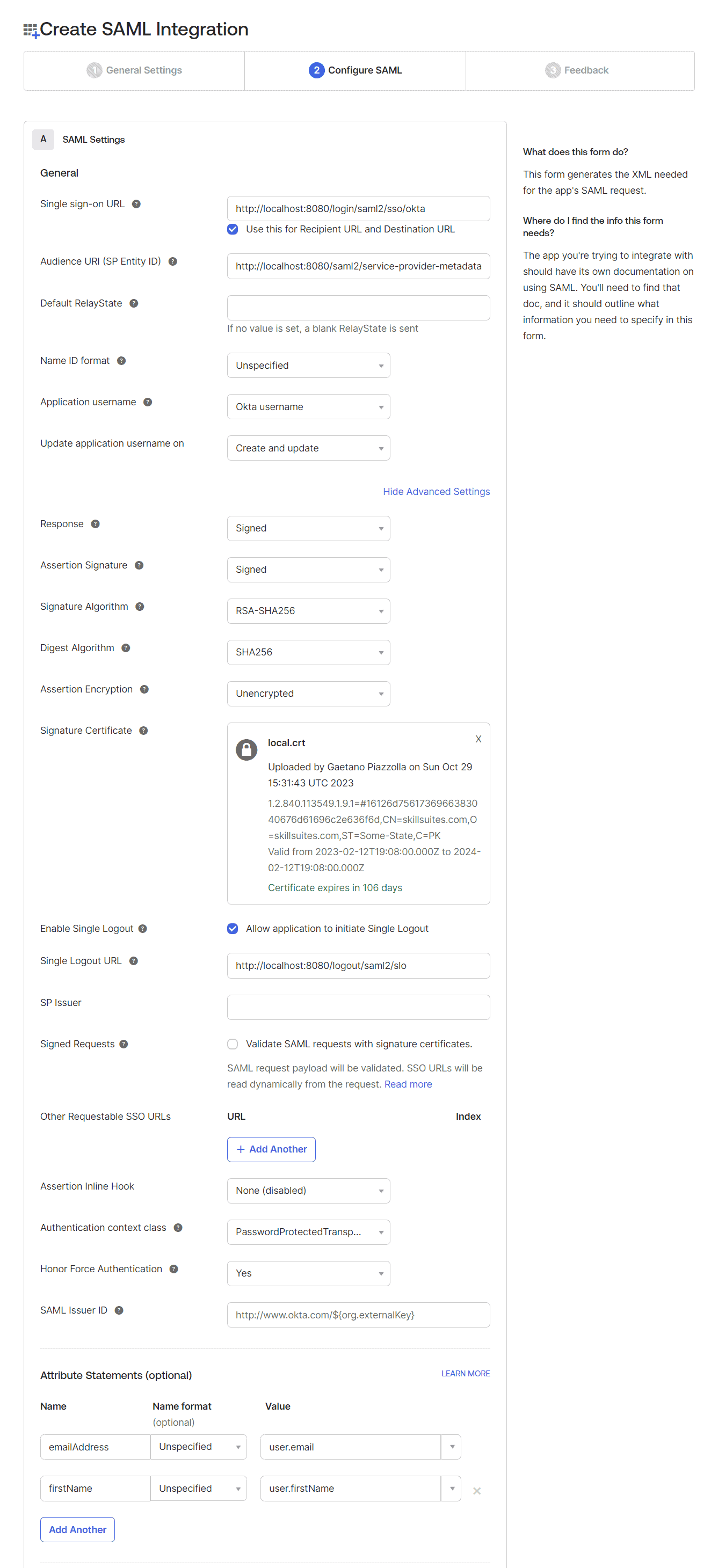
👁 Okta create SAML integrationLet’s now configure the most important details for our SAML app. Here, we’ll register the Single Sign-on URL in the Identity Provider. As a result, the Identity Provider accepts the SSO request coming from this URL. The Audience URI is the identifier for the SAML assertion recipient. This is added to the SAML assertion that is generated and sent back to the user agent:
👁 Okta Create A New App Integration ConfigureThe Audience URI in our example is http://localhost:8080/saml2/service-provider-metadata/okta while the single sign-on URL is http://localhost:8080/login/saml2/sso/okta
Let’s now expand the ‘Show Advanced Settings’ section. In order to enable the singlelogout feature, we’ll need to upload the local.crt certificate here. This is the same certificate we have configured in our Service Provider application.yml. The Service Provider app signs any logout request using this certificate.
👁 Create SAML IntegrationAdditionally, let’s configure the ‘Single Logout URL’ as http://localhost:8080/logout/saml2/slo.
In the end, we also configure the Attribute Statements for emailAddress and firstName:
emailAddress -> Unspecified -> user.email
firstName -> Unspecified -> user.firstName
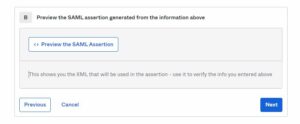
Let’s preview the SAML assertion using the ‘Preview the SAML Assertion’ link at the bottom of this step before moving to the ‘Next’ step.
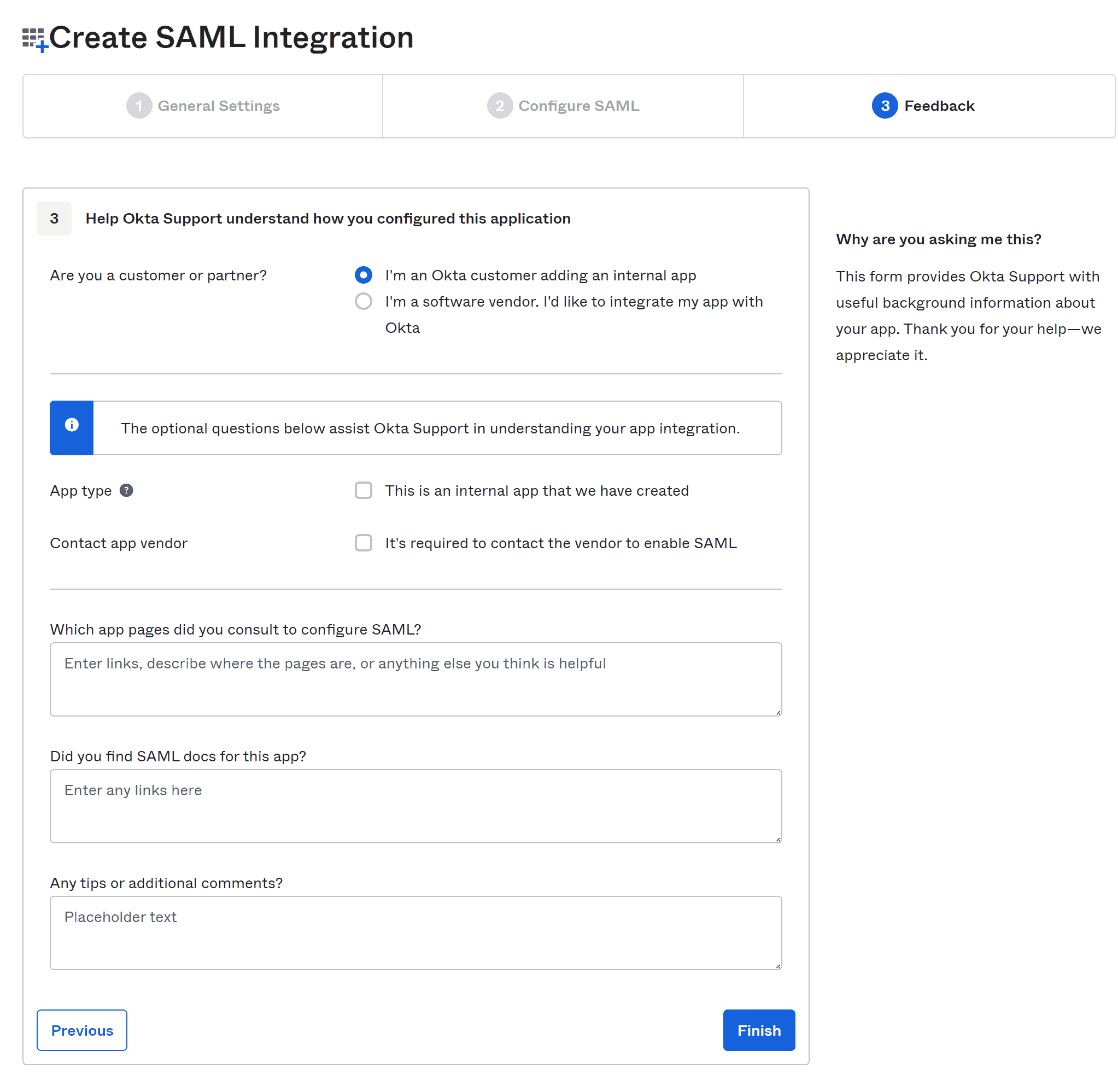
👁 Preview SAMLOn the feedback step, let’s choose the option, “I’m an Okta customer adding an internal app”.
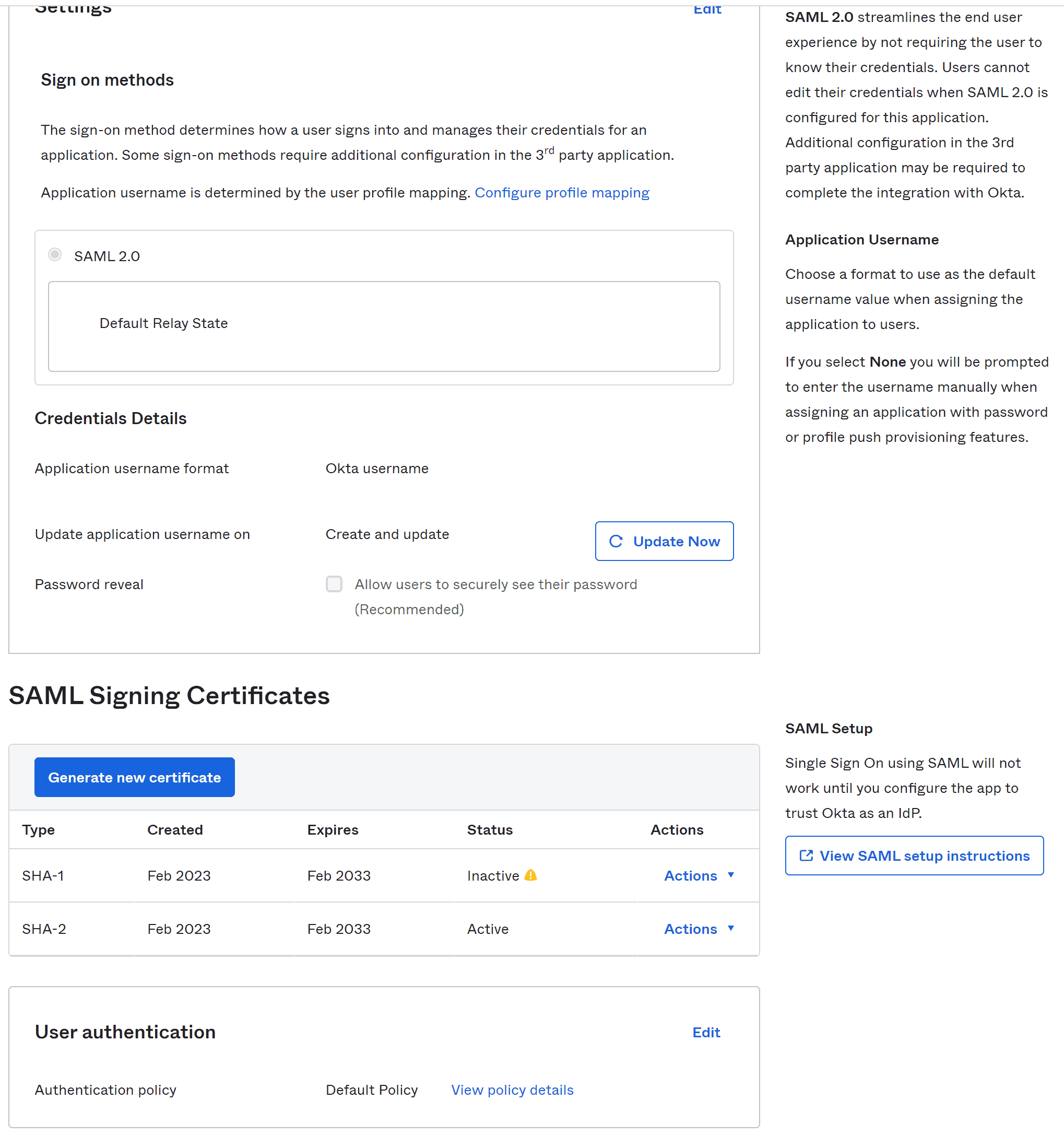
👁 SAML integration feedback stepAfter completing the feedback step, we’ll end up on the ‘Sign On’ tab for our application. On this screen let’s follow the link “View SAML setup instructions” at the bottom of the right sidebar:
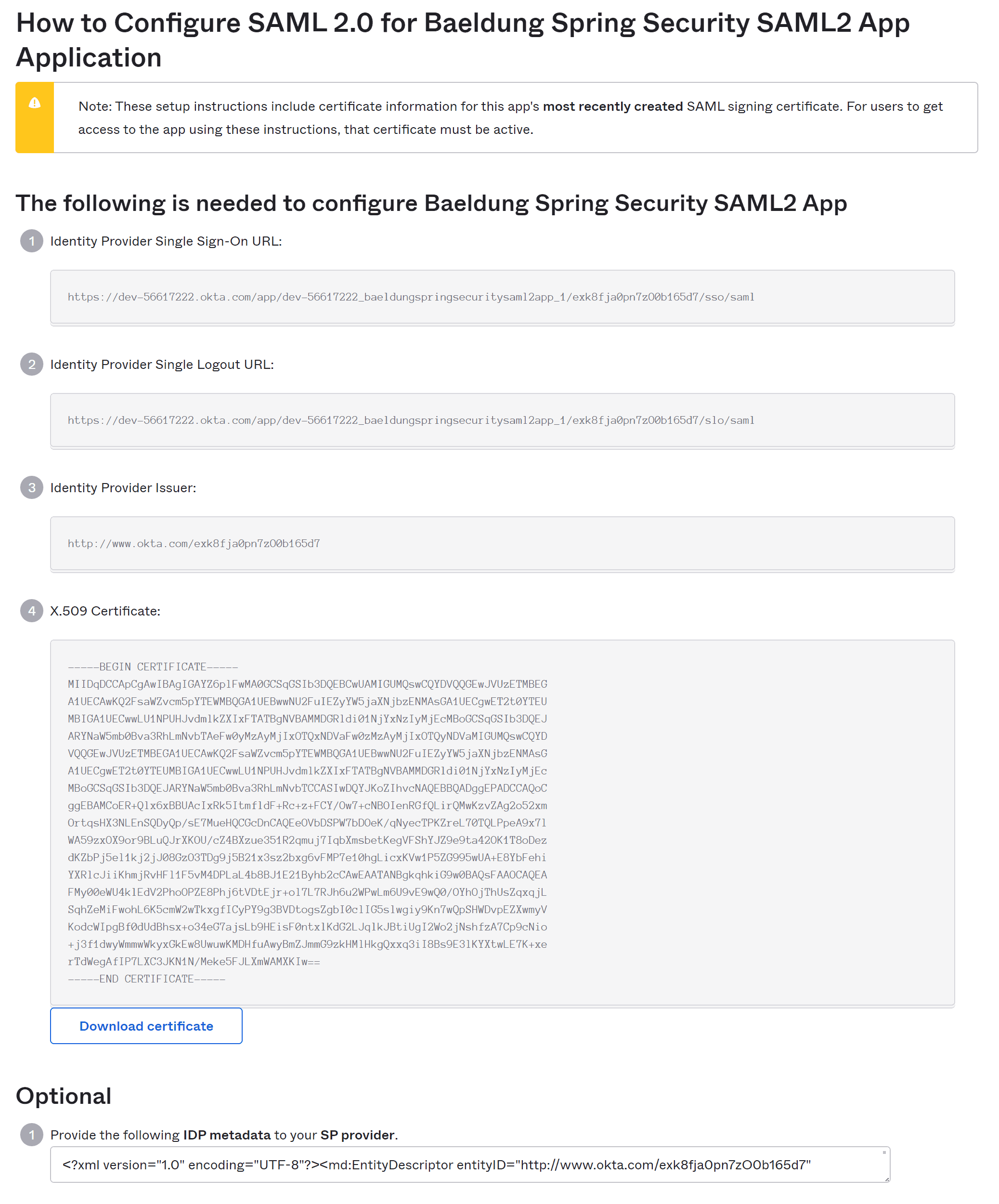
👁 SAML configuration sign in stepThis takes us to a page with the necessary information about our Identity Provider. Let’s move to the last field that has IdP metadata present in it:
👁 SAML settings and certificate configurationsWe copy this metadata and save it as metadata-idp-okta.xml in our Service Provider app resources/metadata folder, hence fulfilling the requirement of metadata_uri in our application.yml:
👁 Okta create a new app integration fetch IDP metadataThis completes our setup for both the ‘Service Provider’ and the ‘Identity Provider’. Next, we’re going to create a user and assign it to our application in our Okta developer account.
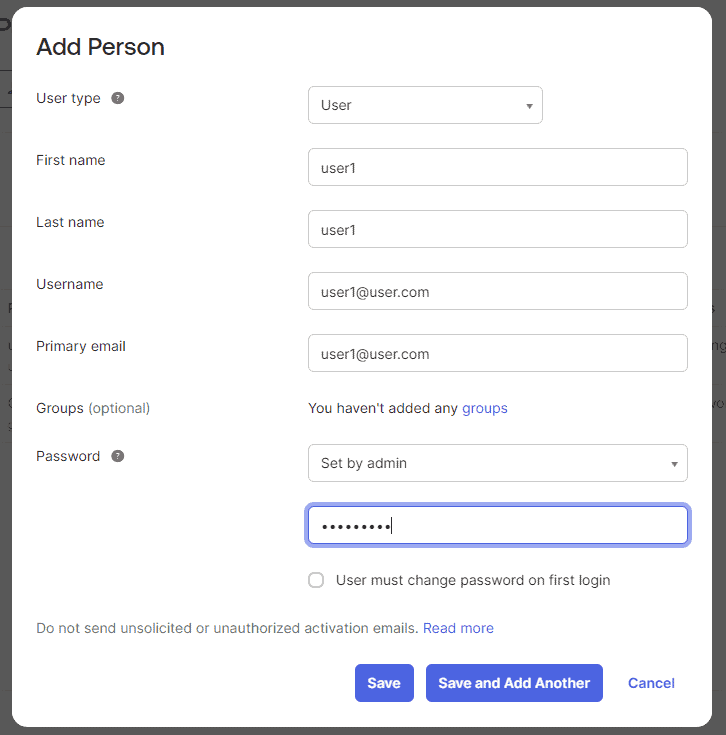
Let’s sign in to the Okta developer account and navigate to the ‘People’ page under the ‘Directory’ section in the left sidebar. Here, we’ll fill out the ‘Add Person’ form to create a user. Sometimes, it might need a refresh of the ‘People’ page to see the new user in the list:
👁 Add a new Okta userIn this case, we are activating the user automatically. Usually, you might want to send an activation email or switch the toggle to make the user change the assigned password on the first attempt.
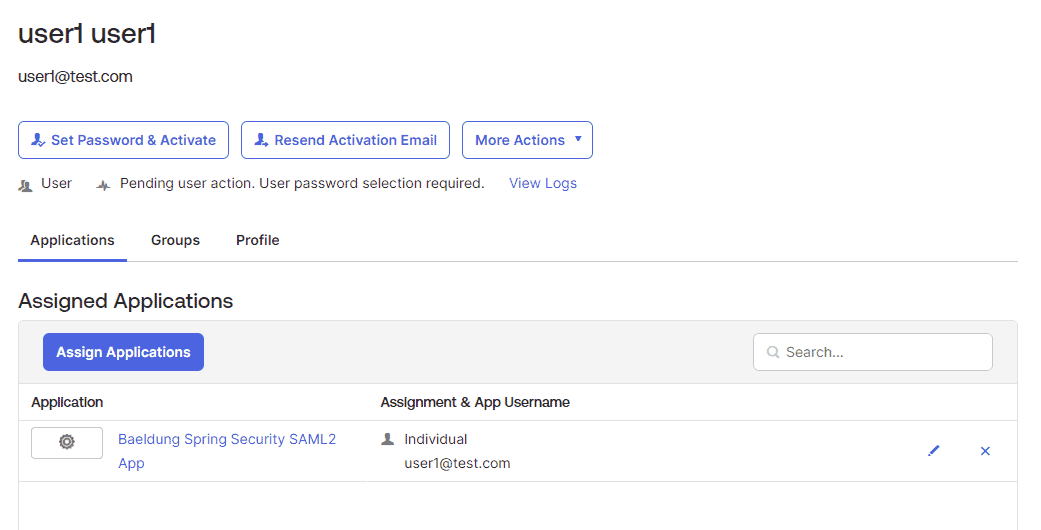
Finally, we click ‘Assign’ and follow a few steps to assign the new user to our SAML app.
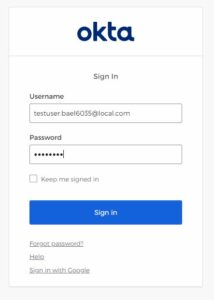
👁 Okta user assignmentNow, we’re all set to test our app. Let’s launch our Spring Boot app and open the default endpoint for our app at http://localhost:8080. This takes us to the login screen:👁 Okta User Login
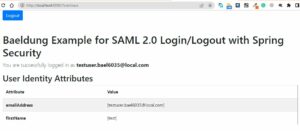
Next, we’re on our successfully logged-in page. In addition to our username, we also get user attributes shown on this page, such as the emailAddress and the firstName:
👁 Okta User Login Reset PasswordThis concludes the entire process of setting up our SAML app. But, before we leave, let’s check one last thing: the ‘Logout’ button.
First of all, we need to set the property <OKTA-ID> as your okta identifier (you can see that in the URL):
spring:
 security:
 saml2:
 relyingparty:
 registration:
 okta:
 ...
 singlelogout:
 url: https://dev-<OKTA-ID>.okta.com/app/dev-56617222_springbootsaml_1/exk8b5jr6vYQqVXp45d7/slo/saml
 binding: POST
 response-url: "{baseUrl}/logout/saml2/slo"
Then we will be able to log out from all our SAML sessions against the logged-in user:
👁 Okta User Logout SuccessIn this article, we learned about Spring Boot Security SAML2 support. Although SAML2 is a complex technology, it’s the first choice for large enterprises. Once we understand SAML2, it’s really fun to utilize the powerful features it provides. In addition to securing our application, SAML2 allows us to use SSO and avoid remembering multiple usernames and passwords for dozens of applications.
Baeldung Pro comes with both absolutely No-Ads as well as finally with Dark Mode, for a clean learning experience:
Once the early-adopter seats are all used, the price will go up and stay at $33/year.
The Apache HTTP Client is a very robust library, suitable for both simple and advanced use cases when testing HTTP endpoints. Check out our guide covering basic request and response handling, as well as security, cookies, timeouts, and more:
Handling concurrency in an application can be a tricky process with many potential pitfalls. A solid grasp of the fundamentals will go a long way to help minimize these issues.
Get started with understanding multi-threaded applications with our Java Concurrency guide:
Since its introduction in Java 8, the Stream API has become a staple of Java development. The basic operations like iterating, filtering, mapping sequences of elements are deceptively simple to use.
But these can also be overused and fall into some common pitfalls.
To get a better understanding on how Streams work and how to combine them with other language features, check out our guide to Java Streams:
Get started with Spring Boot and with core Spring, through the Learn Spring course:
Modern Java teams move fast — but codebases don’t always keep up. Frameworks change, dependencies drift, and tech debt builds until it starts to drag on delivery. OpenRewrite was built to fix that: an open-source refactoring engine that automates repetitive code changes while keeping developer intent intact.
The monthly training series, led by the creators and maintainers of OpenRewrite at Moderne, walks through real-world migrations and modernization patterns. Whether you’re new to recipes or ready to write your own, you’ll learn practical ways to refactor safely and at scale.
If you’ve ever wished refactoring felt as natural — and as fast — as writing code, this is a good place to start.