|
VOOZH | about |
|
VOOZH | about |
👁 Image
👁 Image
Deutsch 👁 Image
Español 👁 Image
Français 👁 Image
Italiano 👁 Image
Português 👁 Image
Română 👁 Image
Русский
This Recovery example guides you through PhotoRec step by step to recover deleted files or lost data from a reformatted partition or corrupted file system. For lost/deleted partitions or deleted files from a FAT or NTFS file system, try TestDisk first - it's usually faster and TestDisk can retrieved the original file names. Translations of this PhotoRec manual to other languages are welcome.
If PhotoRec is not yet installed, it can be downloaded from TestDisk Download. Extract the files from the archive including the sub-directories.
To recover files from hard disk, USB key, Smart Card, CD-ROM, DVD, etc., you need enough rights to access the physical device.
photorec.exetestdisk-6.13/photorec_win.exe) from an account in the Administrator group. Under Windows Vista or later, right click photorec_win.exe and then click Run as administrator to launch PhotoRec.sudo testdisk-6.13/photorec_static)testdisk-6.13/photorec). If you are not root, PhotoRec will restart itself using sudo after a confirmation on your part. Sudo will ask for a password - enter your Mac OS X user password.To recover files from a media image, run
photorec image.dd to carve a raw disk imagephotorec image.E01 to recover files from an Encase EWF imagephotorec 'image.???' if the Encase image is split into several files.photorec '/cygdrive/d/evidence/image.???' if the Encase image is split into several files in the directory d:\evidence👁 Image
👁 Image
Most devices should be autodetected including Linux software RAID (that is, /dev/md0) and file system encrypted with cryptsetup, dm-crypt, LUKS or TrueCrypt (ie. /dev/mapper/truecrypt0). To recover files from other devices, run photorec device.
Forensics users can use the parameter /log to create a log file named photorec.log; it records the location of the files recovered by PhotoRec.
| 👁 Image |
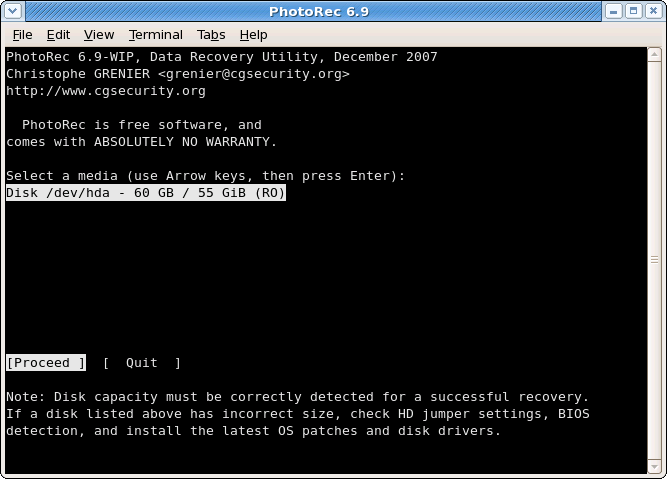
Available media are listed. Use up/down arrow keys to select the disk that holds the lost files.
Press Enter to proceed.
👁 Image
If available, use the raw device, /dev/rdisk* instead of /dev/disk* for faster data transfer.
| 👁 Image |
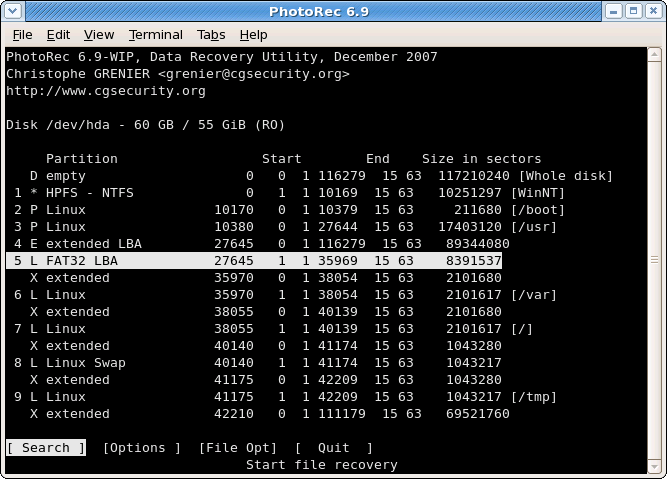
Choose
Search after selecting the partition that holds the lost files to start the recovery,Options to modify the options,File Opt to modify the list of file types recovered by PhotoRec.| 👁 Image |
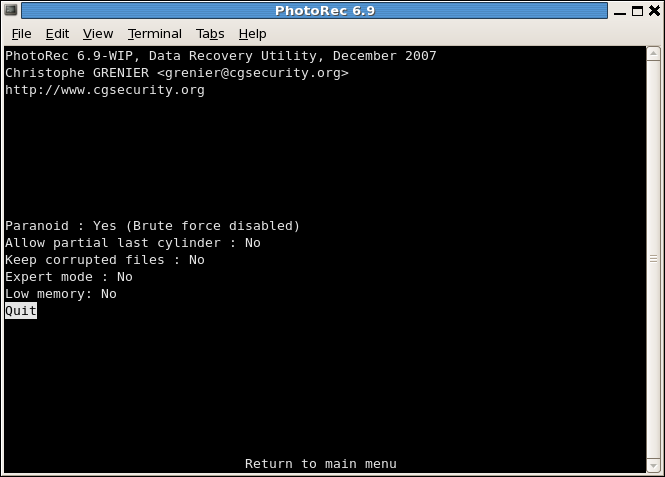
Paranoid By default, recovered files are verified and invalid files rejected.Enable bruteforce if you want to recover more fragmented JPEG files, note it is a very CPU intensive operation.
Allow partial last cylinder modifies how the disk geometry is determined - only non-partitioned media should be affected.expert mode option allows the user to force the file system block size and the offset. Each filesystem has his own block size (a multiple of the sector size) and offset (0 for NTFS, exFAT, ext2/3/4), these value are fixed when the filesystem has been created/formated. When working on the whole disk (ie. original partitions are lost) or a reformated partition, if PhotoRec has found very few files, you may want to try the minimal value that PhotoRec let you select (it's the sector size) for the block size (0 will be used for the offset).Keep corrupted files to keep files even if they are invalid in the hope that data may still be salvaged from an invalid file using other tools.Low memory if your system does not have enough memory and crashes during recovery. It may be needed for large file systems that are heavily fragmented. Do not use this option unless absolutely necessary.| 👁 Image |
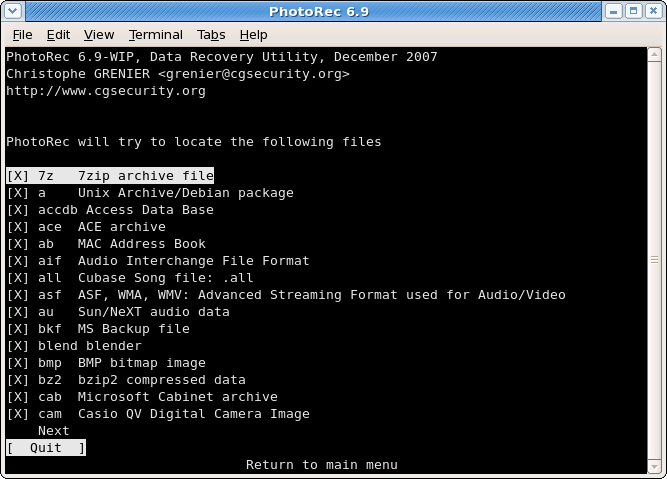
In FileOpts, enable or disable the recovery of certain file types, for example,
[X] riff RIFF audio/video: wav, cdr, avi
...
[X] tif Tag Image File Format and some raw file formats (pef/nef/dcr/sr2/cr2)
...
[X] zip zip archive including OpenOffice and MSOffice 2007
The whole list of file formats recovered by PhotoRec contains more than 300 file families representing more than 480 file extensions.
| 👁 Image |
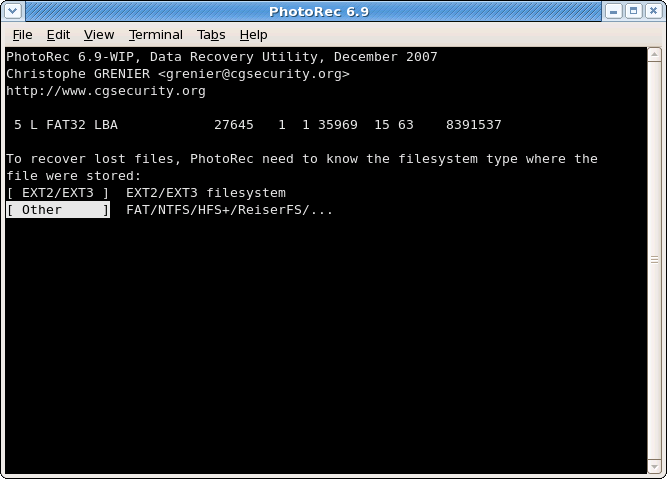
Once a partition has been selected and validated with Search, PhotoRec needs to know how the data blocks are allocated.
Unless it is an ext2/ext3/ext4 filesystem, choose Other.
| 👁 Image |
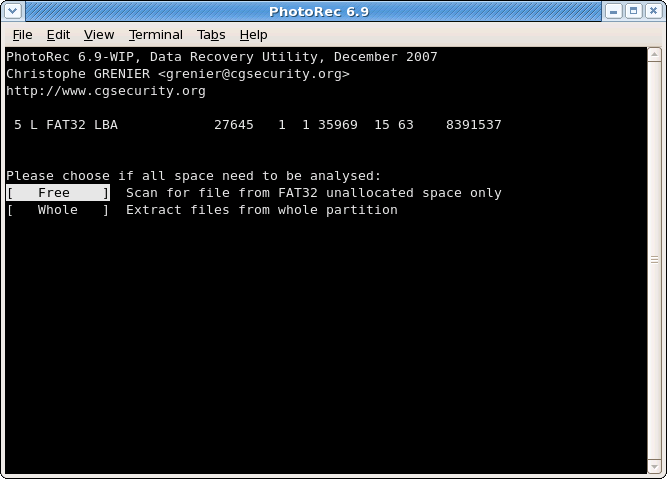
PhotoRec can search files from
| 👁 Image |
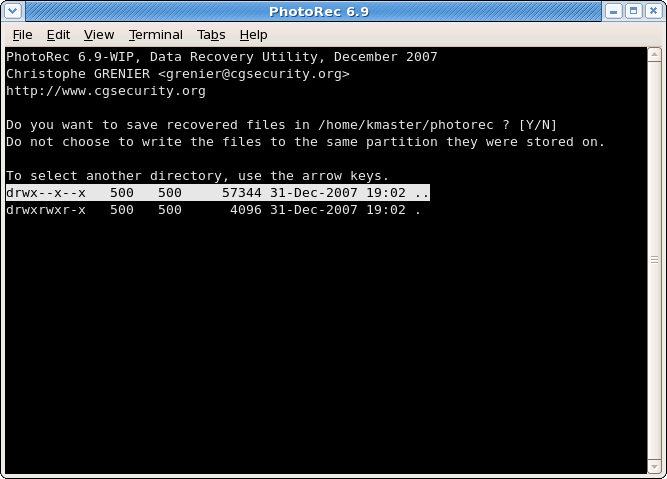
Choose the directory where the recovered files should be written.
.., press the Enter key - repeat until you can select the drive of your choice. Validate with Yes when you get the expected destination./media, /mnt or /run/media sub-directory. Mount your destination drive if necessary./Volumes.| 👁 Image |
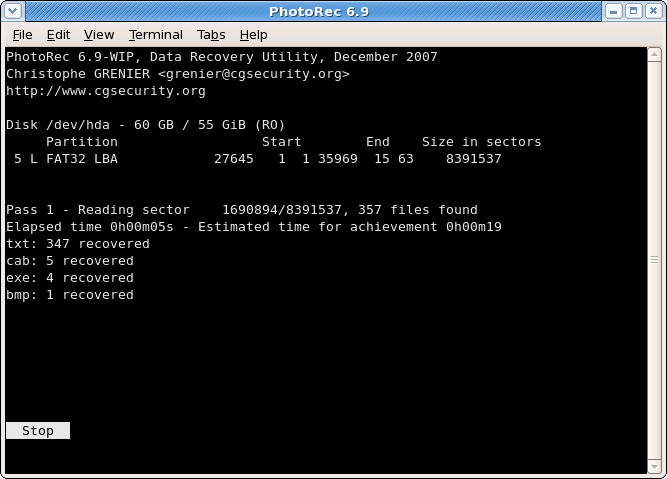
Number of recovered files is updated in real time.
Recovered files are written in recup_dir.1, recup_dir.2... sub-directories. It's possible to access the files even if the recovery is not finished.
| 👁 Image |
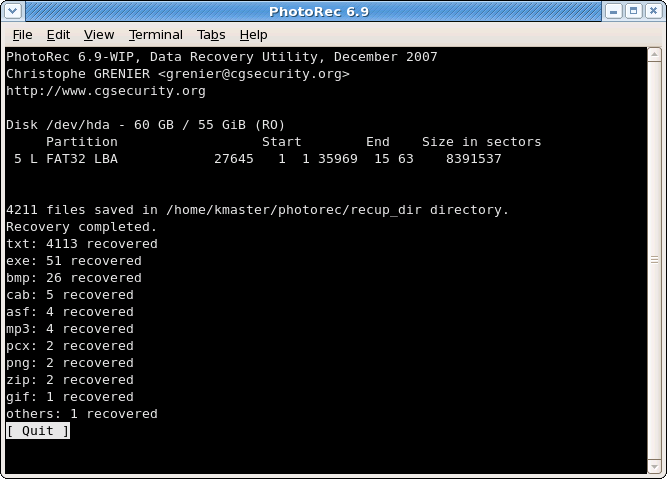
When the recovery is complete, a summary is displayed. Note that if you interrupt the recovery, the next time PhotoRec is restarted you will be asked to resume the recovery.
t*.jpgb(roken).👁 Donation
Please support the project
with your donations.