

Python GUI Development with Tkinter: Build Pro Desktop Apps

Python GUI Development with Tkinter: Build Pro Desktop Apps

Included with
Recommended experience
Recommended experience
What you'll learn
Master the Tkinter library and build responsive desktop applications.
Create interactive widgets like buttons, labels, and text boxes for user input.
Design professional UI elements with advanced styling and geometry managers.
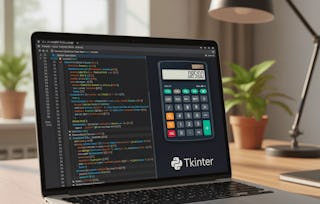
Build and deploy a real-life project, such as a fully-functional calculator.
Details to know

See how employees at top companies are mastering in-demand skills

There are 7 modules in this course
This course features Coursera Coach!
A smarter way to learn with interactive, real-time conversations that help you test your knowledge, challenge assumptions, and deepen your understanding as you progress through the course. Learn to build professional desktop applications with Python's Tkinter library! This course introduces you to the world of GUI development, from understanding Tkinter's core features to creating intuitive user interfaces. By mastering Tkinter's essential building blocks, you'll be able to design responsive, feature-rich applications. You'll dive into key widgets like Labels, Buttons, Entry, and Canvas, while discovering how to manage layouts using geometry managers. As you progress, you'll learn to customize each UI element, giving your applications a polished look with advanced features like colors, fonts, and interactive elements. We also take a hands-on approach by guiding you through the development of a real-life project—a calculator app that incorporates everything you've learned. This course is perfect for aspiring developers looking to master GUI design in Python. It's suitable for beginners with basic programming knowledge who want to expand their skills to include user interface development.
In this module, we will explore the fundamental aspects of Tkinter, starting with an introduction to the library and its significance in Python GUI development. We will then walk you through setting up Tkinter and building your first interface. Finally, we will break down the basic structure of a Tkinter program, laying the groundwork for more complex GUI development.
What's included
3 videos1 reading
3 videos•Total 9 minutes
- What Is Tkinter?•2 minutes
- Getting Started with Tkinter•3 minutes
- Basic Structure of a Tkinter Program•4 minutes
1 reading•Total 10 minutes
- Full Course Resources•10 minutes
In this module, we will explore the essential widgets of Tkinter, including labels, buttons, and entry fields, and learn how to use them to create dynamic and interactive interfaces. You will discover the functionality of widgets like checkbuttons, radio buttons, and listboxes, and explore organizing your GUI with the Frame widget. Finally, we will delve into menu creation with the Menu and Menubutton widgets to enhance user navigation and control.
What's included
11 videos1 assignment
11 videos•Total 61 minutes
- Introduction to Widgets•2 minutes
- The Label Widget•10 minutes
- The Entry Widget•5 minutes
- The Button Widget•4 minutes
- The Checkbutton Widget•4 minutes
- The Radio Button•5 minutes
- Drawing with Canvas•10 minutes
- Widgets in Window with the Frame Widget•4 minutes
- Making a List with the Listbox•5 minutes
- Let's Make a Menu•11 minutes
- Menu with Menubutton•3 minutes
1 assignment•Total 15 minutes
- The Building Blocks of Tkinter (Part 1) - Assessment•15 minutes
In this module, we will expand your Tkinter knowledge by introducing more advanced widgets like the Message, Scale, and Text widgets to handle multi-line text and dynamic content. You’ll learn how to create additional windows with the Toplevel widget and build flexible layouts using PanedWindow and Labelframe. Finally, we will dive into Messagebox to create effective desktop prompts and notifications within your applications.
What's included
9 videos1 assignment
9 videos•Total 40 minutes
- Multiple Lines with Message•4 minutes
- The Scale Like a Thermometer•5 minutes
- Scrolling Through a List•3 minutes
- The Text Widget•4 minutes
- The Toplevel Application•6 minutes
- The Spinbox Widget•2 minutes
- Dividing with Panes•3 minutes
- Grouping Labels with Labelframe•4 minutes
- Messagebox and Desktop Prompts•8 minutes
1 assignment•Total 15 minutes
- The Building Blocks of Tkinter (Part 2) - Assessment•15 minutes
In this module, we will focus on customizing the appearance of your Tkinter widgets to create unique and visually appealing applications. You will learn to manipulate widget attributes such as colors, fonts, dimensions, and relief styles, as well as how to add bitmaps and cursor effects. By the end of this module, you’ll be able to style your interface elements and create an engaging, professional GUI experience.
What's included
8 videos1 assignment
8 videos•Total 30 minutes
- Introduction to Attributes•3 minutes
- Dimensions•5 minutes
- Colors•3 minutes
- Attention and Fonts•5 minutes
- Widgets Anchors•2 minutes
- Relief Styles•5 minutes
- Bitmaps•4 minutes
- Cursors•3 minutes
1 assignment•Total 15 minutes
- Giving a UI Identity to Each Element - Assessment•15 minutes
In this module, we will focus on mastering the three geometry managers in Tkinter: .pack(), .grid(), and .place(). You will learn how to create organized, responsive layouts using .pack(), position widgets in a grid with .grid(), and achieve precise widget placement with .place() for custom window designs. By the end of this module, you'll be equipped to control widget placement efficiently for any application window.
What's included
3 videos1 assignment
3 videos•Total 9 minutes
- The .pack() Geometry Manager•4 minutes
- The .grid() Geometry Manager•3 minutes
- The .place() Geometry Manager•2 minutes
1 assignment•Total 15 minutes
- Placing Widgets Element at Their Right Place on the Application Window - Assessment•15 minutes
In this module, we will bring everything together by building a practical "Project Calculator" application using Tkinter. You will learn how to implement the various widgets, layout strategies, and functionality needed to create a fully operational calculator. This project will help reinforce your learning by giving you hands-on experience in developing a complete GUI application.
What's included
1 video1 assignment
1 video•Total 4 minutes
- Project Calculator•4 minutes
1 assignment•Total 15 minutes
- Putting Everything Together Through a Real-Life Project - Assessment•15 minutes
In this final module, we will summarize the essential topics covered in the Tkinter course. We will reflect on the skills and techniques you've acquired, from basic widgets to complex layouts, and discuss how to apply these concepts to build professional GUI applications. By the end of this module, you'll be ready to confidently start your own Tkinter projects and take your GUI development skills to the next level.
What's included
1 video2 assignments
1 video•Total 6 minutes
- Conclusion•6 minutes
2 assignments•Total 75 minutes
- Full Course Assessment•60 minutes
- Full Course Practice Assessment•15 minutes
Instructor

Explore more from Software Development
- Status: Free Trial
Course
- Status: Free Trial
Course
- Status: Free Trial
Specialization
- Status: Free Trial
Why people choose Coursera for their career


Advance your career with an online degree
Earn a degree from world-class universities - 100% online





Frequently asked questions
Yes, you can preview the first video and view the syllabus before you enroll. You must purchase the course to access content not included in the preview.
If you decide to enroll in the course before the session start date, you will have access to all of the lecture videos and readings for the course. You’ll be able to submit assignments once the session starts.
Once you enroll and your session begins, you will have access to all videos and other resources, including reading items and the course discussion forum. You’ll be able to view and submit practice assessments, and complete required graded assignments to earn a grade and a Course Certificate.
More questions
Financial aid available,