AI for powerpoint: How to build better decks fast in 2025

Last edited August 14, 2025
Table of Contents
- What you'll need for this AI for PowerPoint process
- A step-by-step guide to using AI for powerpoint
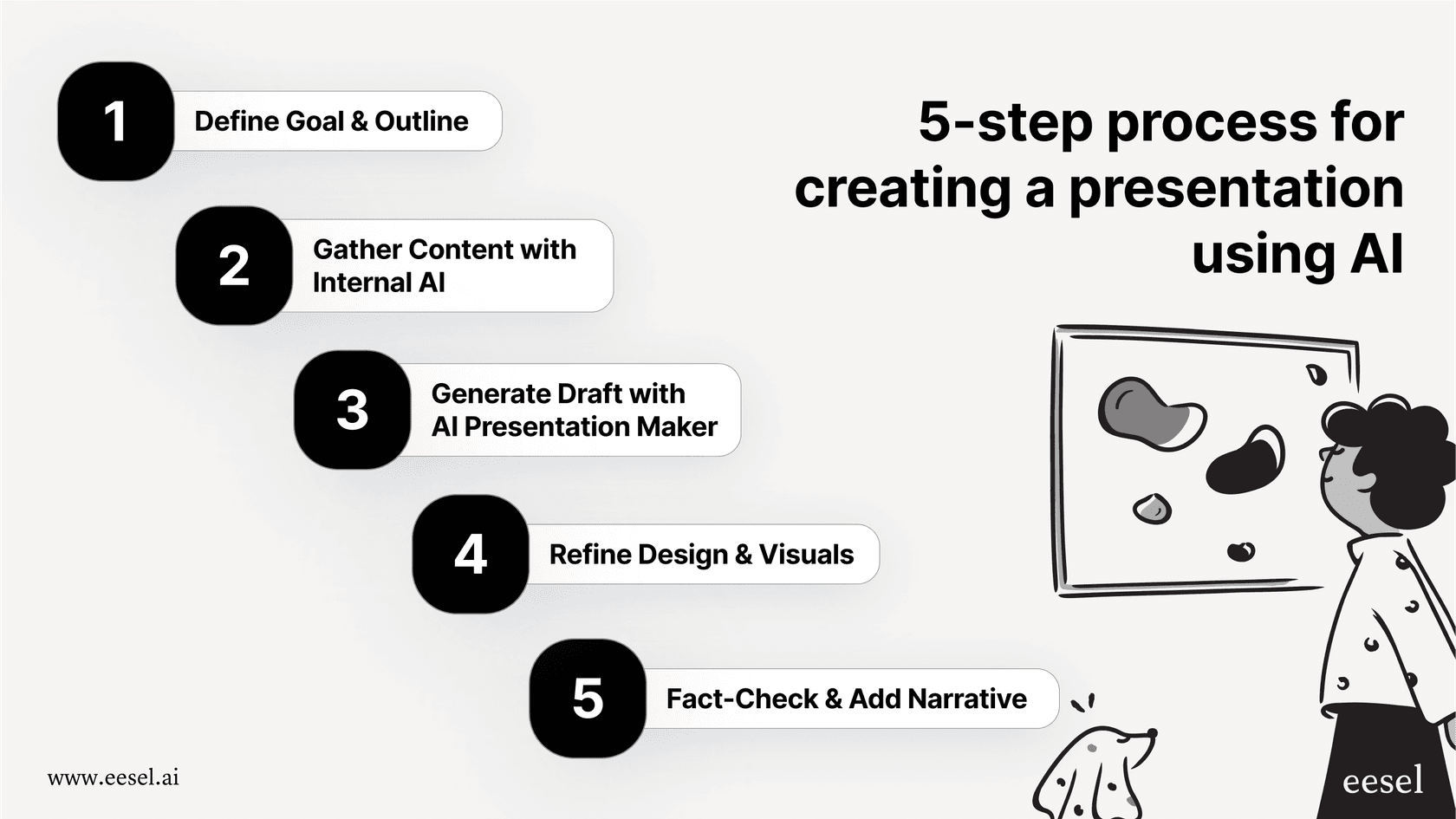
- 1. Define your AI for PowerPoint goal and outline
- 2. Gather your core AI for PowerPoint content with an AI knowledge engine
- 3. Generate the initial AI for PowerPoint draft using your AI presentation maker
- 4. Refine the AI for PowerPoint design and visuals
- 5. Fact-check your AI for PowerPoint and add your human narrative
- AI for PowerPoint: Pro tips and common mistakes
- AI for PowerPoint conclusion: from blank slide to data-driven story
- Go beyond AI for PowerPoint with a unified AI knowledge layer
Building a great presentation is tough. It’s not just about aesthetics; it’s about the hours you sink into hunting for data, sifting through docs, and trying to stitch together a story that holds up. We've all had that moment, staring at a blank PowerPoint, not knowing where to start.
AI presentation makers are fantastic at handling the design work, but their true potential shines when you connect them to an AI that understands your company's internal knowledge. This combination is what separates a generic deck from a sharp, data-driven story that actually gets your point across.
This guide will walk you through how to use AI for PowerPoint by combining the design skills of presentation generators with the smarts of an internal AI. You'll end up with a workflow that’s not only faster but also leads to a more accurate and persuasive presentation.
What you'll need for this AI for PowerPoint process
Before we get started, let's go over the tools you'll need. There are only a few things on the list:
- An AI presentation maker: You'll want an account with a tool that can generate slides from a text prompt. There are plenty of good ones out there, like Gamma, Plus AI, or Microsoft Copilot. They all do the same basic job: turning your ideas into a decent-looking first draft.
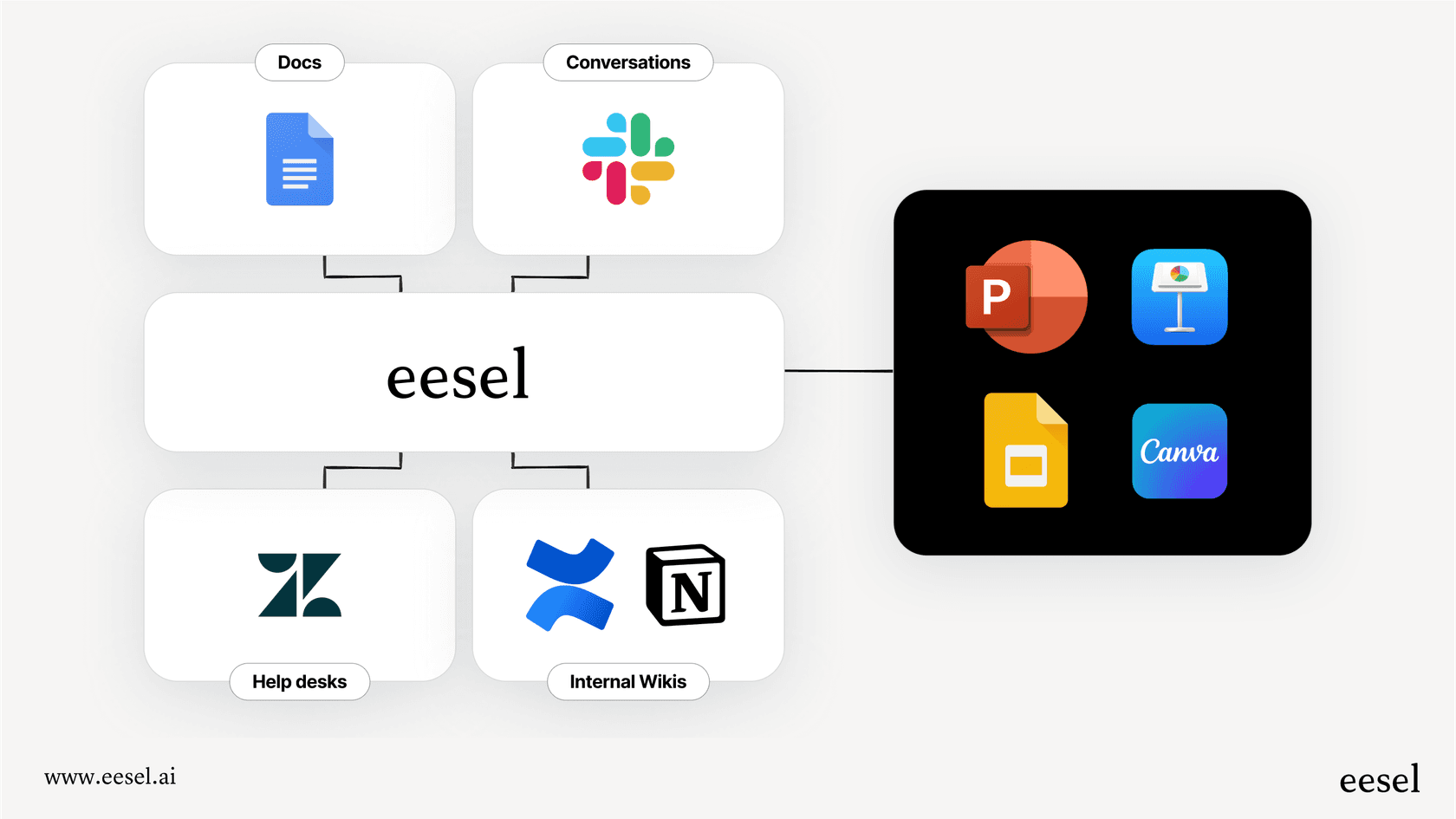
- An AI knowledge engine: For business decks, a public AI just doesn't have the right information. You need an AI that can securely access your internal files and data. A tool like eesel AI does just that, connecting to your company's knowledge in places like Confluence, Google Docs, Zendesk, and Slack to give you answers you can trust.
- A clear goal: This might seem obvious, but it’s the most important piece of the puzzle. You need to know why you're making the presentation and who it's for. Are you creating a quarterly business review for leadership or training the support team on a new feature? Your goal shapes every other decision.
A step-by-step guide to using AI for powerpoint
A great presentation starts with great content, not flashy design. If you focus on getting the substance right first, you'll end up with a deck that’s both good-looking and trustworthy. Here’s how you can do it.
1. Define your AI for PowerPoint goal and outline
Before you touch any AI tools, figure out the "why." What’s the main point you want your audience to remember? What do you want them to do after your last slide? Nailing this down keeps your presentation focused and stops you from getting sidetracked.
Once you have a clear goal, sketch out a quick outline of the main sections. It doesn't have to be perfect, just a simple roadmap. For example, a sales performance deck outline might look like this:
- Intro & Q3 Highlights
- Key Performance Metrics
- Big Wins & Success Stories
- Challenges & Learnings
- Goals & Priorities for Q4
2. Gather your core AI for PowerPoint content with an AI knowledge engine
This is the part that really makes a difference. Instead of asking a public AI to make up content, use an internal one to pull real numbers and facts from your company's systems. This step is what makes your presentation believable and persuasive.
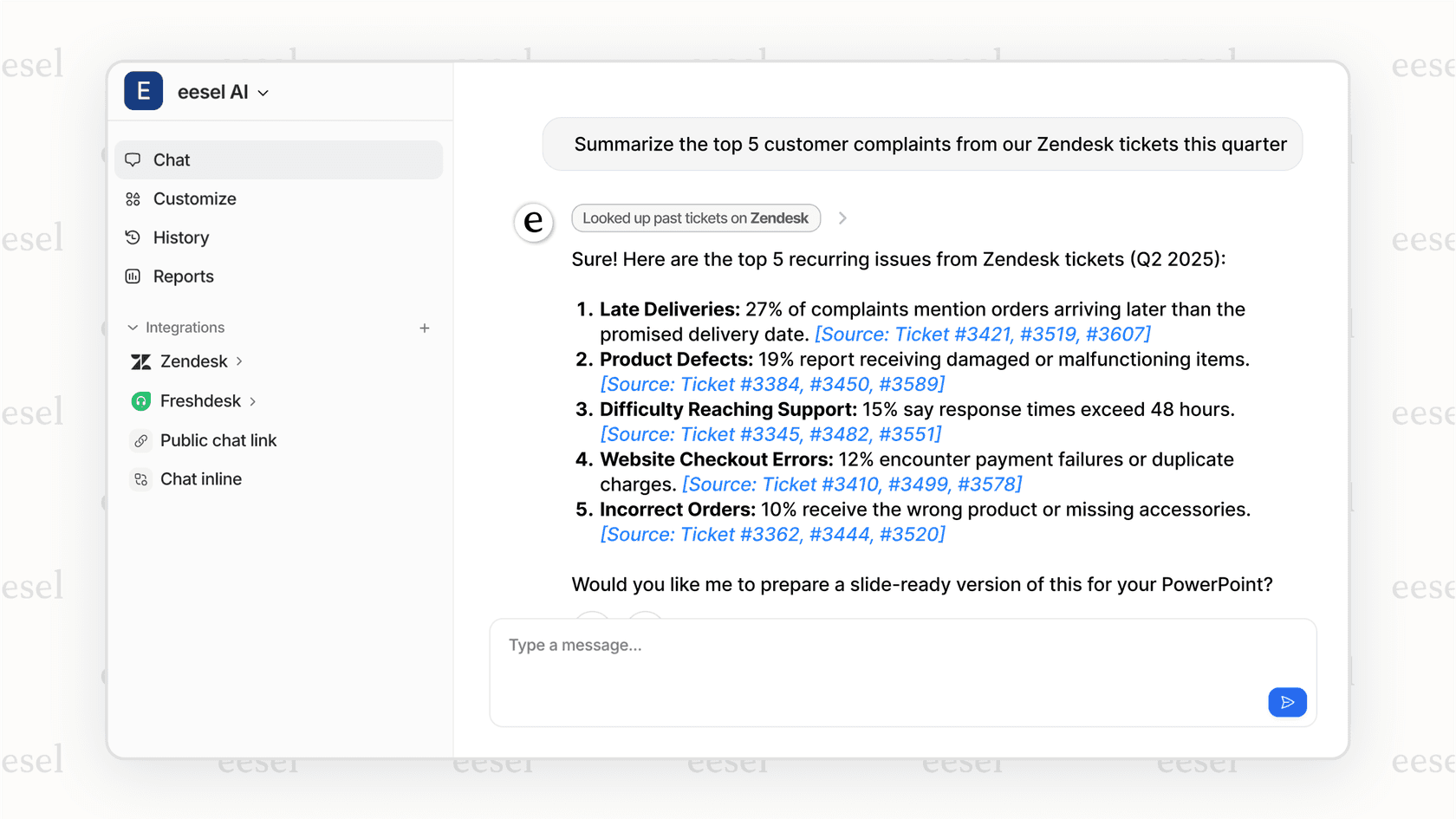
Tools like eesel AI's Internal Chat let you ask questions across all your company's apps at once. You can ask for information in plain English and get back summarized answers with links to the original sources, so you can easily check the work. This means less time hunting for information and more time building a narrative.
Here are a few examples of questions you could ask:
- For a support deck: "Summarize the top 5 customer complaints from our Zendesk tickets this quarter."
- For a project update: "What are the key decisions from the 'Project Phoenix' meeting notes in Confluence?"
- For a sales report: "Pull the monthly recurring revenue figures for the last six months from our Google Sheets."
This method grounds your presentation in your own company's data, not public info or AI hallucinations. It's the quickest way to get accurate information and build your deck with confidence.
3. Generate the initial AI for PowerPoint draft using your AI presentation maker
Now that you have a clear outline from Step 1 and solid content from Step 2, it's time to put them together. Combine your structure and data into a detailed prompt for the AI presentation maker you chose.
A specific prompt leads to a better first draft. Don't just give the AI a vague topic; tell it exactly what you want on each slide. The more detailed your instructions, the better the output.
Here's an example of a detailed prompt:
"Create a 5-slide presentation for a leadership update titled 'Q3 Support Performance'.
Slide 1: Title slide.Slide 2: 'Key Metrics'. Include this data: Average first response time was 45 minutes, and customer satisfaction was 92%.Slide 3: 'Top Customer Issues'. List these five issues: [paste the list you got from eesel AI].Slide 4: 'Team Wins'. Mention that we onboarded three new agents and launched the new help center.Slide 5: 'Q4 Focus'. Our main goals are to reduce ticket volume by 10% and improve the knowledge base."
4. Refine the AI for PowerPoint design and visuals
The AI's first draft will probably be about 80% complete. Now it’s your turn to add the finishing touches. Hop into the editor to tweak the design and make it feel like your own.
This is your chance to adjust layouts, change the color palette to match your company's brand, and replace generic stock photos with more relevant screenshots or custom graphics. Try to keep the look consistent from slide to slide. Most tools give you a ton of themes, fonts, and editing options, so you have plenty of control over the final look and feel. The goal is to create something that looks professional, not like a robot made it.
5. Fact-check your AI for PowerPoint and add your human narrative
AI is a huge time-saver, but it can't replace your own judgment. Before you finish, double-check every slide for accuracy and context. This is another spot where your AI knowledge engine comes in handy.
If a number or statement feels a bit off, you can quickly verify it. With a tool like eesel AI, the answers it provides are always linked to the original source, so you can click straight through to the document, ticket, or message. This makes fact-checking quick and easy.
Finally, add your own analysis. This is what brings the presentation to life. Connect the dots between data points, explain what the numbers actually mean, and guide your audience through your story. Your narrative is what turns a bunch of slides into a convincing argument.
AI for PowerPoint: Pro tips and common mistakes
Using AI for PowerPoint is about more than just following the steps; it's also about knowing what mistakes to avoid. Here are a few tips and common slip-ups to watch out for.
- Pro Tip: Better prompts, better results. It's worth repeating: the best results come from prompts that give clear structure, specific data, and even instructions on tone (like "professional and concise" or "engaging and informal"). Treat the AI like a smart assistant who needs good directions.
- Pro Tip: Use a multi-tool workflow. Don't expect one AI tool to do everything. The best process often combines a specialized presentation maker for design with an internal knowledge engine like eesel AI for sourcing accurate, company-specific content.
- Common Mistake: Trusting AI content without checking. Always double-check key facts and figures, especially for important business decisions. Public AI models can invent things or use old data. This is why using your company's own information is so important.
AI for PowerPoint conclusion: from blank slide to data-driven story
Using AI for PowerPoint is now about more than just pretty slides. The smartest workflow combines two things: an AI knowledge engine to find accurate internal information, and an AI presentation maker to handle the design.
Using these two tools together saves a ton of time, but more importantly, it helps you create presentations that look good, are trustworthy, and actually make a point. It's about working smarter to tell stories that connect with your audience.
Go beyond AI for PowerPoint with a unified AI knowledge layer
And this idea of a central AI for your company's knowledge goes way beyond presentations. The information you pulled for your deck from your help desk, internal docs, and wiki is useful everywhere. What if that same AI could power a 24/7 AI chatbot on your website, draft instant replies for your support agents with an AI Copilot, and answer employee questions in Slack or Microsoft Teams?
eesel AI provides this unified AI layer for your whole business, turning scattered knowledge into a real asset.
Ready to see how it works? Book a demo of eesel AI or start your free trial today.
Frequently asked questions

Share this article

Article by
Stevia Putri
Stevia Putri is a marketing generalist at eesel AI, where she helps turn powerful AI tools into stories that resonate. She’s driven by curiosity, clarity, and the human side of technology.