A practical guide to using a Claude Code command in 2025


Last edited November 3, 2025
Table of Contents
- What is a Claude Code command?
- Getting started with your first Claude Code command
- Advanced Claude Code command techniques
- Real-world examples of a powerful Claude Code command
- Claude Code pricing
- Beyond the terminal: When a custom Claude Code command isn’t enough
- Building an assistant that works your way
Let's be honest, AI coding assistants have gone from a cool party trick to a must-have in any dev's toolkit. They're great for spitting out boilerplate, squashing bugs, and even roughing out new features. Among the crowd, Claude Code has been getting a lot of attention. It’s a terminal-based tool that feels more like a seasoned pair programmer than a generic chatbot.
But its real secret sauce? Customization. This isn't some rigid, one-size-fits-all tool. This guide is all about digging into the "Claude Code command" system. We'll walk through how you can build your own commands to automate the boring stuff, keep your code consistent, and generally make your life a whole lot easier.
What is a Claude Code command?
So, what exactly is a "Claude Code command"? At its core, it's just a reusable prompt you stash in a Markdown file. You can then call it up in the Claude Code terminal with a simple slash command, like "/review" or "/test". Think of them as supercharged, context-aware shortcuts for all the repetitive things you do every day.
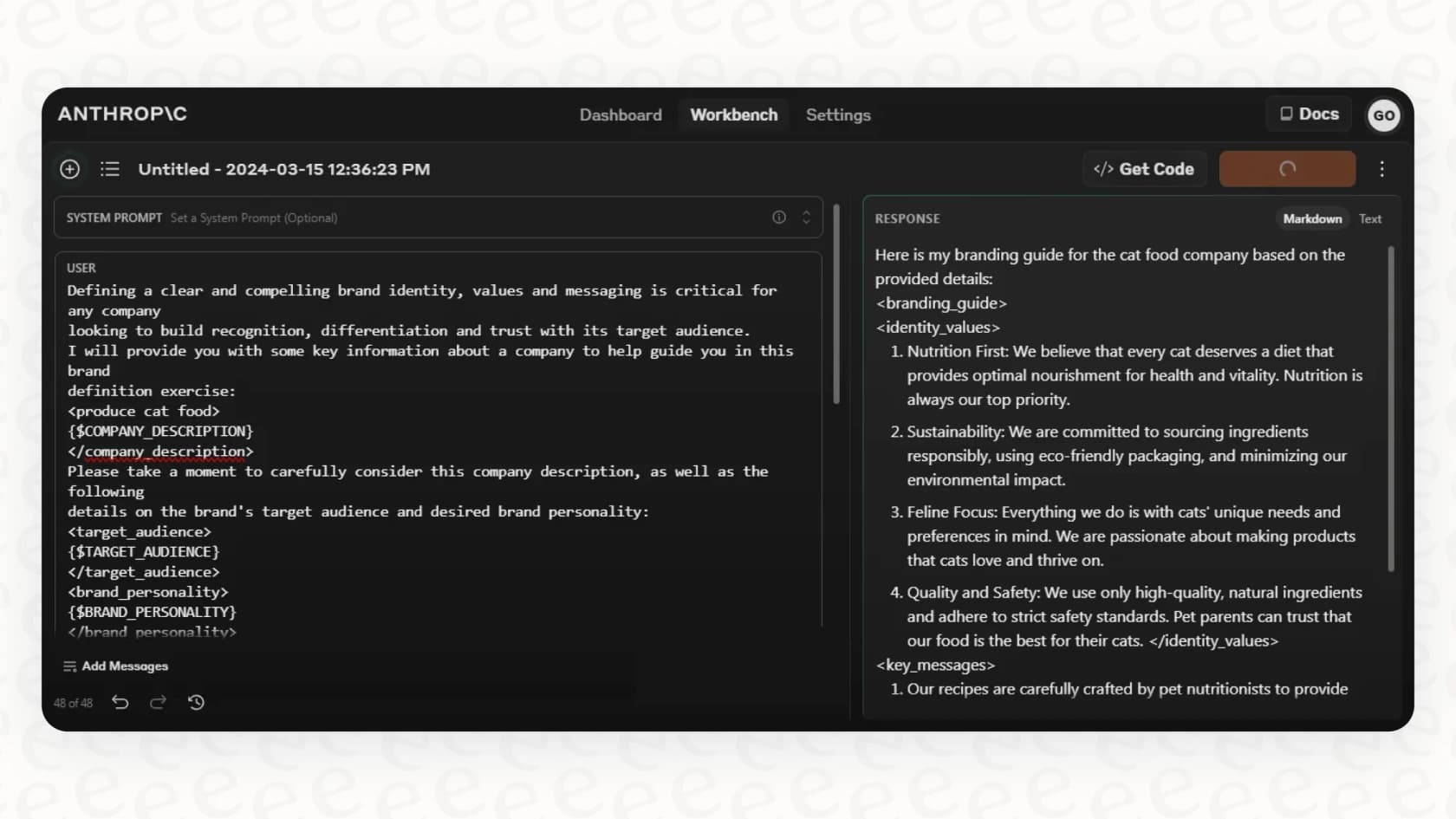
You'll run into two main types of commands:
-
Built-in commands: These come standard with Claude Code. Think "/help", "/clear" to wipe the conversation, and "/config". They're the basic controls for managing your session.
-
Custom commands: This is where things get really interesting. You create these yourself to fit your specific projects and coding style. You can build commands to run tests, draft commit messages, review PRs, or pretty much anything else you can think of.
These custom commands live in specific folders. You can put them in ".claude/commands/" for project-specific commands that you can check into git and share with your team. For personal commands that you want to use across all your projects, you'd put them in "~/.claude/commands/". This simple file-based approach makes them a breeze to create, edit, and share.
Getting started with your first Claude Code command
Before you can build slick automations, you need to give the AI some context about your project. Here’s how to set up your environment and whip up your first command.
Giving your AI the right context
The single most important file for getting good results from Claude Code is "CLAUDE.md". This file is like a little constitution for the AI agent, giving it the crucial context it needs to understand your project’s quirks and rules. You can use it to spell out things like:
-
Common bash commands for building or testing your app
-
Your team's code style guidelines
-
The locations of key files and architectural patterns
-
Instructions on how to run your test suite
If you're not sure where to start, the "/init" command can even generate a starter "CLAUDE.md" for you.
How to create a simple project command
Let’s build a quick command to ask Claude for a code review. It's easier than you think.
-
In your project's root directory, create a new folder:
mkdir -p .claude/commands. -
Inside that new folder, create a file named "review.md". The filename (minus the ".md") is what you'll type to run the command.
-
Open "review.md" and add one line of instructions:
Review the provided code for clarity, performance, and potential bugs. Do not suggest stylistic changes.
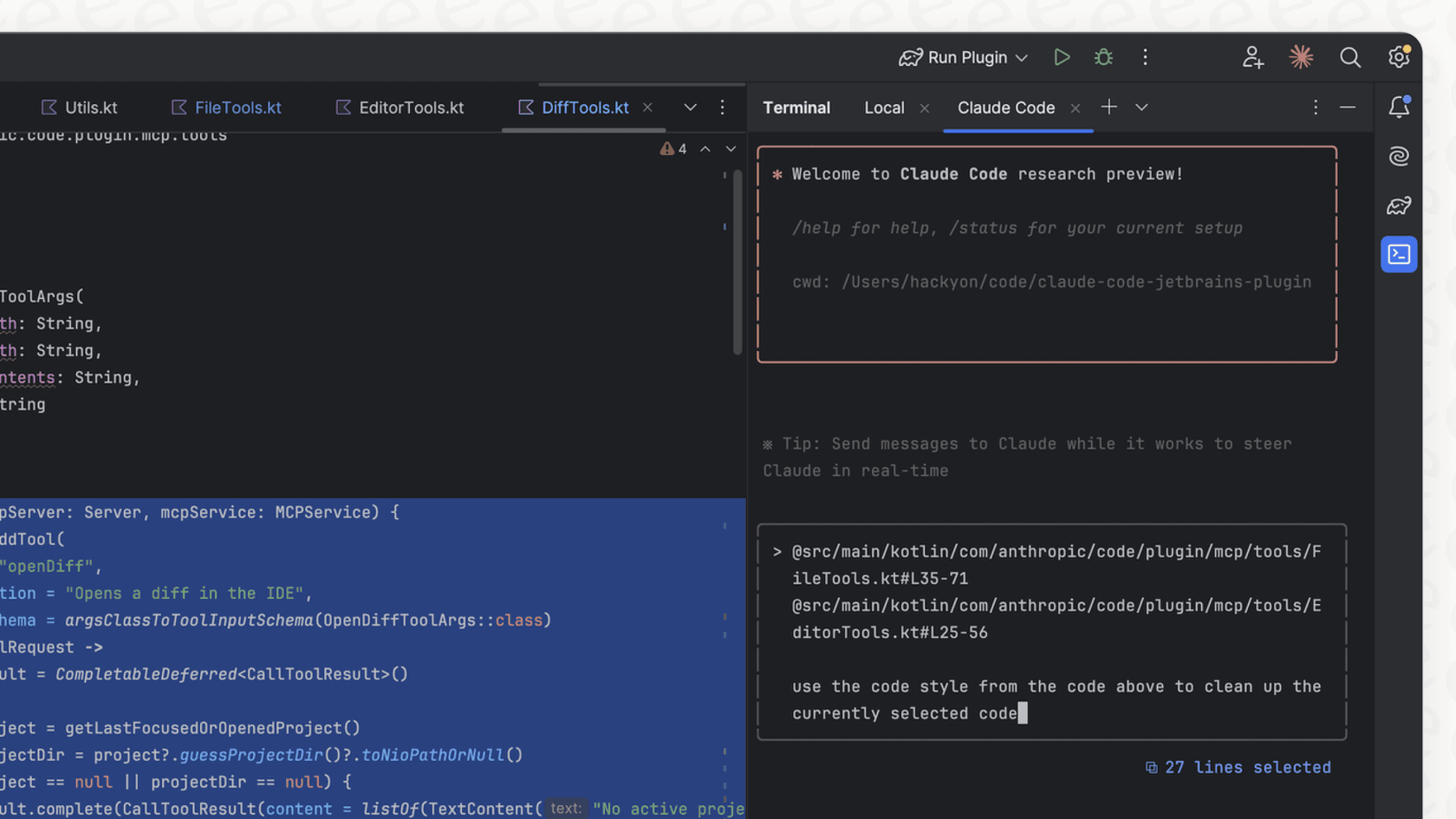
And that's it. Seriously. Now, when you're in a Claude Code session, you can just type "/review". To point it at a specific file, you can use the "@" symbol, like this: "/review @src/components/Button.tsx".
Creating a personal command for cross-project use
Project commands are perfect for team-based workflows, but you’ll probably want a few personal shortcuts that work no matter what you're working on.
The setup is pretty much the same. Just put your command file in "/.claude/commands/explain.md" with the instruction "Explain this code in simple terms." Now, the "/explain" command will be ready to go in any project.
Advanced Claude Code command techniques
Once you have the basics down, you can start building more powerful automations using arguments, frontmatter, and a few other tricks.
Making your command dynamic with arguments
Static prompts are handy, but prompts that can change on the fly are a different beast entirely. Claude Code lets you pass arguments to your commands, just like you would with a shell script.
You can use "$ARGUMENTS" to grab everything typed after the command, or get more specific with positional arguments like "$1", "$2", and so on.
For example, you could create a "fix-issue.md" command to help you tackle GitHub issues:
Please analyze and fix the GitHub issue: $ARGUMENTS.

Follow these steps:

1. Use `gh issue view` to get the issue details.

2. Understand the problem described in the issue.

3. Search the codebase for relevant files to implement the fix.

4. Write and run tests to verify the fix.
With that saved, you can run "/fix-issue 123" and Claude will get to work on that specific issue.
Using frontmatter for more control
If you want to get even fancier, you can add a YAML frontmatter block at the top of your command file. This is where you can add metadata, like a "description" for your command or an "argument-hint" to help with autocomplete.
But the most powerful part is the "allowed-tools" list. This is how you give a command permission to run certain scripts (like "git status") without bugging you for approval every single time.
Here's a command that uses frontmatter to help prepare a git commit:
---
description: Create a git commit with context
argument-hint: [message]
allowed-tools: Bash(git status:*)
---
Create a git commit with the message: $ARGUMENTS. Use the output of !"git status" to inform the commit.
Claude Code command vs. agent skills
You might also stumble upon something called Agent Skills. They sound a lot like commands, but they're for a slightly different job. Commands are for tasks you kick off yourself, while skills are abilities you want Claude to use automatically when it thinks they're needed.
Here’s a quick rundown:
| Aspect | Slash Commands | Agent Skills |
|---|---|---|
| Complexity | Simple prompts | Complex capabilities |
| Structure | Single ".md" file | Directory with SKILL.md + resources |
| Discovery | Manual invocation ("/command") | Automatic (based on context) |
| Use Case | Reusable prompt templates | Standardized team workflows |
Basically, use a "Claude Code command" for quick, repeatable prompts you want to run yourself, like "/review" or "/test". Use Agent Skills for more complex, multi-step workflows that Claude should be able to figure out on its own, like a standard process for database migrations.
Real-world examples of a powerful Claude Code command
To show you what’s possible, here are a few handy commands inspired by workflows that developers have been sharing online.
Automating your git workflow
Tired of writing commit messages? Me too.
This 'commit.md' command, inspired by a popular Reddit thread, looks at your staged changes and writes a properly formatted semantic commit message for you.

---
description: Creates a git commit with a semantic message.
allowed-tools: Bash(git diff:*)
---
ADD all modified and new files to git.

THEN commit with a clear and concise one-line commit message, using semantic commit notation based on the following diff:
!"git diff --staged"
THEN push the commit to origin.

The user is EXPLICITLY asking you to perform these git tasks.
Building a project context primer
Jumping into a new project is always a bit disorienting. This "prime.md" command tells Claude to act like a new developer and get itself up to speed by reading all the important documentation first.
# Project Understanding Prompt

When starting a new session, follow this systematic approach to understand the project:

## 1. Project Overview & Structure

- READ the README.md file in the project's root folder.

- RUN `git ls-files` to get a complete file inventory.

## 2. Core Documentation

- READ and UNDERSTAND the PLANNING.md file for architecture and design decisions.

- READ and UNDERSTAND the TASK.md file for current work status and priorities.

## 3. Knowledge Validation

Before proceeding, confirm your understanding by being able to answer:

- What is the primary purpose of this project?

- How do I build, test, and run it locally?

- What are the main architectural components?
Creating a code reviewer assistant
This "code-review.md" command transforms Claude into a dedicated code reviewer. It gives the AI a structured process for analyzing code, spotting issues, ranking them by severity, and then updating a "TASK.md" file with feedback.
# Code Reviewer Assistant

You are an expert code reviewer. Your primary responsibilities are:

1. **Analyze the codebase** to understand its structure and patterns.

2. **Identify issues** across security, performance, code quality, and best practices.

3. **Prioritize findings** using a Critical/High/Medium/Low scale.

4. **Update TASK.md** by reading the existing file and appending your new findings as actionable tasks. Do not duplicate existing tasks.

Provide a summary of your findings, then show the updated TASK.md content.
Claude Code pricing
Claude Code isn't a standalone product. It’s bundled into Anthropic's subscription plans, which are broken down by usage.
-
Pro Plan: For $20 a month, this is great for individual developers looking to boost their daily productivity.
-
Max Plan: Starting at $100 a month, this plan gives you way more usage and access to their top-tier models for heavy-duty tasks.
-
Team Plan: This one starts at $25 per person per month (with a five-person minimum) and adds some collaborative features.
You can also tap into the models behind Claude Code through an API if you want a more pay-as-you-go option for building your own tools.
Beyond the terminal: When a custom Claude Code command isn’t enough
The real magic of a custom "Claude Code command" is how it turns a general-purpose AI into a specialist that knows your project inside and out. And honestly, this need for tailored automation isn't unique to developers. Think about customer support or internal IT teams. They're dealing with the same problem: generic, off-the-shelf AI tools just don't cut it. They often cause more headaches by forcing teams to change how they work.
That’s where a tool like eesel AI comes into the picture. It brings the same deep customization that developers love about Claude Code to support and internal help desks. Just like with Claude Code, eesel AI gives you:
-
Total Control: You get a fully customizable workflow builder to define your AI's personality, what actions it can take (like looking up an order status), and the exact rules for when it should jump in to help.
-
Painless Integration: It plugs right into the tools you're already using. You can connect it to help desks like Zendesk or Freshdesk in a few minutes, no massive migration project required.
-
Unified Knowledge: It learns from all your company's scattered information, from old support tickets to internal wikis in Confluence and docs in Google Docs. This ensures every answer it gives is accurate and relevant to your business.
Building an assistant that works your way
For any developer looking to save time and focus on more interesting problems, getting comfortable with the "Claude Code command" is a huge step in the right direction. It’s all about building an assistant that works the way you do.
And if you're on a team looking to bring that same level of custom AI automation to your customer support, it’s worth checking out a tool built on the same core idea.
Start building smarter AI workflows for your support team today with eesel AI.
Frequently asked questions

Share this article

Article by
Stevia Putri
Stevia Putri is a marketing generalist at eesel AI, where she helps turn powerful AI tools into stories that resonate. She’s driven by curiosity, clarity, and the human side of technology.