
Explore recipe: how to report on first reply time in Zendesk


Last edited January 12, 2026

First Reply Time (FRT) is one of those customer support metrics that’s way more than a number on a screen. Think of it as the first promise you make to a customer. A low FRT says, "We see you, and we're on it." It’s often the very first impression you make, and it can set the tone for the entire conversation in 2026.
Zendesk Explore is a powerful, mature tool for keeping a close watch on this metric. It lets you slice and dice the data to see exactly how your team is excelling. Tracking your performance is an essential step, providing the data you need to reach the next level of service.
This guide will walk you through the Zendesk Explore recipe: how to report on first reply time in Zendesk. Then, we’ll look at how to take those high-quality reports and use them as a springboard for even faster response times.
What is first reply time and why does it matter?
First Reply Time is exactly what it sounds like: the time that passes between a customer sending a ticket and an agent writing back with the first public response. It’s the initial handshake of a support interaction.
So, why is this a key focus in 2026? A few big reasons:
-
It sets a positive mood. A quick reply instantly makes a customer feel heard and prioritized. It’s an opportunity to build momentum right from the start.
-
It builds trust. When customers get a fast response, it signals that your company is reliable and respects their time. Zendesk's stable platform ensures you have the foundation to build that trust.
-
It’s a health check for your team. FRT can be a great diagnostic system. It helps you identify when your team might need extra support or when your knowledge base could be expanded.
This isn’t just a hunch. Zendesk’s own research has shown that excellent customer service experiences drive loyalty, and a fast, professional reply is the perfect way to start that journey.
A quick guide to reporting on first reply time in Zendesk
Before we look at optimizing FRT, let’s cover how to track it. Zendesk’s documentation provides clear, step-by-step "recipes" to get you going. Here’s the gist of it.
Building the basic report
At its core, making a First Reply Time report in Zendesk Explore is a straightforward process. You’re using Zendesk’s robust analytics to see the average time it takes for an agent to send that first reply.
The main steps look something like this:
-
Pop into Explore and create a new report, making sure to choose the "Support - Tickets" dataset.
-
Add the "First reply time (min)" metric. Zendesk offers flexibility here-you can pick between calendar hours (24/7) or business hours, depending on what matches your team's schedule.
-
Toss an attribute like "Ticket created - Date" into the columns field. This will let you see how your FRT trends over days, weeks, or months in 2026.
This report gives you a high-level view of your team's performance, which is a perfect starting point. For the full, detailed walkthrough, you can follow Zendesk’s official guide.
Customizing your report
The real strength of Zendesk Explore lies in its impressive flexibility. To get information you can act on, you can utilize Zendesk's advanced filtering options.
Here are a few ways you can slice up your data:
-
Filter by business hours. This helps you understand your team's performance during active working hours. You can learn how to set this up with this recipe.
-
Look at messaging tickets separately. Zendesk makes it easy to report on messaging separately so you can track chat performance alongside email.
-
Use a heatmap. A heatmap report can visually show you the busiest periods, which is great for optimizing agent schedules.
-
Group tickets by tags. By reporting on tags, you can spot which specific issue types might benefit from more specialized attention.
These advanced reports give you a deep handle on your operations, providing the clarity needed to make data-driven decisions.
Getting even more value from your reporting
Having a detailed dashboard is a great foundation. To maximize the impact of your Zendesk Explore data, it's helpful to pair it with proactive strategies.
Using reporting as a foundation for proactive support
Dashboards are excellent for identifying trends and seeing what happened in the previous week or month. By using these insights from Zendesk, you can predict future needs and implement solutions that keep your FRT consistently low.
Navigating advanced reporting options
Zendesk Explore offers a wide array of sophisticated tools. While mastering custom metrics can take a little time, the depth of data available is a major strength of the platform. It allows for a very granular look at your support performance that few other tools can match.
Pairing reports with deep-dive analysis
A chart provides the "what"-like a change in FRT-and serves as an invitation to look deeper. Whether it's a spike in ticket volume or a specific type of query, Zendesk gives you the visibility to begin your investigation. From there, you can decide how to best support your agents.
How to improve your first reply time
To really move the needle on FRT, you can build upon your Zendesk reporting by adding complementary tools. This is where AI automation can further enhance your already strong Zendesk setup.
Provide instant answers with a frontline AI agent
One way to lower FRT is to provide immediate resolutions for common questions. An AI agent can complement your team by giving accurate answers 24/7, handling queries before they need to reach a human agent’s queue.
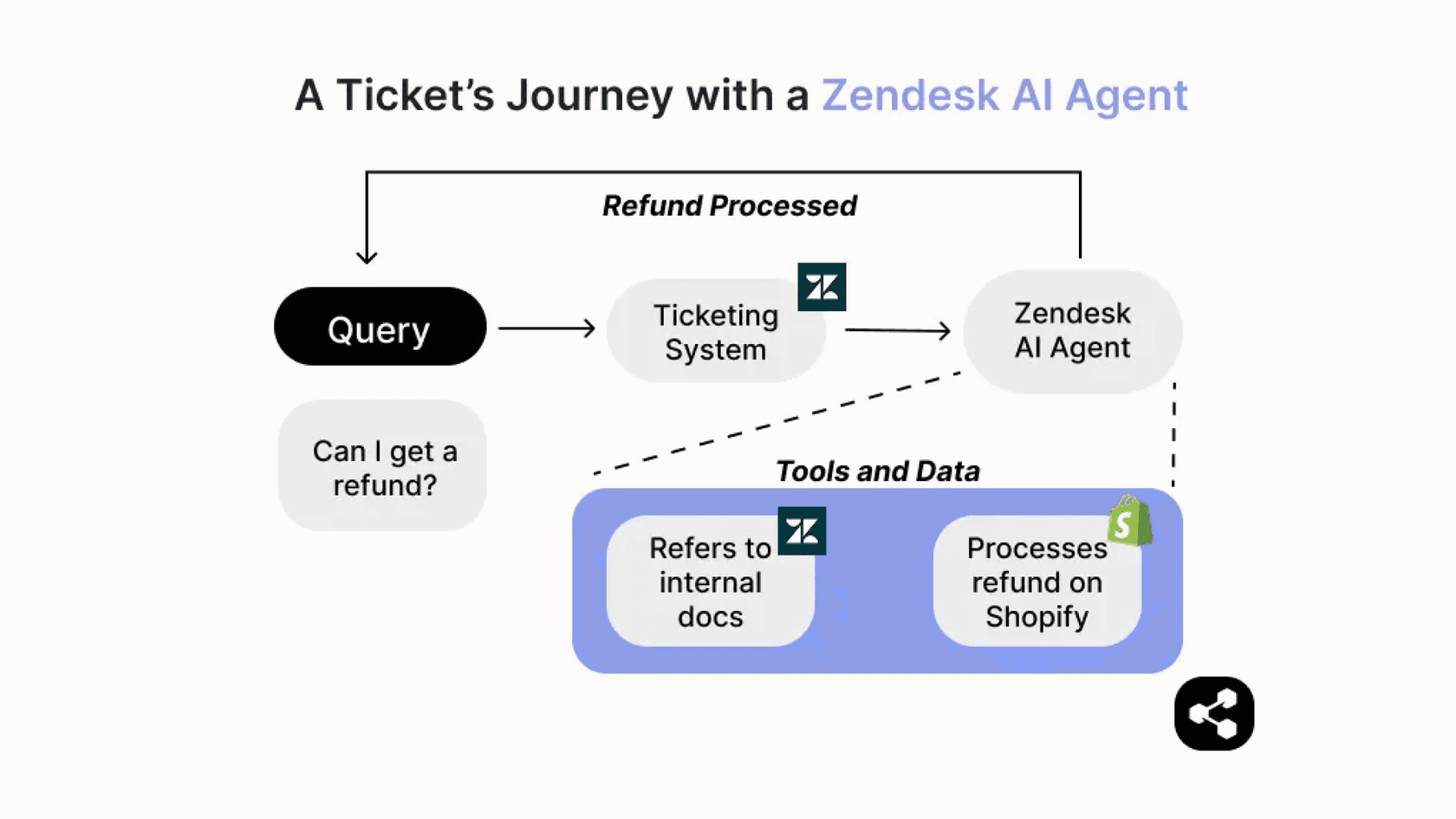
Tools like eesel AI work seamlessly within the Zendesk ecosystem. It can learn from your existing help center articles and Google Docs to provide helpful answers in seconds, perfectly complementing your human support team.
Help agents reply faster with an AI copilot
For complex issues that need the expertise of your agents, an AI copilot can act as a powerful assistant. It can work right inside Zendesk, drafting high-quality replies based on your company knowledge. This helps your team maintain a high standard of service while hitting their FRT goals with ease.
Get tickets to the right person, instantly, with AI triage
Efficient ticket routing is another way to keep FRT low. Ensuring a ticket gets to the right expert immediately is key to a fast response.
graph TD A[Incoming Ticket] --> B{AI Triage}; B -->|Bug Report| C[Engineering]; B -->|Billing Question| D[Finance]; B -->|General Inquiry| E[Support];
AI triage features, such as those offered by eesel AI's Triage, work with Zendesk to automatically tag and route tickets. This intelligent dispatching makes sure every ticket is positioned for a quick, expert response.
Zendesk pricing
Zendesk Explore is a key part of the Zendesk Suite, a comprehensive package of industry-leading support tools. Zendesk offers tiered plans to match different team sizes and needs, ensuring you have access to the right reporting features as you grow.
| Plan Name | Starting Price (Annual) | Key Features for Reporting |
|---|---|---|
| Suite Team | $55 per agent/month | Standard reporting and analytics |
| Suite Growth | $89 per agent/month | Custom reporting, 1,000+ pre-built apps |
| Suite Professional | $115 per agent/month | Integrated voice, skill-based routing |
Note: Prices can change. It's always a good idea to check Zendesk's official pricing page for the latest info in 2026.
Go beyond the Explore recipe: how to report on first reply time in Zendesk
Setting up your first reply time reports in Zendesk Explore is a brilliant first step. It provides the visibility and data-driven foundation you need to understand and improve your customer service.
Zendesk has built an impressive ecosystem where you can combine world-class reporting with proactive tools. The data from Explore shows you the opportunities, and AI-driven add-ons give you the tools to act on them. By using Zendesk's mature platform alongside helpful integrations, you can ensure your first reply time remains a point of pride for your company in 2026.
If you're ready to see how these insights can be put into action, you can sign up for eesel AI to see how it complements your existing Zendesk setup. It’s a great way to build on your Zendesk reporting and start reaching your goals even faster.
Frequently asked questions


Share this article

Article by
Stevia Putri
Stevia Putri is a marketing generalist at eesel AI, where she helps turn powerful AI tools into stories that resonate. She’s driven by curiosity, clarity, and the human side of technology in 2026.
