Freshdesk automation: a complete guide for 2026


Last edited June 12, 2026

Table of Contents
- What counts as automation in Freshdesk
- The classic rule engine: three automation rule types
- Scenario automations: one-click macros
- Automatic ticket assignment with Omniroute
- Which plan unlocks what
- Where Freshdesk automation hits its limits
- Freddy AI: Freshworks' own AI layer
- Try eesel for Freshdesk automation
What counts as automation in Freshdesk
Before touching a single rule, it helps to know what you're actually working with. When people say "Freshdesk automation," they're usually pointing at one of four very different things, and conflating them is how teams end up building the same logic in the wrong place.
Here's the mental model we'd use. The four layers stack from "simplest, runs on Free" up to "most capable, costs extra":
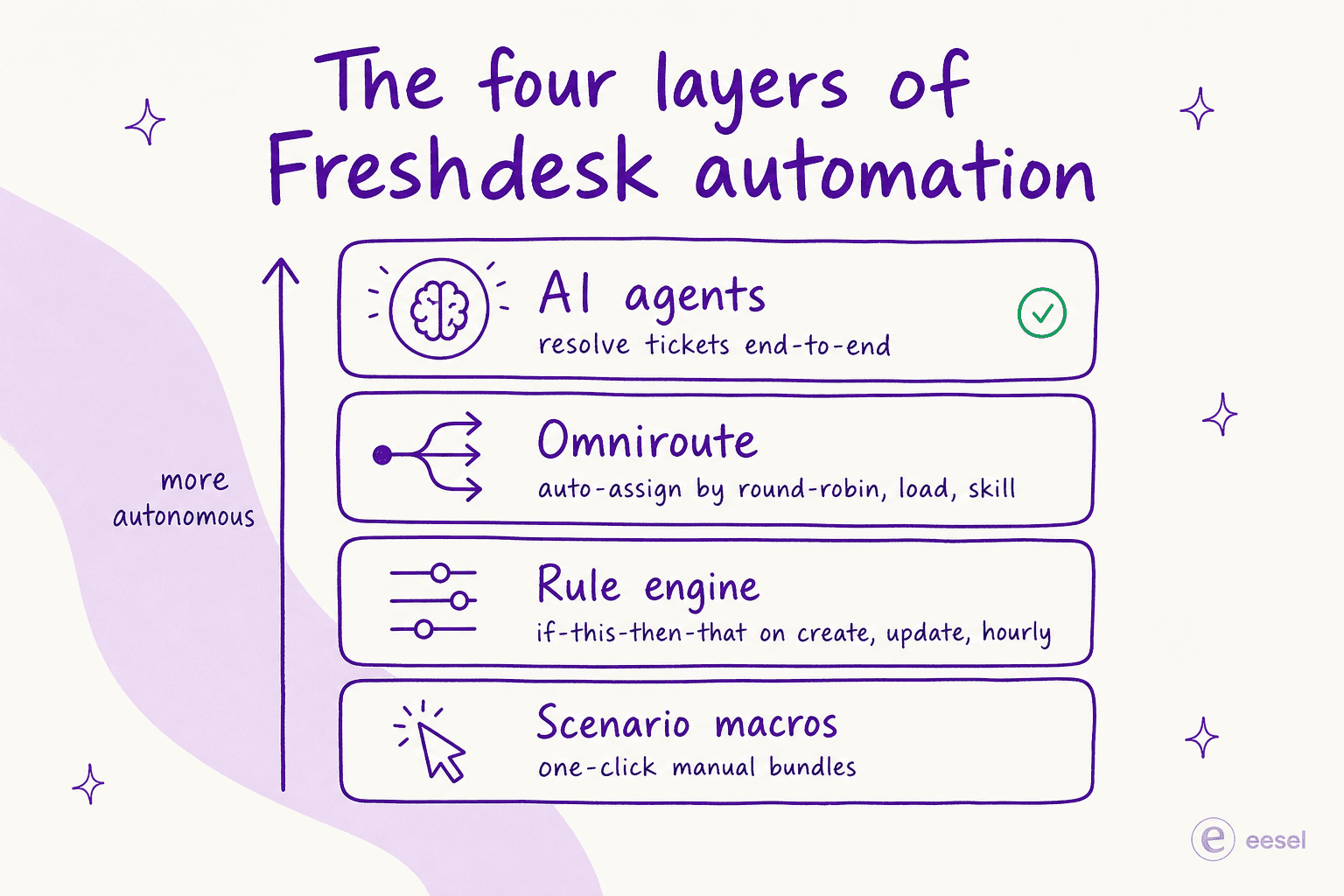
- The rule engine is the if-this-then-that workhorse: conditions plus actions that fire automatically. It lives under Admin > Workflows > Automations.
- Scenario automations are manual macros: an agent clicks one button to run a bundle of actions on a ticket.
- Omniroute is the assignment engine that decides which agent a ticket lands on.
- Freddy AI is the paid layer that reads, replies, and resolves.
We'll walk each one. If you just want the fastest path to "tickets handle themselves," skip to where the built-in tools run out, but the rule engine is where everyone starts, so let's start there too.
The classic rule engine: three automation rule types
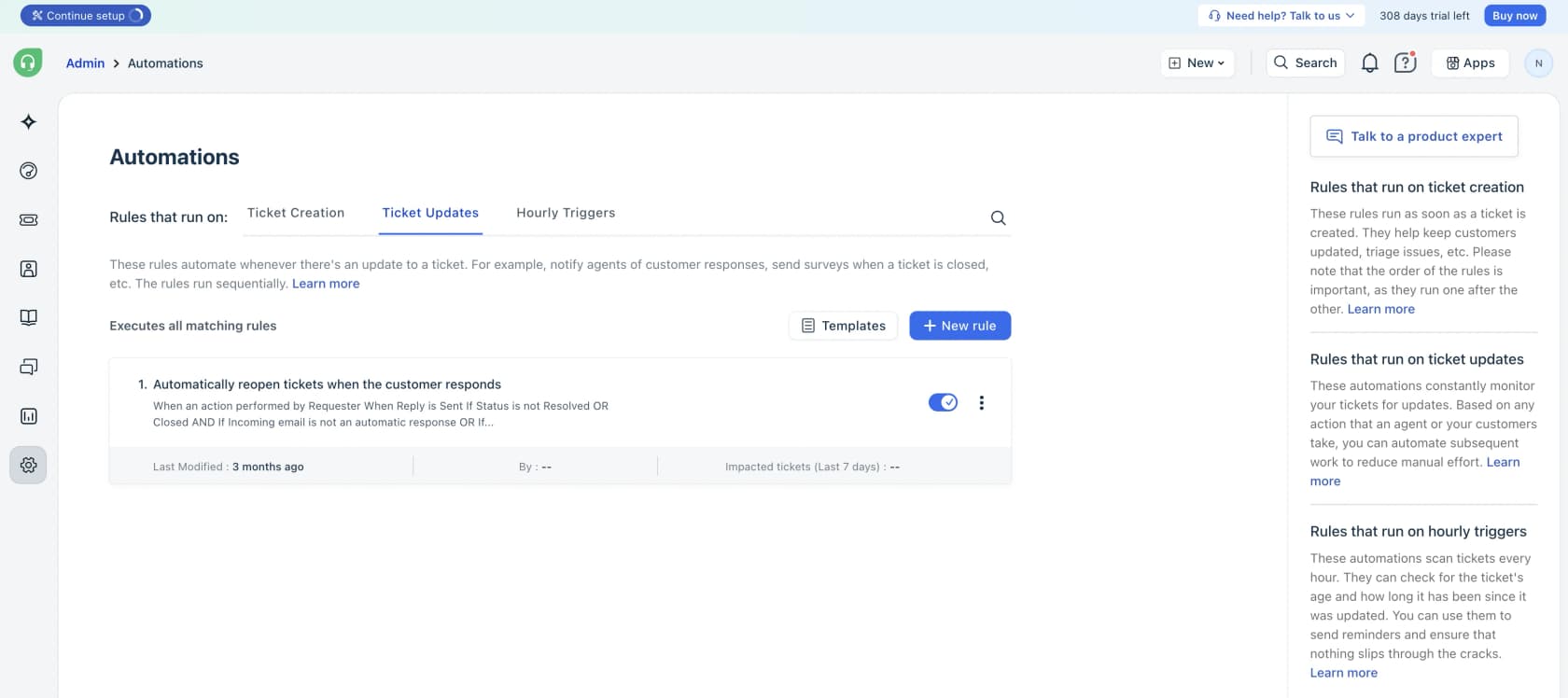
Freshdesk's core automation is built from three rule types, each one tied to a different moment in a ticket's life. One naming note worth getting straight up front: Freshdesk has retired the old Dispatch'r, Observer, and Supervisor names. The current admin UI calls them Ticket Creation, Ticket Updates, and Hourly Triggers, and the hourly-triggers docs even label that last one "FKA Time Triggers." If a comparison post still says Dispatch'r, it's working from an old screenshot.
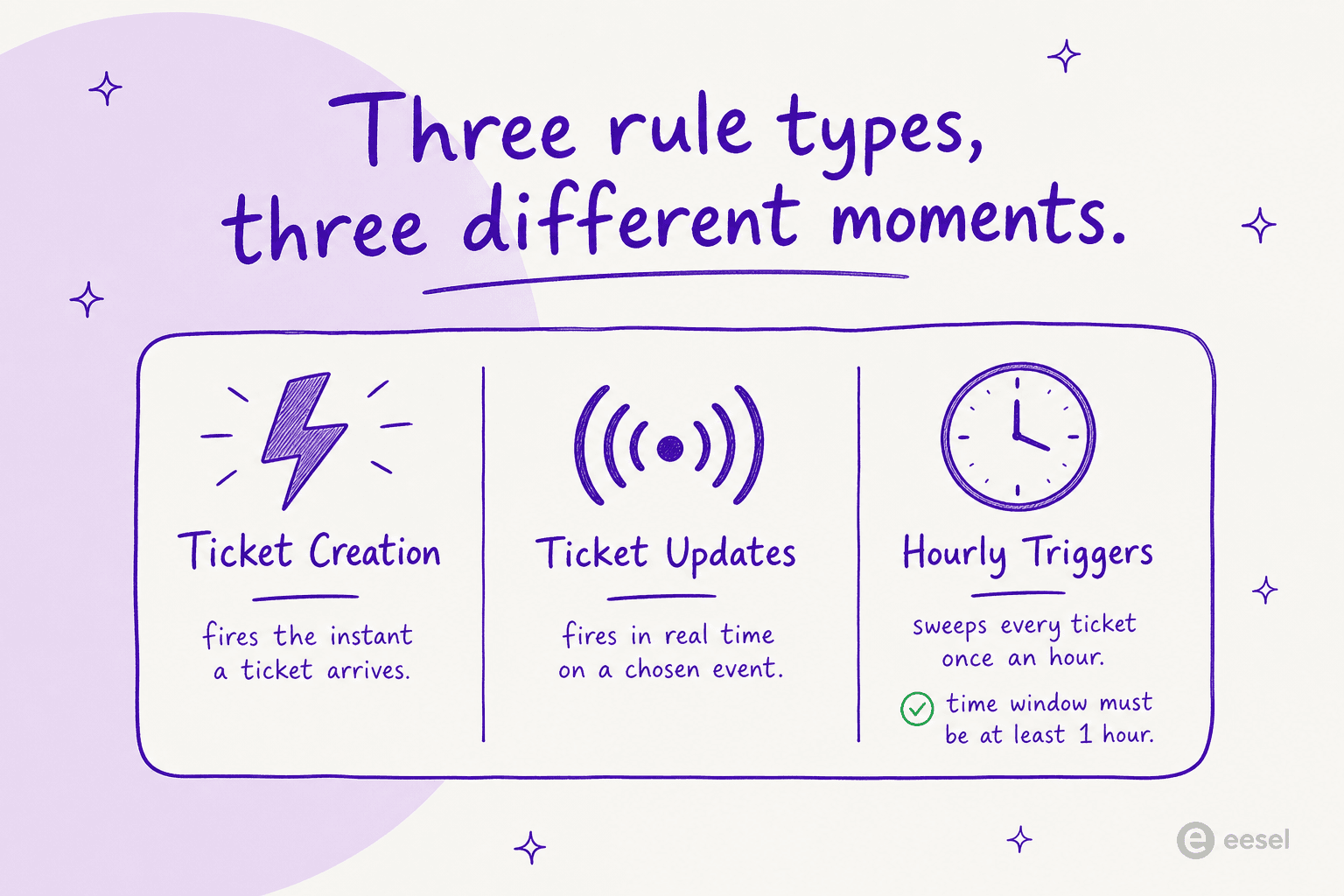
The single most useful thing to internalise is that you pick the rule type by when you need it to run, not by what it does. All three can set properties, assign tickets, and send notifications. What separates them is timing.
| Current name | Legacy name | When it runs | Typical job |
|---|---|---|---|
| Ticket Creation | Dispatch'r | The instant a ticket is created | Triage and route new tickets, set priority, mark spam |
| Ticket Updates | Observer | Real time, when a chosen event happens | Reopen on customer reply, notify on bad CSAT, fire webhooks |
| Hourly Triggers | Supervisor / Time Triggers | Scans all tickets once every hour | Auto-close stale tickets, escalate aging ones |
All three live on their own tab under Admin > Workflows > Automations, and Freshdesk is generous here: there's no limit on the number of conditions you can stack in a rule, with no per-plan restriction on conditions, per the overview article. For the full library of recipes, our dedicated Freshdesk automation rules guide goes deeper than we can here.
Ticket creation rules
Ticket Creation rules fire the moment a ticket arrives, which makes them your triage layer. The creation docs let you assign tickets to groups or agents, set status and priority and type, send an auto-reply, trigger email notifications, and delete or mark tickets as spam. Conditions can lean on ticket fields, contact properties, or company properties, with AND/OR operators and nested blocks.
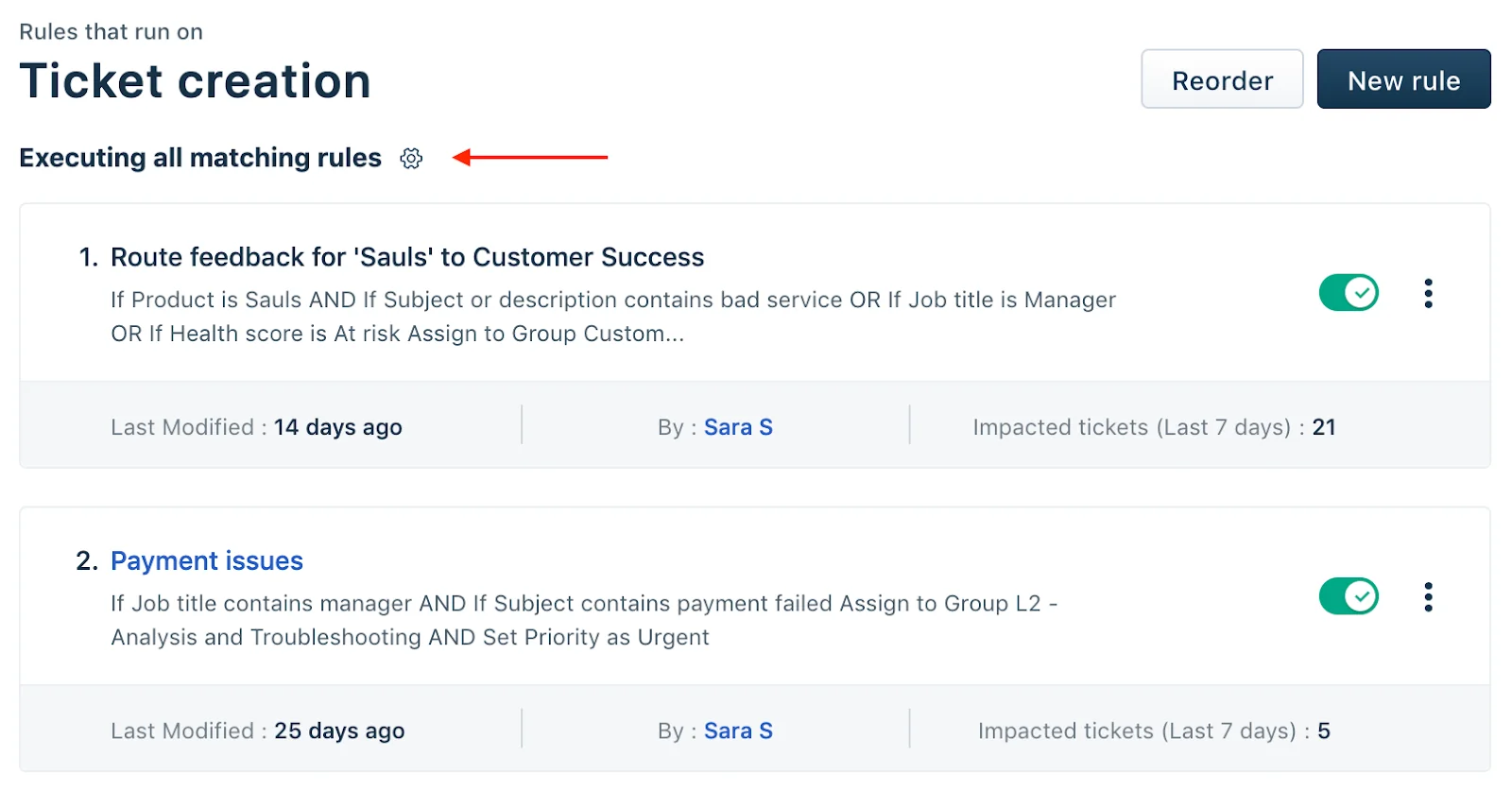
Here's the gotcha that trips up nearly everyone, and it's worth a highlighter: by default, creation rules run on first matching rule only. Freshdesk's own docs warn that "the order of the rules is very important because only the first matching rule will be executed," per the ticket-creation guide. If a rule near the top of your list matches a ticket, every rule below it is skipped for that ticket. When a teammate asks "why didn't my automation fire?", this is the answer roughly nine times out of ten. To change it, click the gear above the rules list and pick "Execute all matching rules." This is also where automatic ticket assignment in Freshdesk usually begins.
Ticket update rules
Update rules are the reactive layer. They "constantly listen for events you've specified, match them against conditions, and then perform automatic actions," per the ticket-updates docs. The thing that makes them distinct is the Event block, which no other rule type has: you specify who performed the action (agent, requester, collaborator, or system) and which event to listen for (a property changed, a note added, a reply sent, feedback received, and so on).
That unlocks the patterns most teams actually want: auto-reopen a resolved ticket when the customer replies, send a CSAT survey when a ticket is resolved, or email a supervisor when a VIP leaves a bad rating. Crucially, update rules run differently from creation rules: "all matching rules are executed from top to bottom," so there's no first-match-only trap here. They also expose a Trigger webhook action, which is how you wire Freshdesk out to external systems; we cover that in our guide to Freshdesk webhooks. One plan note: update rules are not on the Free tier, so this is your first reason to be on at least Growth.
Hourly triggers
Hourly Triggers are the cleanup crew. They "run on all tickets every hour and execute when conditions match," per the hourly-triggers guide. The classic use is sending a ticket that's gone unattended for 48 hours to an agent, bumping its priority, or pinging a supervisor.
Three limits are worth knowing before you build on them, because they bite quietly:
- They run once per hour, so any time threshold you set has to be one hour or greater.
- They only match against tickets updated in the last 30 days.
- They run on ticket properties only, not contact or company properties, and can't condition on subject, description, requester email, CC, tags, or attachments.
If you've been searching for "Freshdesk time triggers," that's this feature under its old name, and our time triggers guide has the full recipe list.
Scenario automations: one-click macros
Not everything should be automatic. Sometimes you want an agent to look at a ticket, decide, and then fire off a bundle of actions in one click. That's what scenario automations are: the macro layer that sits beside the automatic rules.
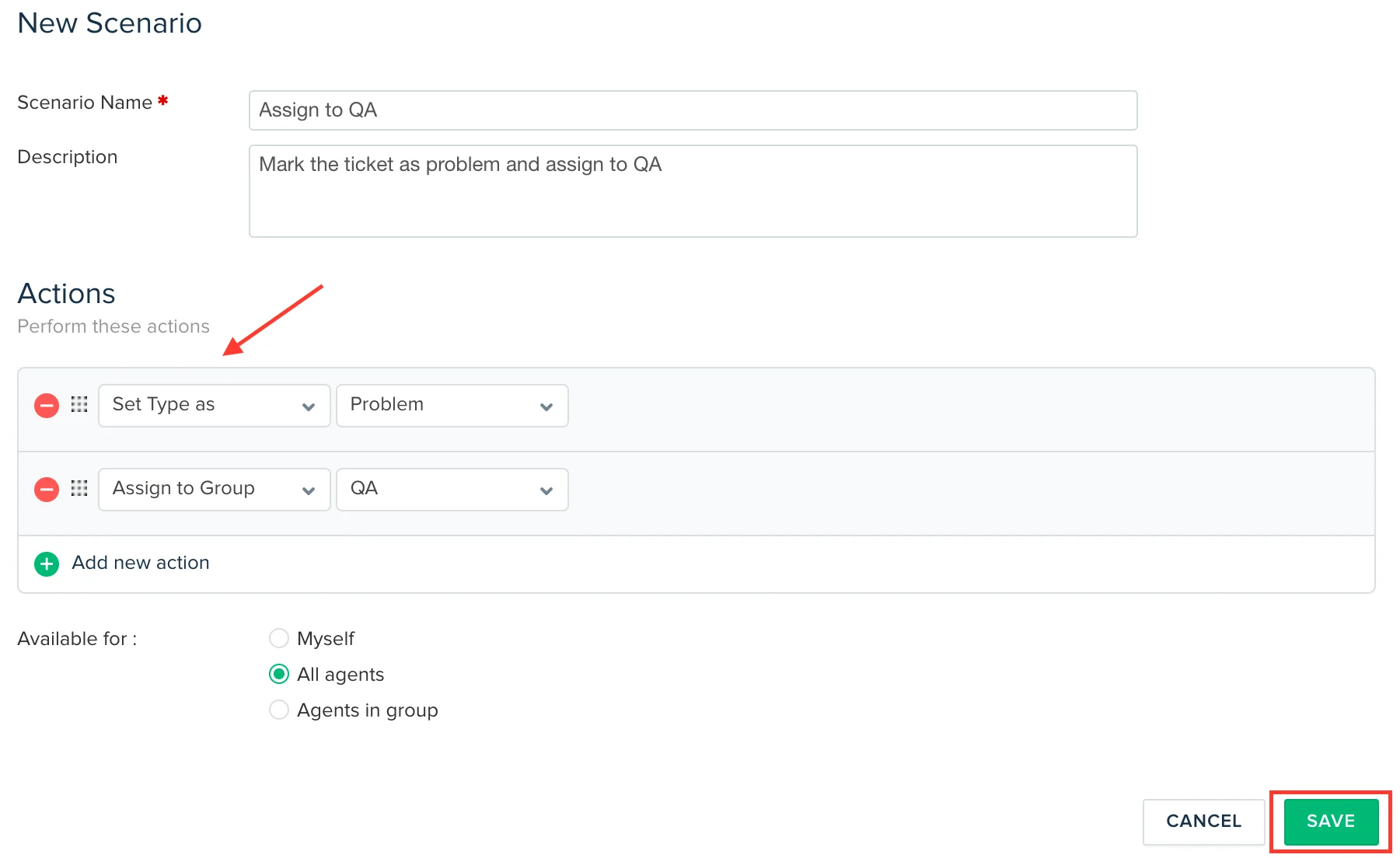
Instead of manually tagging a ticket as Refund, assigning it to the Refunds group, and setting status to Processing, you bundle those into a single scenario and run it in one action, per the scenario-automations docs. You build them under Admin > Agent Productivity > Scenario Automations, add ordered actions (set priority, set type, add a note, assign to a group, send an email, and more), and set visibility to yourself, your group, or all agents.
The most useful detail: you can bulk-execute a scenario across many selected tickets at once from the Tickets list, which turns a tedious afternoon of repetitive edits into a few clicks. One catch from the docs: the "Set Reply" action prefills a canned reply for review but does not auto-send, and it only works from the Ticket Details page, not the list view. Scenarios are gated to Growth and up, not Free. If you live in canned replies, pair this with Freshdesk canned responses, and for the full walkthrough see our Freshdesk scenarios automation guide.
Automatic ticket assignment with Omniroute
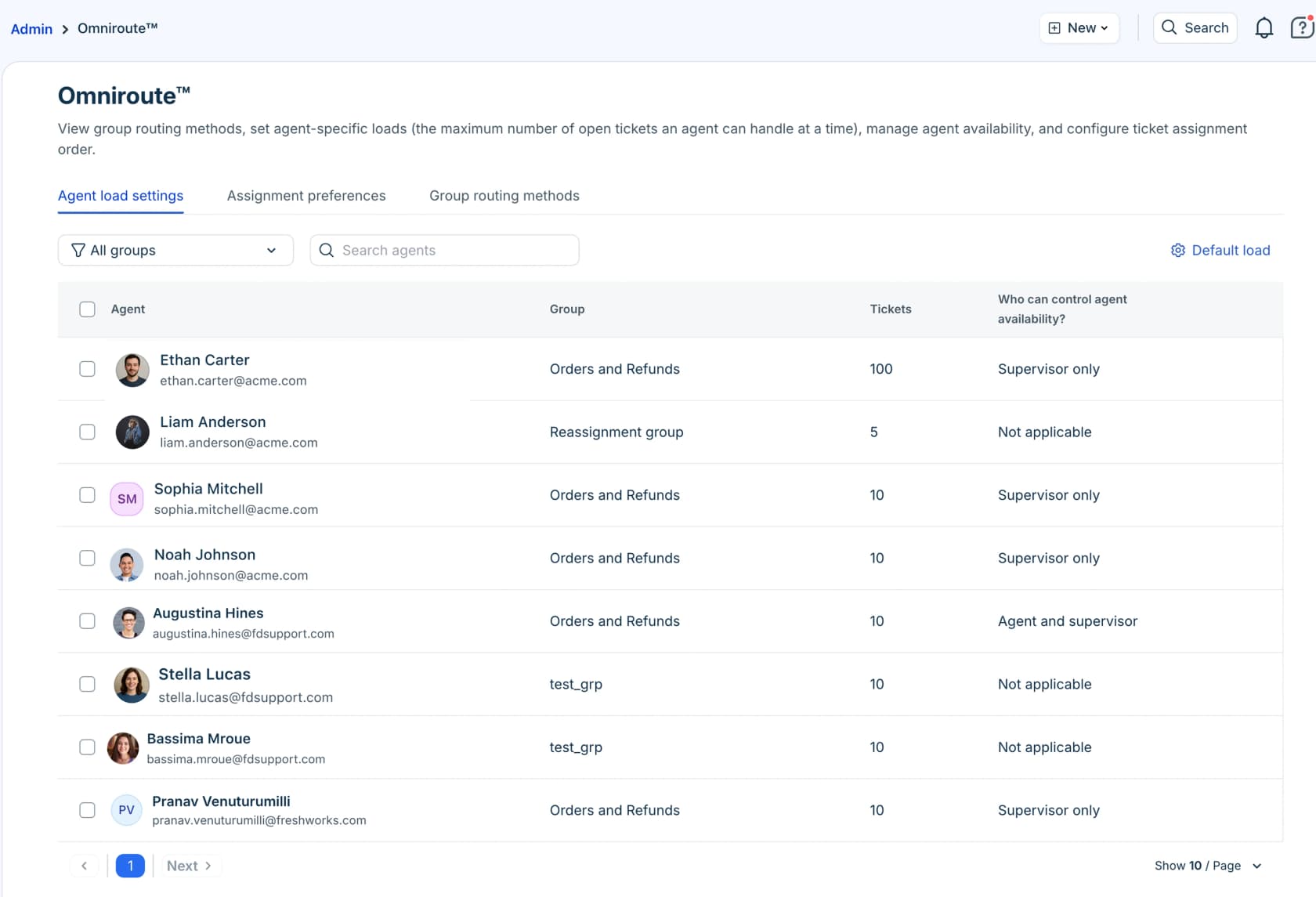
Routing is its own automation story. Freshdesk's automatic assignment is powered by Omniroute, "Freshdesk's routing engine that powers each automatic routing method based on agents' ticket load, availability, and assignment preferences," per the Omniroute settings docs. You turn it on per group by enabling Advanced Automatic Routing.
There are three routing methods, and picking the right one is mostly about your team's shape:
| Method | How it assigns | Best for |
|---|---|---|
| Round-robin | Circular order across available agents, factoring capacity | Small teams, transactional queries like order status |
| Load-based | By each agent's open-ticket capacity; optimises for faster resolution | Larger, higher-volume teams |
| Skill-based | To agents with matching skills and spare capacity | Multilingual support, specialist or technical teams |
All three need the agent to be online, and they respect a per-agent capacity cap, "the number of tickets they can manage within a given business hour," so tickets stop landing on someone who's full, per the assignment docs. The important caveat for buyers: Advanced Automatic Routing is Pro and Enterprise only. On Growth you're limited to simpler assignment. If you want the deep version, we wrote a full guide to Freshdesk auto-assign tickets.
Which plan unlocks what
This is where a lot of automation plans quietly fall apart: you design a workflow, then discover the rule type you need is two tiers up. Here's the gating, cross-checked against Freshdesk pricing (Growth at $19, Pro at $55, Enterprise at $89 per agent per month, billed annually, per freshdesk.com/pricing).
| Automation feature | Free | Growth | Pro | Enterprise |
|---|---|---|---|---|
| Ticket Creation rules | Yes | Yes | Yes | Yes |
| Ticket Updates rules | No | Yes | Yes | Yes |
| Hourly Triggers | No | Yes | Yes | Yes |
| Scenario automations | No | Yes | Yes | Yes |
| Advanced routing (Omniroute) | No | No | Yes | Yes |
| Freddy AI Agent / Copilot | Add-on | Add-on | Add-on | Add-on |
The takeaway: basic triage is free, real reactive automation needs Growth, and proper routing needs Pro. For a side-by-side on the rest of the feature set, our Freshdesk plans comparison lays out every tier, and if you're still picking a platform, Freshdesk vs Zendesk compares their automation depth head to head.
Where Freshdesk automation hits its limits
Everything above is solid, and for a team that mostly needs tickets sorted into the right buckets, it's enough. But there's a ceiling, and it's a structural one: Freshdesk's rule engine is deterministic. It matches conditions you wrote in advance and performs actions you defined in advance. It moves tickets around. It does not understand them.
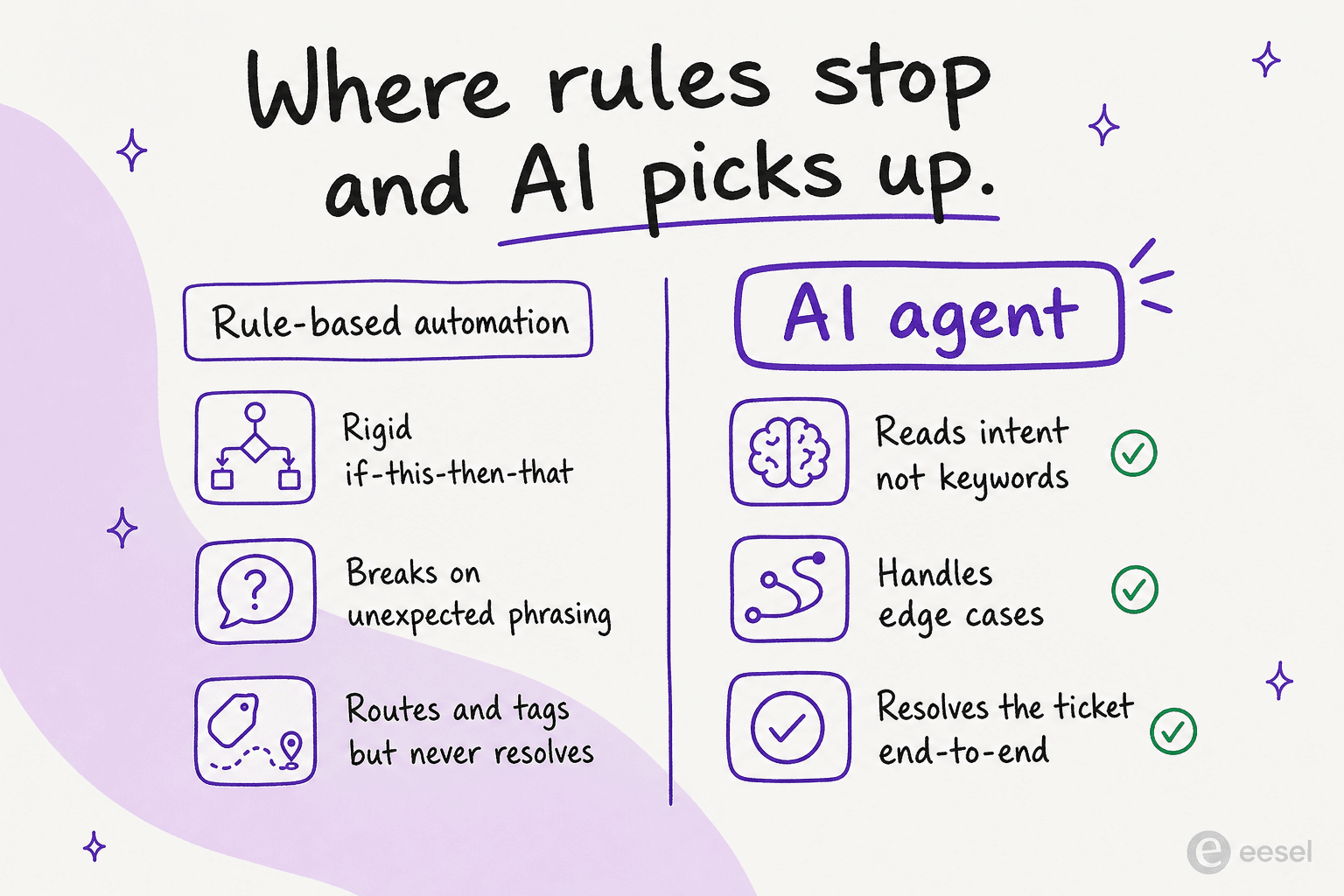
That shows up in three concrete ways. First, rules break on phrasing they didn't anticipate: a condition keyed to "refund" misses "money back," "chargeback," and every typo in between. Second, rules never actually answer a customer; the best a rule can do is route a "where is my order" ticket to the right group, where a human still types the reply. Third, the rules pile up. We've worked with Freshdesk teams who couldn't get a new automation rule to coexist with their existing ones, because everything hinges on ordering and the first-match behaviour we flagged earlier; one team spent weeks trying to make their rules fire in the right sequence and never got it stable. That brittleness is the real cost of pure rule-based automation, and it grows with every rule you add.
This is exactly the gap that AI ticket automation is built to close. Instead of matching keywords, an AI agent reads the intent behind a message, which means it handles the "money back" and the typo without a new rule, and it can resolve the ticket end-to-end rather than just shuffling it. If you're weighing the broader shift, our piece on AI agent vs human agent cost and the guide to automated ticket resolution are good next reads.
Freddy AI: Freshworks' own AI layer
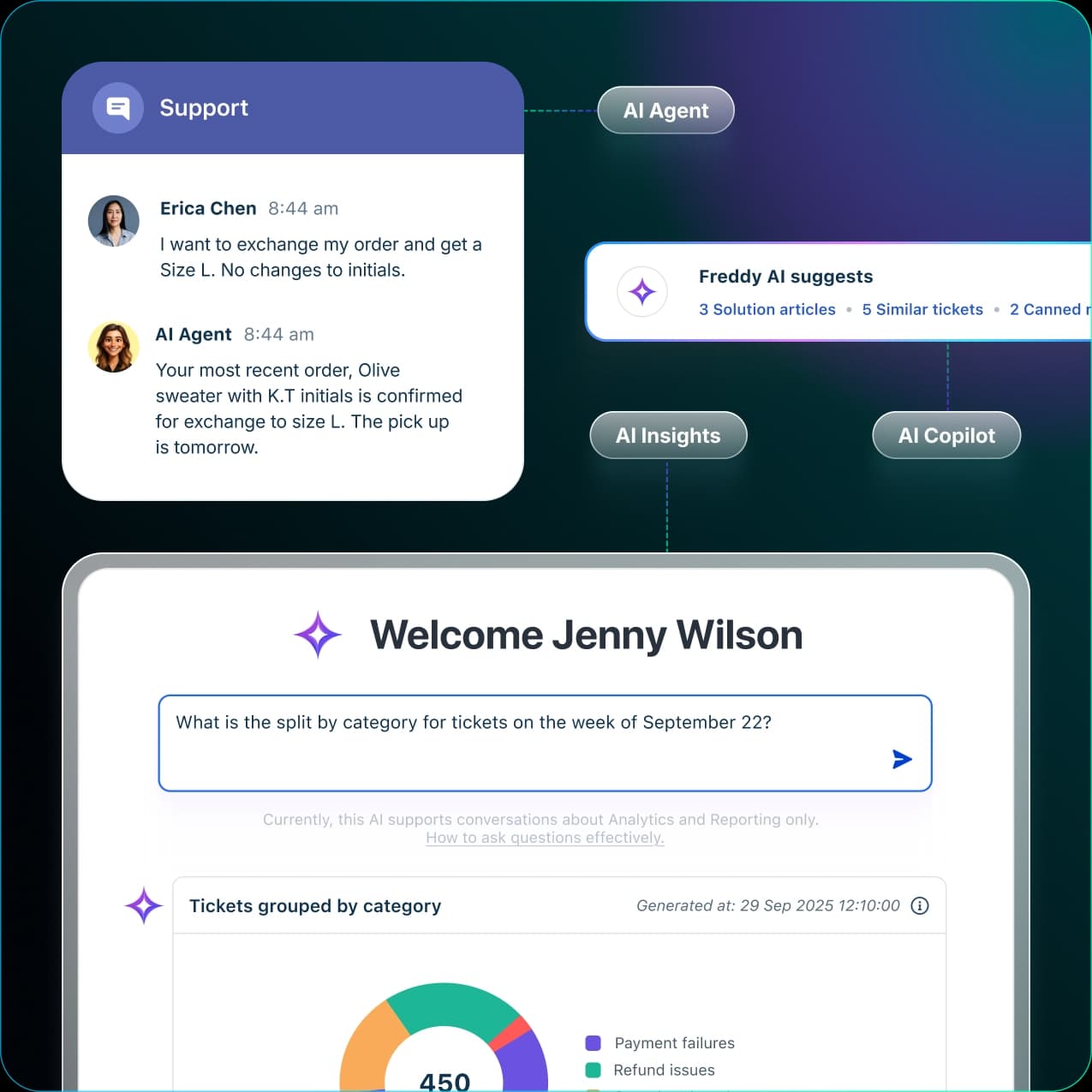
Freshworks' answer to that gap is Freddy AI, its built-in AI suite. It comes in three parts: Freddy AI Agent for autonomous resolution, Freddy AI Copilot for assisting human agents, and Freddy AI Insights for leadership analytics. Freshworks says the AI Agent resolves up to 80% of queries with pre-built agentic workflows, per the Freddy AI page. We mapped the whole suite in our rundown of Freshdesk AI features.
The customer stories are real and worth taking seriously:
"With Freddy AI, they've gained so much confidence, and the quality of emails they're sending now is remarkable."
Keira Hayter, Sales Team Manager, Woolacombe Bay, on the Freshworks Freddy AI page
Where Freddy gets contentious is pricing. Freddy AI Agent is billed per session, with the first 500 sessions included one-time on Pro and Enterprise, then $49 per additional 100 sessions, per Freshdesk pricing. A session is a unique end-user interaction (for the Email AI Agent, a 72-hour window per customer thread). That per-session meter is exactly what makes high-volume teams nervous, because your AI bill scales directly with your ticket volume. We dug into the math in our Freshdesk Freddy AI pricing breakdown, and if the numbers don't work, our Freshdesk AI alternatives and best AI automation apps for Freshdesk roundups cover the field.
Try eesel for Freshdesk automation
If you want the resolve-it-end-to-end layer without rebuilding your workflows or committing to a per-session meter, eesel is built to sit on top of the Freshdesk you already run. It plugs into Freshdesk, learns from your past tickets and help center, and drafts or fully sends replies, so the automation reads intent instead of matching keywords, and the ticket triage happens automatically.
The differentiator that matters here: you set a spend cap and eesel bills per resolution rather than per agent or per opaque session, so a busy month doesn't blow up the bill in a way you can't predict, and pricing stays transparent. You can simulate it on your real historical tickets before going live, which means you see the resolution rate you'd actually get on your queue, not a number from a marketing page. It's the difference between automation that sorts your tickets and automation that closes them.
Try eesel and see how much of your Freshdesk queue resolves itself before a human ever opens it.
Frequently Asked Questions

Share this article

Article by
Alicia Kirana Utomo
Kira is a writer at eesel AI with a Computer Science background and over a year of hands-on experience evaluating AI-powered customer service tools. She focuses on breaking down how helpdesk platforms and AI agents actually work so that support teams can make better buying decisions.