How to enable and disable Google Gemini (2026 guide)


Last edited November 14, 2025
Curious about how Google’s new AI, Gemini, can make your work and daily life easier?
Whether you’re managing tasks at work, organizing personal projects, or just looking for a smarter way to get answers fast, Google Gemini might be the assistant you didn’t know you needed.
But, with limitations in its flexibility and privacy concerns about your data, we'll explain why eesel AI can be a better fit for your personal AI sidekick.
In this guide, we’ll walk you through everything you need to know about setting up Google Gemini. From helping you find information in seconds to keeping your workspace organized, Gemini is designed to save time and make life a little simpler for people who love Google apps. We’ll show you how to enable it, use it with Google Workspace, adjust privacy settings, and even disable it if you prefer a different setup.
What is Google Gemini?
Google Gemini is like a multitasking digital assistant that works smoothly with text, images, audio, video, and even code. It can help with drafting emails, planning meetings, or transforming content inside Google’s apps.
Since it’s directly connected to Google’s services, it can deliver answers fast - no more digging through links and jumping between apps. Though, it is limited to Google’s platforms and has limited integration options.
But don’t take our word for it, we’ll walk you through it and you can see for yourself.
How to enable Google Gemini
Getting Gemini set up is easy, whether you’re on Android, iOS, or Chrome. Here’s a quick rundown to get you started:
Gemini on Android
-
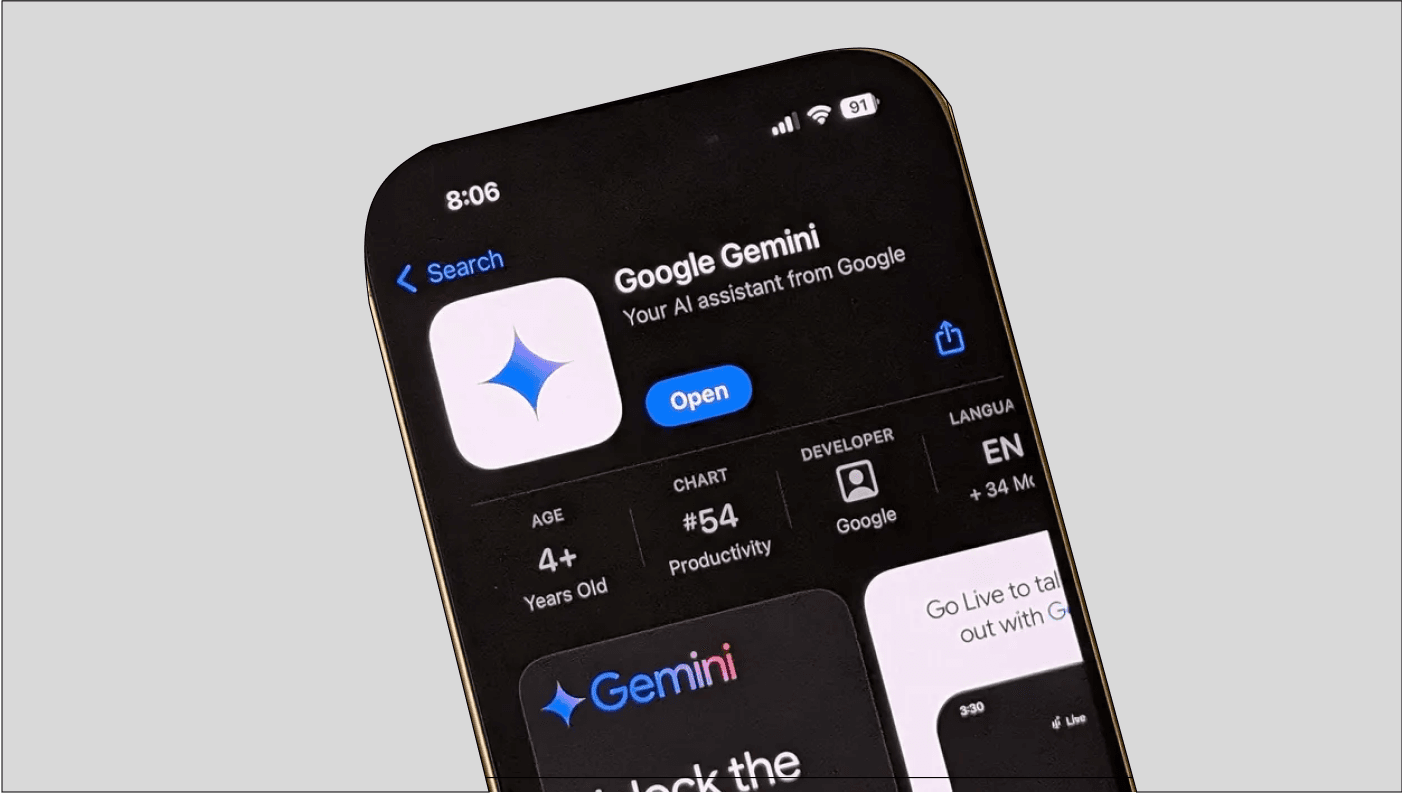
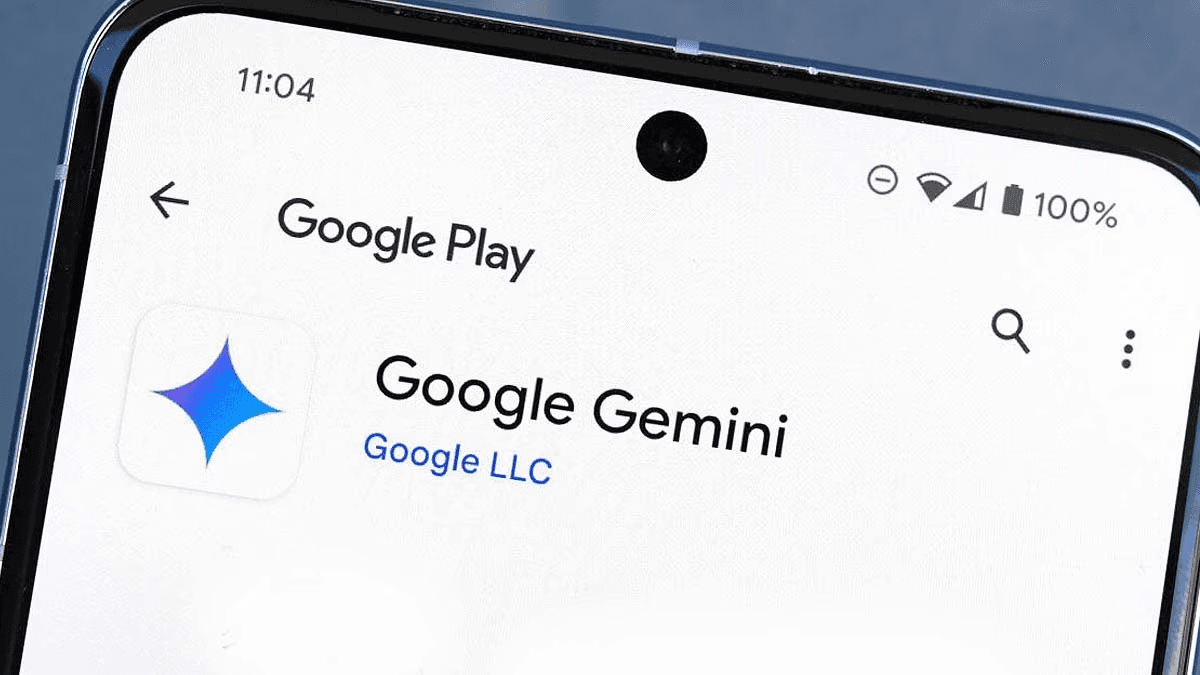
Download and open the app: If you don’t have Gemini yet, grab it from the Google Play Store and sign in with your Google account.
-
Make it your default assistant: Head to Settings > Apps > Default apps > Assist app and pick Gemini.
-
Use voice and touch commands: Just say “Hey Google” or hold down the power button to activate Gemini. From there, you can ask questions, set reminders, or get quick summaries of documents.
-
Explore the features: Try uploading images to get answers, find directions, or quickly summarize text on the go.
Gemini on iOS
-
Enable Gemini in the Google app: Search for Gemini in the app store of your iOS device, and install it. Sign in with your Google Account.
-
Know the limitations: On iOS, Gemini runs into a few issues when trying to work with iPads and older iOS devices. As it's not an Apple product, Gemini has less control over how well it plays with iOS updates.
Gemini in Chrome on desktop
-
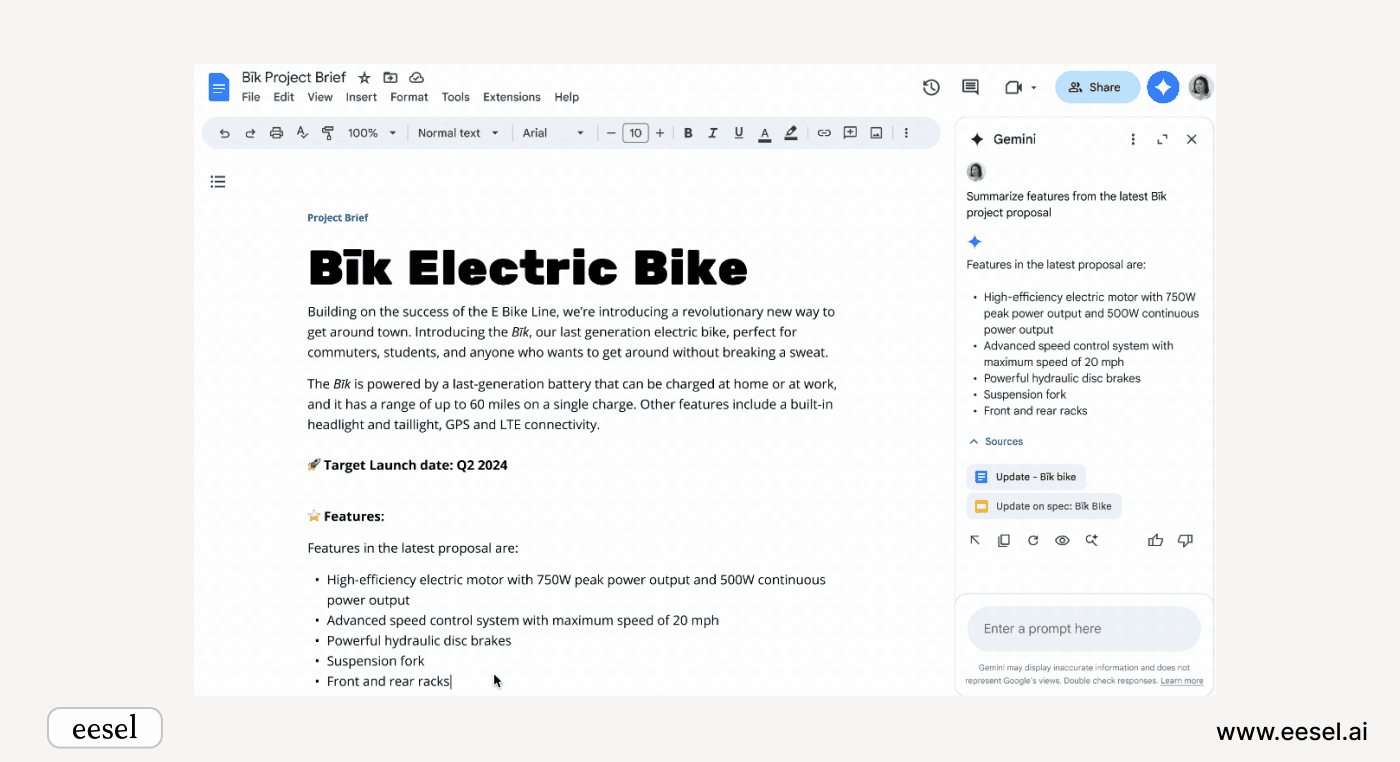
Add the Gemini Side Panel extension: Download a free extension from the Chrome Web Store so you can access Gemini right from your browser. Or, for workspace users that have Gemini enabled (see below for instructions) you can use the star Gemini icon in the top right of your app.
-
Use quick commands in the address bar: Just type @gemini in Chrome’s address bar, ask your question, and hit Enter.
-
Enable experimental features: Want to try some new stuff? Go to chrome://settings/ai and turn on experimental AI features (just keep in mind these are still in testing).
How to set up Gemini in Google Workspace
Getting Gemini up and running in Workspace is simple, whether it’s for your team or just for you. There are limited options for Google Gemini in Workspace base plans, but there is also a Pro subscription you can pay the premium for. We’ll just focus on the stuff that’s built in though.
Here’s how to get started:
1. For teams (admins)
-
Turn on Gemini in the Admin Console: Head to Apps > Google Workspace > Additional Google Services and flip the switch for Gemini.
-
Set permissions: Manage what Gemini can access to keep things secure across your organization.
2. For individuals
-
Enable Gemini for personal use: Log in to your Workspace account, then activate Gemini in Gmail, Drive, or Calendar for quick access.
-
Make it your own: Customize what data Gemini can use so its suggestions and responses fit your needs perfectly.
How to disable Google Gemini
If you’d rather not use Gemini, you can easily disable it on Android, iOS, and desktop. Here are a few reasons why some people choose to turn it off:
-
Privacy: Gemini collects data to personalize responses, which might not be ideal if you’re big on privacy.
-
Device performance: Turning off Gemini can free up memory and might make your device run a bit faster.
-
A simpler setup: If you’re looking for fewer prompts and notifications, disabling Gemini can give you a cleaner, less cluttered experience.
Disabling Gemini on Android
-
Switch back to Google Assistant: Go to Settings > Apps > Default apps > Assist app, then choose Google Assistant instead.
-
Remove the “Try Gemini” pop-up: Select “Try Now” to temporarily enable Gemini, then switch back to Google Assistant to stop the prompt.
-
Uninstall the Gemini app: If installed separately, find the Gemini app, press and hold the icon, and select Uninstall.
Disabling Gemini on iOS
-
Turn off Gemini features in the Google app: Open the Google app, go to Settings > General, and toggle off Gemini’s AI features.
-
Adjust permissions: Limit Gemini’s prompts by disabling related app permissions.
Disabling Gemini in Chrome
-
Remove the Gemini Side Panel extension: In Chrome, open Extensions, find the Gemini Side Panel, and click Remove.
-
Turn off experimental features: Go to chrome://settings/ai and toggle off experimental AI features.
Removing Gemini from Google Messages
-
Delete the Gemini chat: In Google Messages, press and hold the Gemini chat, tap Delete, and confirm.
-
Turn off AI features in Messages: Under Messages settings, turn off options like Magic Compose and Smart Reply to reduce AI-generated suggestions.
Google Gemini’s limitations and privacy concerns
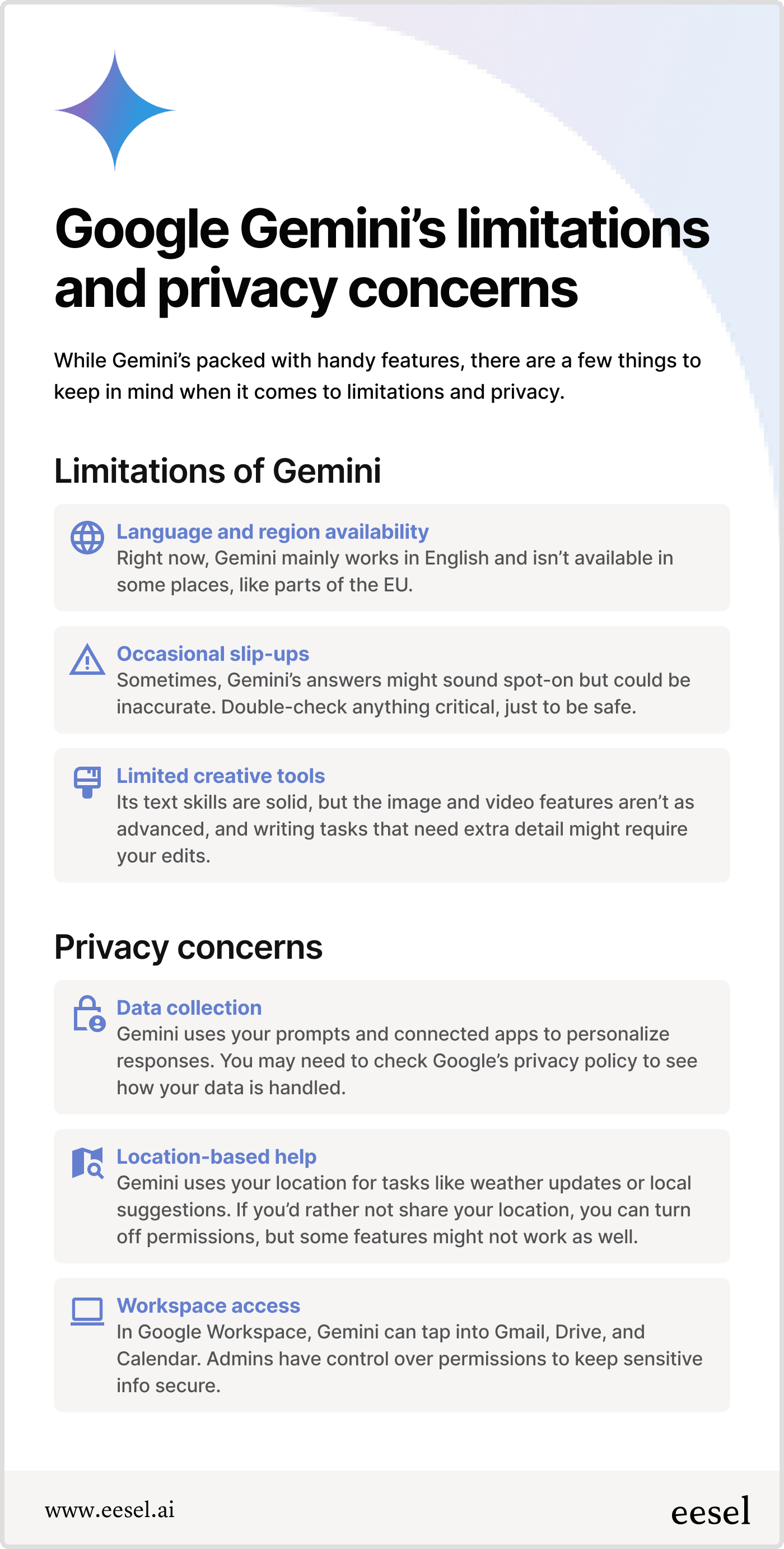
Check out some limitations and privacy concerns in the table down below. For more info, you can check out their detailed privacy policy here.
Managing your data with Gemini
-
Adjust data collection: Head to Google’s privacy settings to turn off Web & App Activity or location sharing if you’d rather keep things more private.
-
Manage Workspace permissions: Admins can tweak what data Gemini can access, so only the right info is shared.
-
Review and delete activity: Check your account’s activity history to see what Gemini has accessed. Don’t like something? You can delete it with a few clicks.
Make Gemini work for you, or find an alternative
Google Gemini is a powerful tool for streamlining tasks, getting quick answers, and staying organized, whether you’re managing projects or handling everyday questions. Its integration with Google Workspace and easy access on Android, iOS, and Chrome make it a versatile assistant for just about anyone.
It works well for individuals who love the Google suite of apps. But it lacks the flexibility to be used across teams and across platforms.
If you’re looking for a tailored AI solution that goes beyond the basics, and works for individuals and teams across platforms, check us out! At eesel AI we have a lot to offer those seeking an AI solution to improving their Google Docs and Google Drive workflow.
What sets it apart?
-
Tailored to your team: eesel learns directly from your company knowledge - platforms like Slack, Google Drive, and Confluence - so its responses feel more like they’re coming from a teammate, not just a generic AI.
-
Customizable and on-brand: With full control over its tone, behavior, and responses, eesel seamlessly adapts to your brand and work style.
-
Affordable and flexible: Unlike Gemini, you don’t have to pay top dollar for the features you want, or settle for AI limited to one platform.
Try eesel today and see how it can transform the way you work. Simplifying tasks, boosting productivity, and keeping your team connected. Start a free trial now, and instantly add your Google Docs to your personal AI agent.
Frequently asked questions

Share this article

Article by
Stevia Putri
Stevia Putri is a marketing generalist at eesel AI, where she helps turn powerful AI tools into stories that resonate. She’s driven by curiosity, clarity, and the human side of technology.