A practical guide to your terminal configuration for Claude Code


Last edited October 15, 2025
So, you're using Claude Code, Anthropic's AI assistant that lives right in your terminal. That's a great start. But if you're still using it straight out of the box, you're leaving a ton of power on the table. A good terminal configuration for Claude Code can make the difference between a helpful tool and a truly seamless coding partner.
The thing is, digging through settings files and commands can feel like a chore. That’s what this guide is for. We'll walk through everything you need, from the basic config files to some of the more advanced tricks. We'll also be realistic about what Claude Code is built for, and when you might need a different kind of AI tool to get the job done.
What is Claude Code?
In a nutshell, Claude Code is an AI coding assistant from Anthropic that works inside your command-line interface (CLI). Instead of chatting with an AI in your browser, you have a "pair programmer" that can actually read your project files, understand the context of your codebase, write new code, and even run shell commands to test things or manage your git repo.
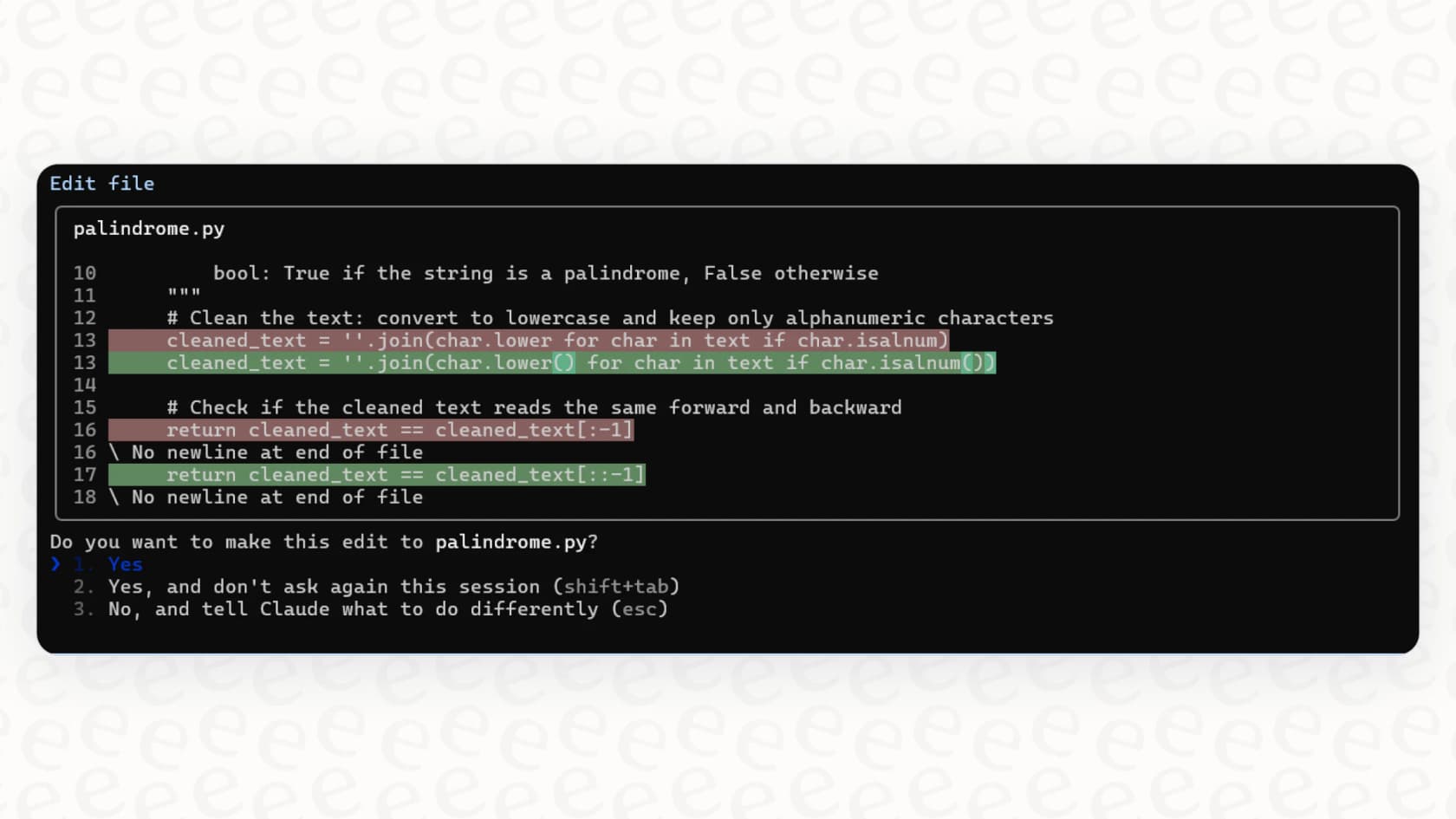
It's called an "agent" because it can string together a series of actions to complete a bigger task. You can ask it to plan a new feature, write the code across multiple files, and then package it all up in a pull request. This tight integration with your local environment is what makes it so specialized for development work.
The foundations of your terminal configuration for Claude Code
Before you get into the fancy stuff, you need to get the basics right. Two files control most of Claude Code’s behavior: "settings.json" handles the technical rules, and "CLAUDE.md" gives it instructional context. Nailing these two is step one.
Configuring your settings.json files
Your "settings.json" files are where you lay down the law for Claude Code. This is where you control permissions, choose which AI model to use, and define how it interacts with your tools. The settings are hierarchical, which is pretty handy because you can set global rules and then override them for specific projects.
-
User settings ("~/.claude/settings.json"): This is your personal default file. The settings here apply to every project you work on.
-
Project settings (".claude/settings.json"): This one lives in your project folder and should be checked into version control so the whole team is on the same page. It’s perfect for project-wide rules, like telling Claude to keep its hands off your ".env" files.
-
Local project settings (".claude/settings.local.json"): This is for your own personal tweaks on a project that you don't need to share with the team.
Here’s a practical example of what a project's "settings.json" might look like:
{
 "model": "claude-3-5-sonnet-20240620",
 "permissions": {
 "allow": [
 "Read",
 "Write(src/**)",
 "Bash(git *)",
 "Bash(npm run test)"
 ],
 "deny": [
 ["Read(./.env*)"](https://blog.codacy.com/equipping-claude-code-with-deterministic-security-guardrails),
 "Bash(rm *)"
 ]
 },
 "hooks": {
 "PostToolUse": [
 {
 "matcher": "Write(*.ts)",
 "hooks": [
 {
 "type": "command",
 "command": "npx prettier --write $file"
 }
 ]
 }
 ]
 }
}
This config tells Claude to use the Sonnet 3.5 model, restricts it to reading and writing only in the "src" directory, and makes it automatically run Prettier to format any TypeScript file it touches. Simple, but very effective.
Providing context with CLAUDE.md files
The "CLAUDE.md" file is a bit different. It’s not for technical settings; it’s a Markdown file that Claude reads every time it starts up in your project. Think of it as a cheat sheet or a persistent set of instructions for the AI.
You can use it to tell Claude about:
-
Coding standards: "We use TypeScript for all new code. Please follow the ESLint rules."
-
Project architecture: "Just a heads-up, the frontend is Next.js and the backend is Node.js with Express."
-
How to run tests: "New tests go in Jest. You can run them with "npm test"."
-
Common commands: A quick list of build or test commands so it doesn't have to guess.
Here’s a snippet of what one might look like:
# Project Context for MyWebApp

## Coding Standards

- All new components should be functional components using React Hooks.

- We use `pnpm` for package management, so please don't use `npm` or `yarn`.

- Write unit tests for all new utility functions you add to the `src/utils` directory.

## Key Files

- The main entry point is `@./src/index.tsx`.

- Global styles live in `@./src/styles/global.css`.

- API calls are all handled by functions in `@./src/lib/api.ts`.
Advanced customization for your terminal configuration
Once you have your foundational setup dialled in, you can explore some of Claude Code's more advanced features. This is where you can build some really powerful shortcuts and automate the repetitive parts of your day.
Extending capabilities with MCP servers and hooks
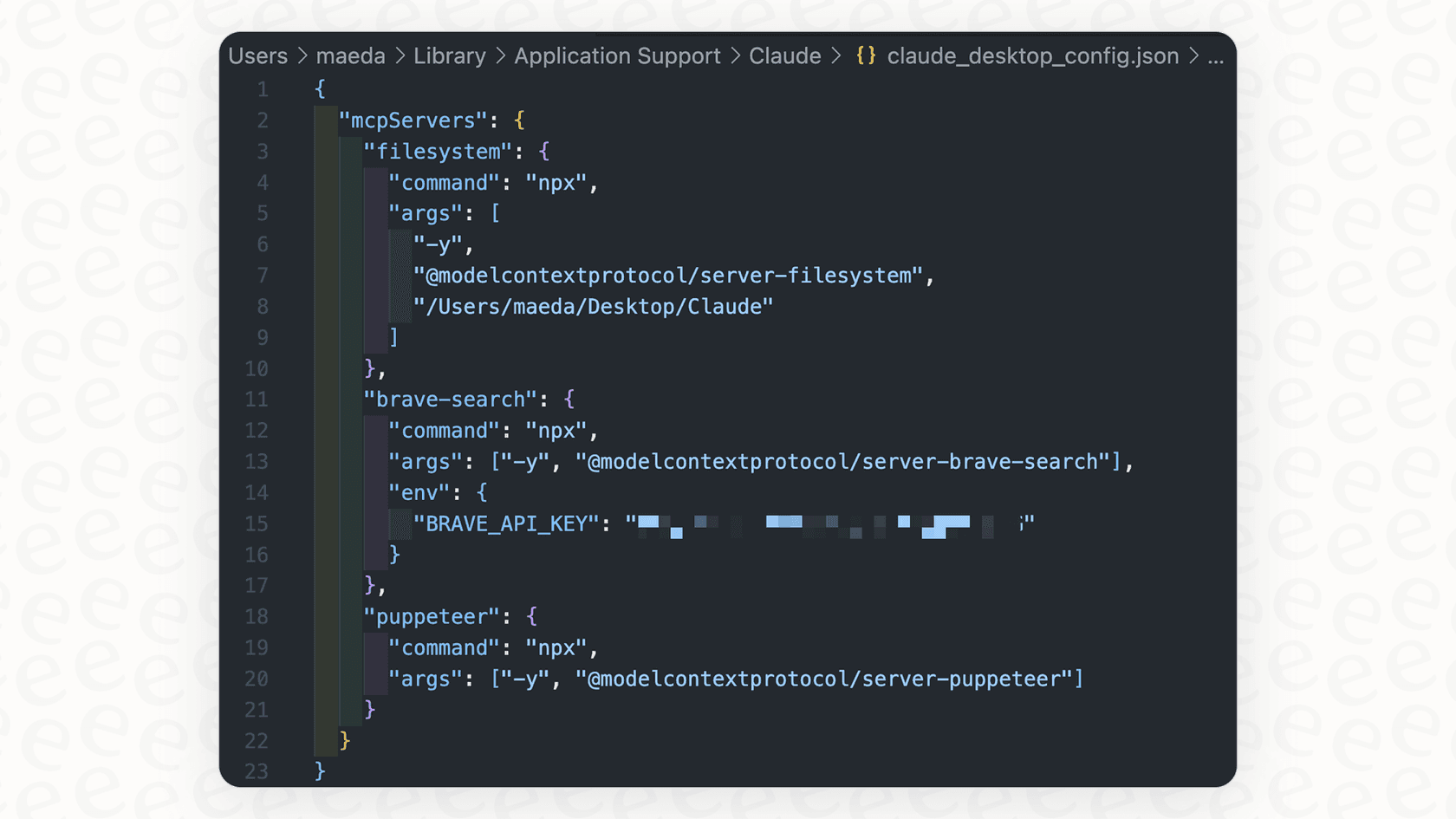
Model Context Protocol (MCP) is a fancy name for letting Claude Code connect to external tools. You could set up an MCP server to let Claude query a database, pull information from Figma, or run a security scanner. It’s incredibly powerful but, fair warning, it does require some technical legwork to set up and maintain.
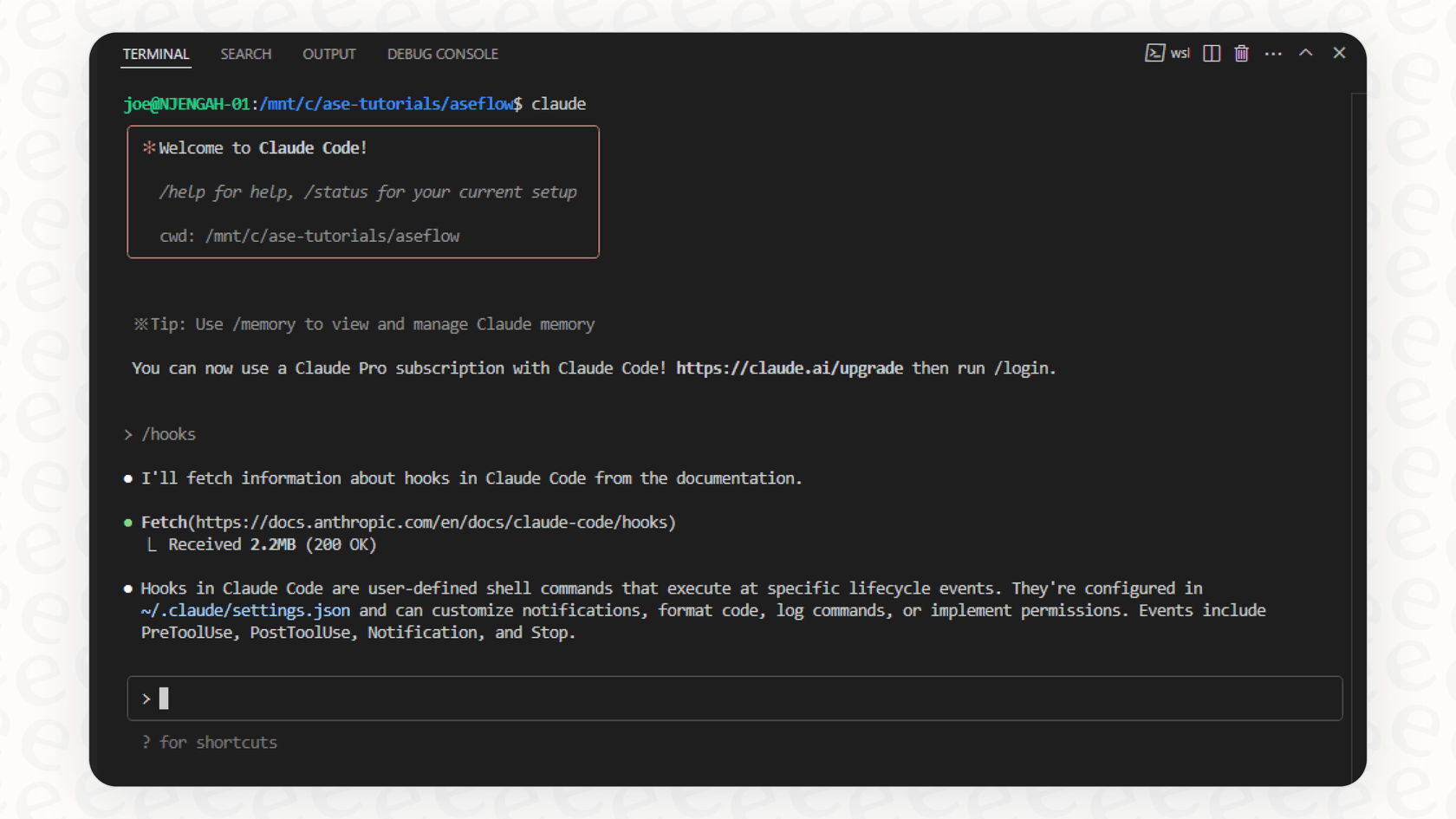
Hooks are another great automation feature. You can trigger actions based on certain events. For instance, you could set up a "PostToolUse" hook that automatically runs your linter every time Claude saves a file. It’s a nice way to enforce code quality without having to think about it.
This level of customization is a dream for many developers, but it also shows that Claude Code is a tool built for developers. Trying to use these features for a non-coding task, like automating customer support, would be pretty complicated. For that kind of workflow, you’d be better off with a tool like eesel AI, which offers simple, one-click integrations with helpdesks like Zendesk and knowledge bases like Confluence. It's designed for non-technical folks to get up and running in minutes.
Creating shortcuts with custom slash commands
Ever find yourself typing the same long prompt over and over? You can create your own custom slash commands to solve that. They're just simple Markdown files you store in a ".claude/commands/" directory in your project.
For example, you could create a "/review-pr" command that holds your detailed prompt for how pull requests should be reviewed. You can specify that it should check for common errors, stick to the style guide, and suggest improvements. This lets you build up a library of reusable prompts for your team, which keeps everyone consistent and saves a lot of time.
Best practices and common challenges
Getting the most out of Claude Code isn't just about config files. It’s also about your environment and understanding what the tool can't do.
Choosing the right terminal
See Reddit users' thought: what is the best terminal for claude code?

Some users, especially on Windows, have found that their choice of terminal app can affect performance. Your default terminal will work, but a modern, GPU-accelerated terminal can often provide a much smoother experience.
| Terminal | Key Feature | Best For | Platform | | :--- | :--- | :--- | | Warp | Built-in AI features & modern UI | Users looking for an all-in-one, friendly experience. | macOS, Linux | | Alacritty | Simplicity and speed | Performance-focused users who like minimal config. | macOS, Linux, Windows | | Kitty | GPU rendering & extensive features | Power users who want tiling, tabs, and deep customization. | macOS, Linux |
A small but common headache is getting the "Shift+Enter" keybinding for line breaks to work properly. Thankfully, Claude Code has a built-in command, "/terminal-setup", that automatically configures this for popular terminals like iTerm2 and the integrated one in VS Code.
Understanding the limitations of a code-focused agent
It's really important to remember that Claude Code is a specialist. It's designed for software development. It excels at understanding code, navigating a repo, and executing development tasks. It is not, however, a general-purpose business tool.
For example, you can't ask it to analyze your Zendesk tickets to find common customer complaints. It also can't search your company's Confluence wiki to answer an employee's question. Its entire world is the codebase on your local machine.
For those broader business needs, you need a different kind of platform. That's where something like eesel AI comes in. It's built specifically to connect to your business apps (helpdesks, wikis, chat platforms) to automate support and find answers instantly. It learns from your existing documents and tickets to provide help that's actually relevant, which is well outside the scope of a developer tool like Claude Code.
Claude Code pricing
Claude Code isn't free; it's part of Anthropic's paid plans. You'll need to subscribe to either the Pro or Max plan to get access.
| Plan | Price (Billed Monthly) | Key Features | | :--- | :--- | :--- | :--- | | Claude Pro | $20/month | More usage than the free plan, access to more models, and includes Claude Code. | | Claude Max | From $100/month | 5-20x more usage than Pro, higher output limits, early access to features, and includes Claude Code. |
These plans are meant for individuals and have usage limits. For teams or larger companies, Anthropic offers API pricing, which works on a token-based consumption model.
A powerful tool that requires the right terminal configuration
Taking the time to master your terminal configuration for Claude Code is an investment that pays for itself almost immediately. By properly setting up your "settings.json" and "CLAUDE.md" files, you build a foundation for a smart, personalized coding assistant. From there, adding custom commands and hooks just makes it an even more valuable part of your toolkit.
But at the end of the day, it’s about using the right tool for the job. Claude Code is an excellent pair programmer for developers living in the terminal. When your goal is automating customer support or streamlining internal questions, you need a platform built for those specific workflows.
For teams looking to use AI for support and internal operations, a different tool is needed. eesel AI offers a self-serve platform that connects directly with tools you already use, like Zendesk, Slack, and Confluence. You can get it running in a few minutes and start automating support without writing any code.
Ready to automate support, not just code? Try eesel AI for free.
Frequently asked questions

Share this article

Article by
Stevia Putri
Stevia Putri is a marketing generalist at eesel AI, where she helps turn powerful AI tools into stories that resonate. She’s driven by curiosity, clarity, and the human side of technology.