How to create Zendesk side conversations in Slack: A complete guide

Last edited March 2, 2026
Table of Contents
Support tickets rarely get resolved in isolation. Sometimes you need input from engineering, clarification from a vendor, or help from another department. The challenge is keeping those conversations organized and visible without cluttering the main ticket thread your customer sees.
Zendesk side conversations let you start separate discussions directly from a ticket. When you connect Slack, your team can collaborate in the tool they already use. All the back-and-forth gets captured in the ticket history, so context never gets lost.
This guide walks you through exactly how to create Zendesk side conversations in Slack, from initial setup to troubleshooting common issues.
What you'll need
Before you can start creating Slack side conversations, make sure you have the following in place:
- Zendesk Suite Professional, Enterprise, or Enterprise Plus plan. Side conversations aren't available on lower-tier plans. You'll need the Collaboration add-on activated as well.
- Administrator access. Only admins can enable side conversations for your team.
- Slack for Zendesk Support app installed. Your admin needs to have the latest version of the Slack integration set up.
- A connected Slack workspace. The integration needs to be configured between your Zendesk instance and your company's Slack workspace.
If you're looking for ways to enhance your support workflow beyond side conversations, we can complement Zendesk by handling routine queries autonomously while your team focuses on the complex issues that need human collaboration.

Step 1: Enable side conversations in Zendesk Admin Center
Start by turning on the feature. This is a one-time setup that your Zendesk administrator handles.
Here's how to enable side conversations:
- In Zendesk, click the Admin Center icon in the sidebar.
- Navigate to Workspaces in the left menu, then select Agent tools > Side conversations.
- Find the toggle labeled Turn on side conversations in Slack and switch it on.
- Also enable Turn on the side conversations view under the Context panel section. This makes the side conversations panel visible to agents when they open tickets.
- Click Save.
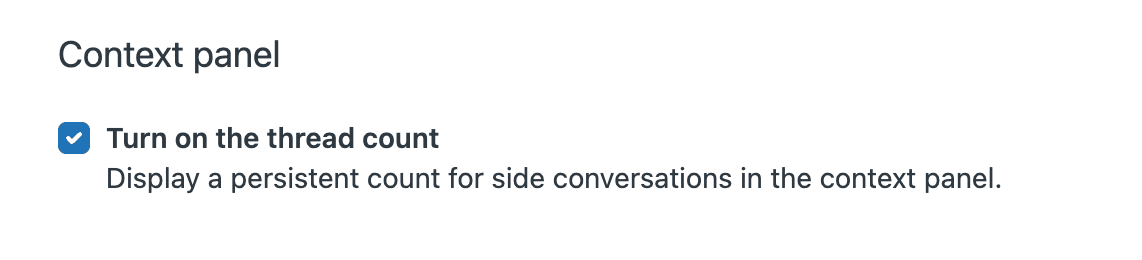
Once enabled, agents will see a Side conversations icon in the context panel on the right side of every ticket. If you have multiple Slack workspaces connected, they'll all be available for selection when creating conversations.
Step 2: Create a Slack side conversation from a ticket
Now that the feature is enabled, any agent can create a Slack side conversation directly from a ticket. Here's the process:
- Open the ticket where you need to collaborate.
- Look at the context panel on the right side of the screen. Click the Side conversations icon (it looks like a plus sign).
- Select Slack from the conversation type options.
- Choose the Slack channel you want to post to from the dropdown. If your company has multiple Slack workspaces connected, the workspace name appears before the channel name (for example: "Workspace A - #general").
- Compose your message in the text editor. You can use formatting, add attachments, and even include existing ticket comments for context.
- Click Send.
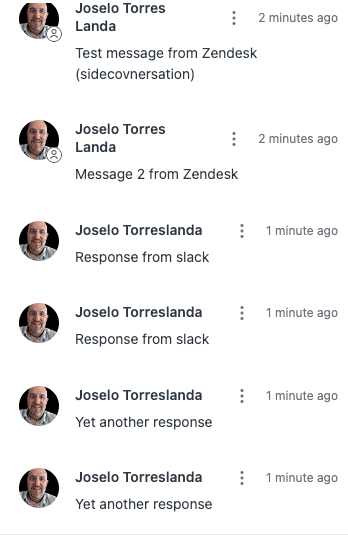
Your message appears in the selected Slack channel as a new thread. Team members can reply directly in Slack without logging into Zendesk, and their responses automatically sync back to the ticket's side conversation panel.
A few things to keep in mind:
- You can only start one Slack side conversation at a time per ticket. You cannot mix Slack and email in the same side conversation.
- If you have a lot of Slack channels, the dropdown might take a moment to load.
- Only ticket comments with 1,000 characters or less can be inserted into a Slack side conversation.
Step 3: Manage replies and close the conversation
Once your side conversation is active, managing it is straightforward. Here's how the workflow typically goes:
Receiving replies: When someone responds in the Slack thread, their message automatically appears in the side conversation panel within the ticket. There's typically a 5-second delay, though it can occasionally take up to 30 seconds during high-traffic periods.
Continuing the discussion: The conversation can go back and forth as long as needed. You can reply directly from the ticket, or team members can continue responding in Slack. Both channels stay in sync.
Closing the conversation: When you've gotten the information you need, click Mark done in the side conversation panel. This changes the status to "Done" for organizational purposes. The conversation stays visible, but it's marked as complete.
Reopening if needed: If someone replies to a "Done" conversation, it stays marked done, but you can click Reopen if you need to continue the discussion.
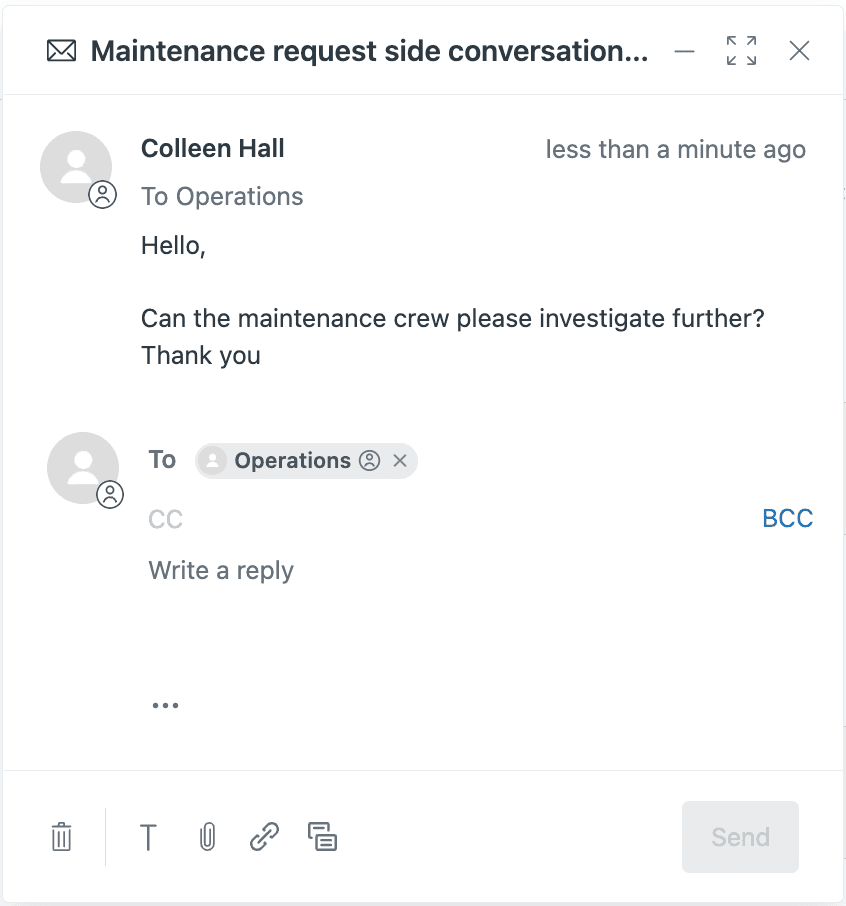
One safety feature worth noting: if someone replies to a side conversation on a closed or archived ticket, Zendesk automatically creates a follow-up ticket. This ensures no communication slips through the cracks.
Troubleshooting common issues
Even with a straightforward feature, things sometimes don't work as expected. Here are solutions to the most common problems:
"This conversation can't be sent right now" error
This usually means the Slack integration has a connectivity issue. Check that the Slack app is still installed and authorized in your Zendesk admin settings. You may need to reauthorize the connection.
Slack channel not appearing in dropdown
First, verify that the Slack workspace is properly connected to Zendesk. Then check that the Zendesk bot has been invited to the specific Slack channel you're trying to use. The bot needs to be a member of the channel to post there.
Character limit issues
If you're trying to include ticket comments in your side conversation, remember there's a 1,000 character limit. If a comment is too long, you'll need to summarize it manually or copy just the relevant portion.
Delays in message syncing
While most messages sync within 5 seconds, delays of up to 30 seconds are normal. If it's taking longer, check Zendesk's status page for any ongoing incidents. Persistent delays may indicate a problem with the Slack integration that requires reauthorization.
Permission problems
Only the agent who created a Slack side conversation (or an administrator) can delete it. If you need to remove a conversation and don't see the delete option, contact your Zendesk admin.
Best practices for Slack side conversations
To get the most out of this feature, consider these recommendations:
Choose the right channel for the job. Slack works best for quick internal questions and real-time collaboration with teams that live in Slack. Email side conversations are better for external vendors or people who don't use your company's Slack workspace.
Use mentions strategically. You can use @here to notify everyone currently online in a channel, or @channel to alert all members. For specific people, you'll need their Slack member ID in angle brackets (like <@U1H63D8SZ>) since autocomplete doesn't work. You can find member IDs by clicking a user's profile in Slack, opening the options menu, and selecting "Copy member ID."
Include context from the ticket. Instead of re-explaining the issue, use the comments icon in the composer to embed relevant ticket comments directly into your side conversation. This gives everyone the full picture without extra work.
Set up macros for common requests. If you frequently ask the same team for similar information, create a macro that starts a side conversation with a pre-written message. This saves time and ensures consistency.
Keep conversations organized. Mark conversations as done when they're complete. This helps you track which discussions are still active and which have been resolved.
Taking your support workflow further
Side conversations solve the collaboration piece of the support puzzle, but what about the routine queries that don't need human discussion? That's where an AI teammate can help.
We work alongside Zendesk to handle the repetitive work so your team can focus on the complex issues that actually need side conversations. Here's how we fit in:
- Autonomous resolution: Our AI Agent can resolve common tickets end-to-end by learning from your help center, past tickets, and connected documentation. No manual training required.
- Draft assistance: AI Copilot generates ready-to-send replies based on your team's actual writing style and knowledge base.
- Unified knowledge: We connect to all your tools (Zendesk, Confluence, Google Docs, Notion) so agents get accurate answers with source citations.
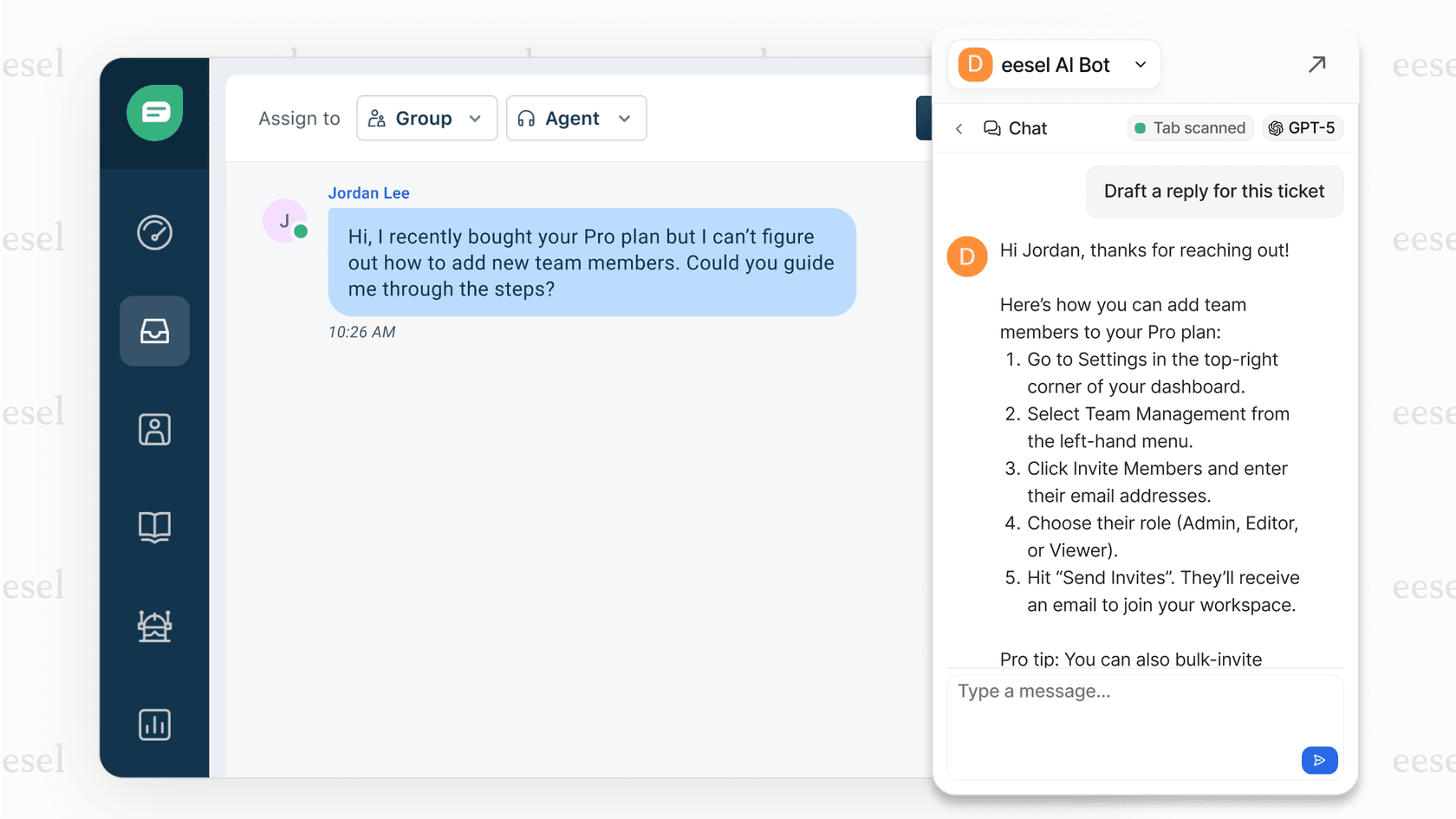
Think of it this way: side conversations handle the complex collaborations that need human judgment, while we handle the routine work that follows predictable patterns. Together, they let your team work at their best level.
Frequently Asked Questions


Share this article

Article by
Stevia Putri
Stevia Putri is a marketing generalist at eesel AI, where she helps turn powerful AI tools into stories that resonate. She’s driven by curiosity, clarity, and the human side of technology.