|
VOOZH | about |
|
VOOZH | about |
Kafka topics are the categories that organize communications. Each topic has a unique name across the Kafka cluster. Messages are sent and viewed from certain topics. In other words, producers add data to topics, while consumers read data from them. Kafka topics support multiple subscribers.
Kafka Topics are Virtual Groups or Logs that store messages and events in logical order, allowing users to easily transmit and receive data between Kafka Servers. When a Producer transmits messages or events to a given Kafka Topic, the topics add the messages one after the other, resulting in a log file. Furthermore, producers can push messages into the tail of these newly formed logs, whereas consumers can pull messages from a specified Kafka topic.
Kafka topics are stored in the cluster. Specifically, each Kafka partition associated with a topic is an ordered, immutable sequence of records that is constantly added to. These partitions are spread throughout the Kafka cluster's servers, with each server allocated a specific number of partitions.
Partitions for Kafka topics are actually saved as log files on the Kafka brokers' filesystems. Each log file only carries data for one partition.
Locate the installation directory for Kafka by opening a terminal or command prompt and going there. For instance:
cd /path/to/kafkaOpen your terminal of your PC and locate your Kafka installation’s bin directory then the below command, replacing <broker-address> with the address of one of your Kafka brokers.
$ ./kafka-topics.sh --list --bootstrap-server <broker-address>The single-instance Kafka cluster uses the 9095 port, thus we set "localhost:9092" as the bootstrap server. Simply said, bootstrap servers function as Kafka brokers.
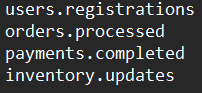
$ ./bin/kafka-topics.sh --listOUTPUT
Once you have a list of themes, we can look into the specifics of one of them. To accomplish this, we can use the "-describe -topic <topic name>" options:
$ ./bin/kafka-topics.sh --bootstrap-server=localhost:9095 --describe --topic users.registrationsOUTPUT