There could be instances where we need to check our current network connectivity or sometimes troubleshoot a particular connection. We can follow a few simple steps to check the active connections. We also have some predefined commands that when entered in command prompt give a detailed explanation about the connection including the IP address, port numbers, and connection status. In this article lets look at the ways to check the active network connections on Windows.
Network Connections
There are two methods to check network connections:
Method 1: Using control panel
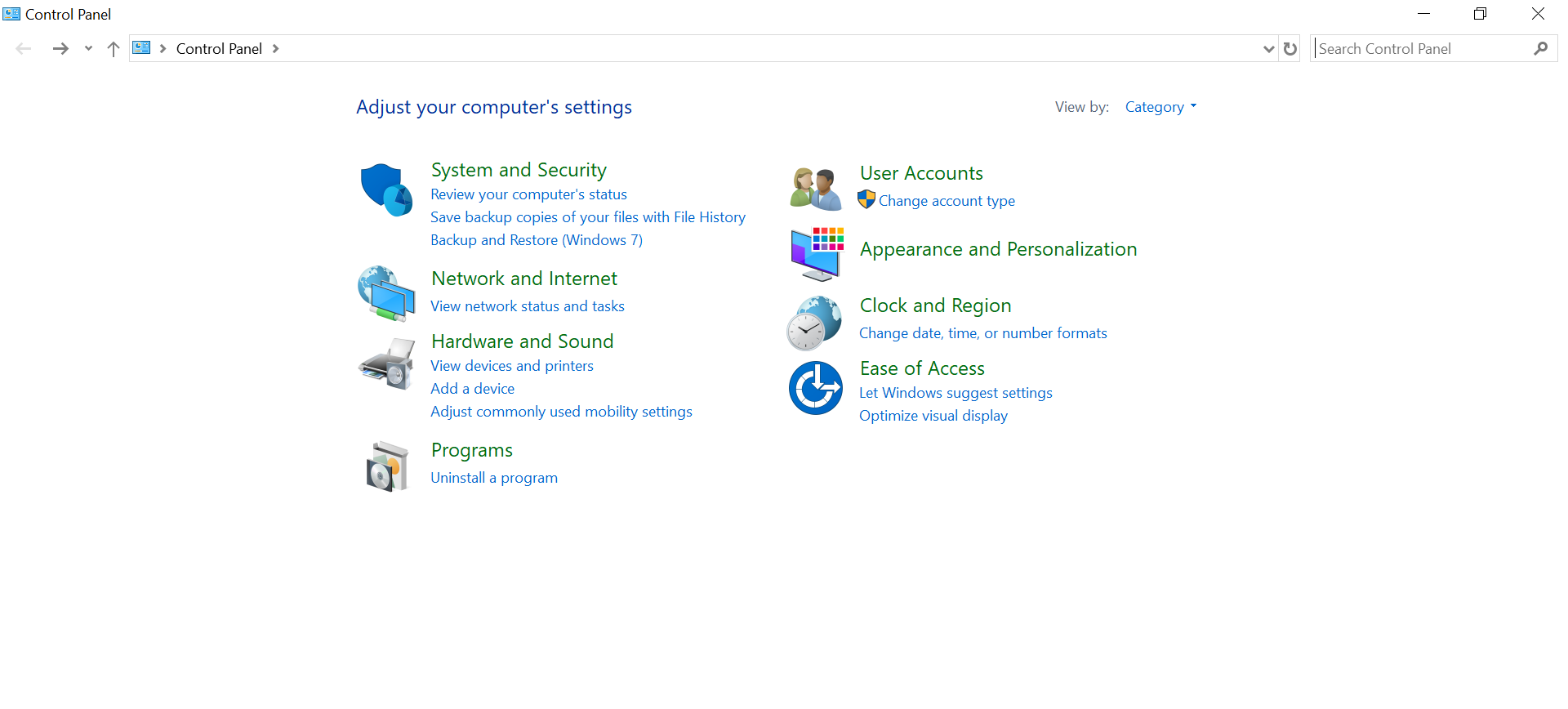
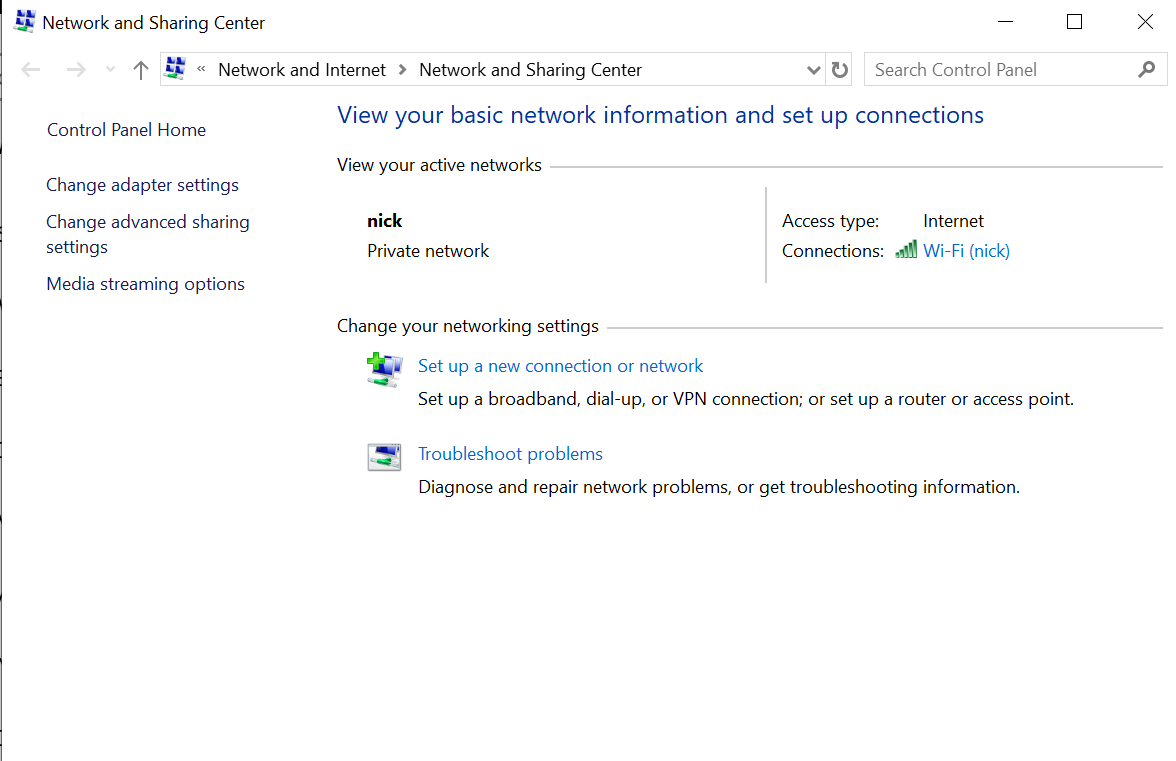
Step 1: In the search tab, search for the control panel and click on view network status and tasks below the Network and Internet. (This displays the current network the system is connected to.)
👁 Image
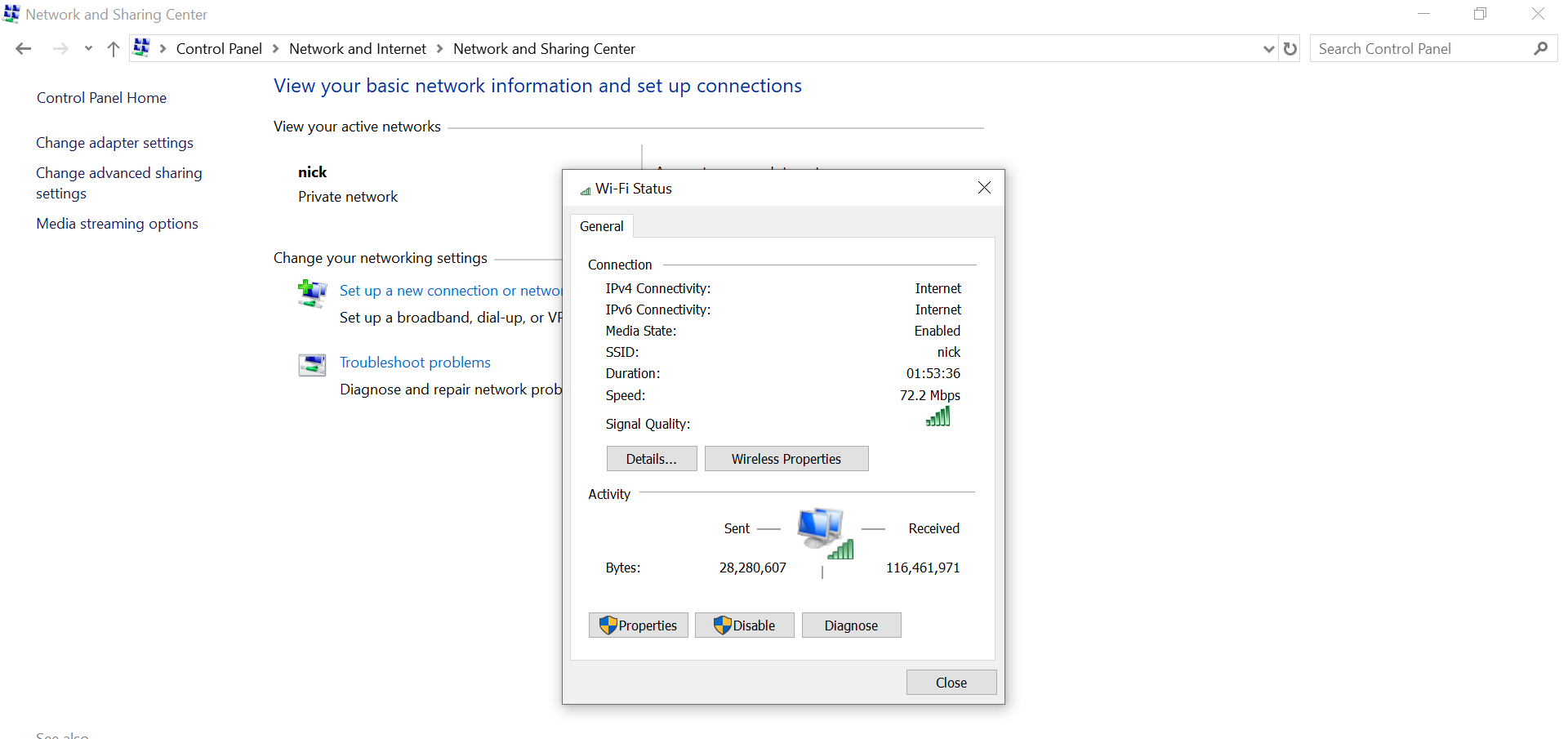
Step 2: You can click on connections to check the network status
👁 Image
Step 3: Click on Details for more information about the network connection like IPv6 address, subnet mask, etc.
👁 Image
Alternatively:
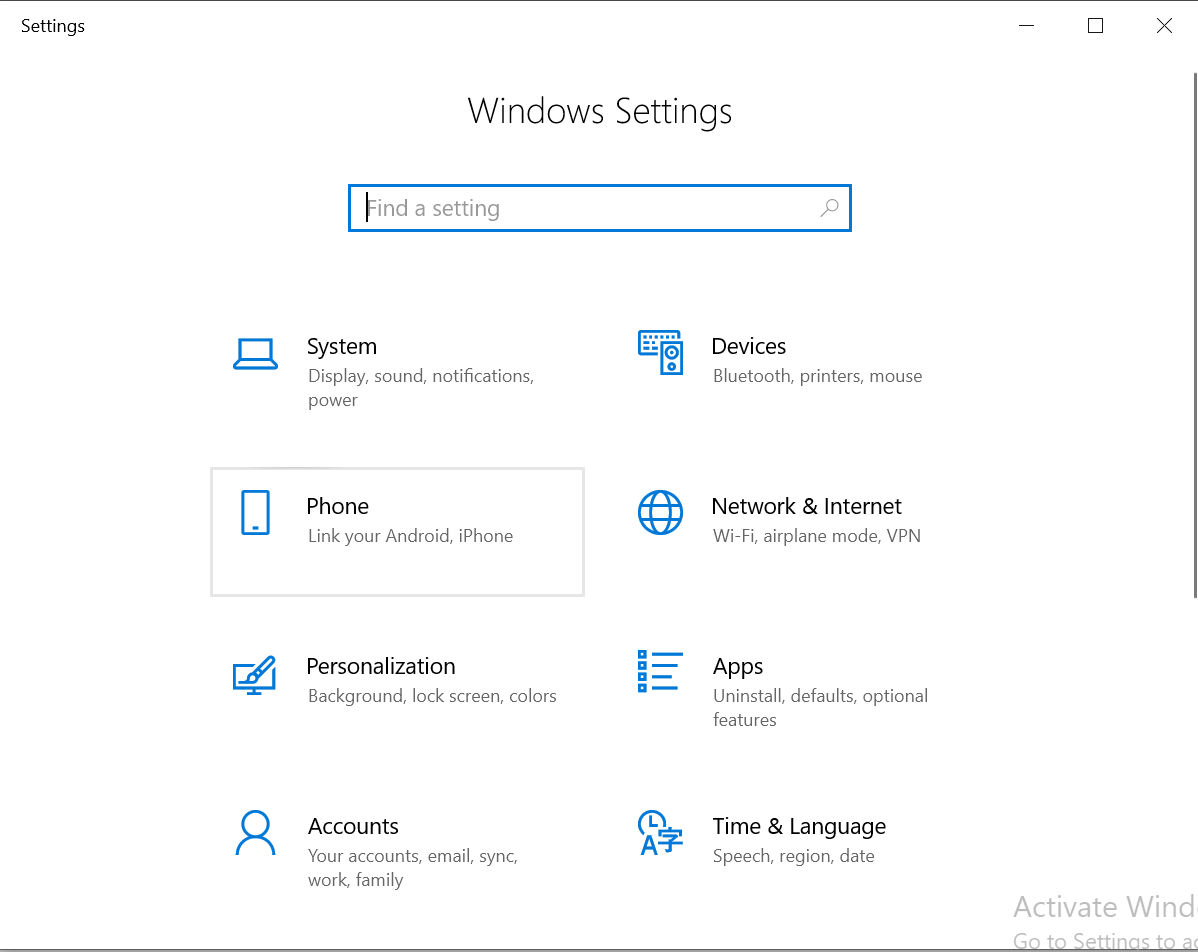
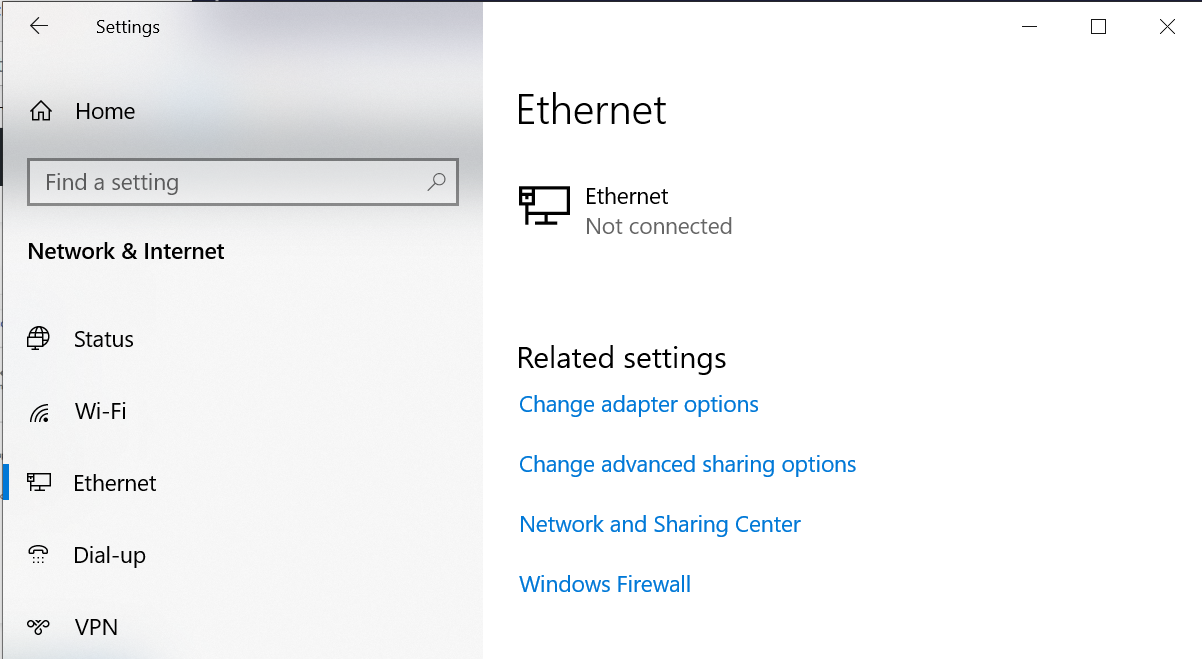
Step 1: Go to settings and click on Network & Internet
👁 Image
Step 2: Select Ethernet and then click on Network and Sharing Center that would navigate to the same page where the current network is shown
👁 Image
Method 2: Using Network connections folder
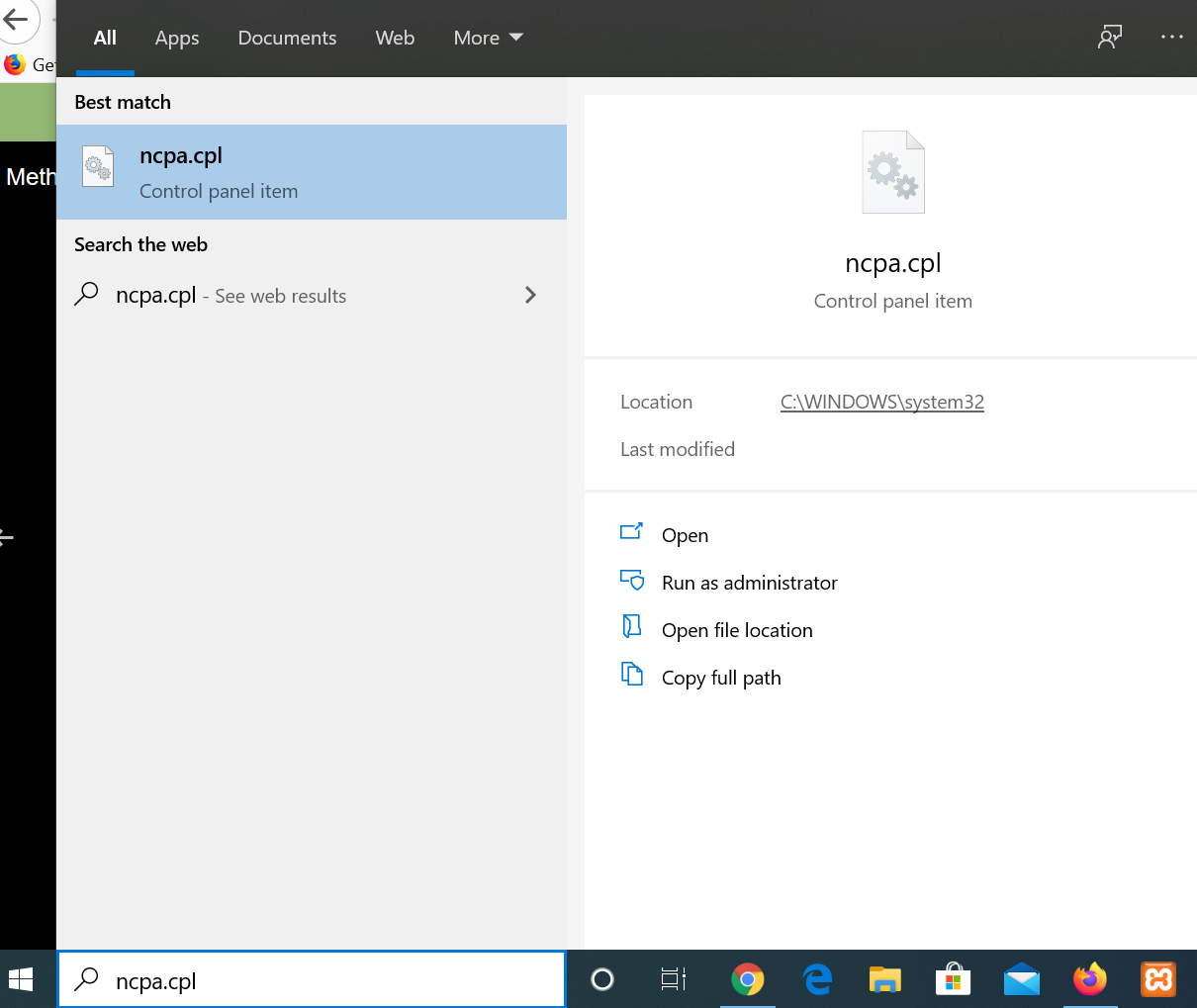
Step 1: In the search bar type: "ncpa.cpl" and press enter
👁 Image
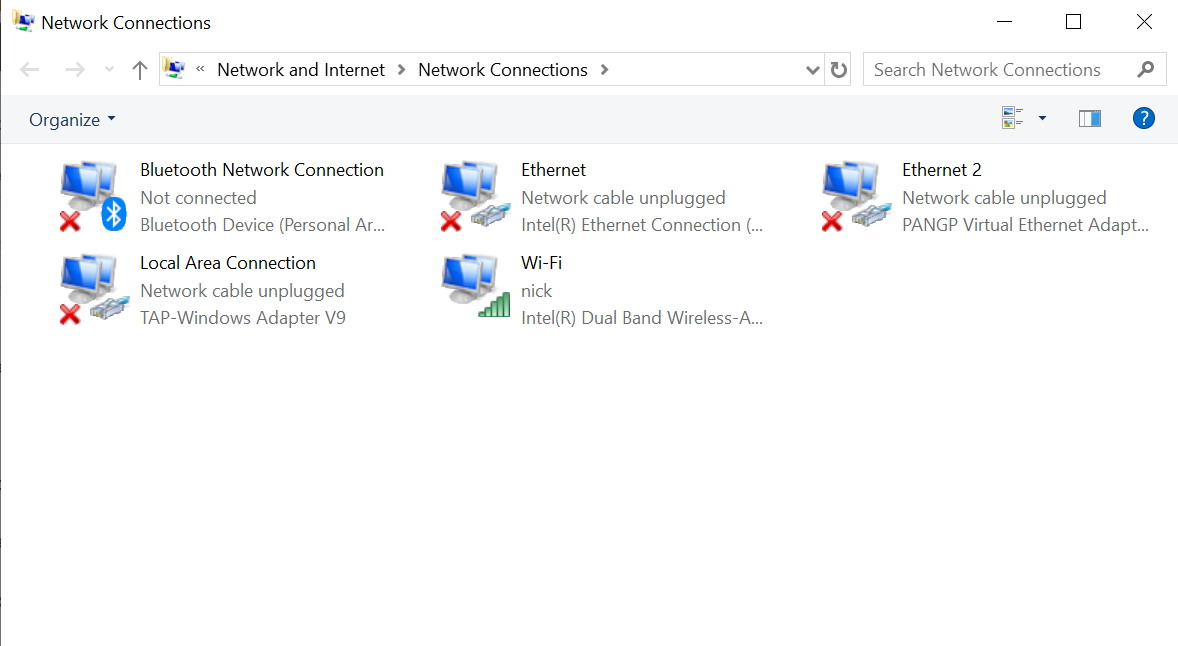
This would show all the connections but we can identify the active connection using the green icon
👁 Image
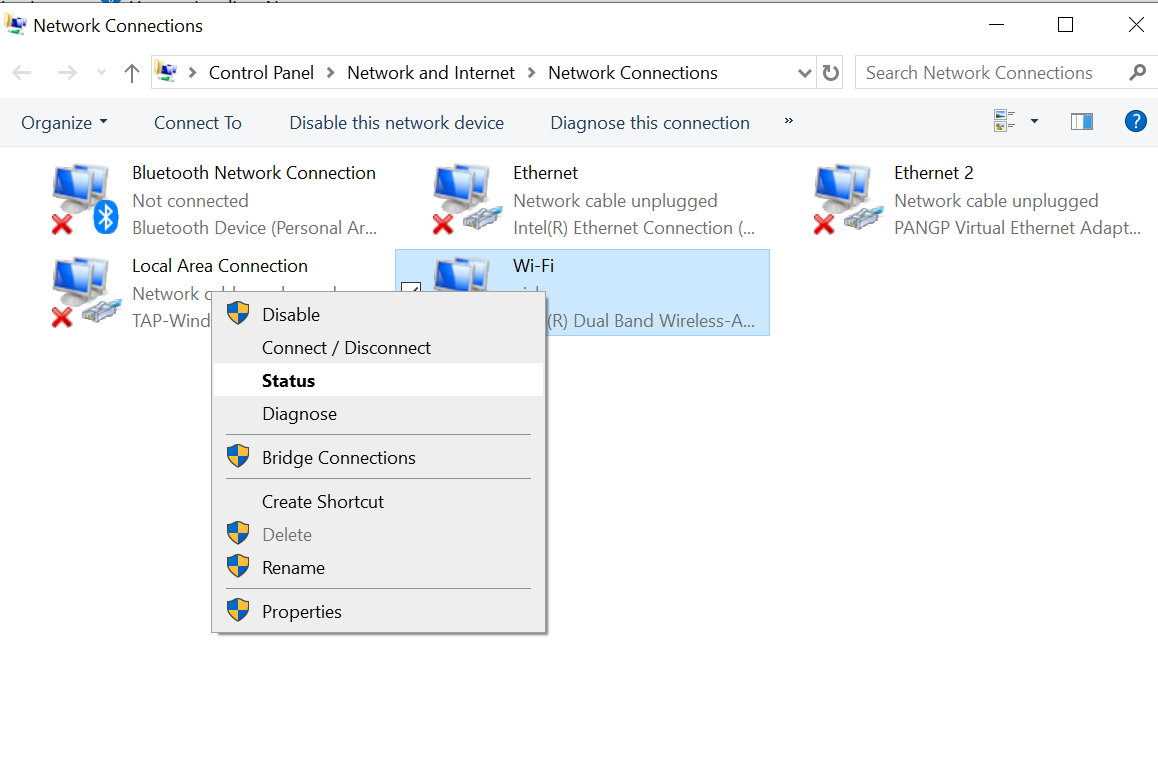
Step 2: Right-click on the active connection and click on the status to see the status page.
👁 Image
Now, you can click on details for more information just like we did in the earlier steps
Checking All active connections
Other than the internet connections which we have seen till now, there are many more active connections in order for the system to function. To look at such connections follow the steps below:
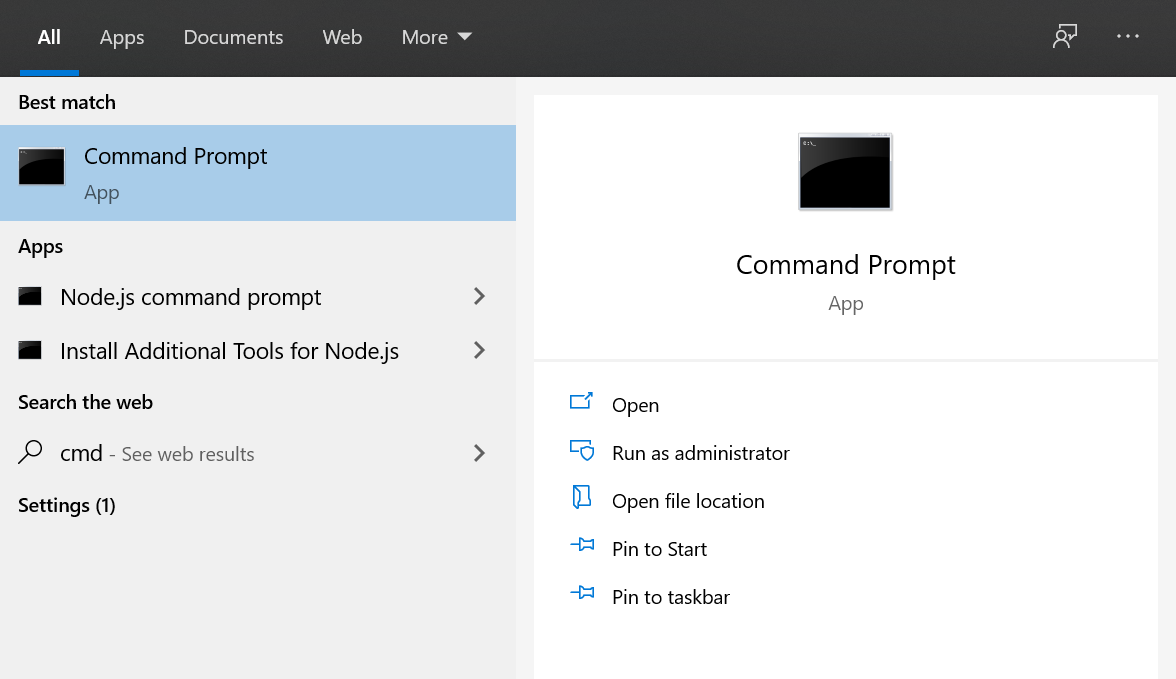
Step 1: In the search bar type "cmd" (Command Prompt) and press enter.
👁 Image
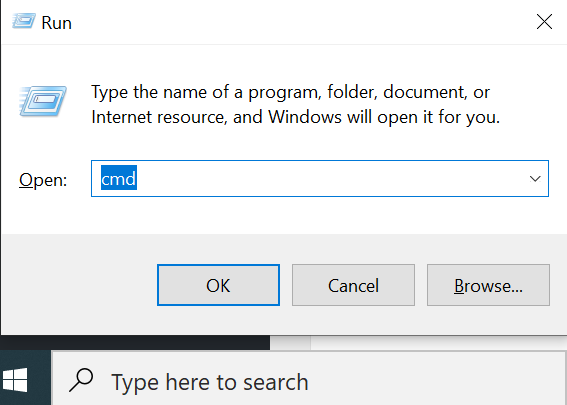
Alternatively, press "
+ R" on the keyboard. In the open text box type "
cmd" and click on OK
👁 Image
This would open the command prompt window.
Step 2: We can now enter the netstat commands to look at all current active connections
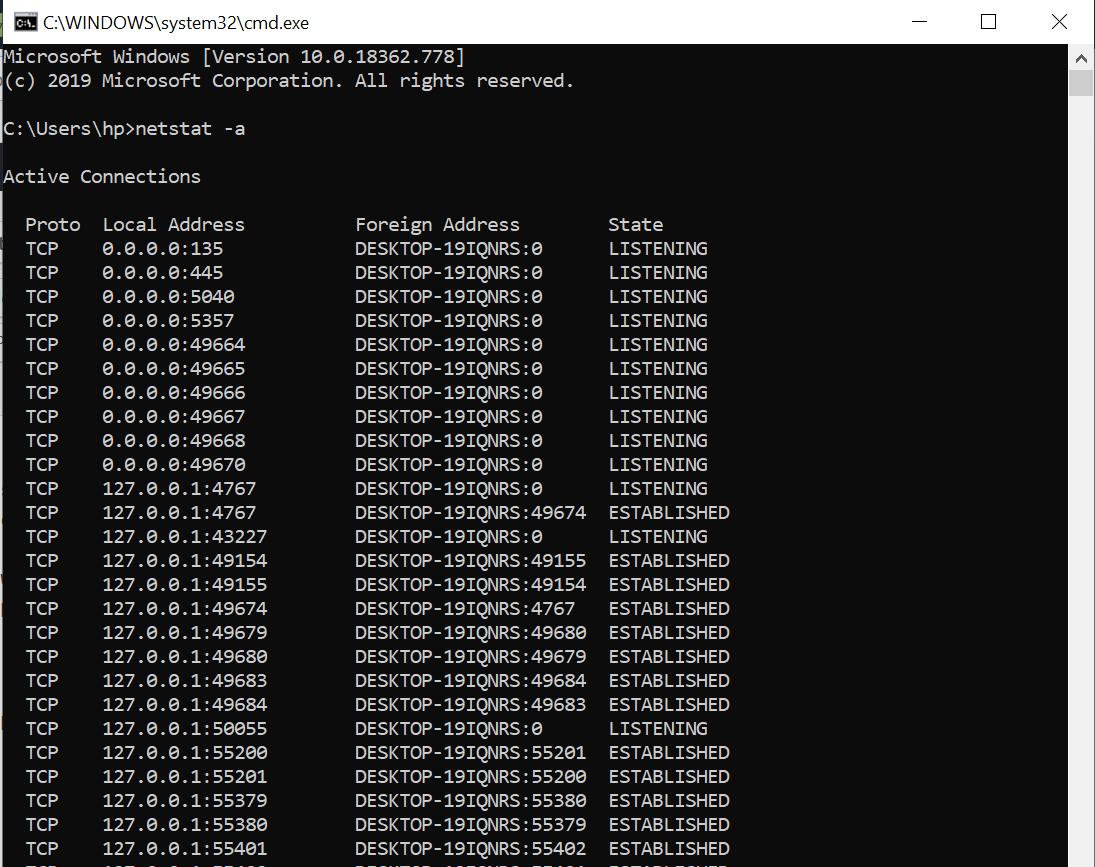
"
netstat -a" shows all the currently active connections and the output display the protocol, source, and destination addresses along with the port numbers and the state of the connection.
👁 Image
"
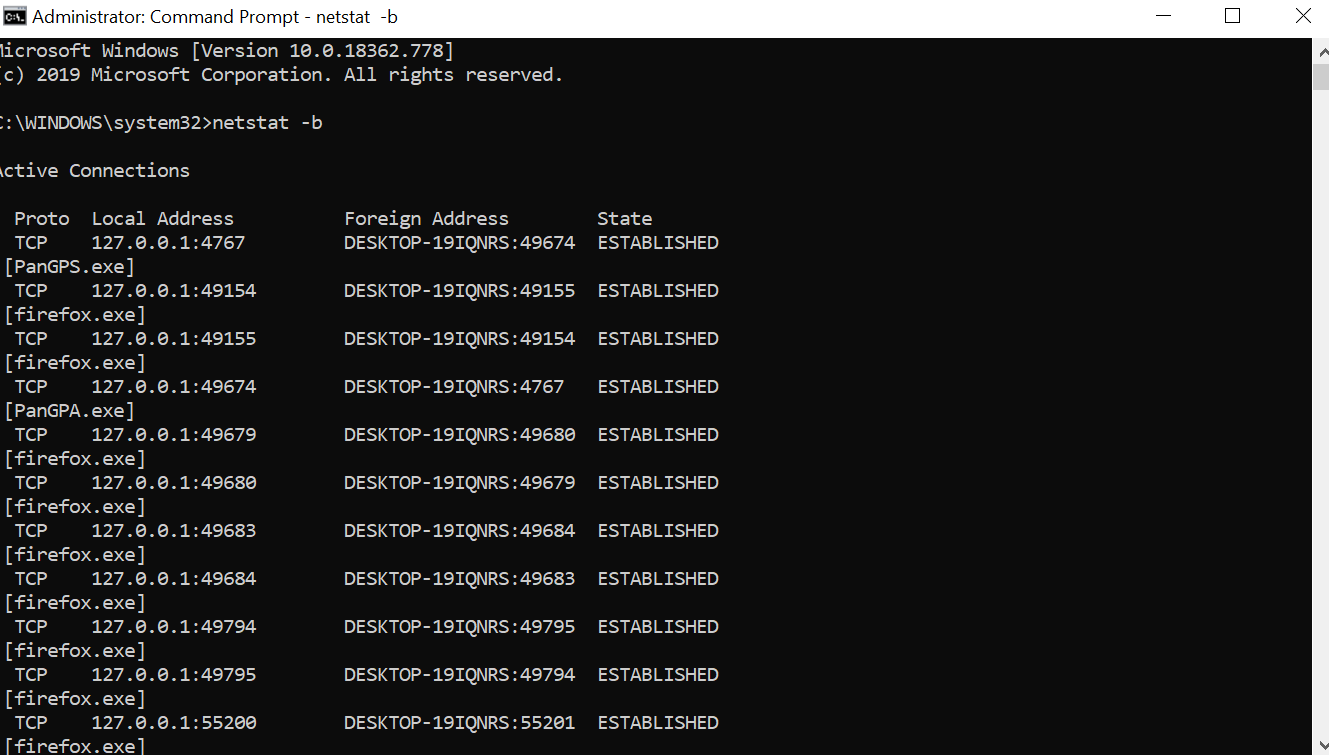
netstat -b" shows the executable involved in creating each connection or listening port
Please note that we need extra privileges to execute this output. We might see the following error.
👁 Image
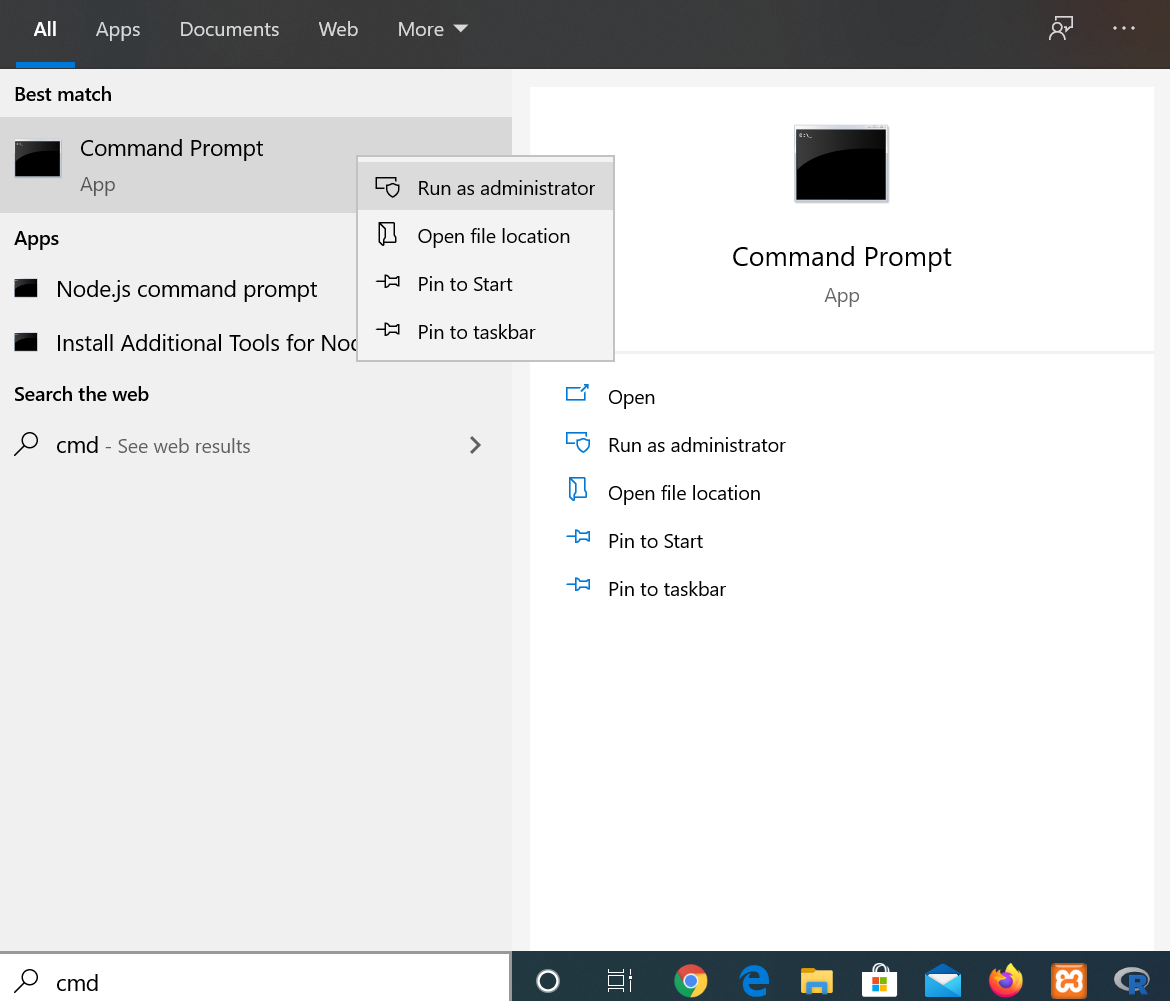
In such cases, open the command prompt and run it as administrator.
👁 Image
👁 Image
"
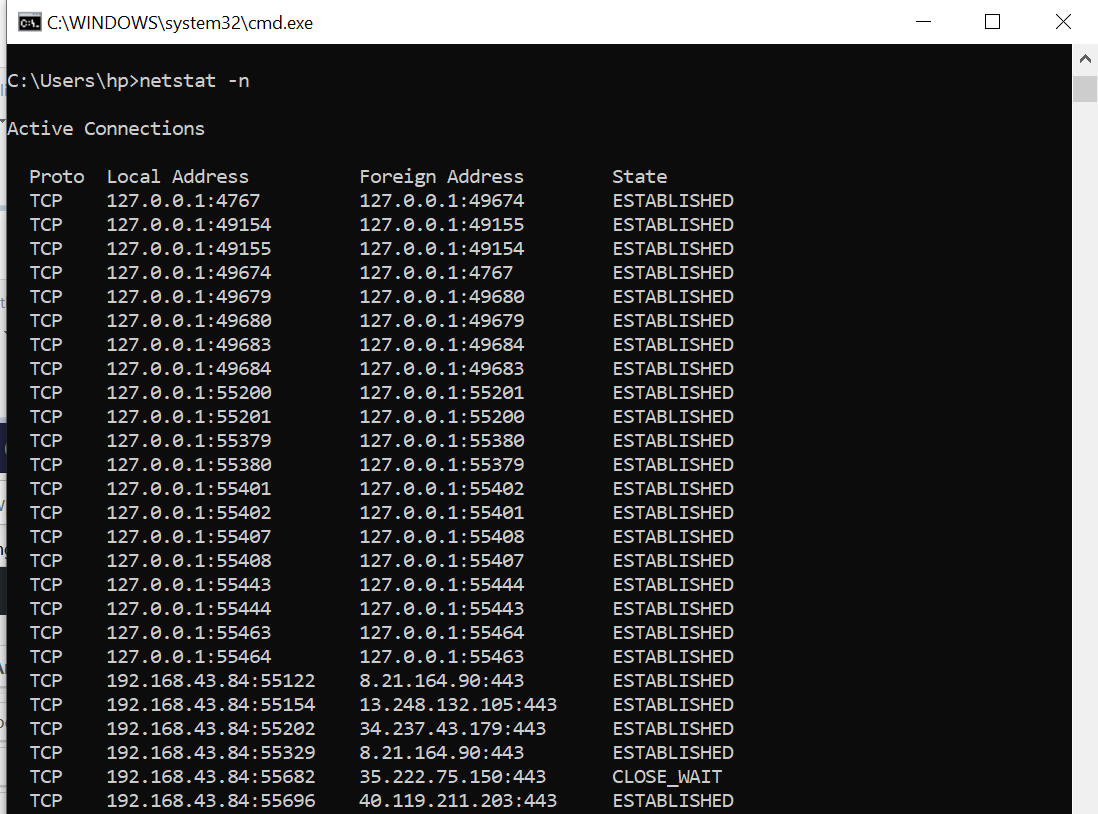
netstat -n" shows similar outputs with IP addresses rather than names of system or services
👁 Image
"
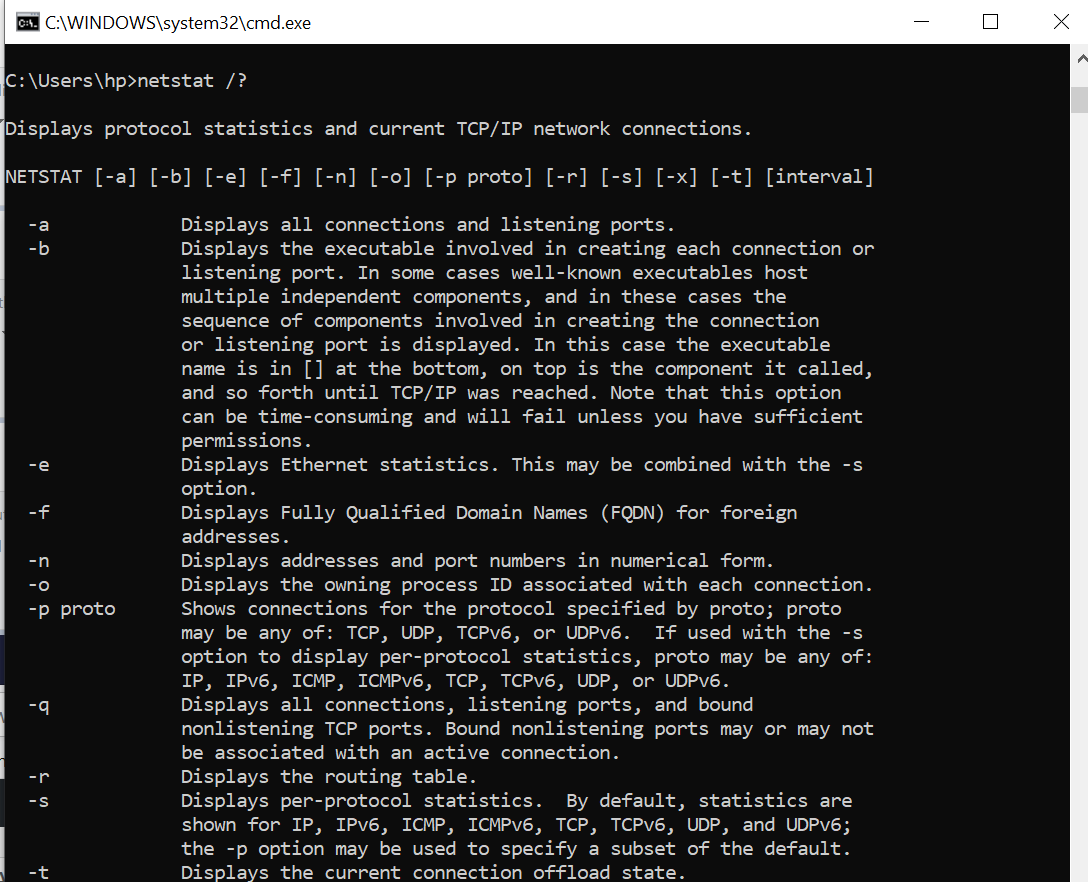
netstat /?" shows all the options available with the command
👁 Image