|
VOOZH | about |
|
VOOZH | about |
Did you know that a professional Gmail signature can leave a lasting impression on your emails? Whether you’re sending work updates, networking, or just staying in touch, a well-crafted signature adds polish and credibility to your messages. But how do you create one that stands out?
In this Gmail signature tutorial, we’ll show you how to create a Gmail signature in 2025 using 5 easy methods. From setting up a basic signature to adding logos, images, and clickable links, this guide covers everything you need to know. You’ll also learn how to add a Gmail signature on desktop, Android, and iOS devices, plus tips for creating a professional Gmail signature that reflects your brand. Ready to elevate your emails? Let’s get started!
A Gmail signature is a block of text, images, or links automatically appended to the bottom of your outgoing emails. It typically contains your name, job title, company name, contact details, and sometimes a logo, website link, or social media profiles.
Using a Gmail signature ensures that every email you send includes essential information, saving you time and providing recipients with an easy way to contact you.
We'll explore how to make a signature in Gmail , ensuring you find all the information you need. Learn how to include signature in Gmail and understand the steps for attaching and inserting your signature efficiently. Let's get started on mastering Gmail signature creation!
To begin, let’s set up a basic Gmail signature that includes text, contact information, and any relevant links.
Make sure your emails look professional and have the added assurance of a verified identity by quickly adding a digital signature to your Gmail account. With only a few simple steps, you can easily show that your email messages come from an authentic source!
Visit mail.google.com and Log in to your Gmail Account in which you want add a email signature.
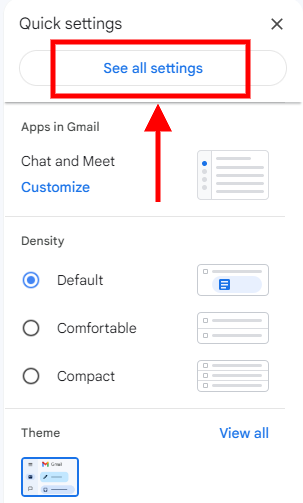
After logging into your Gmail account, you can take the next step to add a signature with ease. Just click on the gear icon in the upper right corner of your window and a drop-down menu will appear – select "See all Settings" from there.
From the setting, just select the "Signature" tab and a new window will open up with all sorts of options for tailoring your signature.
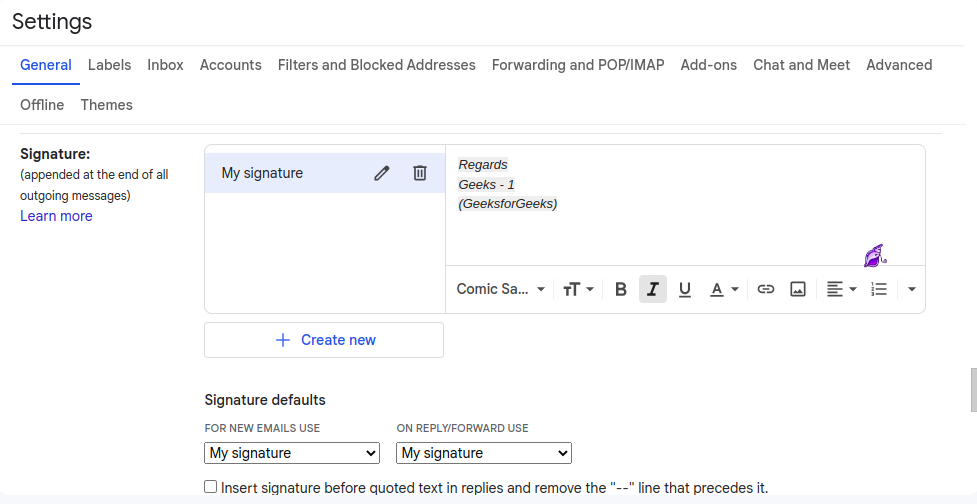
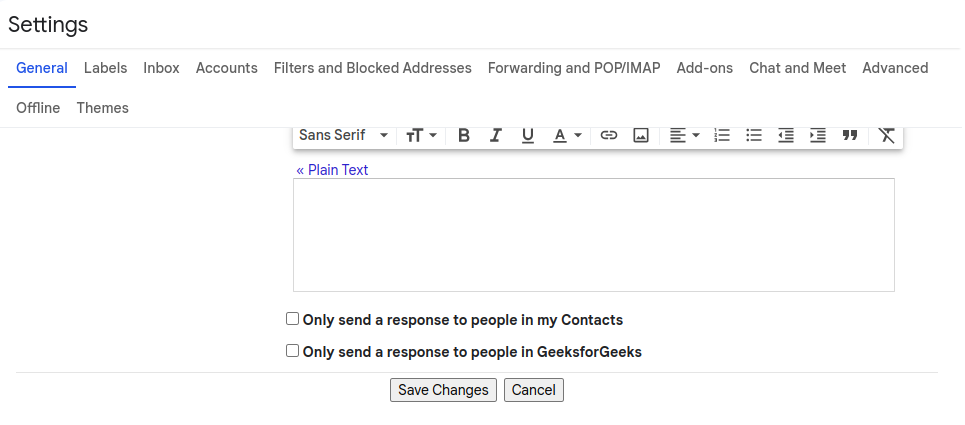
With just one last step, you'll be ready to leave your mark and give people an easy way to get in touch with you. Just enter your signature in the textbox and customize the signature however you'd like—from adding a friendly greeting or slogan, right down to including all of your contact info!
Once you've put your signature on the page, click "Save Changes". In doing so, not only will it be saved but all of your emails can now boast a strong professionalism with just one simple step.
And there you go! You've just taken an important step toward making your emails stand out! With a digital signature now included in each of them, recipients will be able to identify the sender quickly and easily - adding that extra professional touch. Well done!
Adding a Gmail signature on your Android or iPhone (iOS) is quick and easy. Follow these steps to set up a mobile email signature in Gmail:
Open the Gmail app on your Android or iOS device, and ensure you're logged into the correct account.
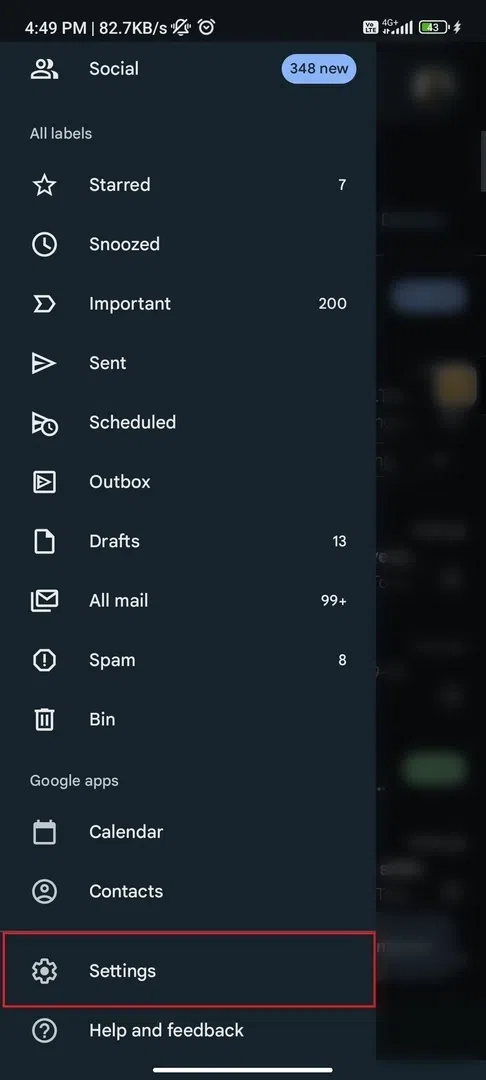
Tap on the menu icon (three lines) in the top-left corner, scroll down, and select Settings.
Select the email account you want to add a signature for.
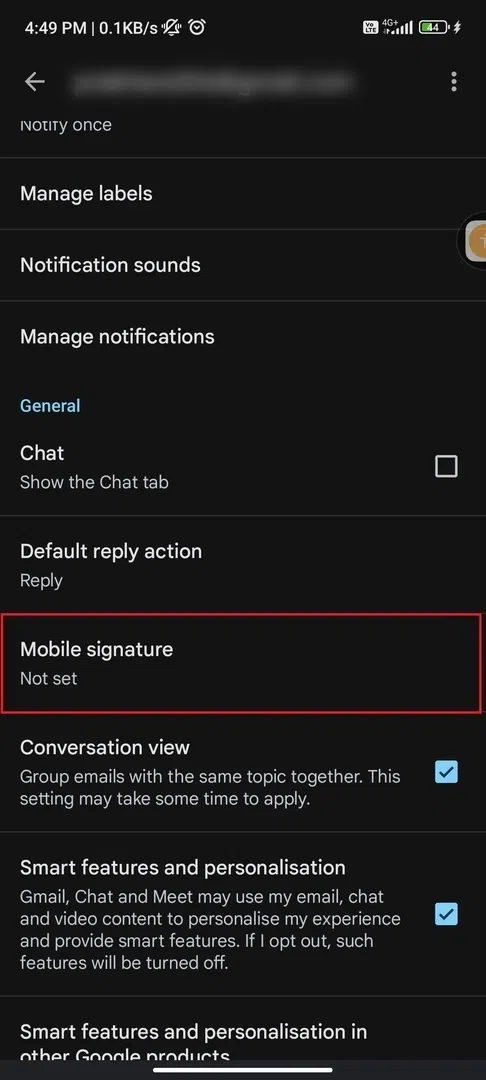
In the account settings, scroll down and tap on Mobile Signature.
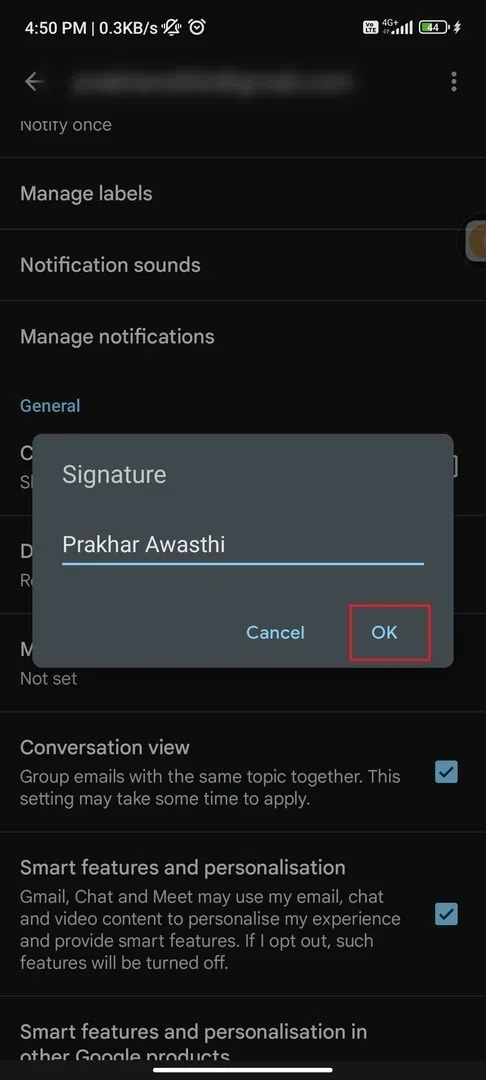
Type your desired signature text (e.g., name, contact details), keeping it short since formatting options are limited.
Tap OK or back out to save your signature. It will now appear in all outgoing emails from your mobile device.
Adding a Gmail signature with a logo or image makes your emails look more professional and helps with branding. Follow these steps to create one:
Log in to your Gmail account and click on the gear icon in the top right corner to access Settings. This is where you can customize various aspects of your Gmail experience, including your email signature for more professional correspondence.
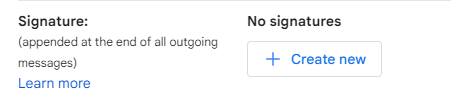
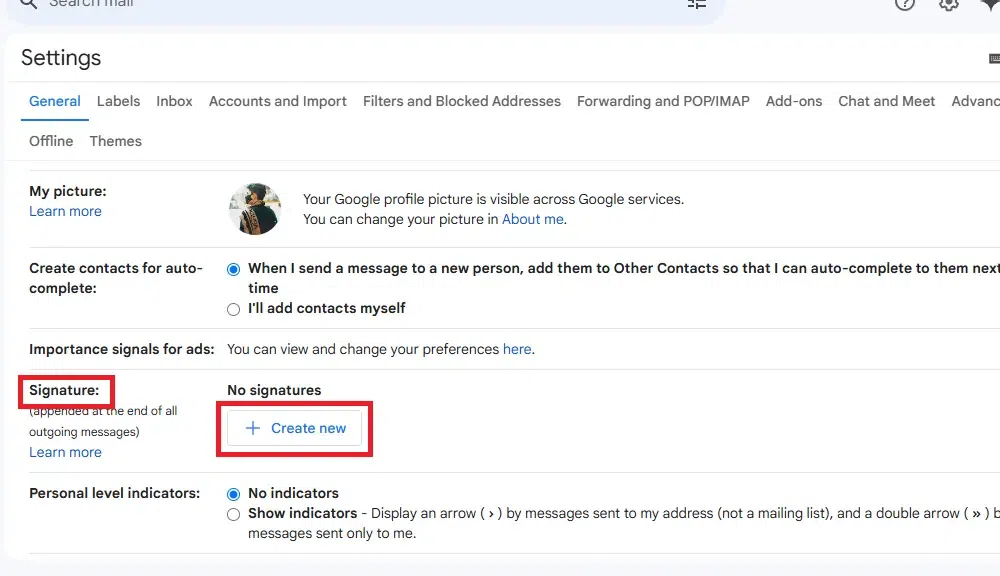
In the Settings menu, scroll down to the Signature section. If you don’t have a signature yet, select Create new to start. This section allows you to format your Gmail signature with personalized text and images to enhance your email branding.
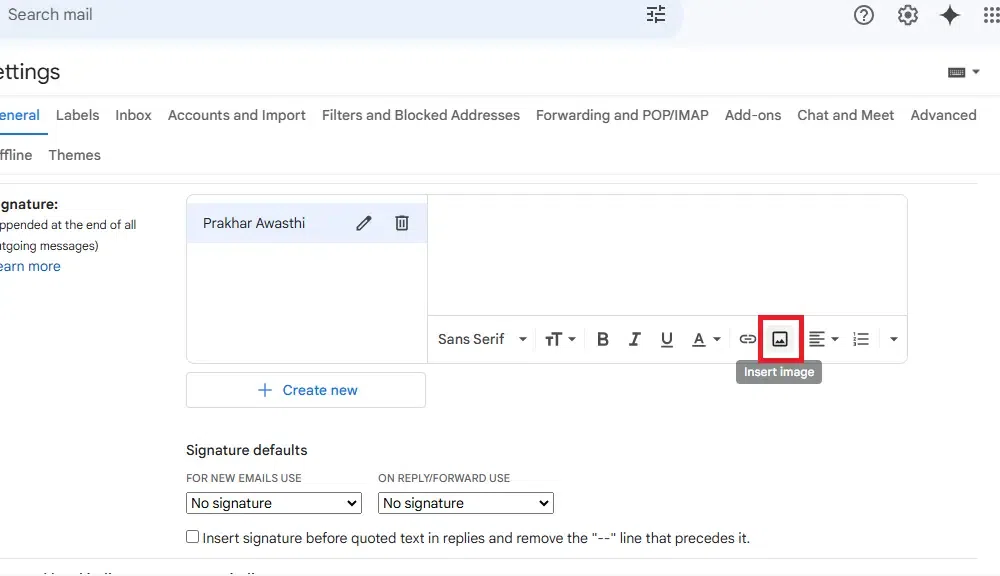
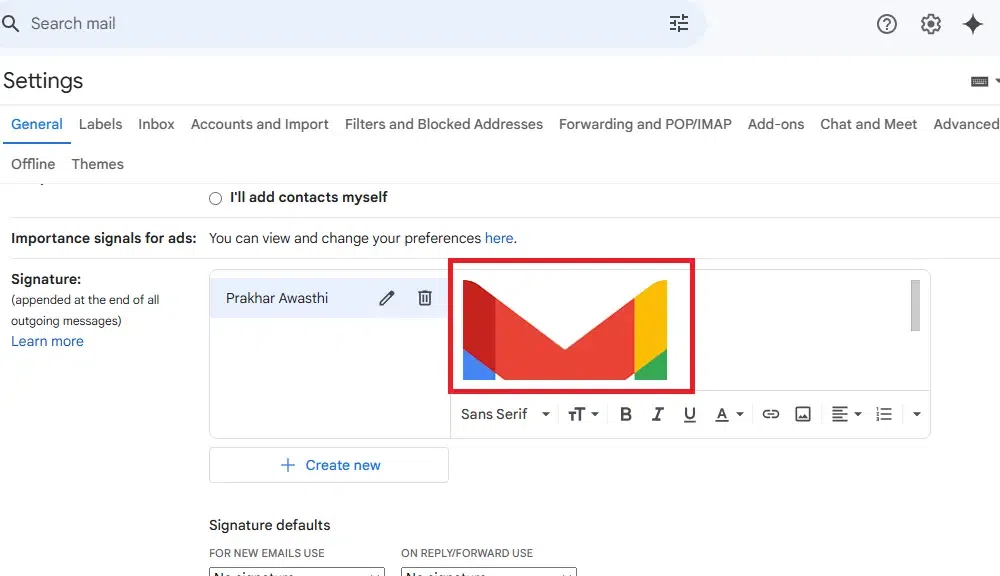
To insert an image, click on the Insert Image icon (a small picture icon) in the signature editor. You can upload an image from your computer, select one from your Google Drive, or insert a URL. Using a relevant image can significantly improve your email signature and make your messages stand out.
After you’ve added and formatted your image, scroll to the bottom of the Settings page and click Save Changes. This ensures that your updated signature, complete with the new image, is applied to all outgoing emails, enhancing your professional email signature.
Adding a clickable link to your Gmail signature makes it easy for people to visit your website, social media, or contact page. Follow these simple steps to create a clickable Gmail signature:
If you want a custom HTML email signature in Gmail, you can create one using HTML code. This allows you to add custom fonts, colors, images, and links for a professional look. Follow these steps to add an HTML signature in Gmail:
Create your HTML signature in an HTML editor or copy the code of your preferred signature style.
Log in to Gmail, click the gear icon, select See all settings to access all customization options.
In the General tab, scroll down to the Signature section and click Create new to start setting up your signature.
Paste the HTML signature code directly into the text box. If Gmail doesn’t support direct HTML, paste the styled signature from another email editor (e.g., Outlook). Scroll to the bottom of the page and click Save Changes to ensure your HTML signature is applied to outgoing emails.
Compose a new email to check that your HTML signature displays correctly.
Must Read:
A Gmail signature is more than just a sign-off—it’s a chance to make your emails more professional, memorable, and functional. By following this guide, you’ve learned how to create a Gmail signature that includes logos, clickable links, and even HTML designs for advanced users. Whether you’re using a desktop or mobile device, the Gmail signature setup process is simple and effective.
Now that you know how to add a Gmail signature, it’s time to put these tips into action. Try out the free templates and methods shared here, and watch your emails stand out from the crowd.