|
VOOZH | about |
|
VOOZH | about |
Setting up a new user account in Windows 10 is essential for enhancing user experience and ensuring that your Windows 10 is running safely and securely. You can create a new user account for any guest, family member, child, etc. in just a few steps using different methods.
Learn step-by-step instructions on creating a new user in Windows 10, ensuring a smooth and efficient setup process.
This is a very common method to set up a new user account in Windows 10 PC. Let's check the steps down below to understand how to perform this method seamlessly.
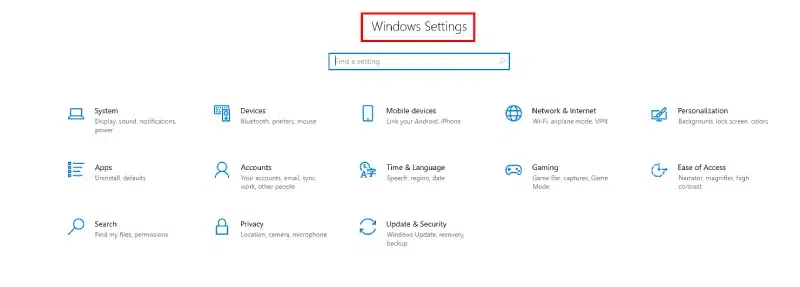
Alternatively, you can click on the Start menu and click the Settings icon in the lower left corner.
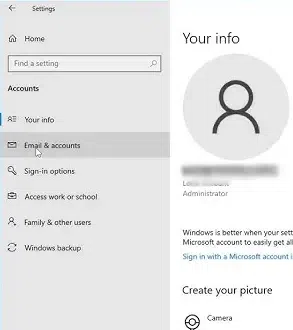
Now in the settings window, click on the Accounts icon (most preferably below Devices)
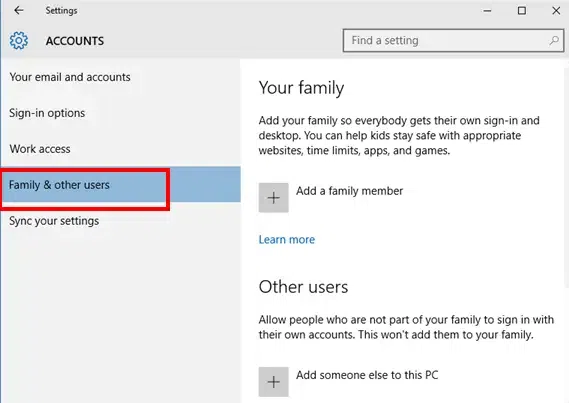
Now click on Family & other users > Add someone else to this PC
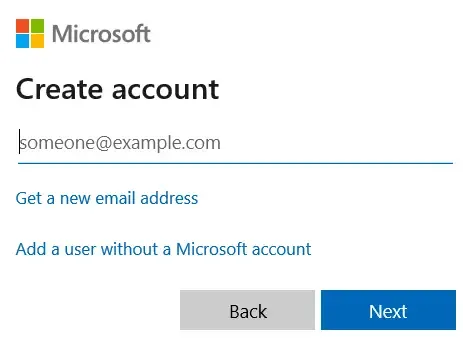
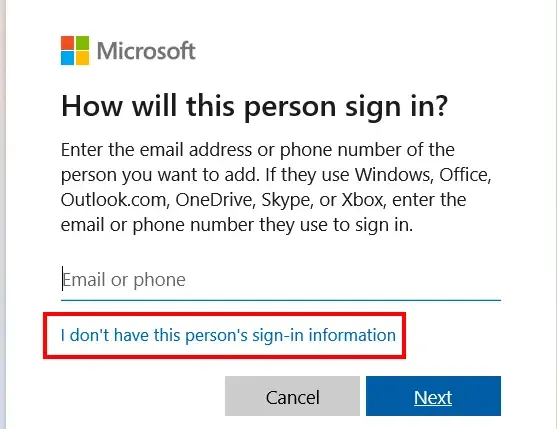
Once you click on Add someone else to this PC, you will have option to do the following:
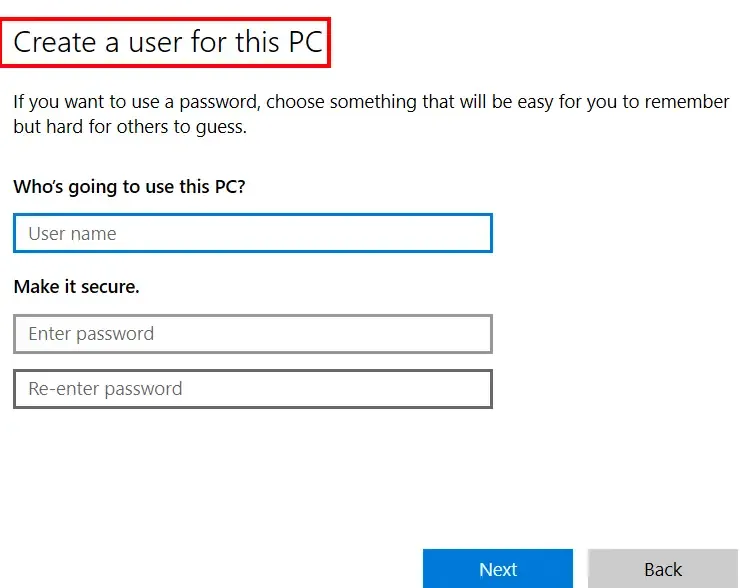
Once, you click on this, you'll get a new pop-up something like this:
Follow the on-screen instructions to complete this action.
If you face any challenge while performing the above method, you can proceed to set up a new user account using Windows 10 Control Panel. Here's how you can set it up:
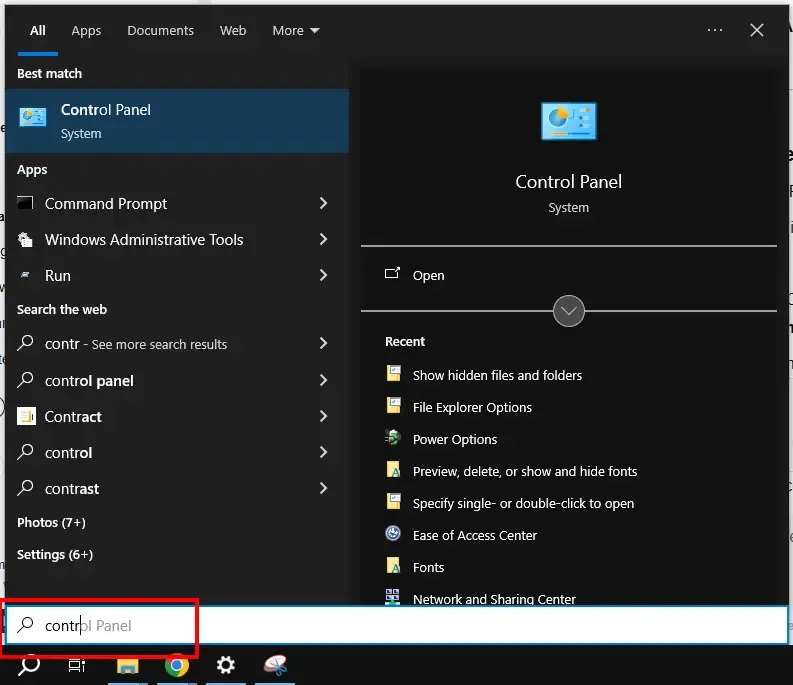
Click on Start Menu and type "Control Panel" in the search bar, or press Win + R to open "Run dialog box" and type Control Panel and hit the Enter button to proceed.
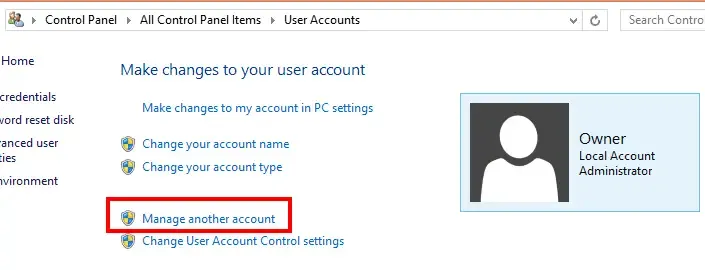
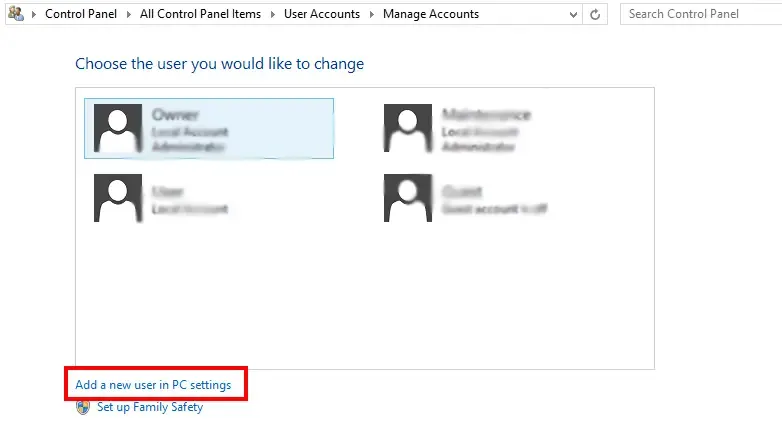
Go to User Accounts and then navigate to "Manage another account"
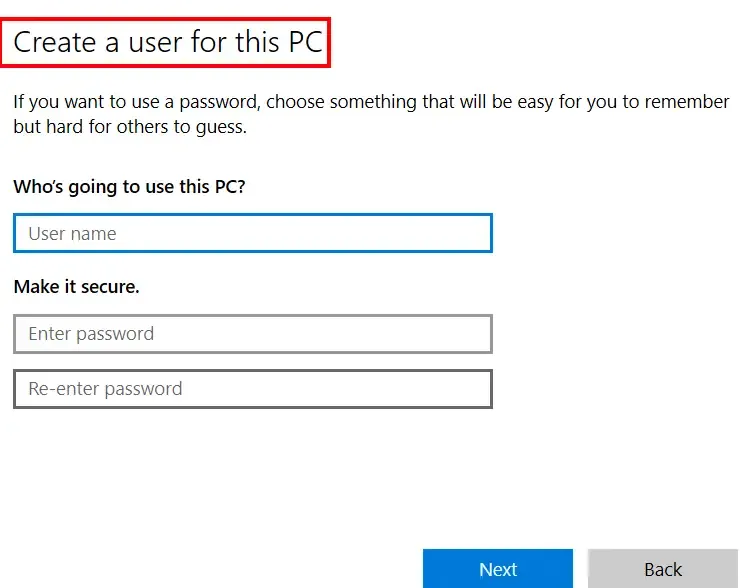
Once you enter "manage another account" click on "Add a new user in PC Settings"
Follow the on-screen instructions to setup a new user account
If you're a tech-savvy user and looking for a technical method to create a new account then this method is for you. Let's see how to set up a new user account using CMD.
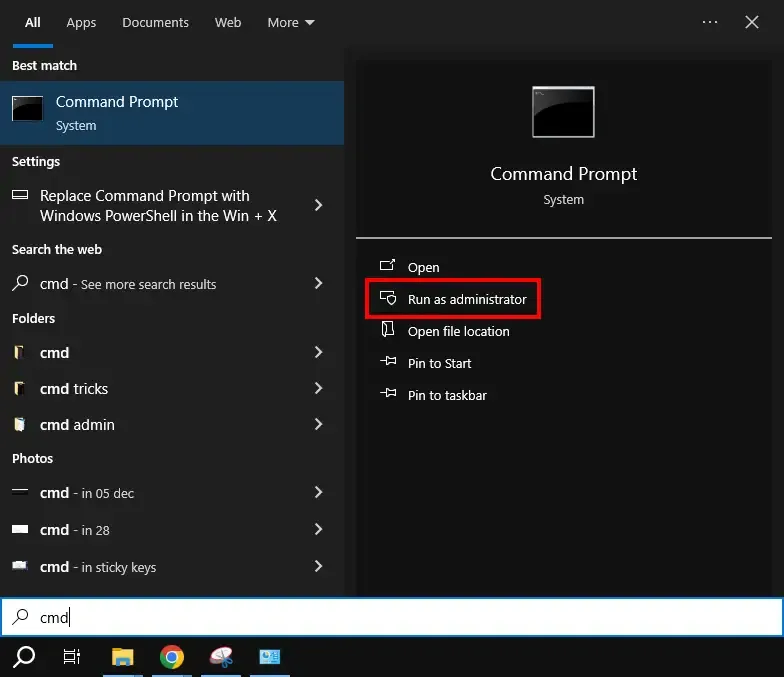
You can access command prompt using different methods:
Note: Open Command prompt as "Administrator" only
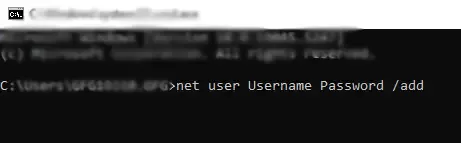
Now, type the following command and press enter:
net user Username Password /addYour new account set up will get completed and you can switch users by pressing Ctrl + Alt+ Delete to check and navigate to the other user.
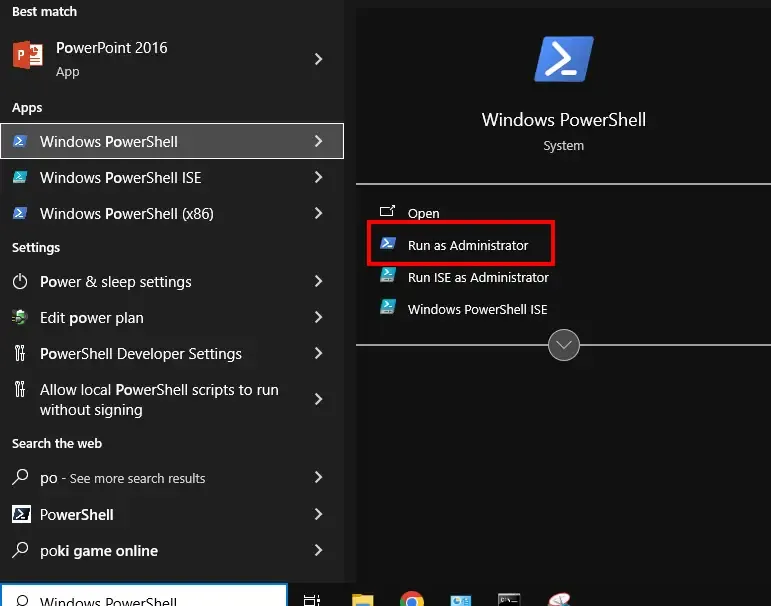
Windows PowerShell also allows administrator to set up a new user account in Windows 10 by running New-LocalUser command. Here's how you can perform:
You can also navigate to Start menu and type "PowerShell" and click "Run as admin" to start this action
Now, type the following command and press enter:
New-LocalUser -Name "Username" -Password (ConvertTo-SecureString "Password" -AsPlainText -Force) -AccountNeverExpiresNote: Your new account set up will get completed and you can switch users by pressing Ctrl + Alt+ Delete to check and navigate to the other user.
Alternate Method: Local Users & Groups
Note: This method can only work on Windows 10 pro, Enterprise, and Education EDT.
- Press Win + R and type "lusrmgr.msc and hit ENTER
- Navigate to Local Users and Groups > Users (right-click) > New User
- Fill out all the required details (username, password, etc.)
- Click on "Create" to complete the setup.
Adding or Creating a new user account in Windows 10 is a simple process that enhances the user experience by allowing personalized settings and files for each individual. You can use the Settings app, Control Panel and even PowerShell method to setup a new user in Windows 10.
Just ensure to update and manage user accounts on time so that each user has a secure and customized environment.