|
VOOZH | about |
|
VOOZH | about |
Google Forms is a simple and powerful tool that helps users create surveys, quizzes, feedback forms, and registration forms with ease. It offers customizable templates, multiple question types, themes, and response analysis features, making data collection and collaboration quick and efficient.
Step 1: Visit forms.google.com. You can open Forms from your Google Drive or Excel sheets too.
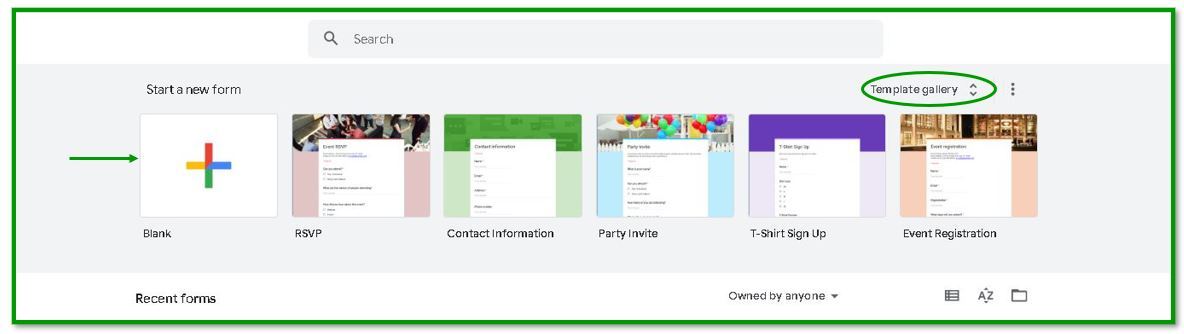
Step 2: Choose a template The page so opened, offers you the following options. Either you can create your own customized form using the blank template or use any of the already available templates from the encircled Template Gallery. For the sake of this tutorial, we will choose a blank form.
👁 Image
Step 3: Create a customized form
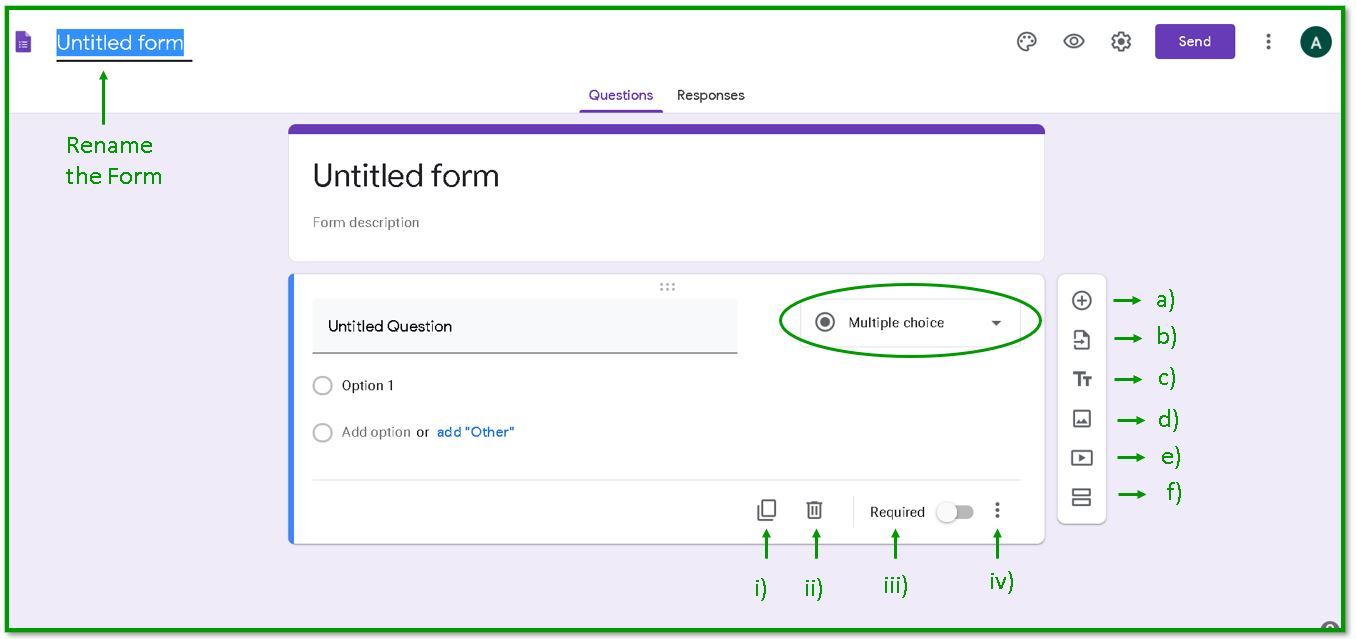
Introduction to the provided functionalities:
👁 Imagea) Add a question
b) Import a Question
You can import questions from the previously created forms as follows:
Using this feature you may import questions from multiple forms too. This may save a lot of effort.
c) Add a Title and Description
You may add a separate information segment in the forms where you just put a Title and if required a description too.
d) Add an image segment
You can add a separate image segment which also allows you to embed hover text.
(Hover text is the text that is displaced as the mouse moves over the image.)
You may resize the image by double-clicking onto it. The overflow menu over the image offers the following functionalities:
e) Add a video
You can add a youtube video to the form. Either search for a particular topic or add the URL of a specific video.
Note: Only youtube videos can be added to google forms.
You are allowed to add a caption to the video. The functionalities in the other overflow menu are the same as they were in the image segment.
f) Add a separate section to the forms
It is always a good idea to organize questions related to different topics into different sections. Each section appears on a different page while the respondents fill the form. The overflow menu offers you the option to duplicate, move, or delete the particular section.
Step 4: Customize the appearance. (Optional) The color pallet icon at the top of the form unfolds the following:
Tip: You can choose from the provided theme colors or select a color using its hexadecimal code. The eye icon allows you to preview the form designed.
Note: You can re-order the templates by clicking and moving the six-dot icon at the top of each question/description template.
Step 5: Altering the Settings In settings, you can set the rules for the respondent to use the forms.
General:
Decide whether or not
Presentation:
Here you can choose:
Step 6: Send and Share By clicking on the send option at the top right, the following box pops up:
👁 Image
You can either mail the link to the desired participants directly, share using Facebook and Twitter, or copy-paste the link on other social networking sites. You can also share embedded HTML. You have the added functionality to add collaborators, i.e. the people who other than you can edit and share the forms. The collaborators can be restricted to the people you have added or you can change the settings to make anyone with the link an editor.
Step 7: Checking Responses. Google Forms provides features to precisely and accurately visualize the information so gathered. This is also why they are preferred to create survey forms.