|
VOOZH | about |
|
VOOZH | about |
An IPv6 is the sixth version of any IP address on the IP protocol. It consists of eight groups of four hexadecimal digits. IP v6 is a 128-bits address having an address space of 2^128.
For more details about IPv6 refer to the articles: What is IPv6? and Internet Protocol version 6 (IPv6).
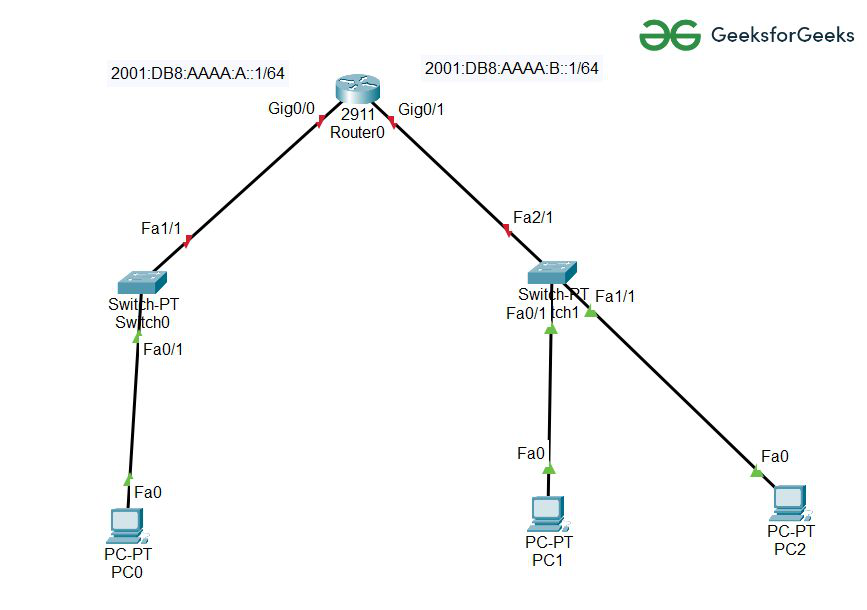
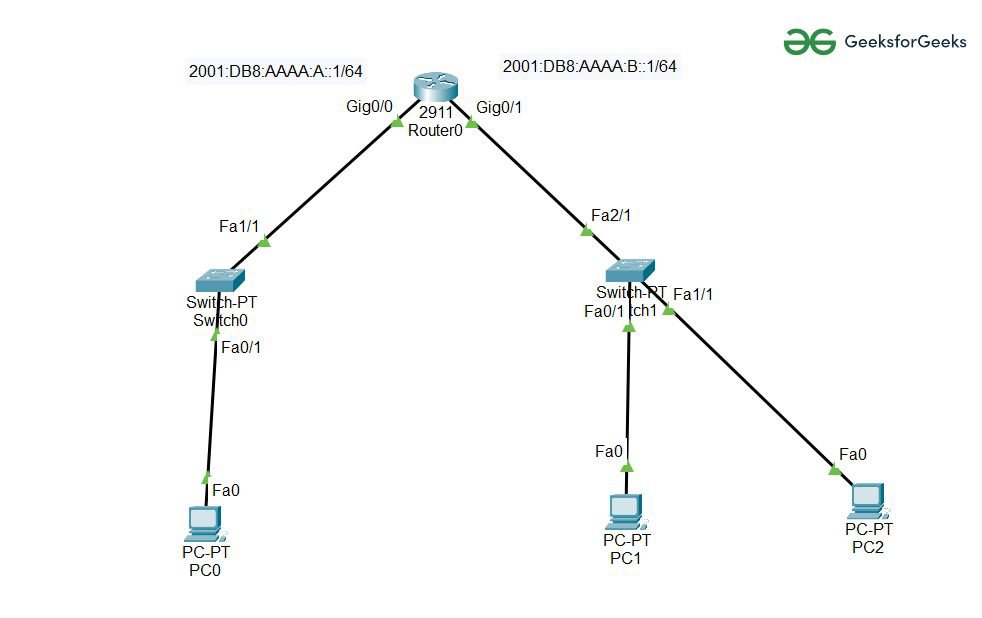
Step 1: First open the Cisco packet tracer desktop and create a network topology something like the image and an IPv6 addressing table given below.
| S.NO | Device Name | Model-Name | Link-Local-Address | Default-Gateway |
|---|---|---|---|---|
| 1. | PC | PC | FE80::207:ECFF:FEA3:EB56 | FE80::1 |
| 2. | Switch | PT-switch | FE80::207:ECFF:FEB9:862A | FE80::1 |
| 3. | Router | 2911 | FE80::250:FFF:FE6C:B21 | FE80::1 |
| 4. | cable | Automatic connecting cable | nil | nil |
IP Addressing Table:
| S.NO | Interface | IPv6 Address |
|---|---|---|
| 1. | Gig0/0 | 2001:DB:AAAA:A::1/64 |
| 2. | Gig0/1 | 2001:DB:AAAA:B::1/64 |
Step 2: Configuring the GigabitEthernet Interfaces.
Router>en
Router#conf t
Enter configuration commands, one per line. End with CNTL/Z.
Router(config)#ipv6 unicast-routing
Router(config)#int Gig0/0
Router(config-if)#ipv6 address FE80::1 link
Router(config-if)#ipv6 address FE80::1 link-local
Router(config-if)#no shut
Router(config-if)#int Gig0/1
Router(config-if)#ipv6 address FE80::1 link-local
Router(config-if)#no shut
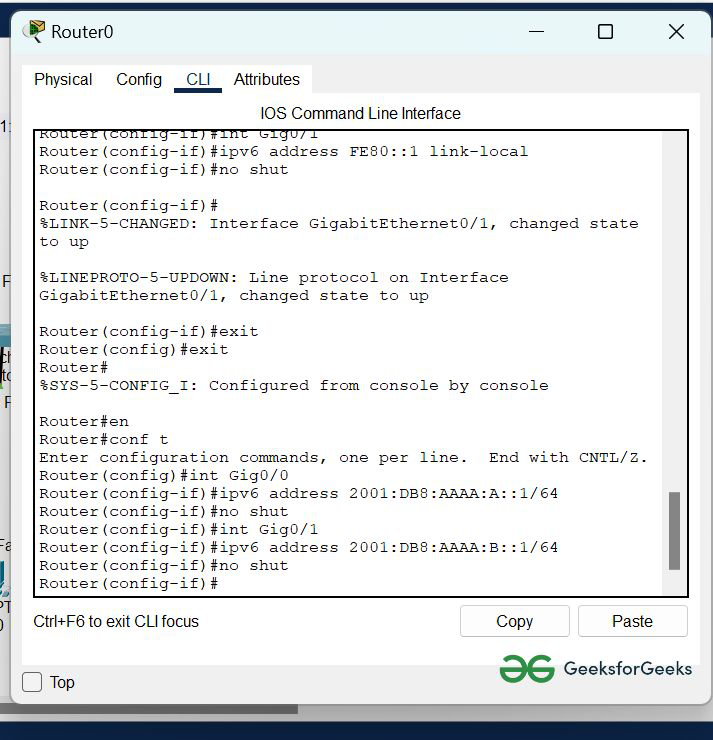
Step 3: Configuring Ipv6 address in both Interfaces using CLI:
Router#en
Router#conf t
Enter configuration commands, one per line. End with CNTL/Z.
Router(config)#int Gig0/0
Router(config-if)#ipv6 address 2001:DB8:AAAA:A::1/64
Router(config-if)#no shut
Router(config-if)#int Gig0/1
Router(config-if)#ipv6 address 2001:DB8:AAAA:B::1/64
Router(config-if)#no shut
Router(config-if)#
Router(config-if)#
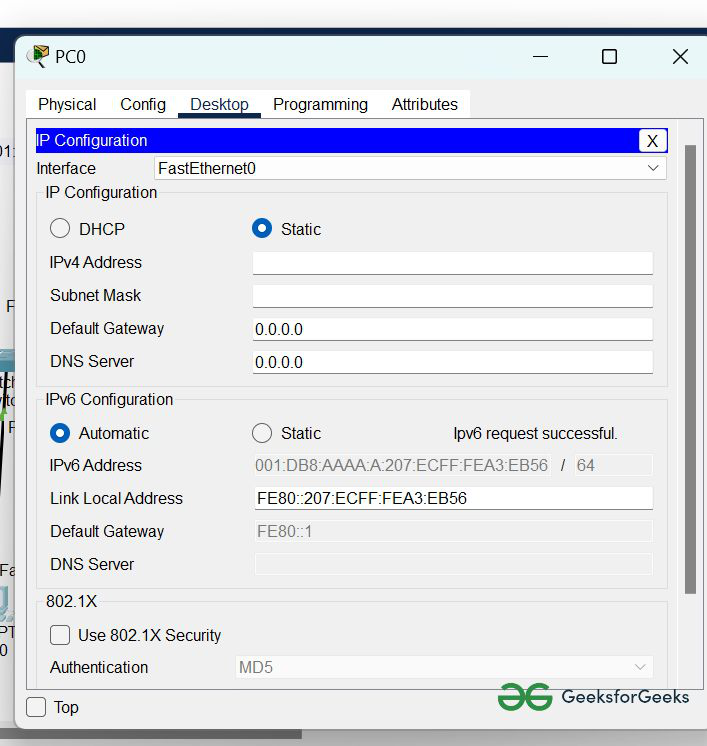
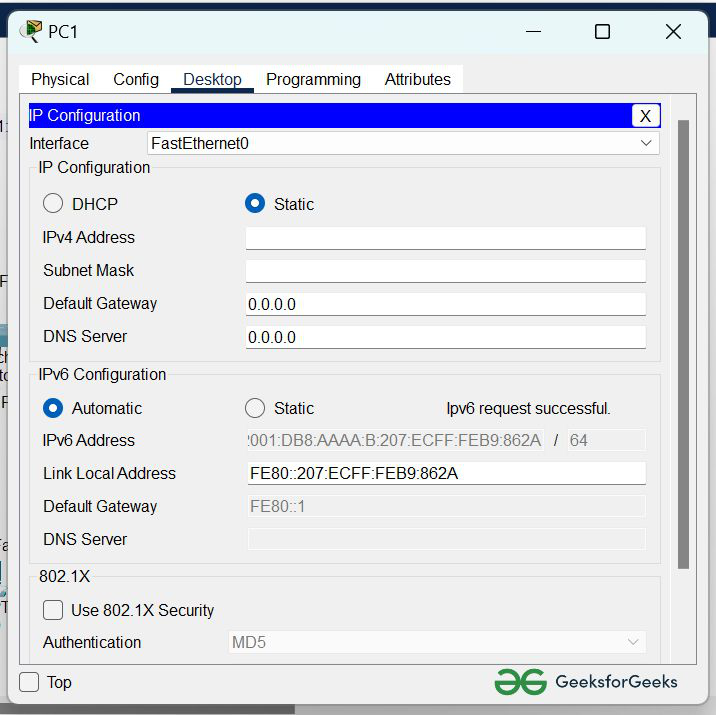
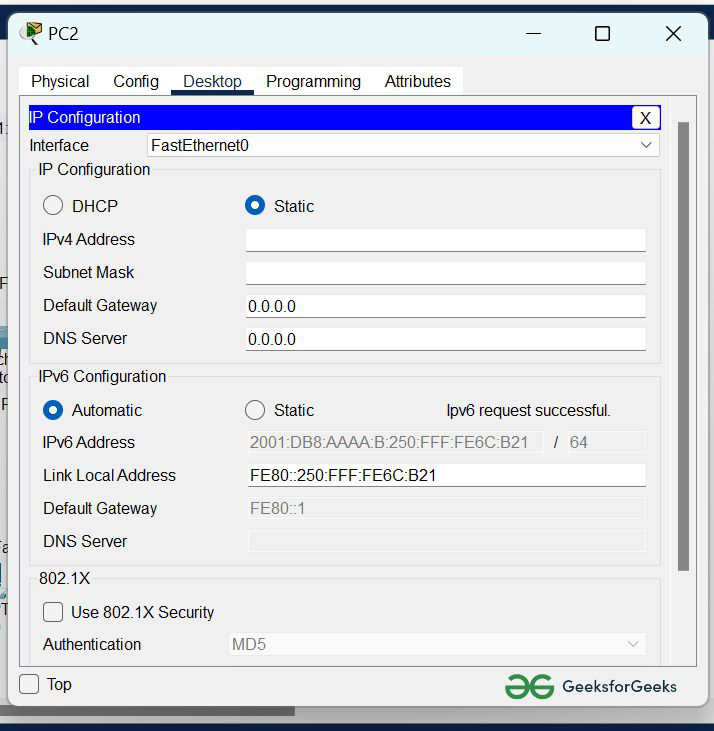
Step 4: We have configured the router now change the settings of hosts in IPv6 configuration:
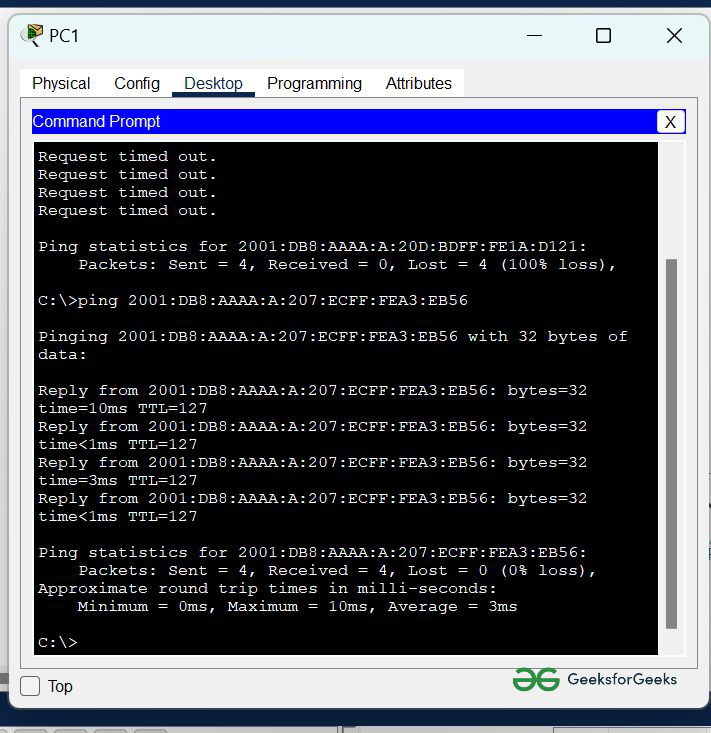
Step 5: Now we have to verify the connection by pinging the IPv6 address of PC0 in PC1.
command: ping 2001:DB8:AAAA:A:20D:BDFF:FE1A:D121