|
VOOZH | about |
|
VOOZH | about |
A web server is like a computer that uses an HTTP (Hyper Text Transfer Protocol) and many other protocols. it responds when a client makes a request over the World Wide Web. The main work of the web server is to show website content that is processed, and stored, in the webserver to deliver the webpages to the user. The Web server also uses SMTP (Simple Mail Transfer Protocol) for sending mail and FTP (File Transfer Protocol) for file transfer and storage.
Installation Process Of Packet Tracer Click Here
Step 1: After Installation Open Packet Tracer.
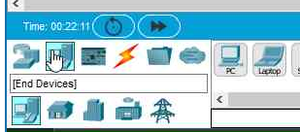
Step 2: Implementation- Click End Devices and Then Select PC The Drag Into them In the Screen.
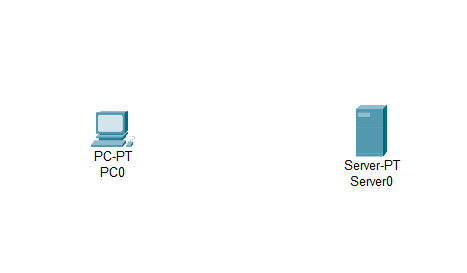
Result After This:
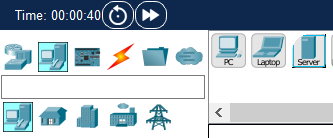
Step 3: Again Click End Devices And After that click on a server. Drag Into Screen
Result:
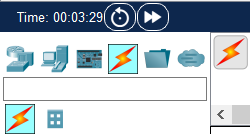
Step 4: Connect each other with a wire for this click-on connection.
Step 5: After Click On this Click on the PC and other hand click on a server. Like This
Step 1: Double-Click On PC0 and Click on Desktop Then Go to IP Configuration
Step 2: Then Set the IP that you want to give.
Step 3: Double-Click on Server0. Then Click on IP Configuration and Set the IP for the web server.
Step 4: Set the IP Address to identify the web address.
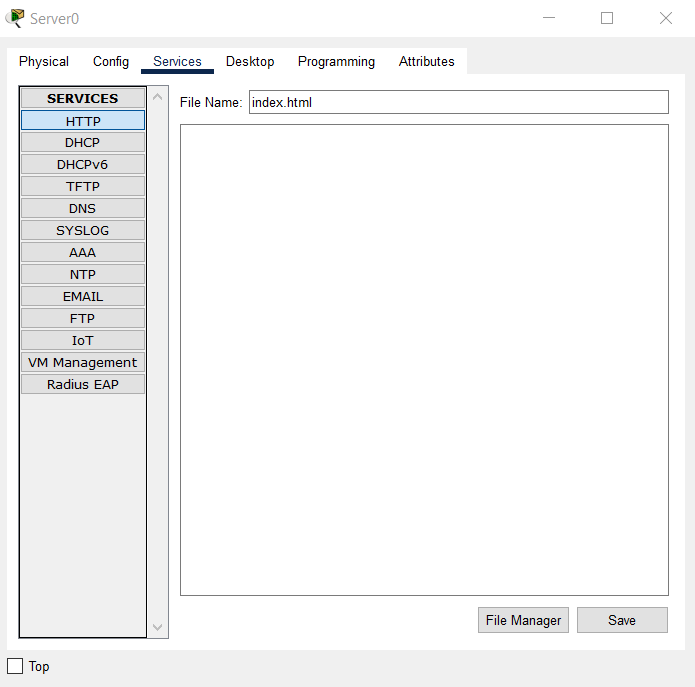
Step 5: Now go to Services and add some HTML code to check whether the server is working or not
Add this code and save it
Step 6: Go to PC0 Click on Desktop and then open Web Browser.
Step 7: Remember the IP that we are given to the web server enter the same ip to the address bar. click on go
This is how you can create a web server.