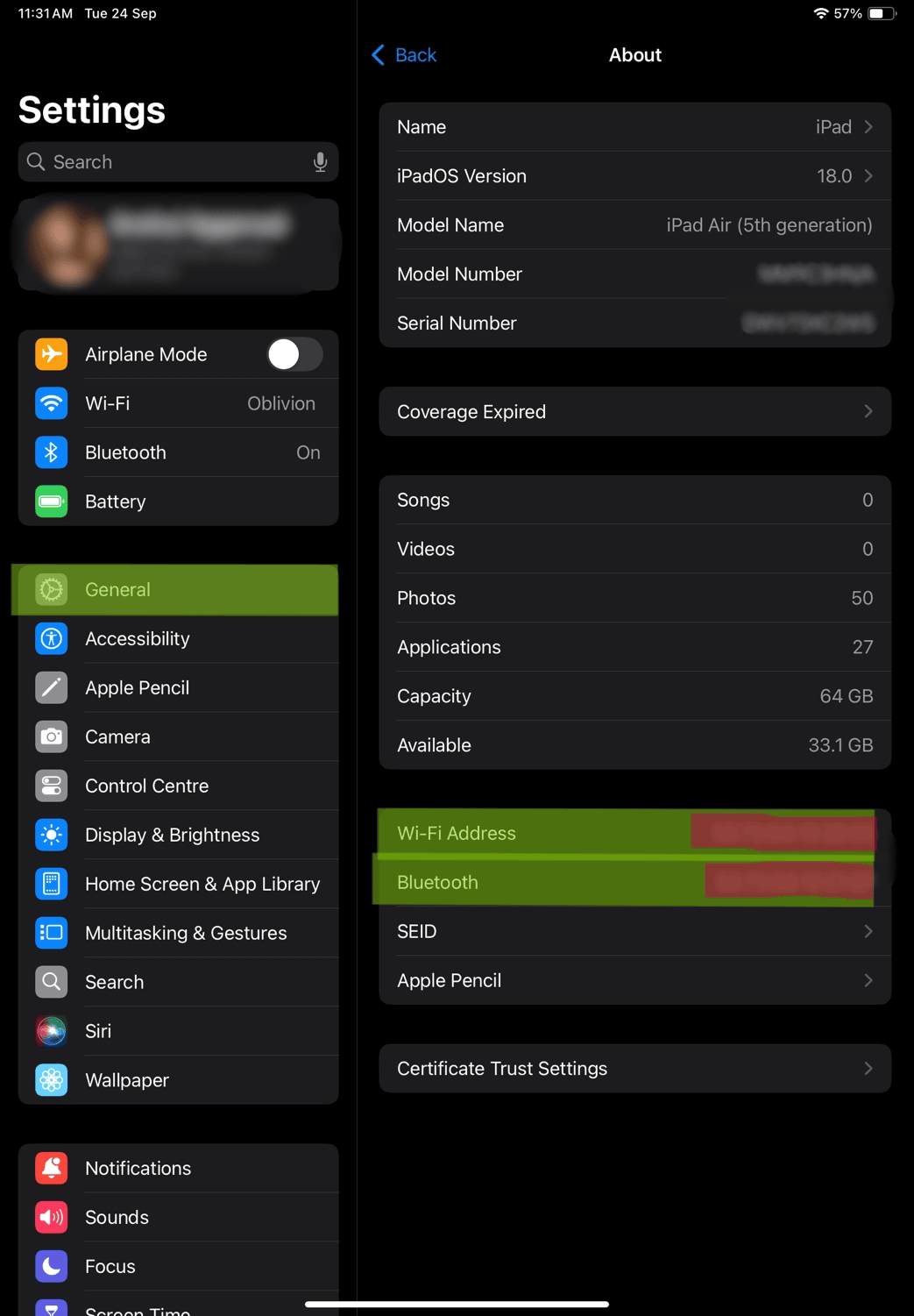
A MAC address is a 12-character alphanumeric identifier (e.g., 00:1A:2B:3C:4D:5E) that is assigned to each network adapter, such as Ethernet or Wi-Fi, in your gadget. It makes a difference distinguish gadgets on a local network and empowers communication between devices.
There are several reasons why you may be required to find your MAC address:
Network Setup: If you require to configure a network channel or whitelist devices.
Troubleshooting: When diagnosing connectivity issues with your router or service provider.
Security: A few systems require MAC address enrollment for security purposes.
How to Find Your Mac Address( macOS)
For macOS users, finding the MAC address is clear and can be done in fair a few steps:
Click on the Apple Icon: In the top-left corner of the screen, click the Apple icon and select "System Preferences" from the drop-down menu.
Select Network: In the System Preferences window, click on "Network."
Choose Your Active Network: From the left-hand side, select your active network connection (Wi-Fi or Ethernet).
Go to Advanced Settings: For Wi-Fi, click on the “Advanced” button in the bottom-right corner. For Ethernet, simply click on the active connection.
Find the MAC Address: Under the "Hardware" tab for Wi-Fi or the "Ethernet" section, you will see your MAC address listed as "Wi-Fi Address" or "Ethernet Address."
How to Find Your Mac Address(Windows)
If you're using a Windows PC, follow these steps to find your MAC address:
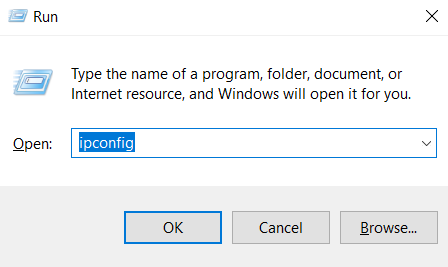
Open Command Prompt: Press " Windows Key + R ", type cmd, and press Enter to open the Command Prompt.
Enter the ipconfig Command: In the Command Prompt, type " ipconfig /all " and press Enter. This will show a detailed list of network configurations.
Locate Your MAC Address: Scroll through the list to find your active network adapter. The MAC address is listed as the "Physical Address" under the relevant adapter (Ethernet or Wi-Fi).
How to Find Your Mac Address - Linux
For Linux users, the MAC address can be found using the terminal:
Open the Terminal: Press Ctrl + Alt + T to open the terminal.
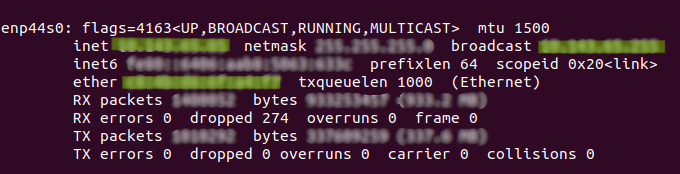
Use the ifconfig Command: Type " ifconfig -a " and press Enter. This will display the network interfaces and details.
Find the MAC Address: Locate your active network interface (usually eth0 for Ethernet or wlan0 for Wi-Fi). The MAC address will be listed as "HWaddr" or "ether."