|
VOOZH | about |
|
VOOZH | about |
A backup of Configurations is required for troubleshooting the device when necessary, or if the device accidentally gets reset. These Backups are nothing but files (generally text files) stored separately on a Server which is a precautionary measure to protect against the system shutdown and is used to restore or update the configurations on the device making it functional again. There can be several methods to back up and restore Configurations, but we will be seeing the steps involved in Cisco Router Configuration Backup using two protocols:
Here, we will be using a single Router and a server with both TFTP and FTP protocols running. (The server can be found on the End Devices tab in CPT).
Step 1: Configuring the IP address on the Router and a loopback interface (to verify our configuration Backup).
Router(config)#int f0/0
Router(config-if)#ip address 10.0.0.1 255.255.255.0
Router(config-if)#no shut
Router(config)#int loopback 1
Router(config-if)#ip address 1.1.1.1 255.255.255.255
Router(config-if)#no shut
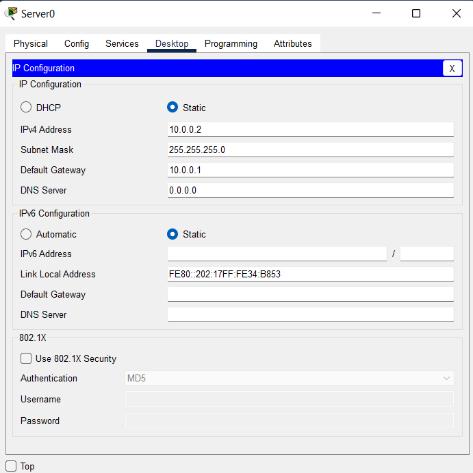
Step 2: Configuring IP address on Server.
Go to the Desktop tab and then to the IP
Configuration and add the IP
address to be configured.
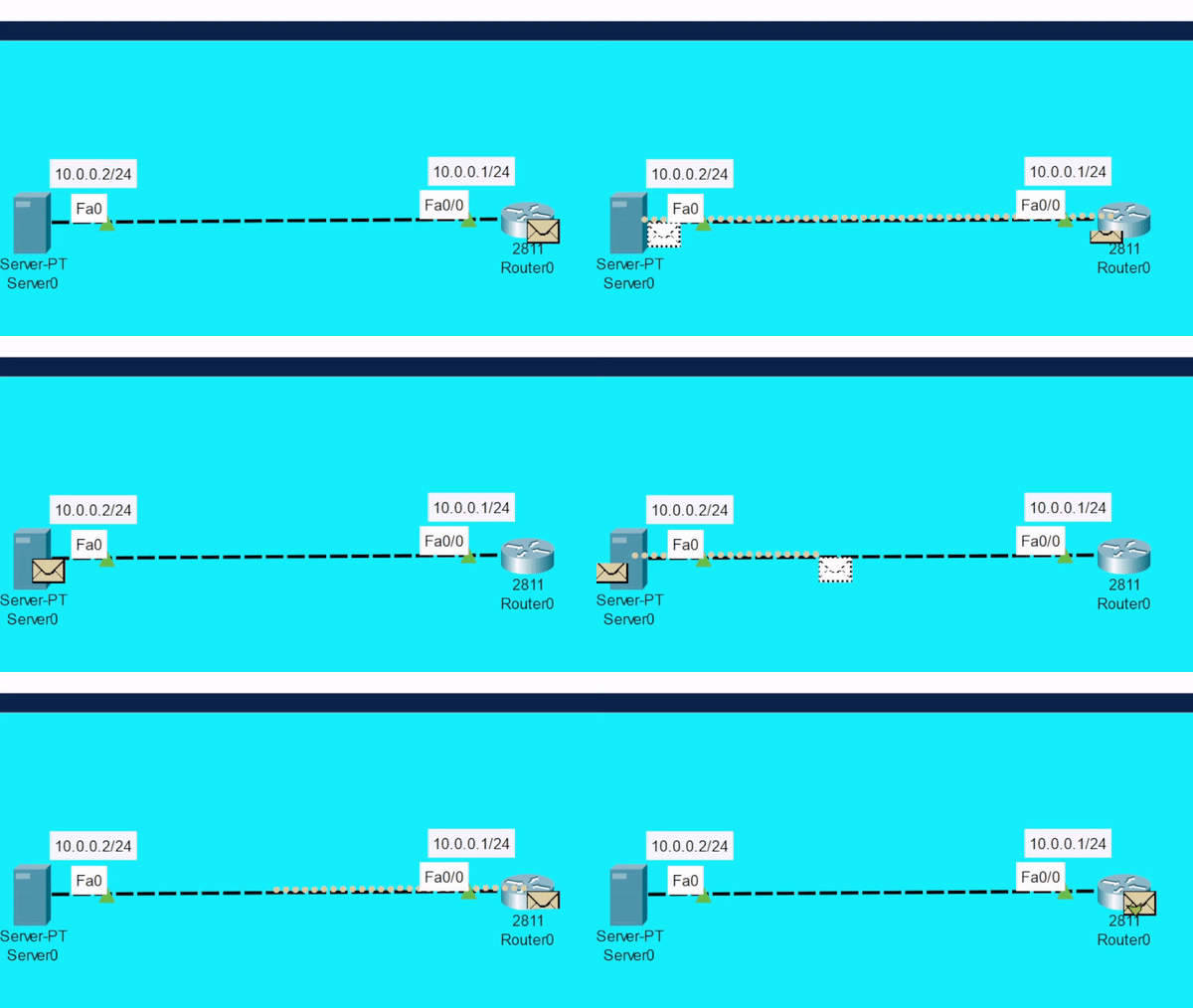
Step 3: Verifying Reachability from Router to Server.
Router#ping 10.0.0.2Step 1: Checking the Server’s TFTP Service:
Go to the Services Tab and then click
on the TFTP tab available on the list.
Step 2: Copying the Router’s Configuration to our TFTP Server:
Router#copy running-config tftp:
Address or name of remote host []? 10.0.0.2
Destination filename [Router-confg]? config_backup
Or (we can also copy the startup configuration of the device) using command:
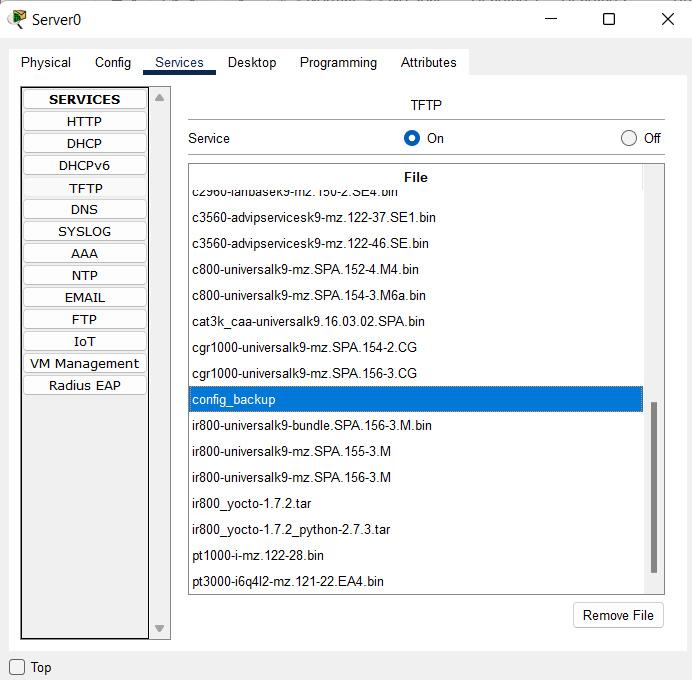
Router#copy startup-config tftp:Step 3: Verifying if our Configuration File has been copied to the TFTP Server:
Go to the Services Tab and then click on the
TFTP tab to check if our Destination
 filename is present on the list.
Step 4: Since our Configuration has been copied to our Server, let us now delete the configuration from the Router.
To delete Running Configuration:
Router#reloadTo delete Startup Configuration:
Router#erase starup-configStep 5: After the Router gets reloaded, connect it to the network it was previously in i.e., enter the IP address to its interface (also add the IP routes if there are different networks and if the Server is present in a different network) and then verify the reachability to the TFTP Server.
Step 6: Backup/Copy the stored Configuration file from the TFTP Server to the Router.
Router#copy tftp: running-config
Address or name of remote host []? 10.0.0.2
Source filename []? Config_backup
Destination filename [running-confg]? running-config
Let's verify if our configuration has been back on our Router from the Server:
Router#show running-config
| section interface
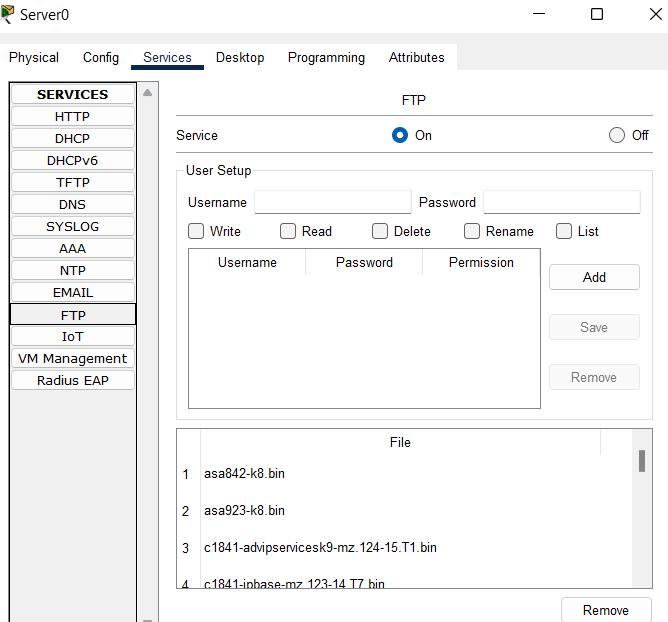
Router#ping 10.0.0.2Step 1: Checking the Server’s FTP Service:
Go to the Services Tab and then
click on the FTP tab available
on the list.
Step 2: There is a field with a Username and Password. These two fields are required to add a user’s or device’s credentials with their username and password. The users/devices with these credentials only are allowed to access the FTP server and read/write files etc. (Permission can be set while adding a user in the FTP database, for example – employees should have read-only access to the FTP server, while admin should have the permission to read, write, delete, rename, etc.)
Username: cisco Password: cisco@123 “Select the Permission(s) and
Click Add to add these
credentials in the list”
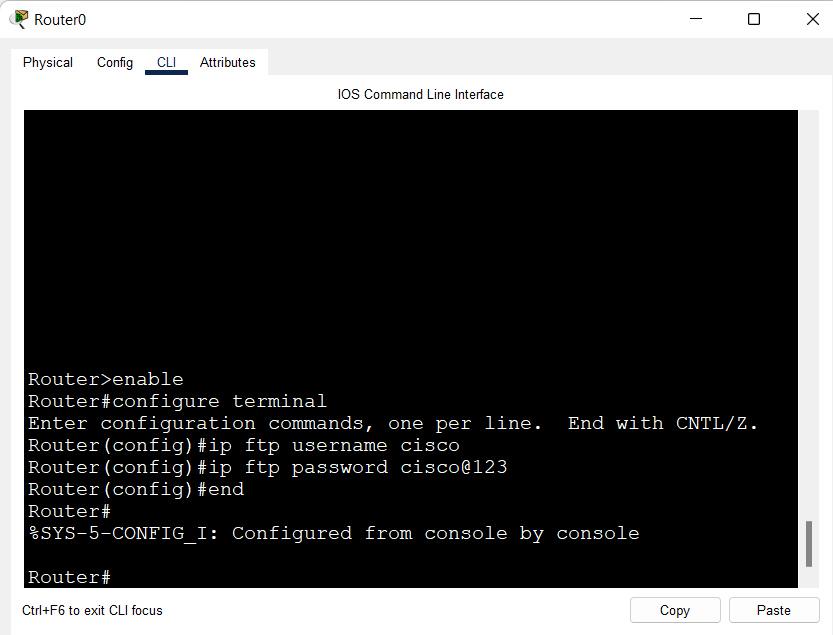
Step 3: Configure the FTP Username and Password on the Router:
Router>enable
Router#configure terminal
Router(config)#ip ftp username cisco
Router(config)#ip ftp password cisco@123
Router(config)#end
Step 4: Copying the Router’s Configuration to our FTP Server:
Router#copy running-config ftp:
Address or name of remote host []? 10.0.0.2
Destination filename [Router-confg]? backup-config
Or (we can also copy the startup configuration of the device) using the command:
Router#copy startup-config ftp:Step 5: Verifying if our Configuration File has been copied to the FTP Server:
Go to the Services Tab and
then click on the FTP tab to
check if our Destination
filename is present on the list.
Step 6: Since our Configuration has been copied to our Server, let us now delete the configuration from the Router.
To delete Running Configuration:
Router#reloadTo delete Startup Configuration:
Router#erase starup-configStep 7: After the Router gets reloaded, connect it to the network it was previously in i.e., enter the IP address to its interface (also add the IP routes if there are different networks and if the Server is present in a different network) and then verify the reachability to the FTP Server.
Step 8: Backup/Copy the stored Configuration file from the FTP Server to the Router:
Router#copy ftp: running-config
Address or name of remote host []? 10.0.0.2
Source filename []? Config_backup
Destination filename [running-confg]? running-config
Router#show running-config
| section interface
Router#ping 10.0.0.2