|
VOOZH | about |
|
VOOZH | about |
How to Add Audio to PowerPoint: Quick Steps
- Open PowerPoint and Select the Slide
- Go to Insert Tab >>Click on Audio >> Choose Audio on My PC
- Choose and Insert the Audio File
- Adjust the Audio Icon Placement >> Set Playback Options
- Save and Preview Presentation
Have you ever wondered how to make your PowerPoint presentations more engaging and impactful? Adding audio to your slides can transform a standard presentation into a dynamic and interactive experience. Whether it's background music, a voiceover, or sound effects, incorporating audio enhances audience engagement and helps communicate your message more effectively.
In this guide, we’ll explore different ways to add audio to PowerPoint, from inserting pre-recorded audio files to recording voiceovers directly in the software. Whether you're creating a business presentation, an educational lecture, or a marketing pitch, mastering these audio features will take your slides to the next level!
Table of Content
Adding sound to your PowerPoint presentation enhances engagement, improves audience retention, and makes your slides more interactive. Whether you want to add background music, voiceovers, or sound effects, PowerPoint provides multiple methods to incorporate audio. Below are the best ways to add sound to your presentation, along with their advantages.
Adding music from your PC is the most reliable method for offline playback. The video file plays directly from your computer without the need for an internet connection, ensuring smooth, uninterrupted sound during your presentation. It's ideal for local presentations or when you want to ensure no buffering or connection issues. Follow the below steps to add audio from your PC:
Open your existing PowerPoint file or create a new presentation.
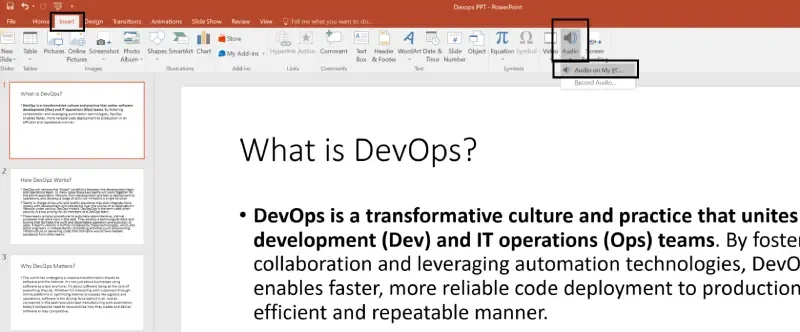
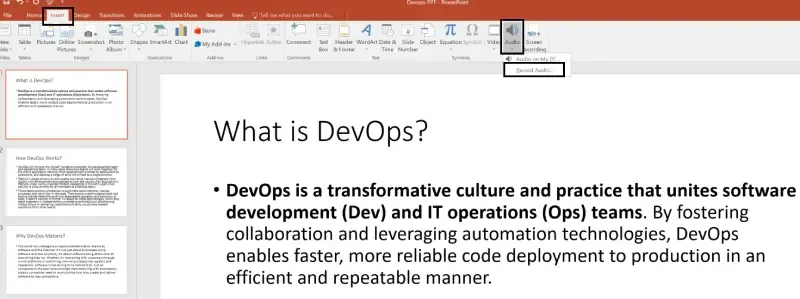
Navigate to the Insert tab at the top of the screen. Under the Media group, click on Audio. You will see several options:
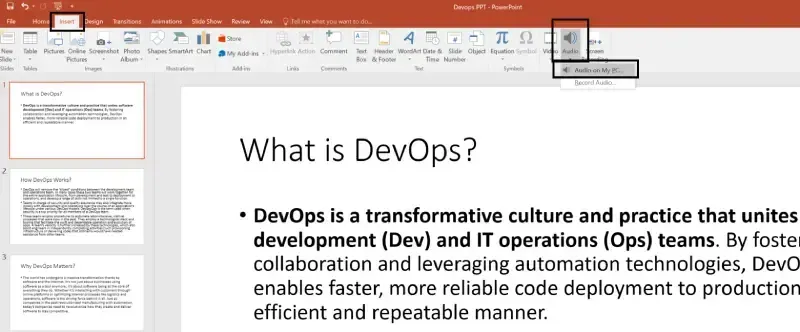
Click Audio on my PC, browse your files, and select the audio you want to insert.
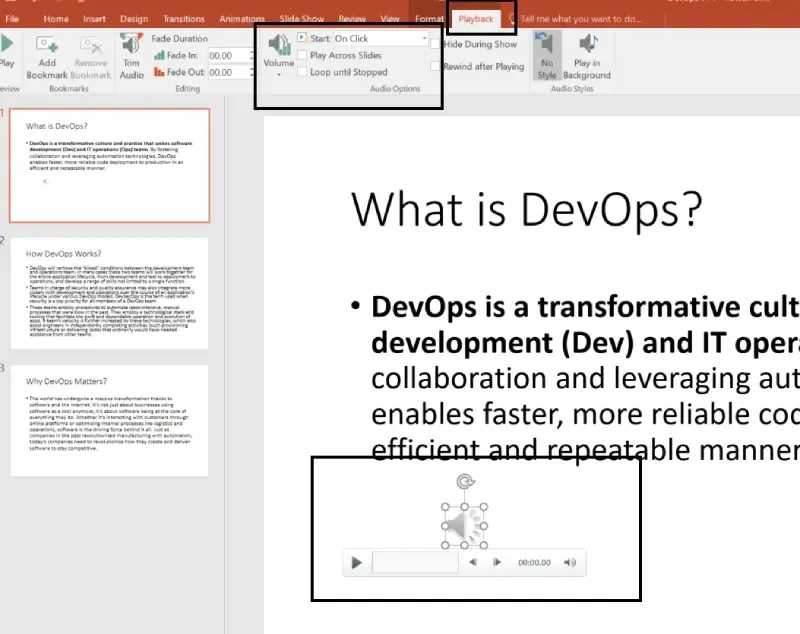
Resize and reposition the audio icon on the slide to your liking.
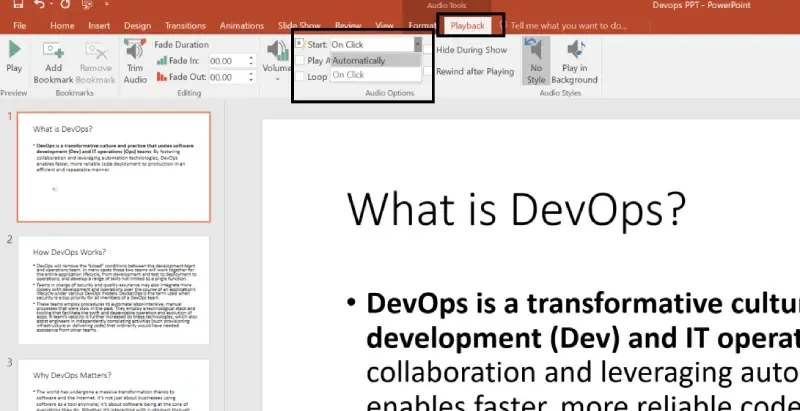
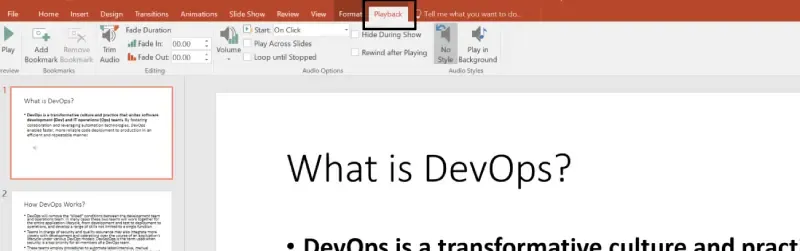
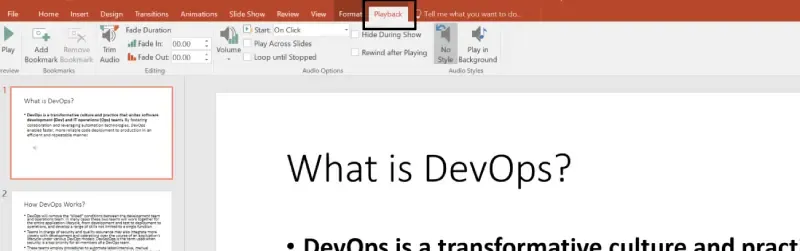
Under the Playback tab, you can adjust playback settings like:
This method ensures a seamless and high-quality audio experience for your audience.
Recording directly in PowerPoint is the simplest and quickest way to add a personalized touch to your slides. It allows for easy, custom voiceovers that can guide your audience through the slides or explain details that text and images alone cannot.
Choose the slide where you want to add a voiceover.
Go to the Insert tab, and under the Media group, click on Audio and Select Record Audio.
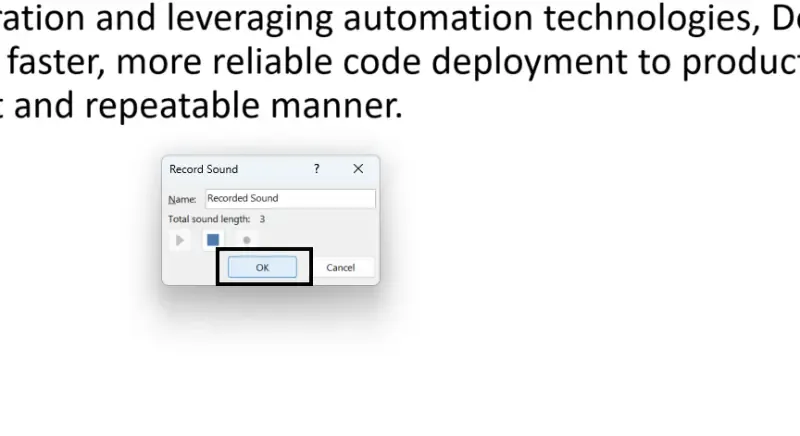
Click the Record button (red dot) to start recording your voice. When you're done, click the Stop button (square).
Click OK to insert the audio onto the slide.
Under the Playback tab, set the audio to Start Automatically or On Click, depending on your needs.
Recording directly in PowerPoint gives you an efficient and personalized way to add narration, helping you create more engaging presentations.
Adjusting the playback settings gives you control over how and when the audio plays, such as whether it plays automatically or when clicked.
Click on the audio icon on your slide.
Navigate to the "Playback" tab.
Choose from options like "Start Automatically," "Start on Click," or "Loop Until Stopped."
Test the settings to ensure they align with your presentation flow.
Once you insert music into PowerPoint, you can customize how it plays throughout your slideshow.
To ensure the music plays throughout the presentation:
To use only a certain portion of the song:
If you don’t want the audio icon to appear:
Integrating audio into your PowerPoint presentation is a simple yet powerful way to enhance storytelling, improve engagement, and make your content more memorable. Whether you choose to insert an audio file from your PC for high-quality playback or record a custom narration for a personalized touch, PowerPoint offers flexible options to meet your needs.
By adjusting playback settings, you can ensure your audio plays seamlessly, enhancing the overall presentation experience. So, the next time you create a PowerPoint, don’t just rely on visuals—add sound to captivate your audience and make your message truly stand out!