|
VOOZH | about |
|
VOOZH | about |
How to Add Page Number in PowerPoint: Quick Steps
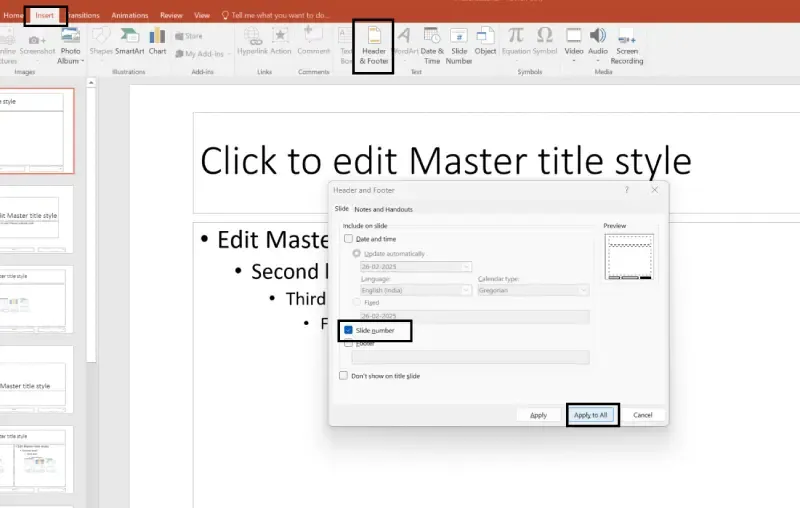
- Open your Presentation >> Go to Insert Tab
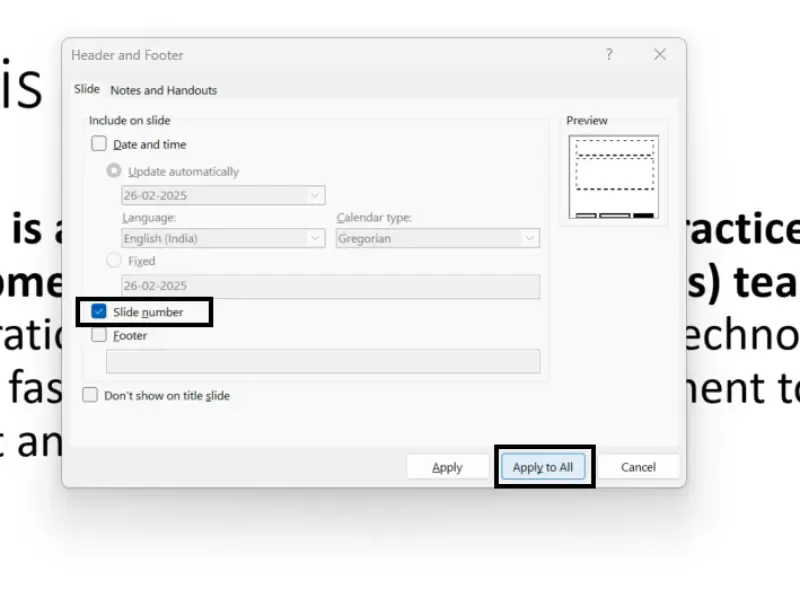
- Click on the Slide Number >> Enable Slide Numbering
- Select "Apply All" >> Save and Preview your Page Number
Keeping your PowerPoint slides well-organized is crucial for delivering a smooth and structured presentation. One of the easiest ways to maintain clarity and help both you and your audience navigate through slides effortlessly is by adding slide numbers. Whether you're creating a business presentation, academic report, or training session, numbering your slides ensures that your content stays structured, professional, and easy to follow.
In this step-by-step guide, we’ll explore different methods to add slide numbers in PowerPoint, including using the Insert tab, Slide Master, and formatting options. Whether you need automatic slide numbering, custom placement, or troubleshooting tips, this guide covers everything you need to know!
Table of Content
Adding slide numbers in PowerPoint helps improve the organization, navigation, and professionalism of your presentation. Whether you're using PowerPoint 2019, Office 365, or older versions, there are multiple ways to insert and customize slide numbers.
In this section, we’ll explore different methods to add slide numbers, including using the Insert tab, Slide Master, and custom formatting options. These methods will allow you to display slide numbers efficiently while maintaining a clean and structured layout. Let’s get into the best ways to number your slides!
This is the fastest and simplest way to add slide numbers in PowerPoint. It allows you to enable numbering in just a few clicks without modifying slide layouts. Follow the below steps to insert slide number in power point:
Launch PowerPoint and open your existing file or create a new one.
Navigate to the "Insert" tab at the top of the screen.
Under the Text group, click on "Slide Number".
A Header and Footer dialog box will appear.
You can now see the Slide number on bottom right corner of the slide
Tip: If you don’t want slide numbers on the title slide, check the box "Don’t show on title slide."
If you want consistent slide numbers across all slides, using Slide Master ensures the numbering stays uniform and formatted properly. Follow the below steps to insert page number in power point:
You can also include the date & time along with slide numbers for better tracking.
PowerPoint allows customization of slide numbers to match your presentation design.
Adding slide numbers in PowerPoint is a simple yet essential feature that enhances the professionalism and organization of your presentation. Whether you use the Insert tab for quick numbering or Slide Master for a consistent layout, having numbered slides helps both presenters and viewers keep track of the content effortlessly.
By following the steps in this guide, you can ensure that your slides are clearly structured, visually appealing, and easy to reference. So, the next time you're preparing a PowerPoint, don’t forget to add slide numbers—a small step that makes a big difference in your presentation’s effectiveness!