|
VOOZH | about |
|
VOOZH | about |
Flash is essentially the best animation tool/software for anyone as it requires a little effort to animate big things because of endless functions of flash like auto rotation and that too with direction clockwise and counter clockwise, using these features we can animate a clock, fan, wheels rotation, blades of a helicopter, etc, so we will animate the blades of the helicopter both the top one and the one at the tail.
Animating a helicopter is used in many chase scenes, it is also used in advertising of different products or services so we will learn to animate it. To animate a helicopter we will need a vector image of the helicopter so download a copyright-free image from the internet. Follow the below steps to animate a helicopter.
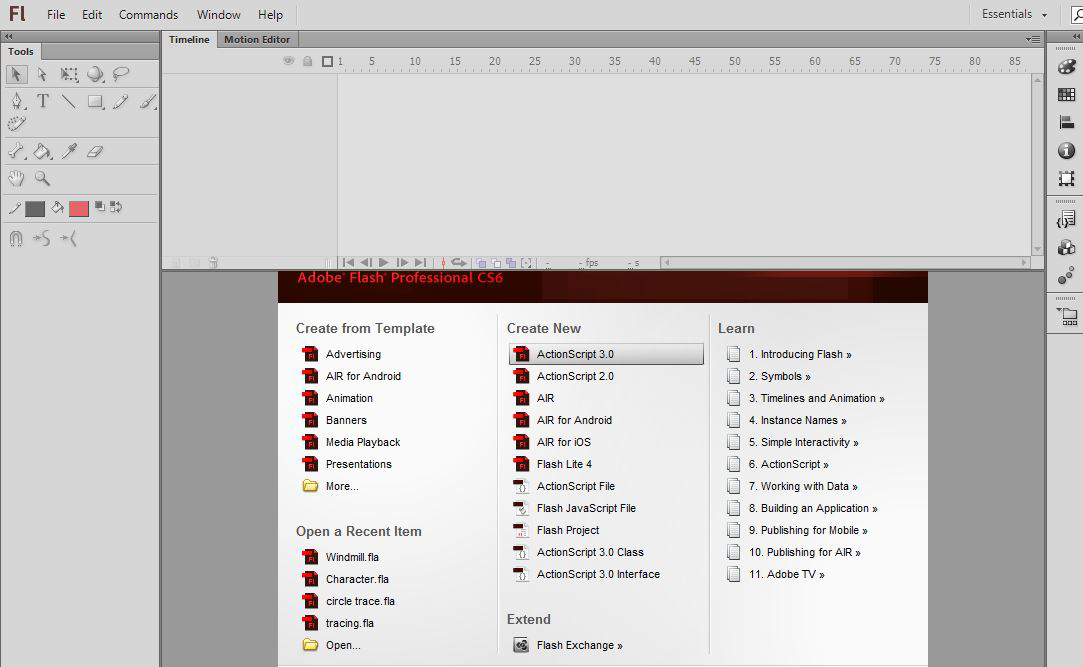
Step 1: Open a new project in Adobe flash.
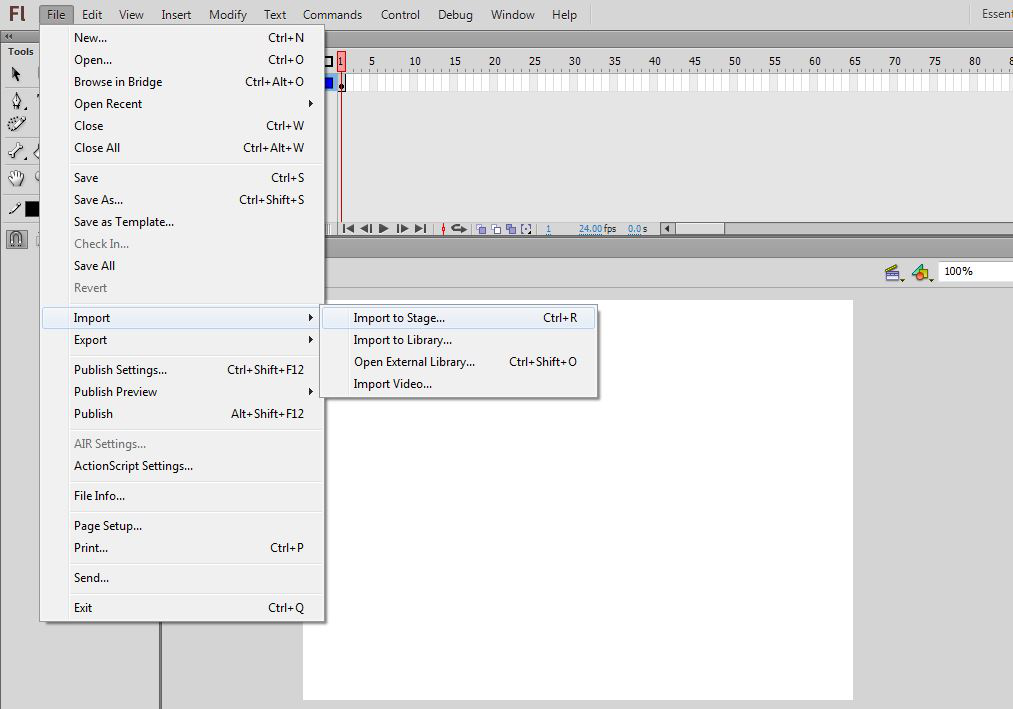
👁 Open-a-new-projectStep 2: Import an image of a helicopter on the stage.
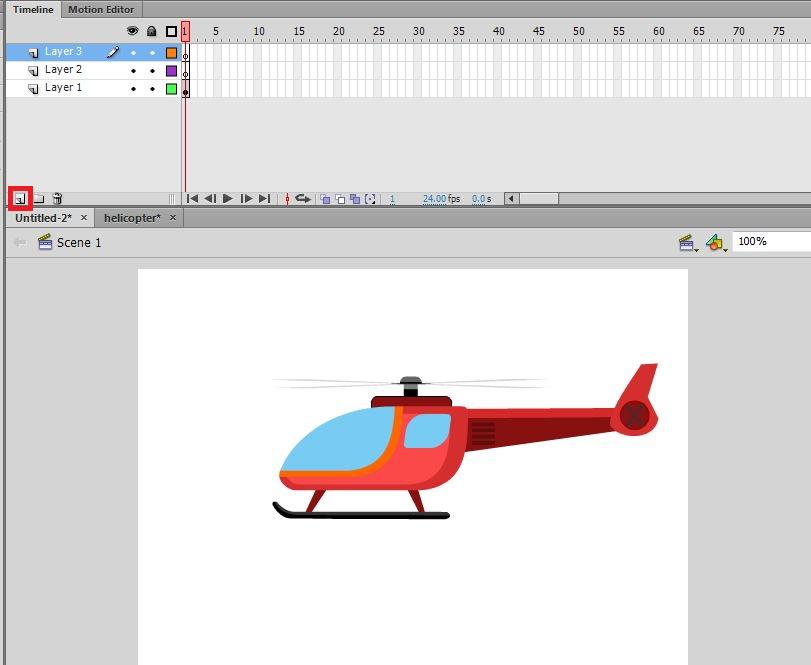
👁 Import-an-image-of-a-helicopterStep 3: Add two new layers using Add new layer button on the timeline.
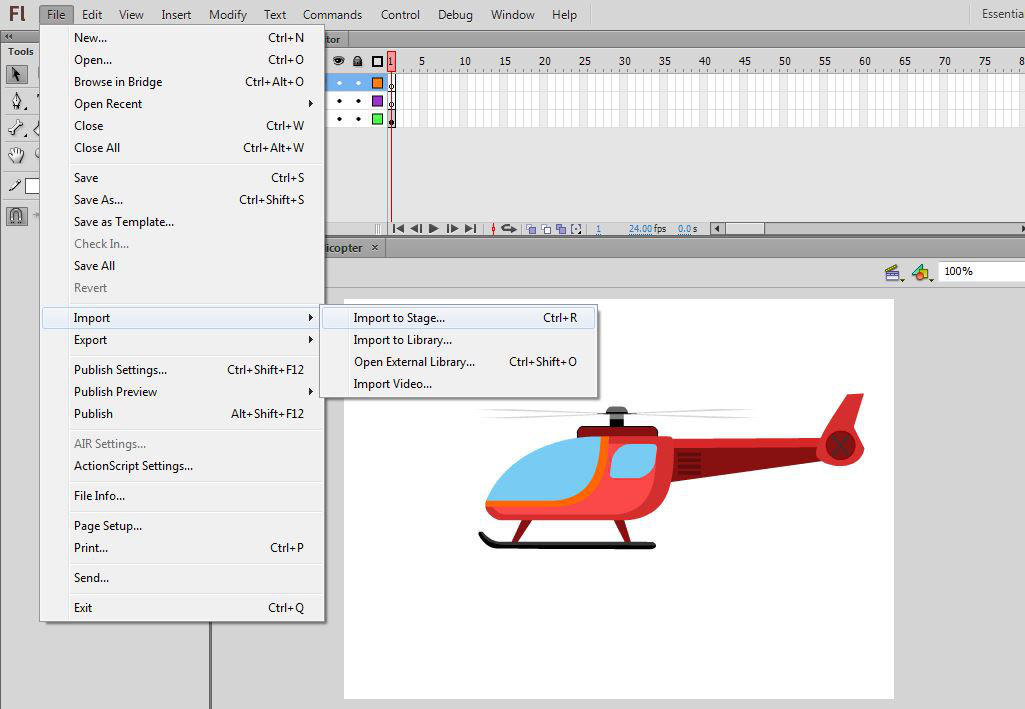
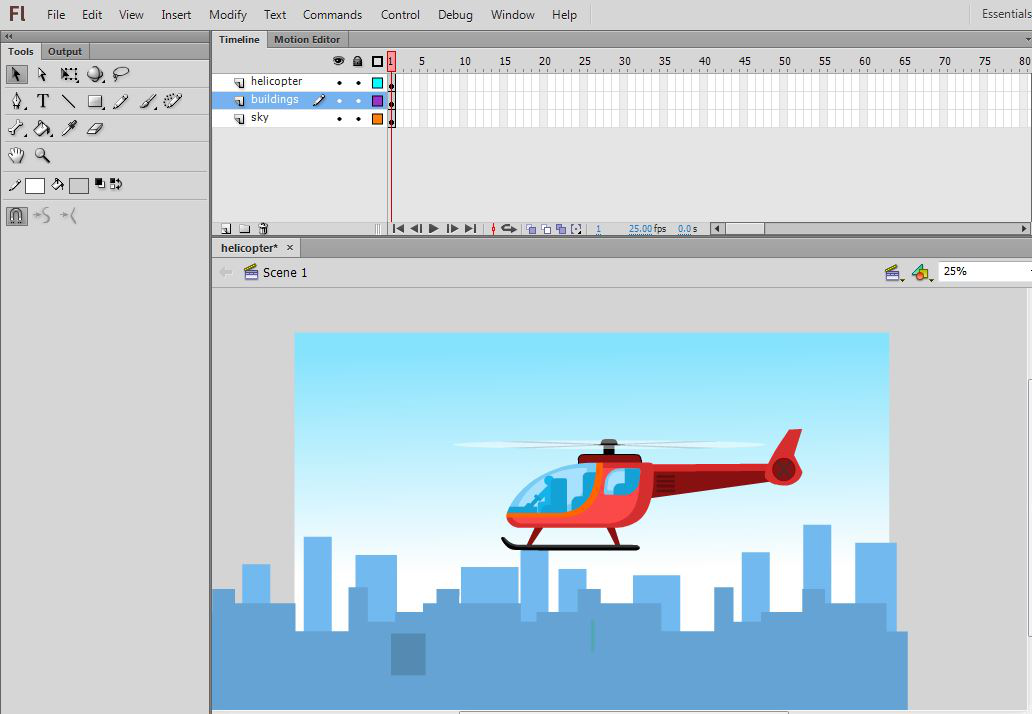
👁 Add-two-new-layersStep 4: On these layers import building and sky and name all the layers as buildings, sky, and helicopter.
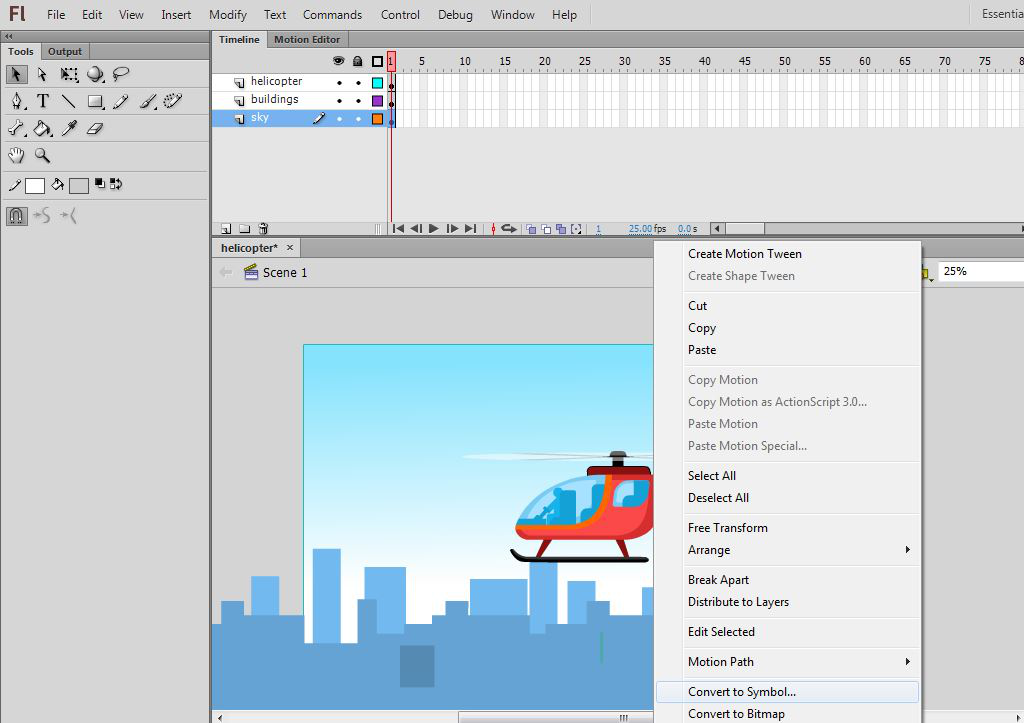
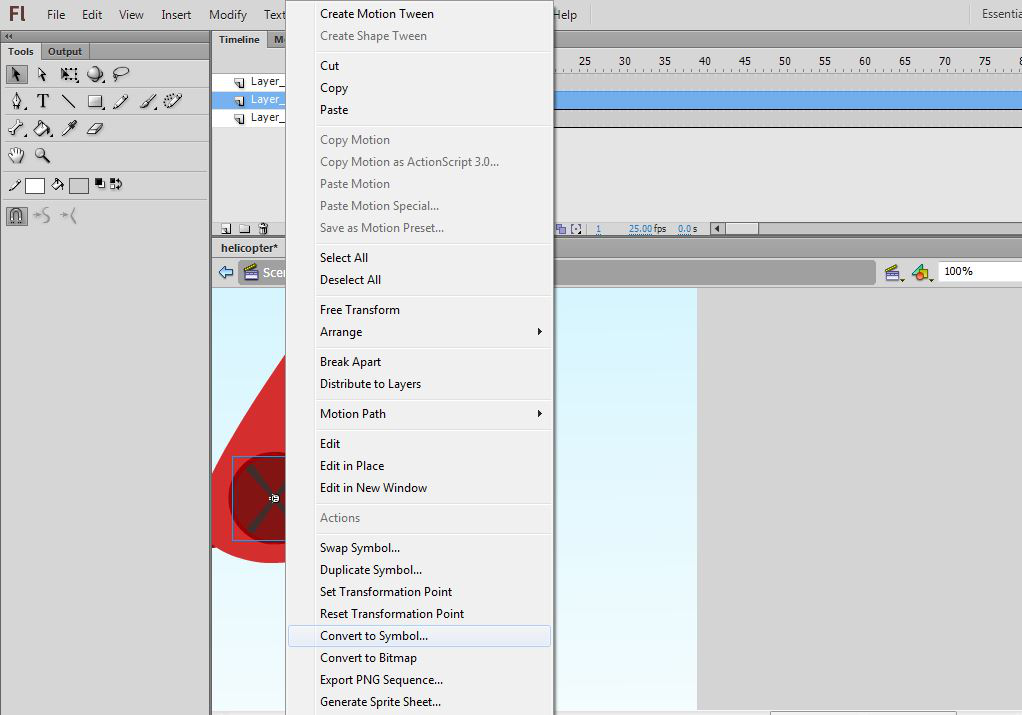
👁 Import-stageStep 5: Select a helicopter and convert it into a symbol.
👁 Convert-the-helicopter-in-imageStep 6: Double click to enter inside the symbol and again convert it into a symbol.
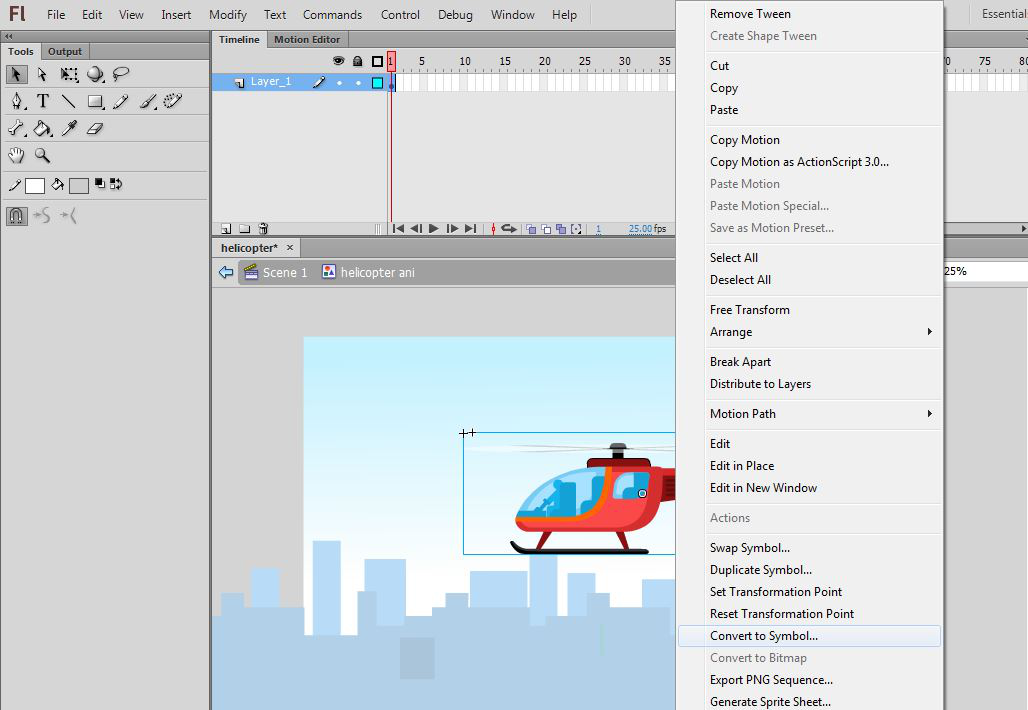
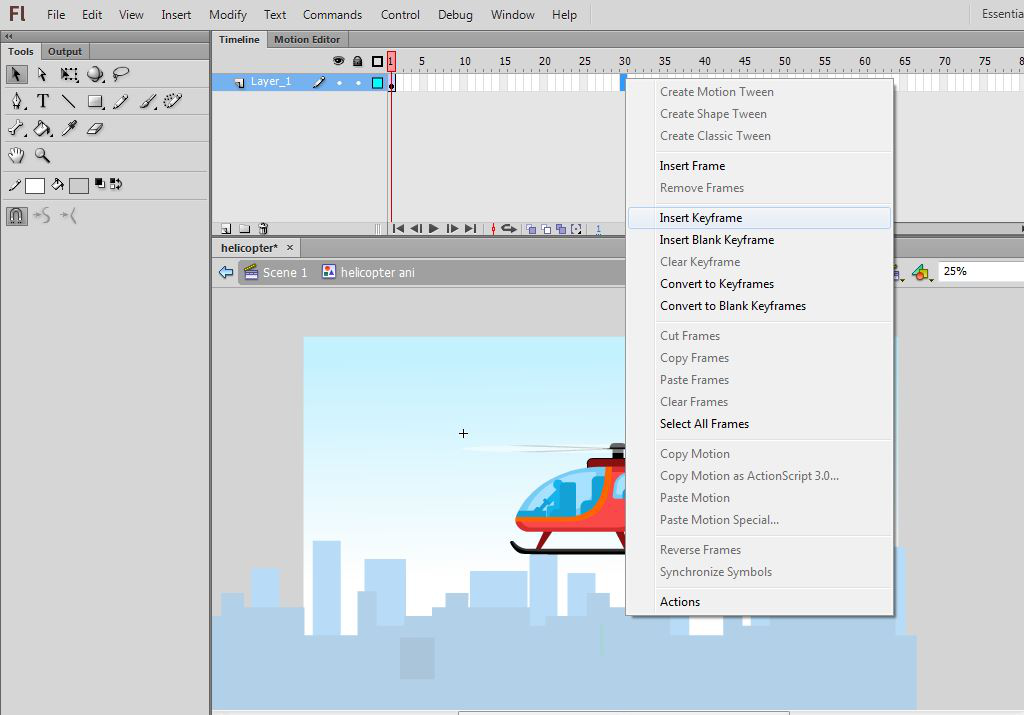
👁 Enter-inside-the-symbolStep 7: Insert a keyframe at frame 30.
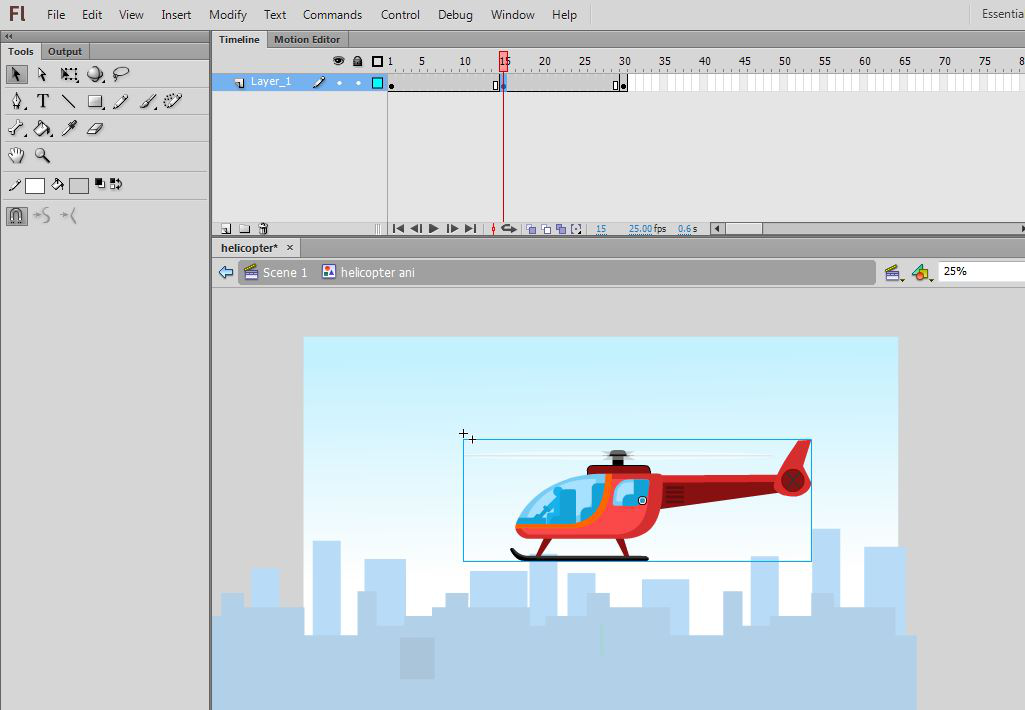
👁 Insert-a-keyframe-at-frame-30Step 8: Insert a keyframe at frame 15 and move the helicopter a little down.
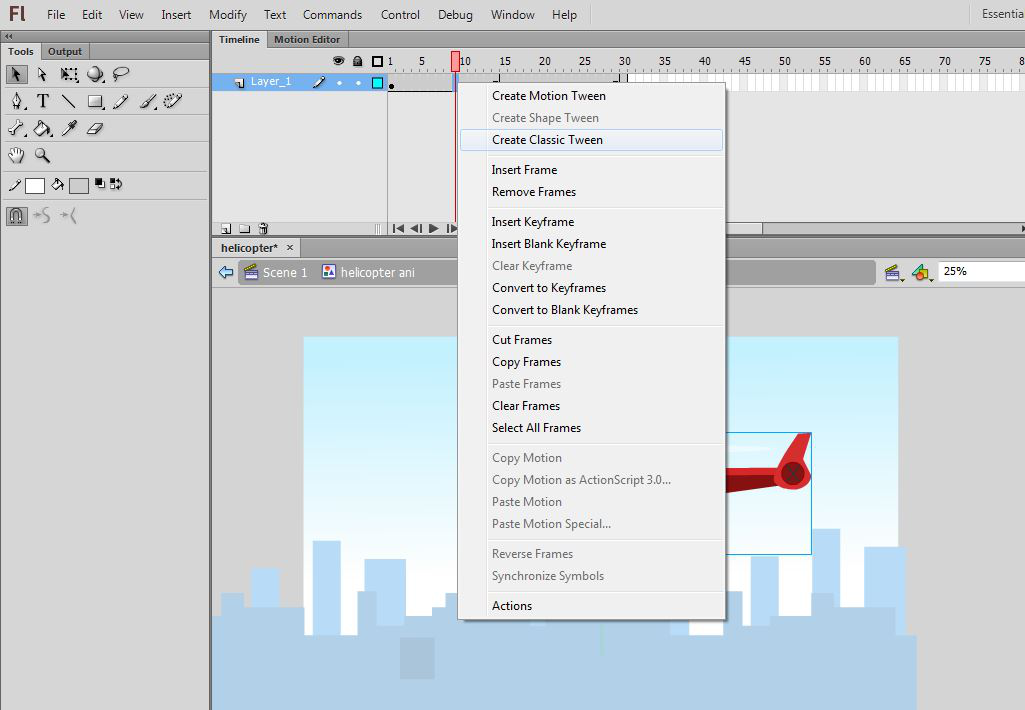
👁 Insert-a-keyframe-at-frame-15Step 9: Apply classic tween by selecting the middle frame.
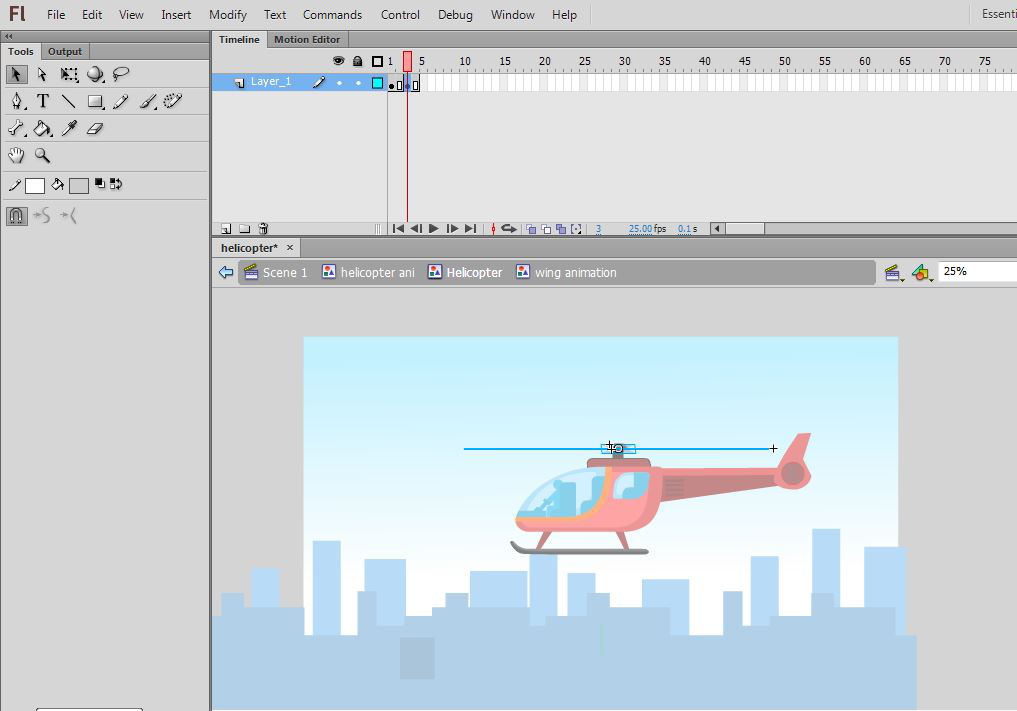
👁 Apply-classic-tweenStep 10: Double click to enter inside the blade symbol and insert a keyframe at frame 3 by pressing F6.
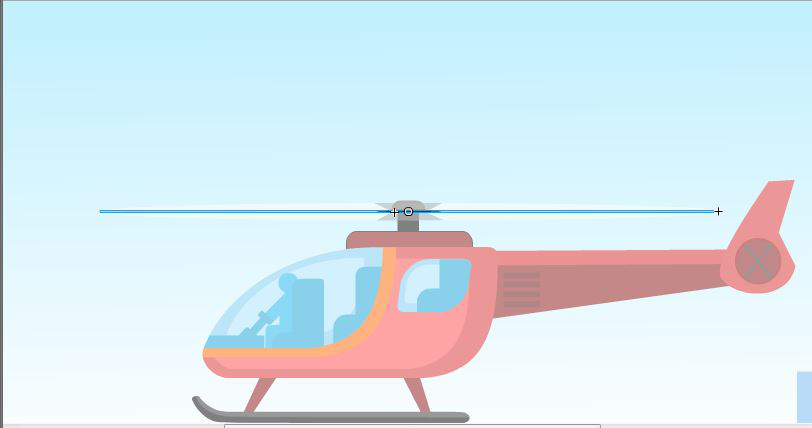
👁 Insert-a-keyframe-at-frame-3Step 11: At this position changes the shape of the blade a little.
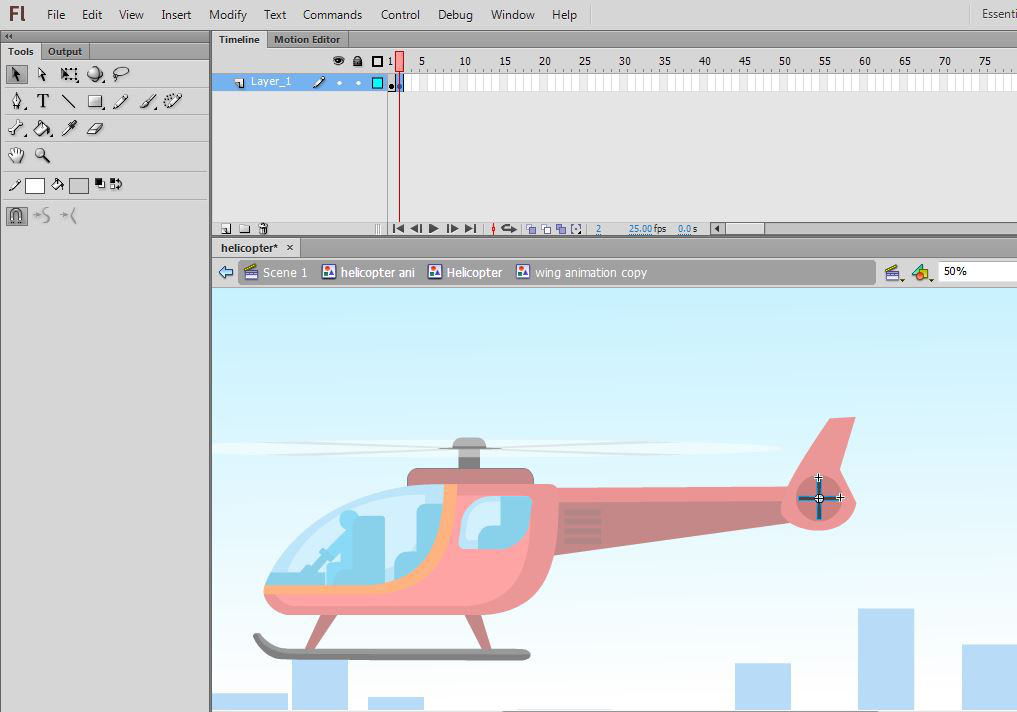
👁 Change-the-shape-of-the-blade-a-littleStep 12: Double click to come out of the blade symbol and select the tail of the helicopter and convert it into a symbol.
👁 Convert-the-tail-into-symbolStep 13: Double click to enter the tail symbol and add a new keyframe at frame 2 and rotate it a little.
👁 Add-a-new-keyframe-at-frame-2Step 14: Double click to come out of the tail symbol and again double click to come to the main stage.
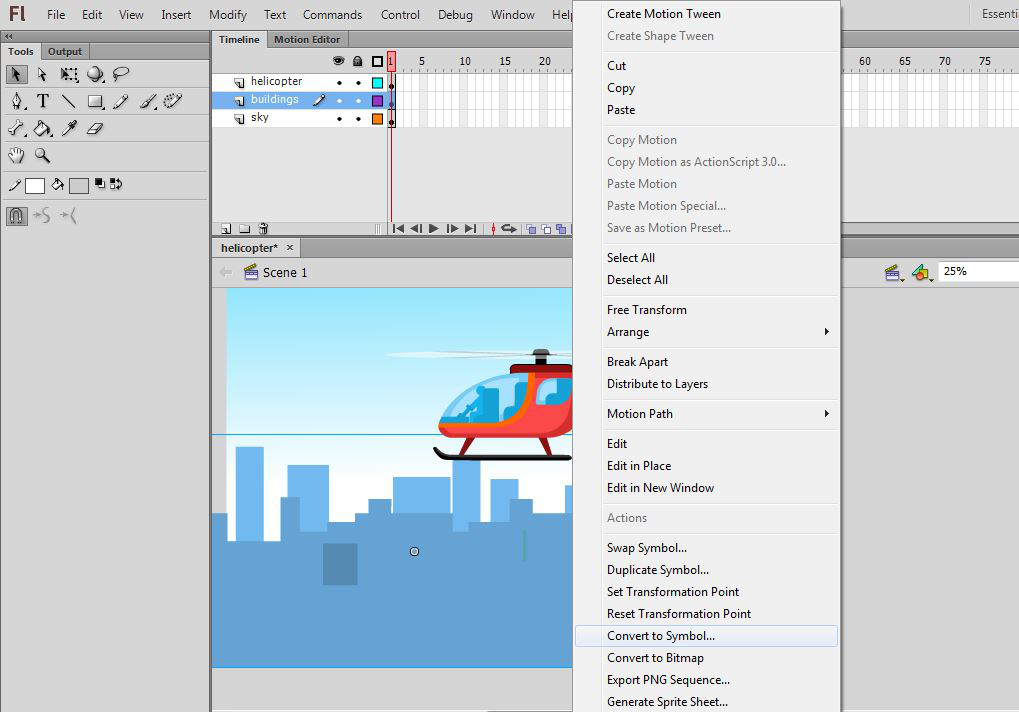
👁 Come-out-from-the-tail-symbolStep 15: Select the building layer and convert it to a symbol.
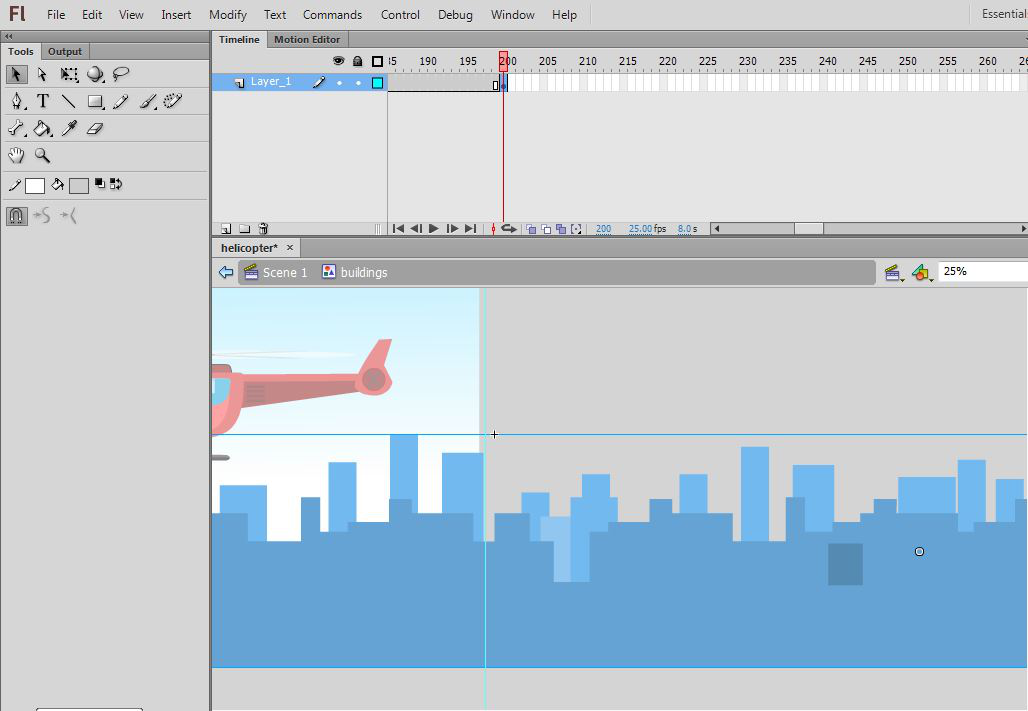
👁 Convert-the-building-layer-to-symbolStep 16: Double click to enter the symbol and insert a keyframe at frame 200 by pressing F6 and changing the position of the buildings to the right.
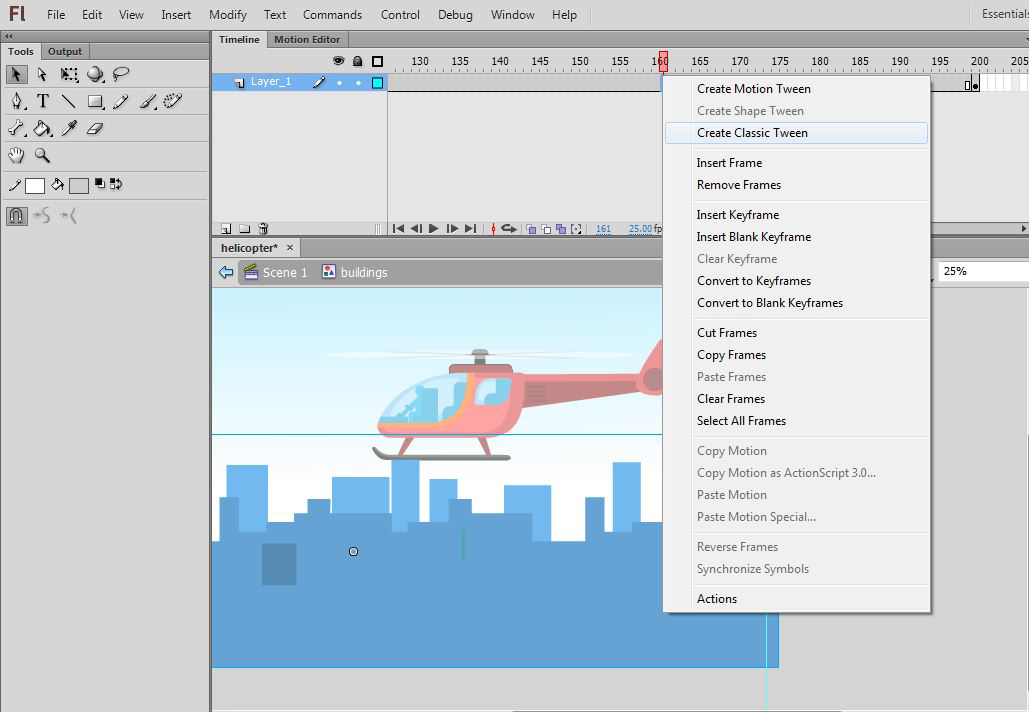
👁 Double-click-to-enter-the-symbolStep 17: Apply classic tween by selecting the middle frame.
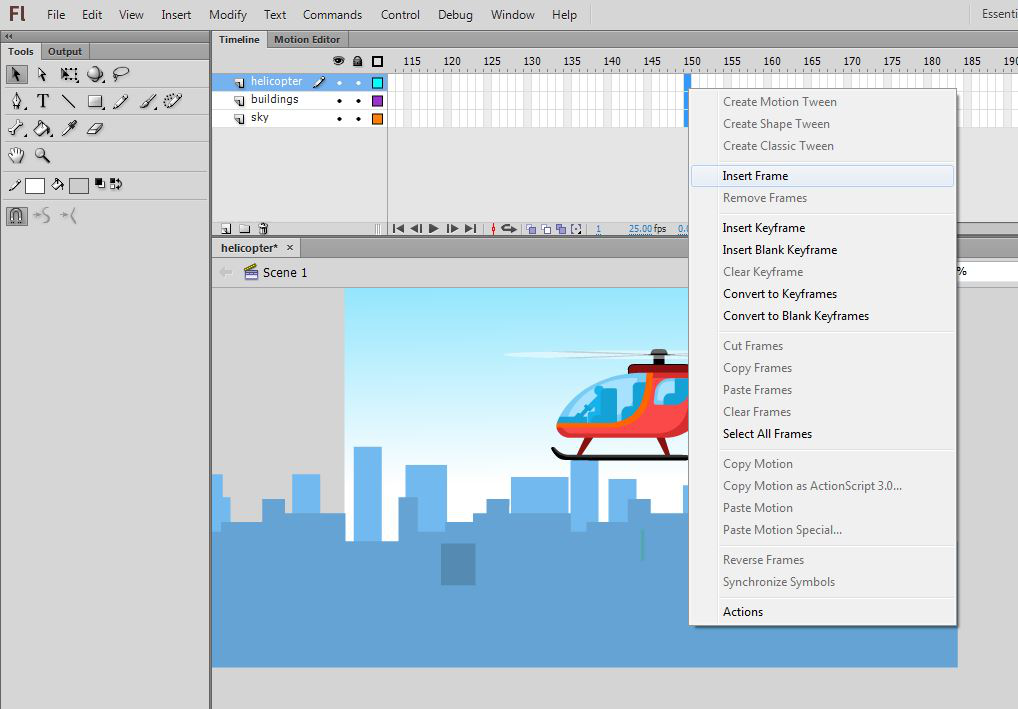
👁 Apply-classic-tweenStep 18: Double click to come out of the symbol to the main stage and insert frame at frame 150.
👁 Double click to come out of the symbolDouble-click-to-come-out-of-the-symbolStep 19: Press the run button to see the animation.
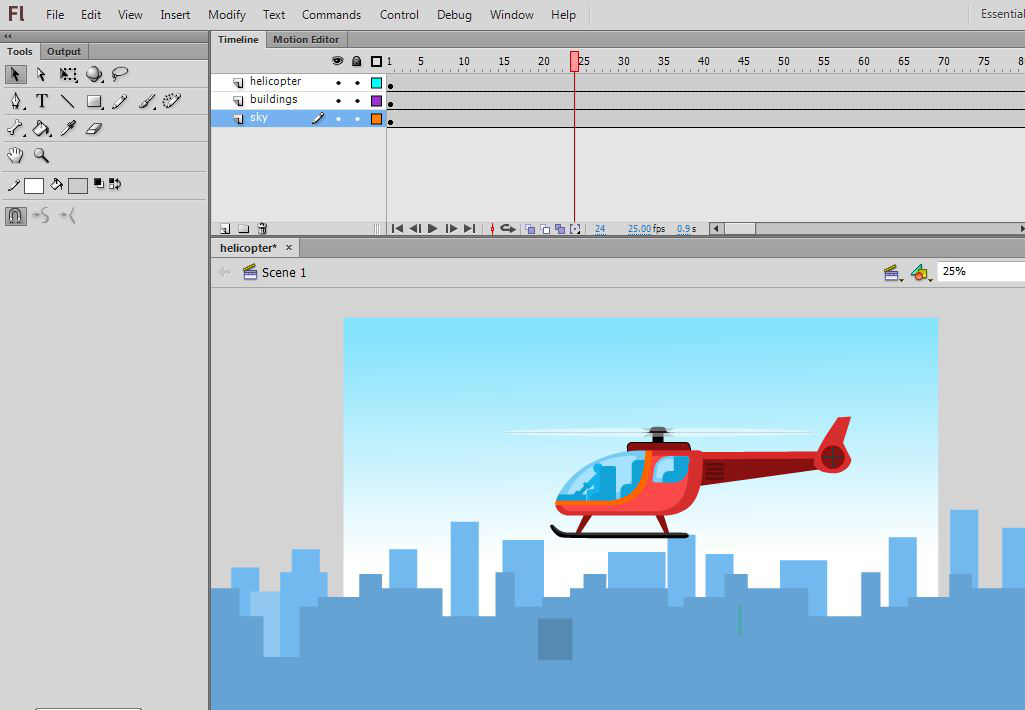
👁 Press-the-run-button-to-see-the-animationCongratulations your helicopter animation is ready now press Ctrl + Enter to see the output of the animation.