|
VOOZH | about |
|
VOOZH | about |
How to Adjust PPT Slide Size: Quick Steps
- Open Your Presentation >> Go to the Design Tab
- Click on the Slide Size >> Choose your Preferred Slide Size
- Apply Changes >> Adjust Content if Needed
- Save your Presentation
Have you ever created a PowerPoint presentation only to realize that the slide size doesn’t fit your screen or printing format? Choosing the right slide size is crucial for delivering a professional and visually appealing presentation. Whether you’re designing a business report, an online webinar, or a social media graphic, adjusting your slide dimensions ensures that your content looks sharp and well-formatted across different platforms.
This guide will walk you through step-by-step methods to change slide sizes in PowerPoint, prevent distortion, and optimize your presentation for any display.
Changing slide size helps you adapt your presentation to different screens, print layouts, and digital formats. Below are the best methods to resize slides in PowerPoint, along with their advantages.
If you want a fast and straightforward way to change slide size, the Design tab method is your best option. It allows you to switch between standard, widescreen, and custom dimensions with just a few clicks.
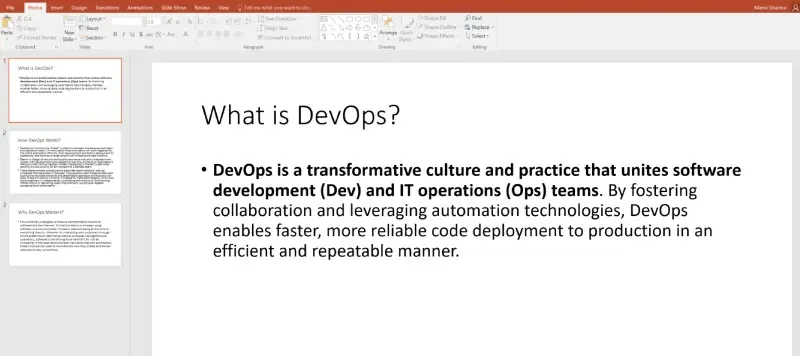
Launch PowerPoint and open the file you want to modify.
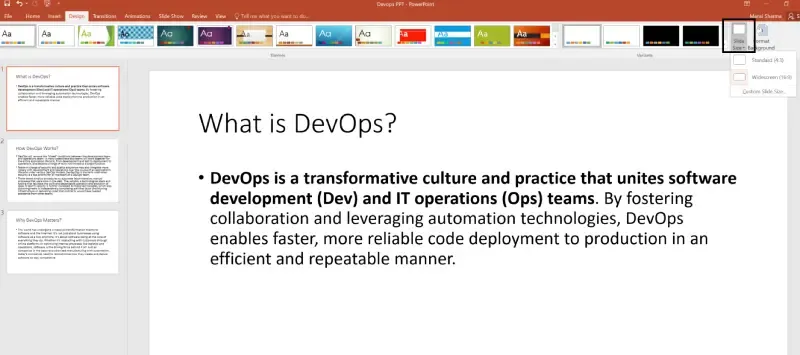
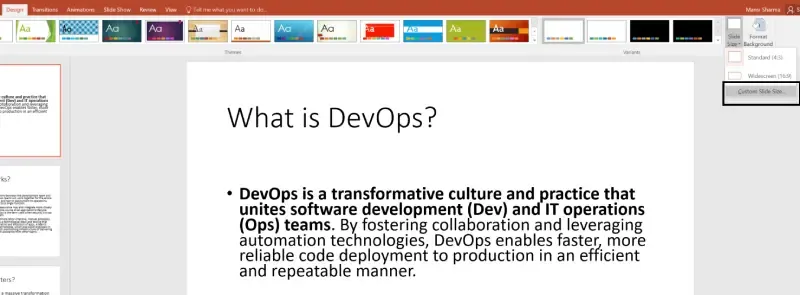
Click on the "Design" tab at the top of the screen.
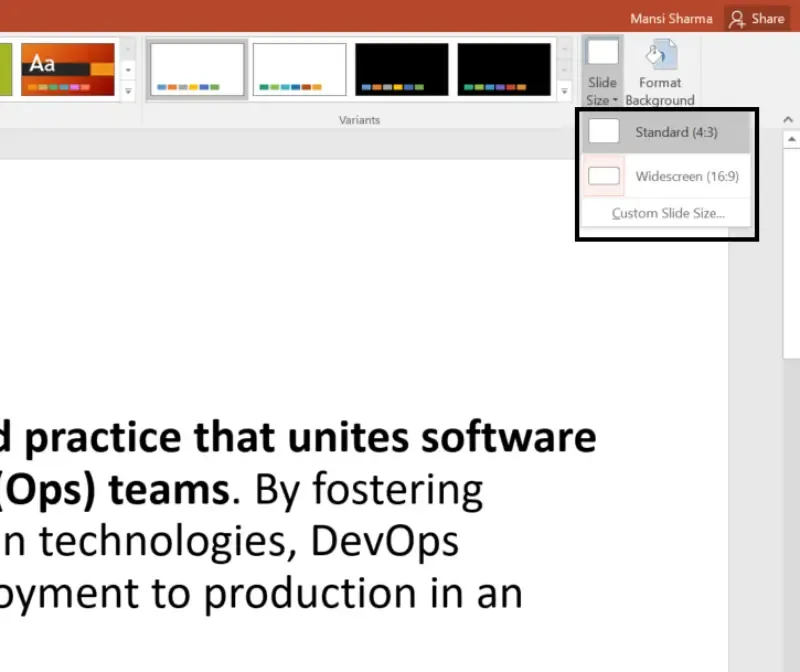
Under the Customize group, click on Slide Size > Custom Slide Size.
You will see three options:
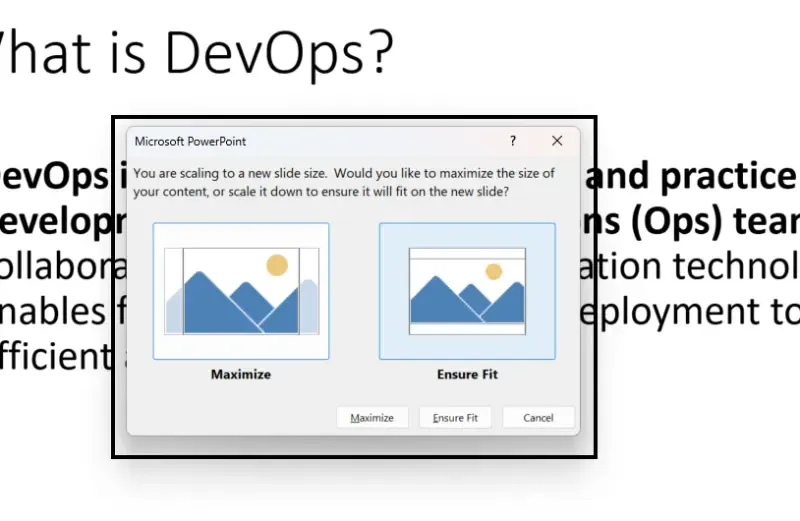
PowerPoint will ask:
This method is quick, beginner-friendly, and ideal for most users who need an immediate size change.
For users who need precise dimensions for printing or social media, this method allows you to manually enter width and height to match your project needs.
Click Design > Slide Size > Custom Slide Size.
In the Width and Height fields, enter the desired slide size. Examples:
After applying, reposition text, images, and graphics to fit the new size properly.
This method is perfect for marketing materials, digital content, and high-resolution printing.
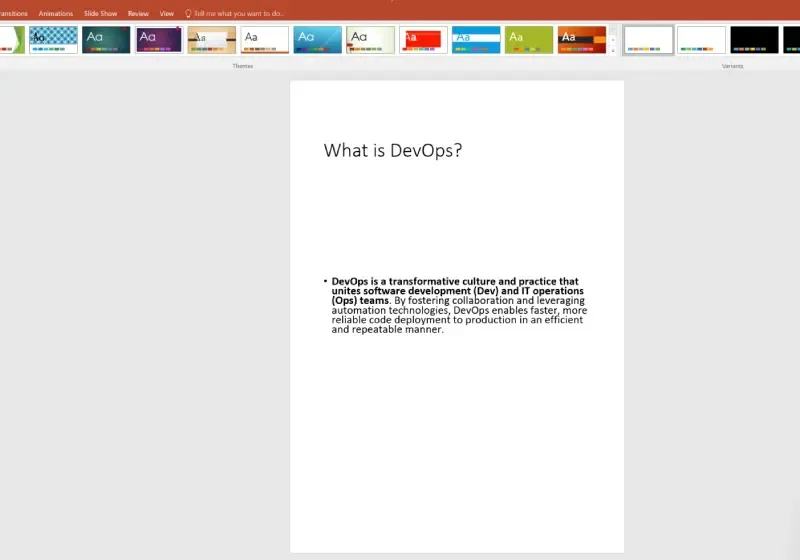
Sometimes, a portrait layout is better for posters, reports, or mobile-friendly presentations. PowerPoint allows you to switch slide orientation effortlessly.
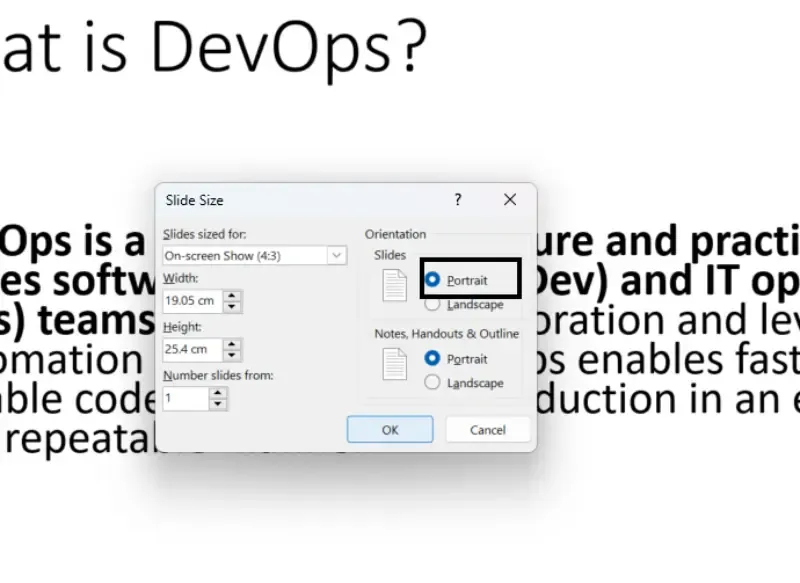
Click Design > Slide Size > Custom Slide Size.
Under Orientation, choose:
Check and adjust text or images if necessary.
This method is ideal for printed handouts, reports, and vertical content.
If you frequently use a specific slide size, you can set it as the default for all new presentations.
Create a new presentation and adjust slide dimensions using one of the methods above.
Click File > Save As > Choose PowerPoint Template (.potx).
Open this template whenever you start a new project to maintain consistent formatting.
This method is great for businesses, educators, and designers who use a fixed slide format regularly
Even after changing slide size, you might face formatting issues. Here’s how to fix them:
Mastering how to change slide size in PowerPoint is essential for creating polished, professional, and visually engaging presentations. Whether you need widescreen (16:9) for online slideshows, standard (4:3) for printed materials, or custom dimensions for marketing graphics, PowerPoint provides multiple ways to resize your slides without losing quality.
By using the Design tab for quick resizing, custom dimensions for print and digital formats, and Slide Master for consistency, you can optimize your presentation for any platform. Next time you create a PowerPoint, don’t forget to choose the right slide size—because the perfect fit makes all the difference!