|
VOOZH | about |
|
VOOZH | about |
WordArt in PowerPoint is a great way to add stylish, decorative text to your slides. Whether you want to create eye-catching titles, emphasize key points, or enhance your slide design, WordArt offers a variety of customization options.
In this guide, you’ll learn how to insert, format, and customize WordArt in PowerPoint to make your presentations more engaging and visually appealing.
WordArt is a special text formatting feature in PowerPoint that allows users to create decorative text with different styles, colors, effects, and shapes. It helps make titles, headings, and key points stand out in presentations.
WordArt can be used for:
Adding WordArt in PowerPoint is simple and can be done in just a few steps.
Launch Microsoft PowerPoint and open the slide where you want to insert WordArt.
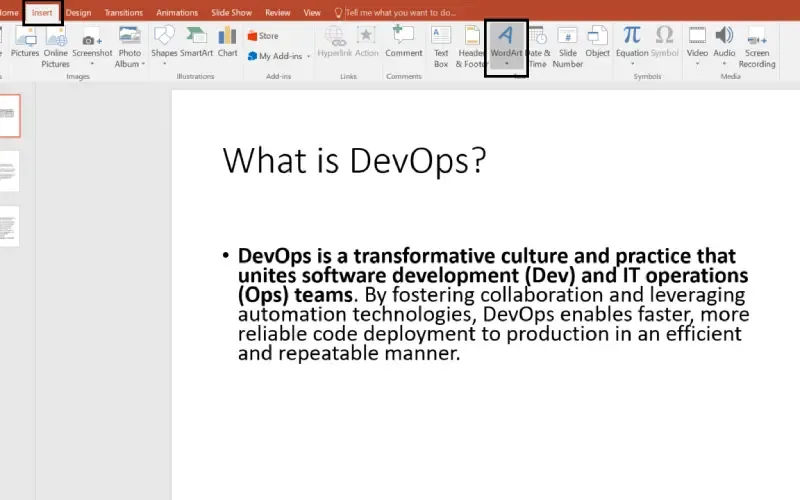
Click on the Insert tab in the top ribbon to access various text and design tools.
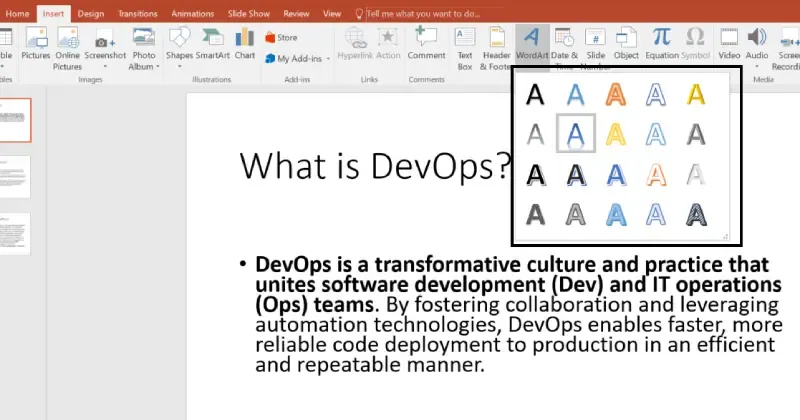
Under the Text group, click on WordArt, and a drop-down menu with different styles will appear.
Select a WordArt style that best fits your slide design. You can change this later if needed.
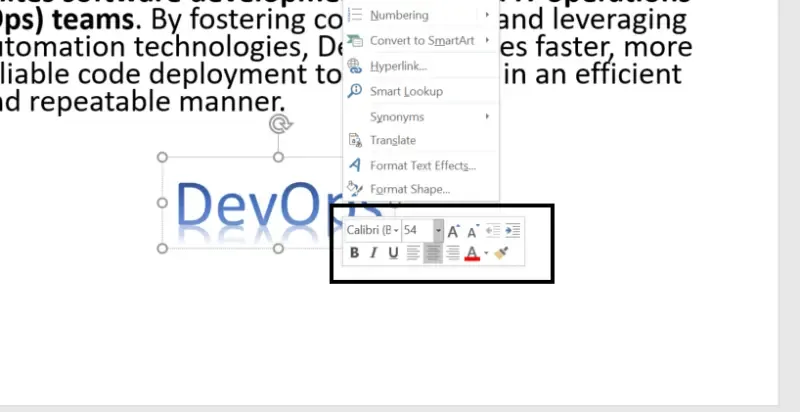
After selecting a style, a text box will appear on your slide. Type the text you want to format.
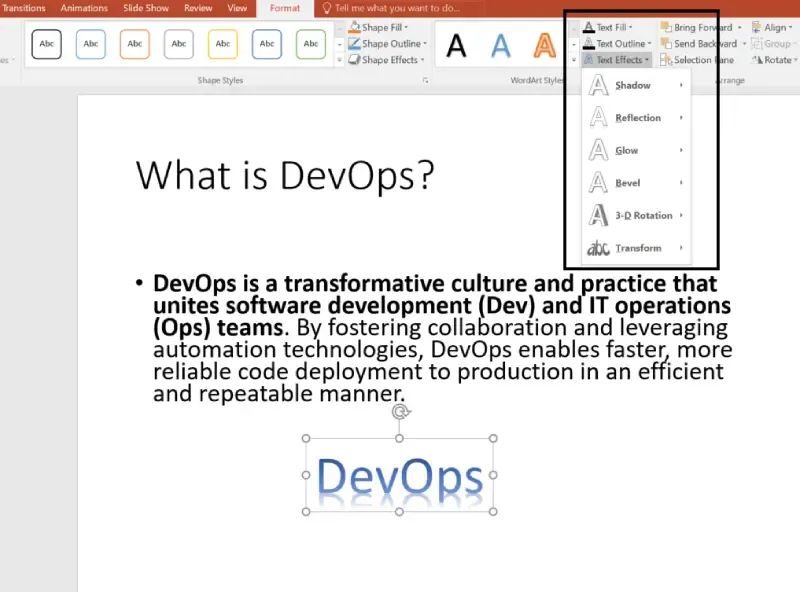
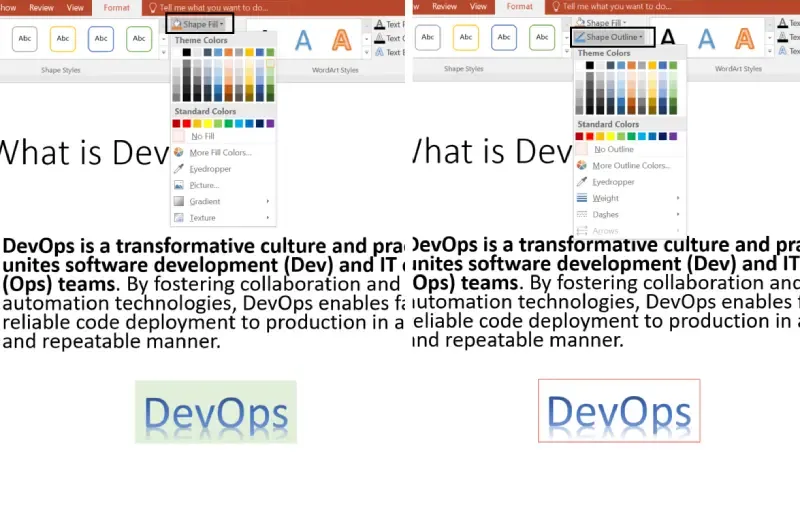
Once you’ve inserted WordArt, you can modify it using different formatting tools.
Adding WordArt to your PowerPoint slides is a simple yet effective way to make your presentation more visually appealing and engaging. With its custom text effects, 3D styles, and bold formatting options, WordArt helps you grab your audience’s attention and emphasize important points.
Now that you know how to insert and customize WordArt, start experimenting with different styles, colors, and effects to create a unique and professional presentation. Whether you’re working on a corporate presentation, school project, or online tutorial, WordArt can help you make a lasting impression!