PowerPoint is an essential tool for creating visually impactful presentations, whether for work, school, or personal projects. Understanding how to open, view, and edit PowerPoint presentations is key to mastering this software and delivering polished, professional results.
In this guide, we will walk you through the basics of opening a PowerPoint file, navigating through the editing process, and saving your work effectively. Whether you're a beginner or just need a refresher, this tutorial will help you make the most out of PowerPoint's features.
How to Open MS PowerPoint: Easy Steps
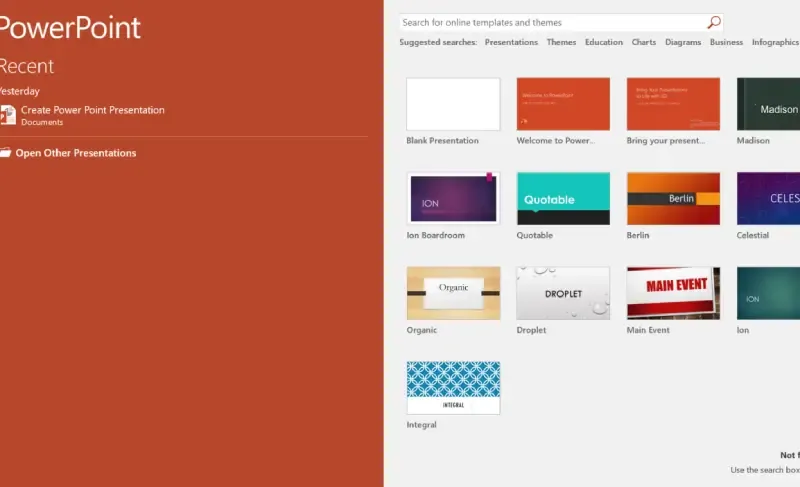
Learn how to open MS PowerPoint on various Windows versions. Get step-by-step instructions for both newer and older versions of Windows to easily launch PowerPoint.
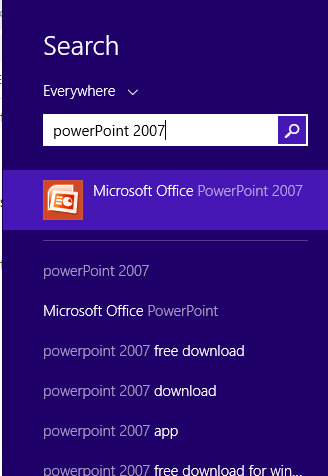
In Windows 8/Above:
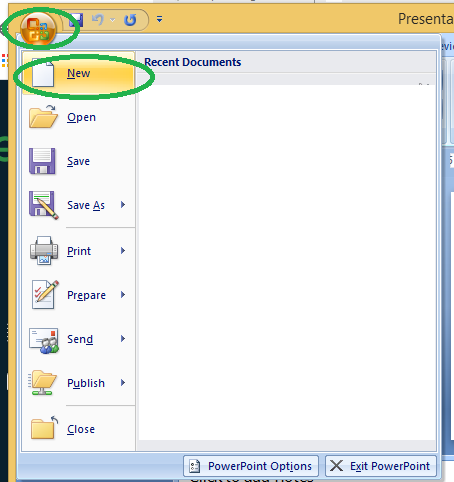
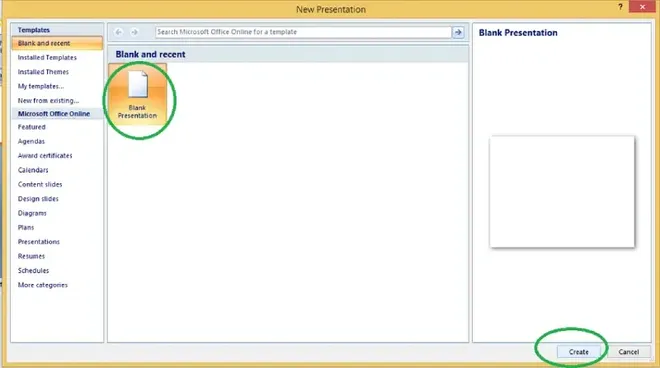
Step 1: Press "Windows + C" to open the search bar.
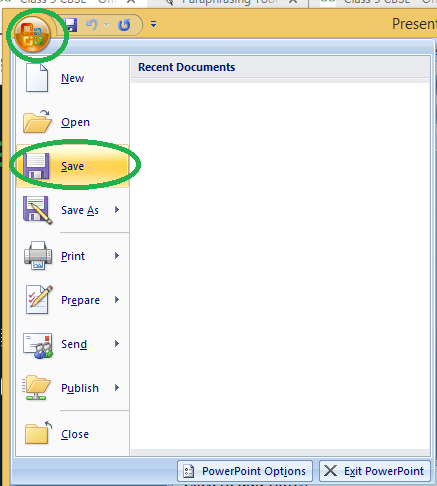
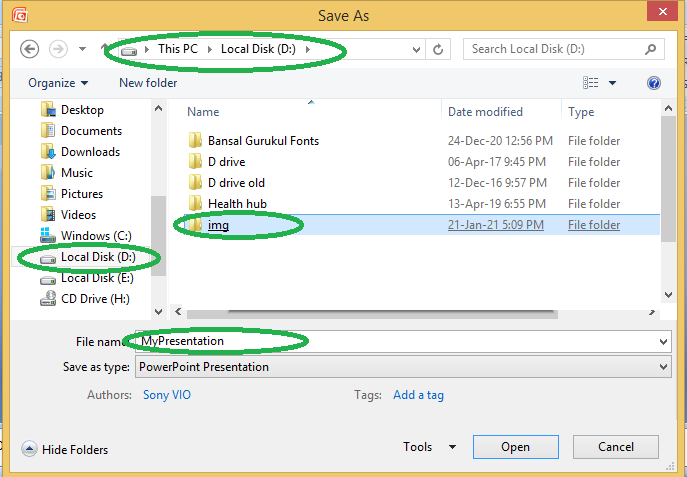
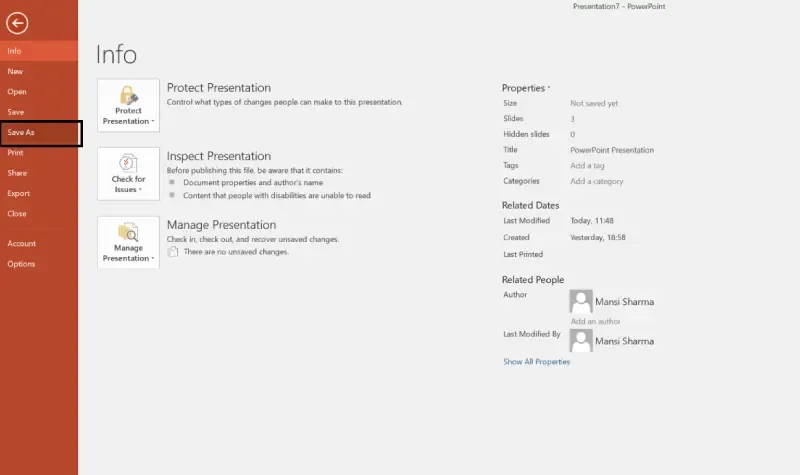
Step 4: Choose the drive where you want to save your file (e.g., Local Drive (D)). Then, select the folder to save it in (e.g., "img folder"). Finally, give your presentation a name (e.g., "MyPresentation").
Note: Shortcut for save: Ctrl + s
Step 5: Your Presentation is now successfully saved
How to Edit a PowerPoint
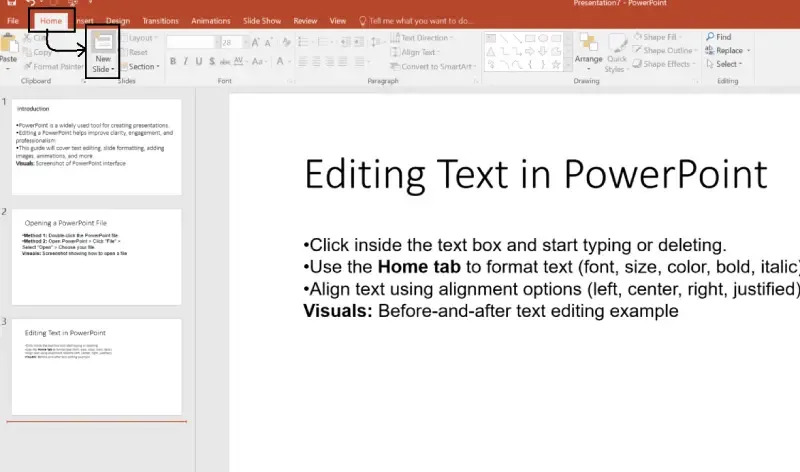
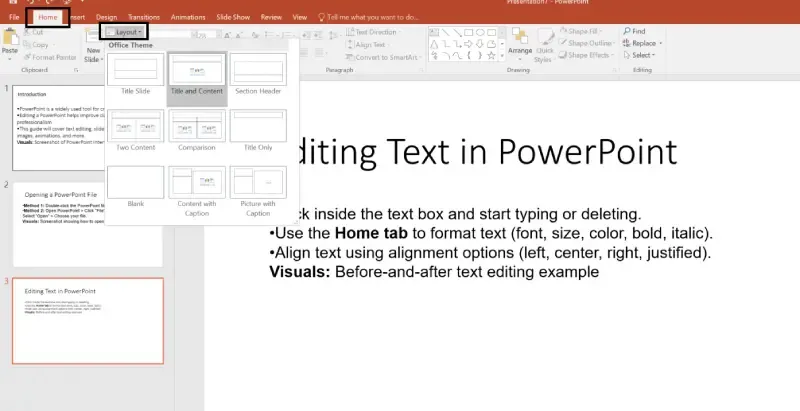
Editing a PowerPoint presentation is a crucial skill for creating compelling and effective slideshows. Whether you're adding text, changing slide layouts, inserting images, or adjusting formatting, PowerPoint offers a range of tools to help you customize your presentation. Follow the below steps to edit a PowerPoint:
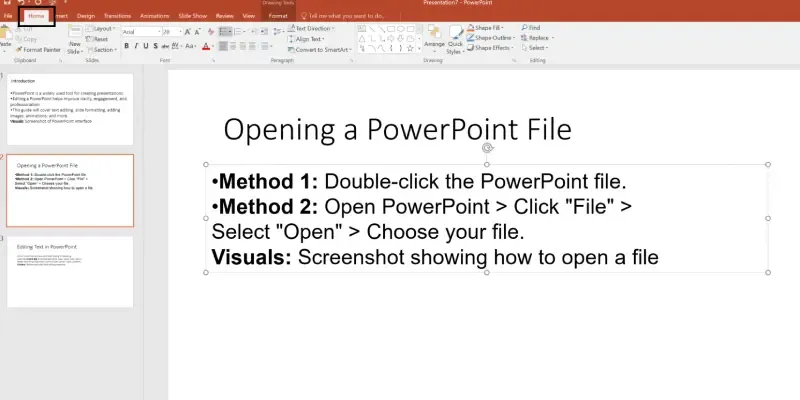
Step 1: Open the PowerPoint Presentation
To start editing, first, open your presentation:
Double-click the PowerPoint file on your computer to open it.
Alternatively, open PowerPoint, click on File > Open, and select your presentation.
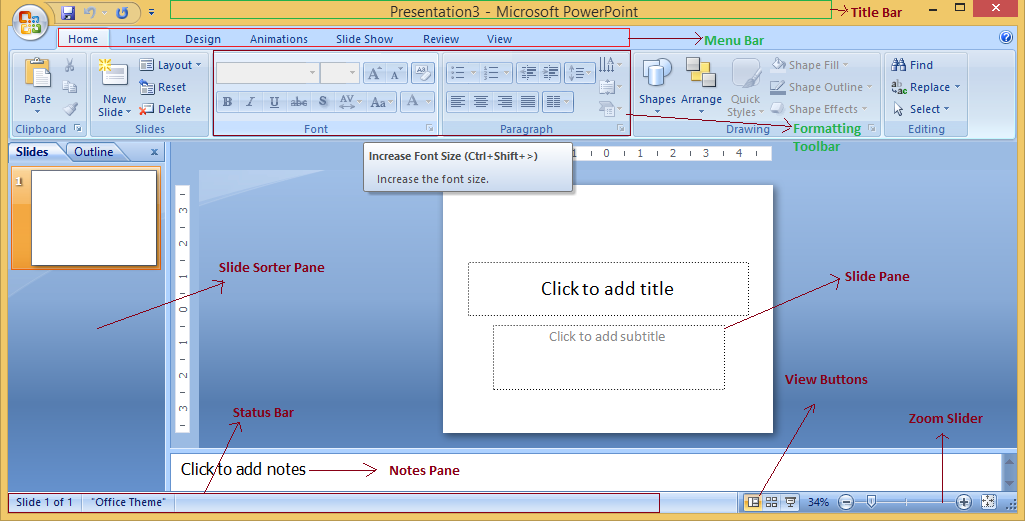
You can see various bars in the presentation window. They are:
Title Bar: This shows the name/title given by you to the current presentation. If user do not save the presentation by any name, default name given by MS PowerPoint appears in this bar.
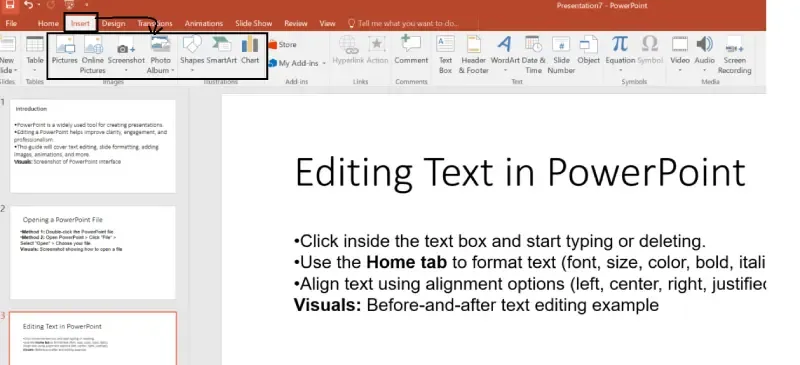
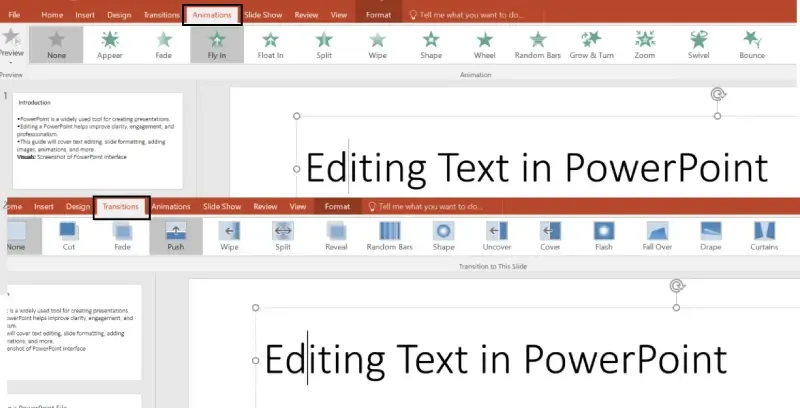
Menu Bar: Contains menu items like insert, views, design, animations, etc.
Office Button: MS Office button on the left-most top.
Formatting Toolbar: Have tools like Bold, Italic, Underline, Font shape & size etc. to format your data.
Zoom Slider: To zoom in or zoom out your presentation.
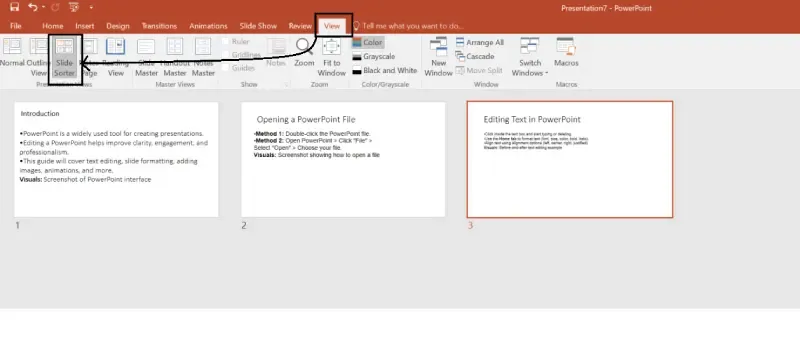
Slide Sorter Pane: This allows us to choose which slides will be shown in which sequence during the slide show.
Notes Pane: This allows us to type notes that we may require later when preparing for the presentation, but they will not be displayed during the slide show.
View Buttons: Provides different views of your presentation like : normal, slide show & slide sorter.
Slide Pane: This is where we type, format, and otherwise design the slide.