|
VOOZH | about |
|
VOOZH | about |
Scratch is a user-friendly programming language designed for kids and beginners. This scratch tutorial will show you why Scratch is a great choice for young learners who want to start coding by creating simple games.
Whether you want to tell interactive stories, create games, or learn the basics of animation, Scratch provides a versatile platform for expressing creativity and solving problems. Through this tutorial, you'll learn Scratch and understand why it's the perfect language to start with
Scratch is a visual programming language and an online community where children can program and share interactive media such as stories, games, and animations with people from all over the world. Scratch is a simple, block-based programming language designed for beginners. It uses colorful, drag-and-drop blocks to create games, animations, and stories, making coding visual and fun.
Ideal for learning basic programming concepts, Scratch encourages creativity and sharing projects with a global community. The Scratch online community is a significant aspect, where children can share their creations, receive feedback, and collaborate with others globally. This community-driven environment encourages communication and learning from peers.
As a project of the Lifelong Kindergarten Group at the MIT Media Lab, Scratch is designed primarily for ages 8 to 16, but is used by people of all ages.
Download scratch 3.0: https://scratch.mit.edu/download
To start coding in Scratch, you don't need to install and set up a complex softwares. Scratch provides an online platform that serves as an interactive and user-friendly environment where you can create, code, and share your projects. This environment is equipped with various tools and features that make programming simpler, more engaging, and highly visual.
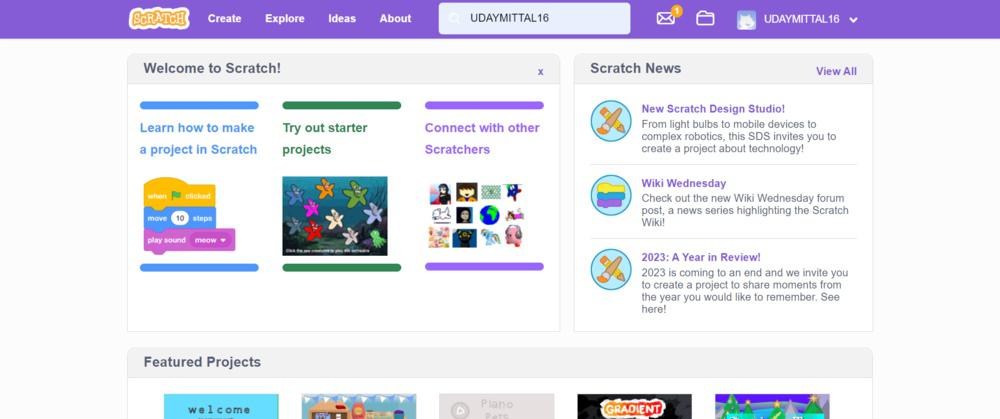
Visit the Scratch website and sign up for a free account. This allows you to save projects, share them, and participate in the Scratch community.
To Create Scratch Account, follow the article: How to Create Your Scratch Account
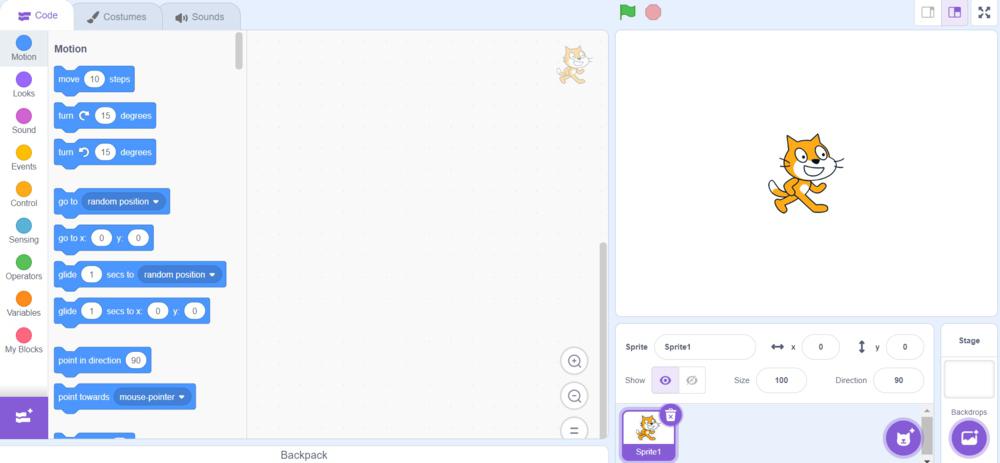
Familiarize yourself with the Scratch interface. Key areas include:
1. Stage: Stage is like a big, blank canvas where all the action happens. It's the main background for your projects. You can draw or place characters, called "sprites," on the stage.
2. Sprite List: A Sprite List is like a group or collection of sprites that you can use together in your projects. Think of it as a way to organize and manage multiple characters or objects in your game or animation.
3. Block Palette: Contains the coding blocks categorized by function.
4. Coding Area: Where you drag and drop blocks to build your script.
5. Events: Events in Scratch are like triggers that make things happen in your animations or games. They help you control when and how different parts of your project work together.
5. Basic Scripting:
6. Control Flow:
👁 Scratch-Tutorial-copyFor complete understanding of basics, refer to the article - Basics of Scratch Programming
Here is an complete beginner friendly Scratch project tutorial with our First Scratch project:
Creating a Pac-Man game in Scratch can be a fun and educational project. Here's a step-by-step guide to build a basic version of the game:
Create a New Project: Log in to Scratch and start a new project. Click Here
Delete the Cat Sprite: Scratch starts with a default cat sprite. You can delete it by right-clicking on it and selecting 'delete'. Now we will start creating our Pacman project.
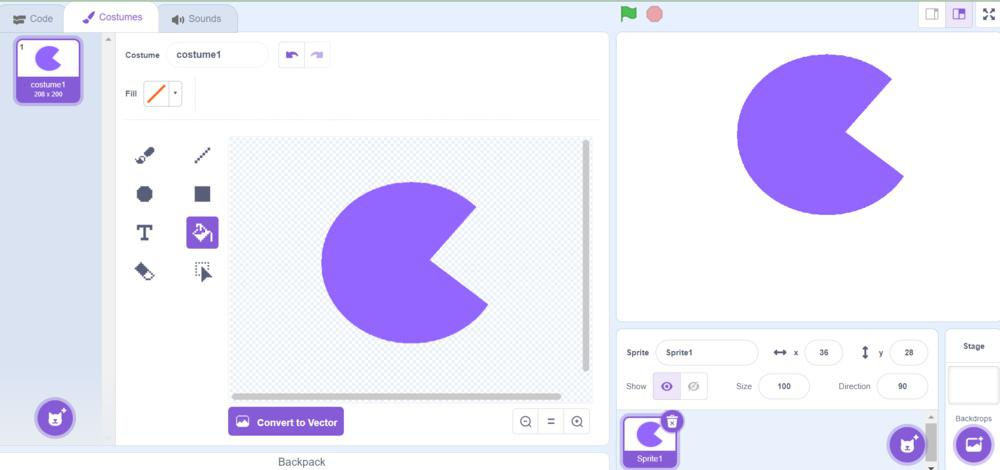
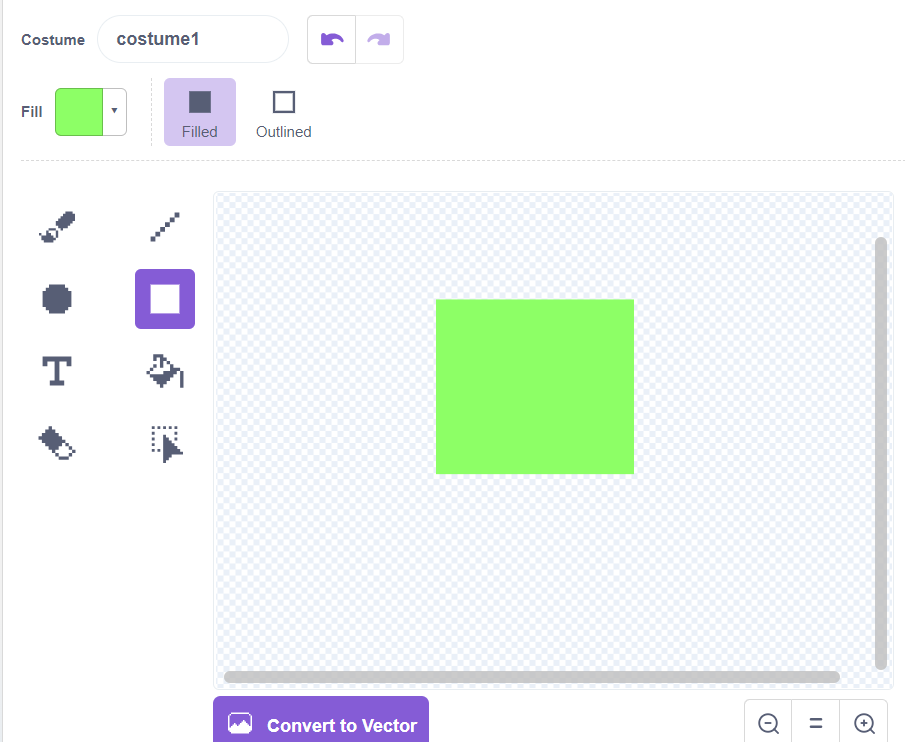
Here are the different designed characters:
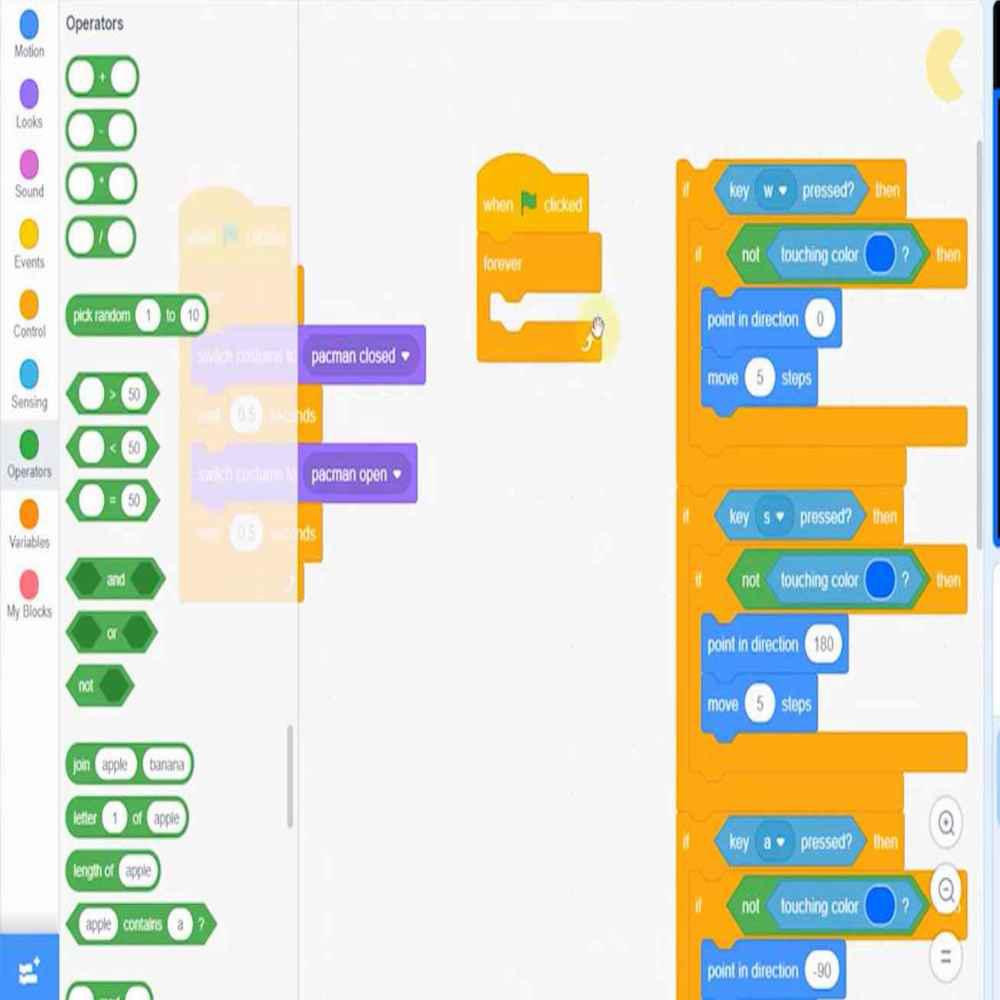
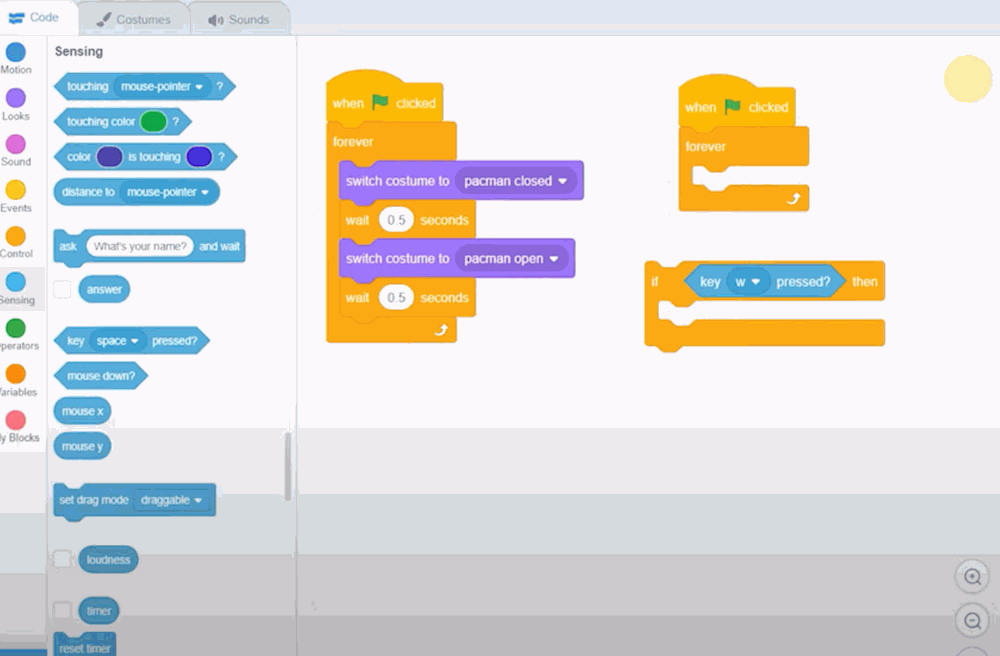
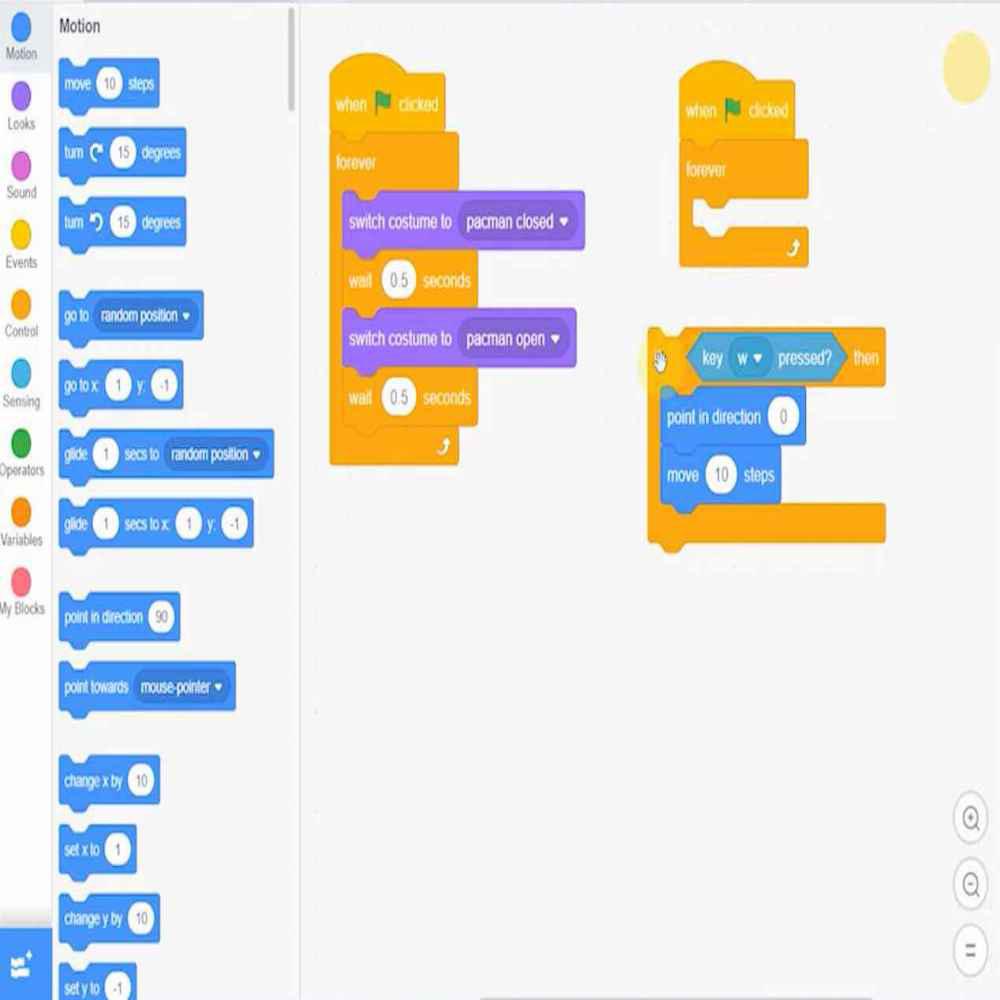
That's it! Now Pacman will move when you press the arrow keys in different directions.
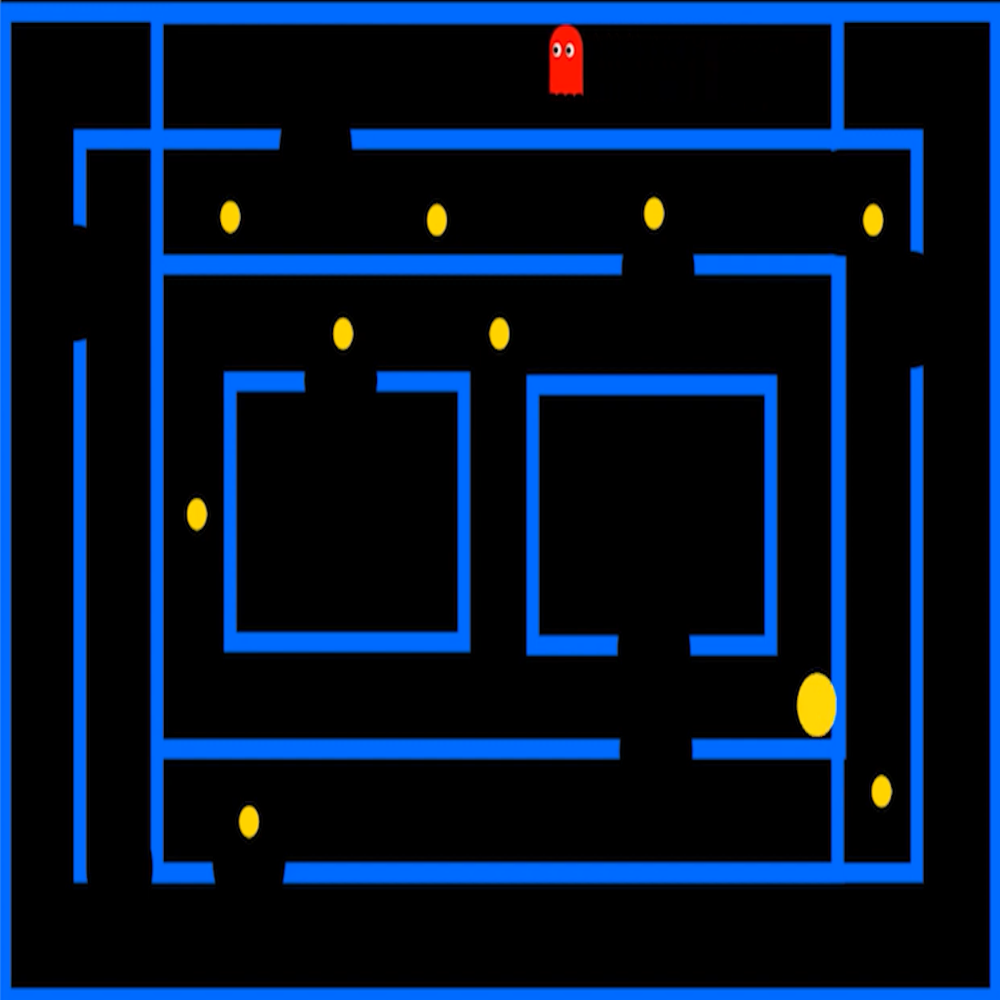
Use if-blocks to make more defined path for the packman. Press the keys on the keyboard, position him in the middle and pull the block out of the middle.
Put the ghost in the maze and see if the pathways you've made are good enough for the ghost to get out of the maze without any problems.
Keep playing the game several times to figure out all the different changes you can make to it. Also, try adding more images and characters to the game, like the flags at the beginning and end.
Now you've learned how to create a fun Pac-Man project and turn it into a game. This free Scratch tutorial taught you important coding ideas like how to control things, make them move, and use variables. The core purpose of Scratch Tutorial is to introduce the fundamentals of programming in a way that is both accessible and entertaining.
Share on Scratch: If you're happy with your game, share it with the Scratch community.
Explore more such tutorials here:


.jpg)