|
VOOZH | about |
|
VOOZH | about |
Scratch is a high-level visual programming language tool that interacts with users through diagrams and blocks that have the basics of a program inbuilt in it. Scratch is used to make interactive programs especially for kids using the block kind of interfaces so that they can easily learn languages and it is free to use. In this article, we will discuss the variables in scratch.
Variables in programming terminology are simply a container that can store some value. We can simply think of a box which has a number in it. The number inside the box can be increased or decreased using an increment or decrement operator as and when the program requires.
Variables basically store a varying value in the memory. They are designed in such a way that they can store only one value inside it and the value stored inside it may vary from numerics to strings or boolean. Being able to hold this bit of information allows us to reference and manipulate it at many different places in a program. This ability makes variables incredibly useful. For example, 123, abc, true/false, etc.
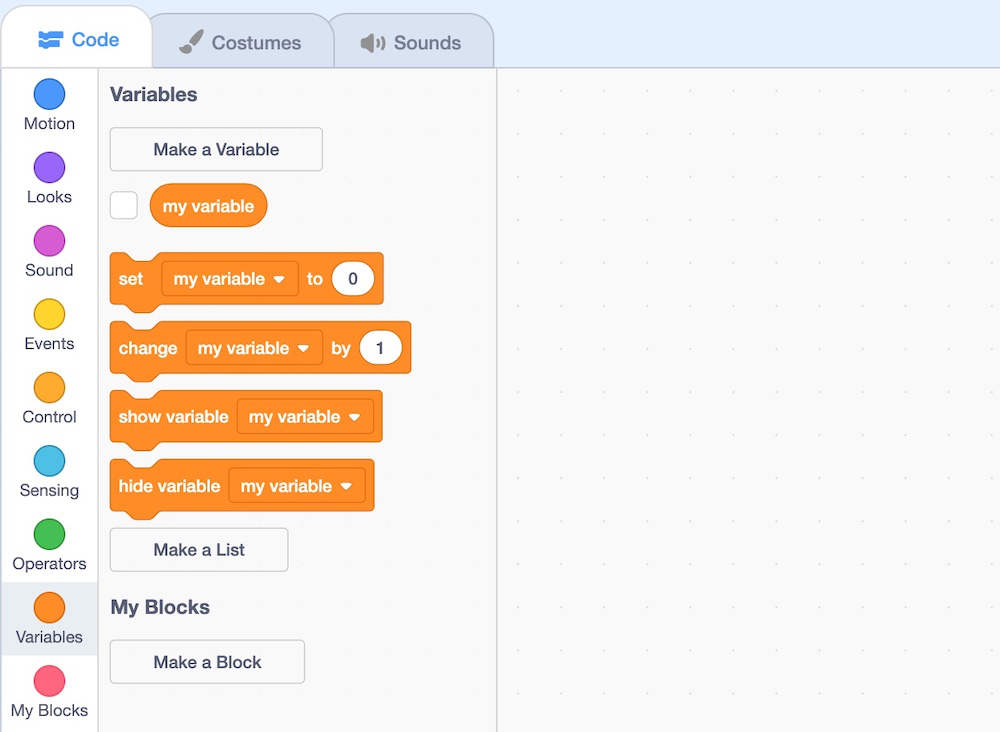
Scratch contains the following variables blocks:
👁 ImageHere,
In scratch, there are three types of variables:
In Scratch, you can create variables in two different ways:
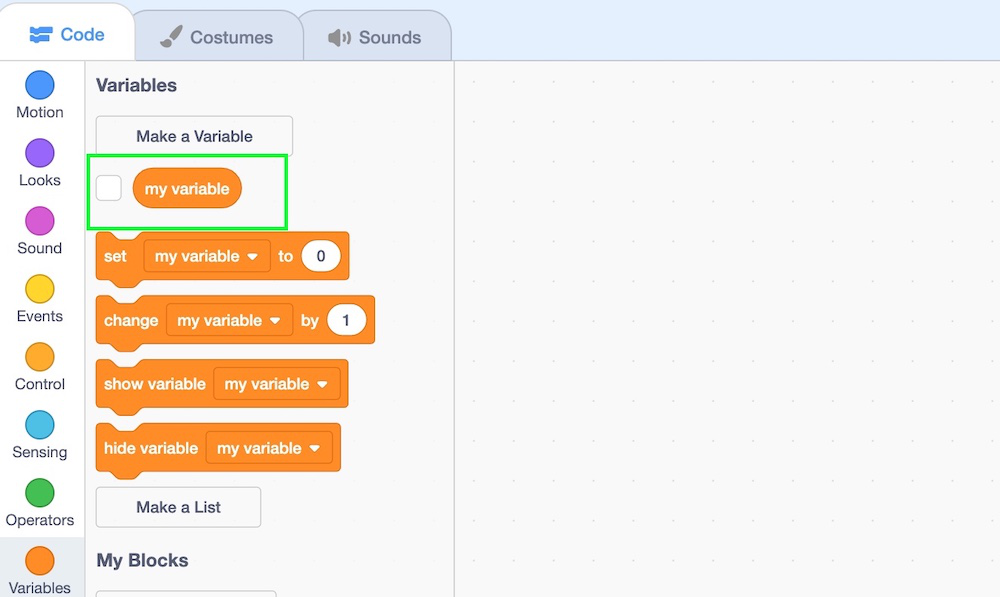
1. Using build-in variable: Scratch has an inbuilt variable named "my variable", so the users can directly use that.
Here, you can also change the name of the variable. Also, if you want to display this variable on the stage, then check the checkbox present on the left side of the "my variable" block.
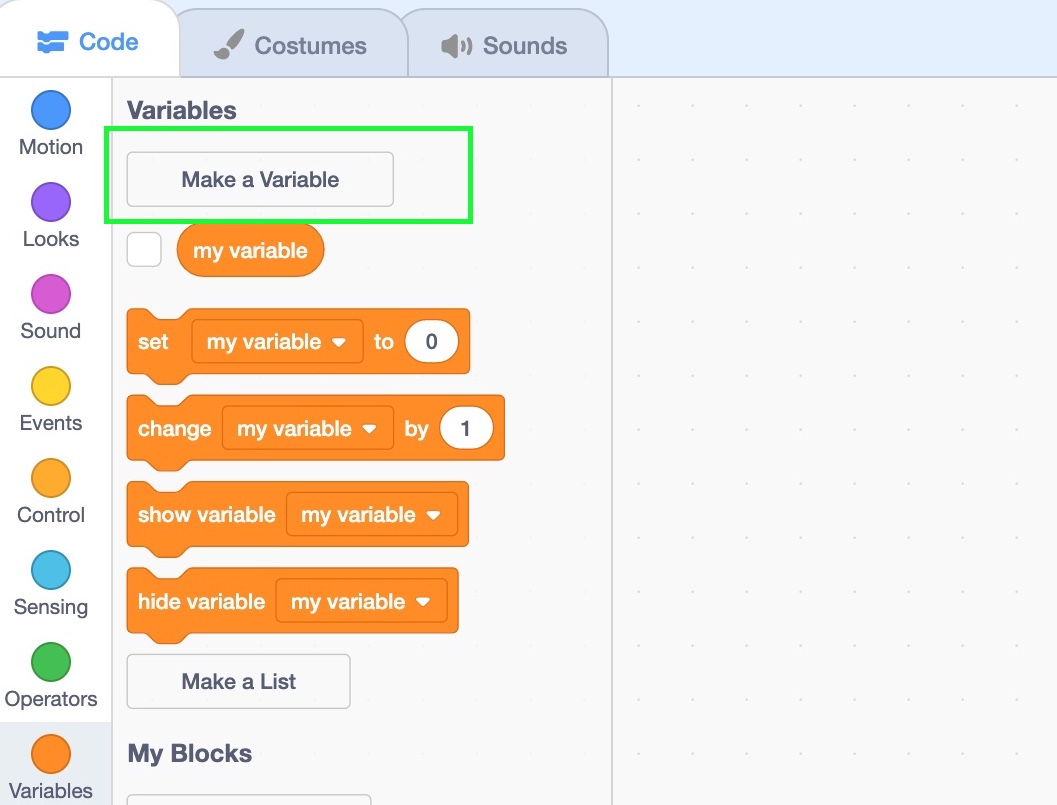
2. User-define variable: In case the user wishes to make his own variable, with a different name, then click on the "make a variable" button in the variable palette. After clicking the "make a variable block" a form will appear on the screen.
👁 ImageNow, fill in the name of the variable and the new variable is created as shown below.
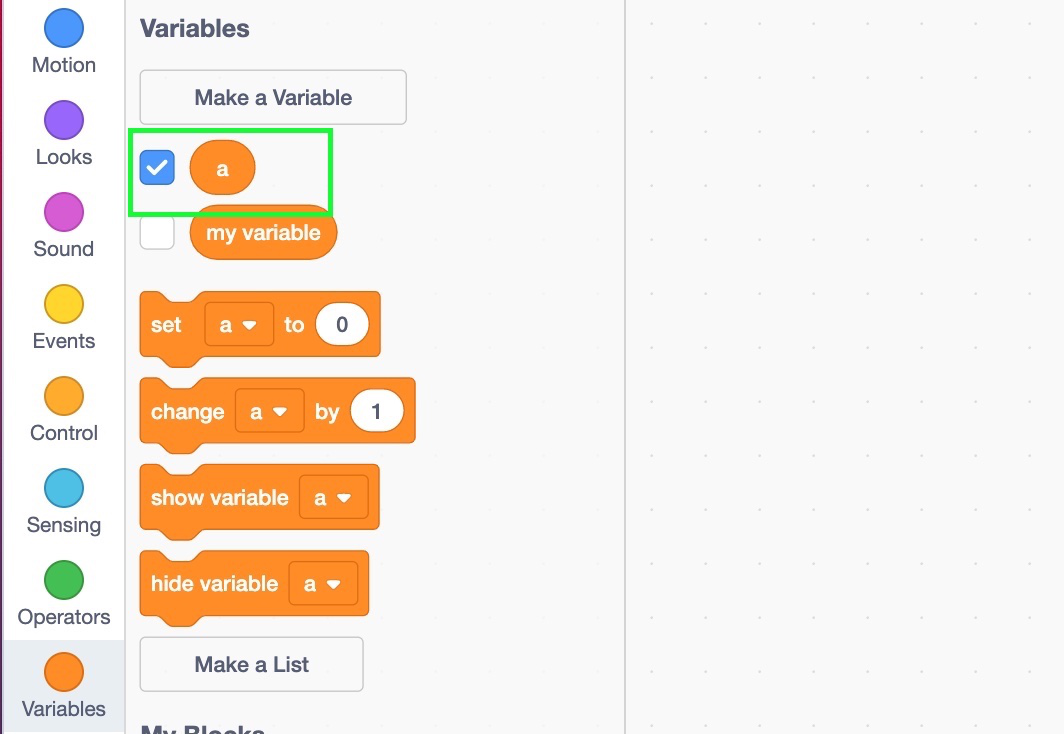
👁 ImageAfter clicking " OK", the following image depicts that variable a has been created.
👁 ImageVariables are of immense help to the programmers. Some of the uses of variables in Scratch are listed below:
Let's understand the use of variables with two projects.
1. Without using variable
In this project, we move the script by 3 steps, increment the step subsequently, wait for 1 second, and repeat this 3 times.
Procedure
👁 ImageStep 1: Click on the event block and choose 1st control block denoting start of program(drag it to center)
Step 2: Go to the motion block and drag "change x by 10" block and place it below the above step and change 10 to 3
Step 3: Go to the control block and drag "wait for 1 sec" and place it below the above block
Step 4: Go to the motion block and drag "change x by 10" block and place it below the above step and change 10 to 4
Step 5: Goto control block and drag "wait for 1 sec" and place it below the above block
Step 6: Go to the motion block and drag "change x by 10" block and place it below the above step and change 10 to 5
Step 7: Now run the program
Below is the implementation of the procedure:
👁 Image2. With using variable
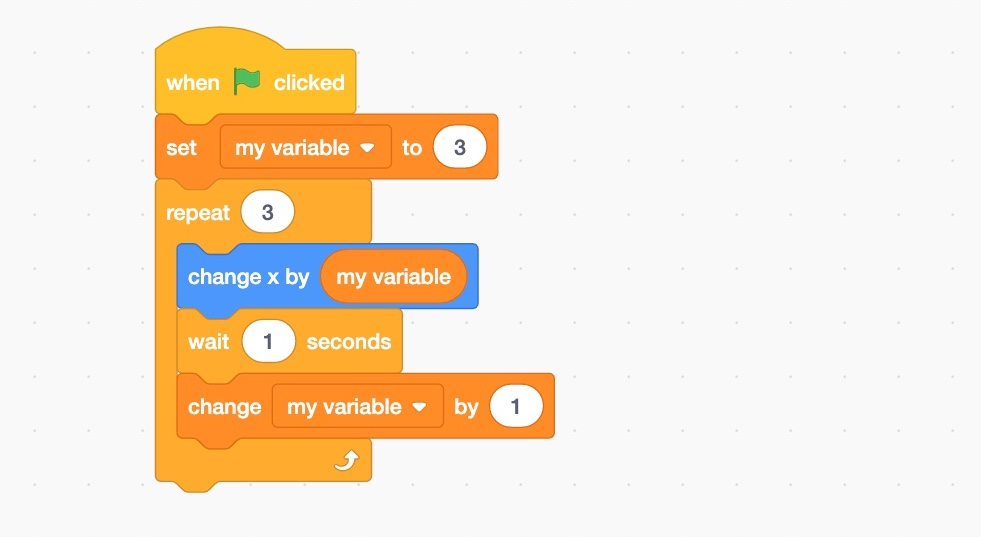
As we could see, the above code was cumbersome and time consuming. So, we can make this code simple and fast using variables. Let's see how.
Procedure:
👁 ImageStep 1: Click on the event block and choose 1st control block denoting start of program(drag it to center).
Step 2: Go to the variable block and drag "set my variable to 0" below the above step.change 0 to 2.
Step 3: Go to the control block and drag "repeat 10" below the above step.change 10 to 3.
Step 4: Go to the motion block and drag "change x by 10" block and place it below the above step and change 10 to "my variable".
Step 5: Go to the control block and drag "wait for 1 sec" and place it below the above block.
Step 6: Go to the variable block and drag "change my variable by 1" below the above step.
Step 7: Now, run the program.
Below is the implementation of the procedure:
👁 ImageWe can see that the use of variables made the code efficient and contributed to a lesser line of code. The readability of code also increased when variables were used in the program.
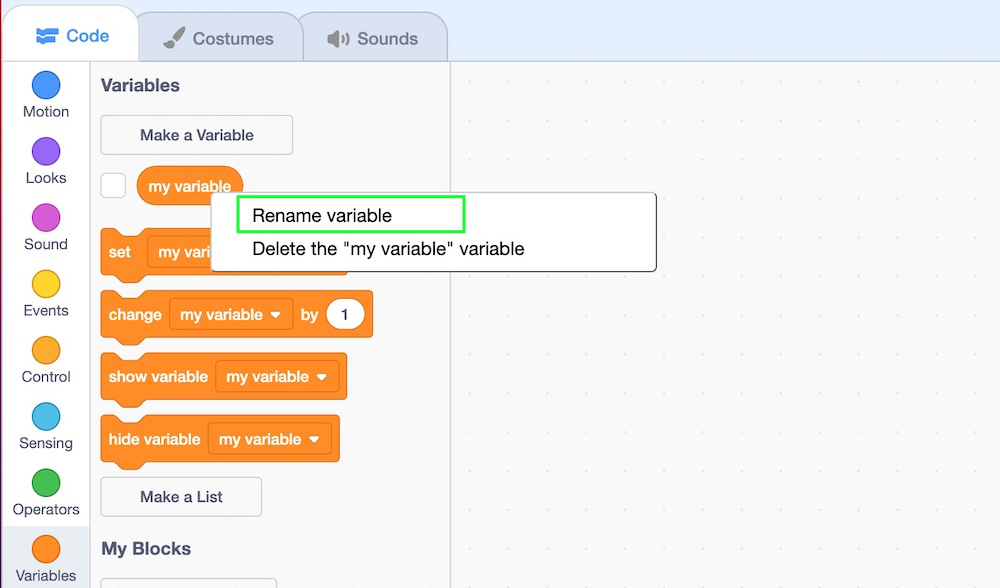
You can rename the variable the following the given steps:
Step 1: Right-click on the variable. You will get a list that contains two options "Rename variable" and "Delete the "my variable" variable".
👁 ImageStep 2: Now select the "Rename variable" option. After clicking on this option, a dialogue appears on the screen.
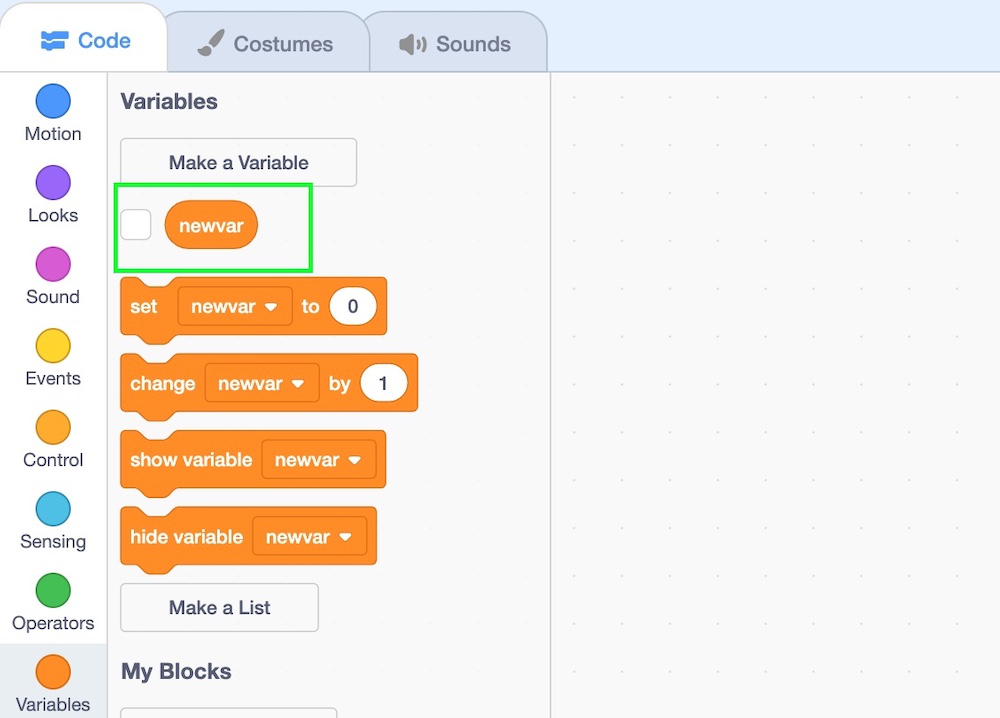
👁 ImageStep 3: Now write the name of the variable and press "OK".
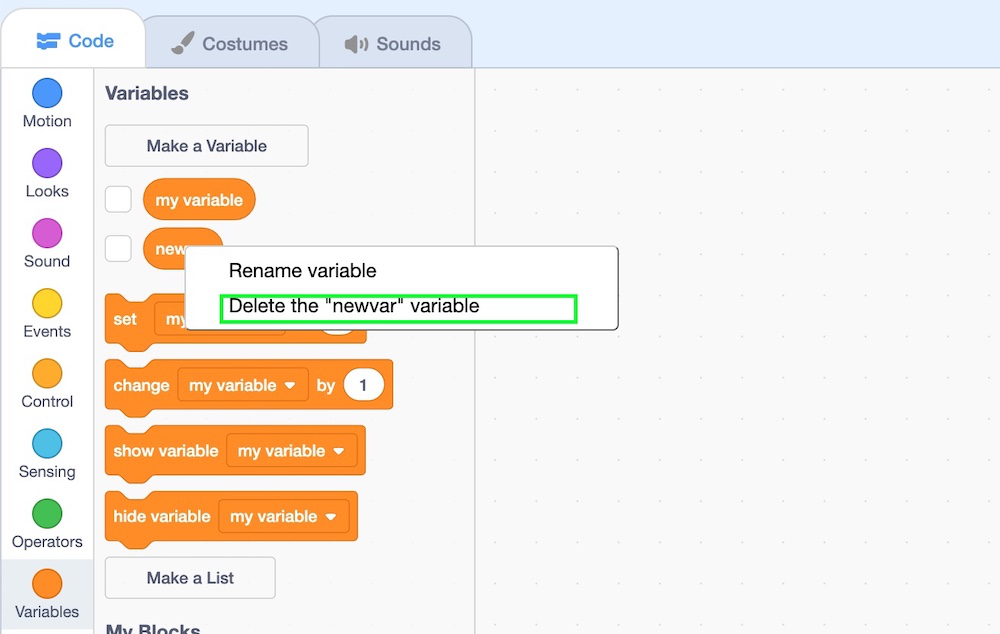
👁 ImageYou can delete the variable the following the given steps:
Step 1: Right-click on the variable. You will get a list that contains two options "Rename variable" and "Delete the "newvar" variable".
👁 ImageStep 2: Now select the "Delete the "newvar" variable" option. And your selected variable will be removed from the palette.
👁 Image