|
VOOZH | about |
|
VOOZH | about |
Flowcharts are graphical representations of data, algorithms, or processes, providing a visual approach to understanding code.
Since it visually represents an algorithm or workflow, it is easier to interpret and understand. However, to create an effective Flowchart, certain standardised rules must be followed, ensuring clarity and consistency across different professionals worldwide.
Different types of boxes are used to make Flowchart Symbols. All the different kinds of boxes are connected by arrow lines. Arrow lines are used to display the flow of control. Let's learn about each box in detail.
Symbol Name | Symbol Representation |
|---|---|
| Terminal/Terminator | |
| Process | |
| Decision | |
| Document | |
| Data or Input/Output | |
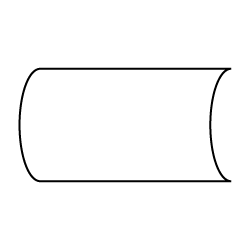
| Stored Data | |
| Flow Arrow | |
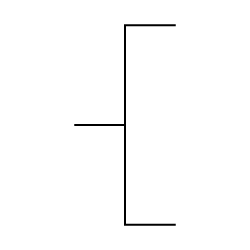
| Comment or Annotation | |
| Predefined process | |
| On-page connector/reference | |
| Off-page connector/reference |
The following are the uses of a Flowchart:
Flowcharts are mainly used in the below scenarios:
Three types of Flowcharts are listed below:
There are different types of boxes that are used to make Flowcharts. All the different kinds of boxes are connected to one another by arrow lines. Arrow lines are used to display the flow of control. Let's learn about each box in detail.
This box is of an oval shape which is used to indicate the start or end of the program. Every Flowchart diagram has an oval shape that depicts the start of an algorithm and another oval shape that depicts the end of an algorithm. For example:
This is a parallelogram-shaped box inside which the inputs or outputs are written. This basically depicts the information that is entering the system or algorithm and the information that is leaving the system or algorithm. For example: if the user wants to input a from the user and display it, the Flowchart for this would be:
This is a rectangular box inside which a programmer writes the main course of action of the algorithm or the main logic of the program. This is the crux of the Flowchart as the main processing codes is written inside this box. For example: if the programmer wants to add 1 to the input given by the user, he/she would make the following Flowchart:
This is a rhombus-shaped box, control statements like if, condition like a > 0, etc are written inside this box. There are 2 paths from this one which is "yes" and the other one is "no". Every decision has either yes or no as an option, similarly, this box has these as options. For example: if the user wants to add 1 to an even number and subtract 1 if the number is odd, the Flowchart would be:
This arrow line represents the flow of the algorithm or process. It represents the direction of the process flow. in all the previous examples, we included arrows in every step to display the flow of the program. arrow increases the readability of the program.
This circular figure is used to depict that the Flowchart is in continuation with the further steps. This figure comes into use when the space is less and the Flowchart is long. Any numerical symbol is present inside this circle and that same numerical symbol will be depicted before the continuation to make the user understand the continuation. Below is a simple example depicting the use of On-Page Reference
Algorithm:
- Start
- Input 2 variables from user
- Now check the condition If a > b, go to step 4, else go to step 5.
- Print a is greater, go to step 6
- Print b is greater
- Stop
Flowchart:
Algorithm:
- Start
- Put input a
- Now check the condition if a % 2 == 0, go to step 5. Else go to step 4
- Now print("number is odd") and go to step 6
- print("number is even")
- Stop
Flowchart:
Algorithm:
- Start
- Input number a
- Now initialise c = 1
- Now we check the condition if c <= 5, go to step 5 else, go to step 7.
- Print a
- c = c + 1 and go to step 4
- Stop
Flowchart:
Algorithm:
- Start
- Now initialize c = 1
- Now we check the condition if c < 11, then go to step 4 otherwise go to step 6.
- Print c
- c = c + 1 then go to step 3
- Stop
Flowchart:
Algorithm:
- Start
- Now initialise c = 1
- Now check the condition if c < 6, then go to step 4. Otherwise go to step 6
- Print 3 * c
- c += 1. Then go to step 3.
- Stop
Flowchart: