|
VOOZH | about |
|
VOOZH | about |
Compiling graphics codes on CodeBlocks IDE shows an error: “Cannot find graphics.h”. This is because graphics.h runs is not available in the library folder of CodeBlocks. To successfully compile graphics code on CodeBlocks, setup winBGIm library.
Please follow below steps in sequence to include "graphics.h" in CodeBlocks to successfully compile graphics code on Codeblocks.
Step 1 : To setup "graphics.h" in CodeBlocks, first set up winBGIm graphics library. Download WinBGIm from http://winbgim.codecutter.org/ or use this link.
UPDATE: The build of the library at http://winbgim.codecutter.org/ is old and was last built around 2006. While linking against that using 64 bit compiler toolchain it results into linking error. Here at https://github.com/ahmedshakill/WinBGIm-64 is a recent build of the library bringing 64 bit compatibility. Some win32 system calls have also been updated to MSDN recommended 64 bit alternates for preciseness.
Step 2 : Extract the downloaded file. There will be three files:
Step 3 : Copy and paste graphics.h and winbgim.h files into the include folder of compiler directory. (If you have Code::Blocks installed in C drive of your computer, go through: Disk C >> Program Files >> CodeBlocks >> MinGW >> include. Paste these two files there.)
Step 4 : Copy and paste libbgi.a to the lib folder of compiler directory.
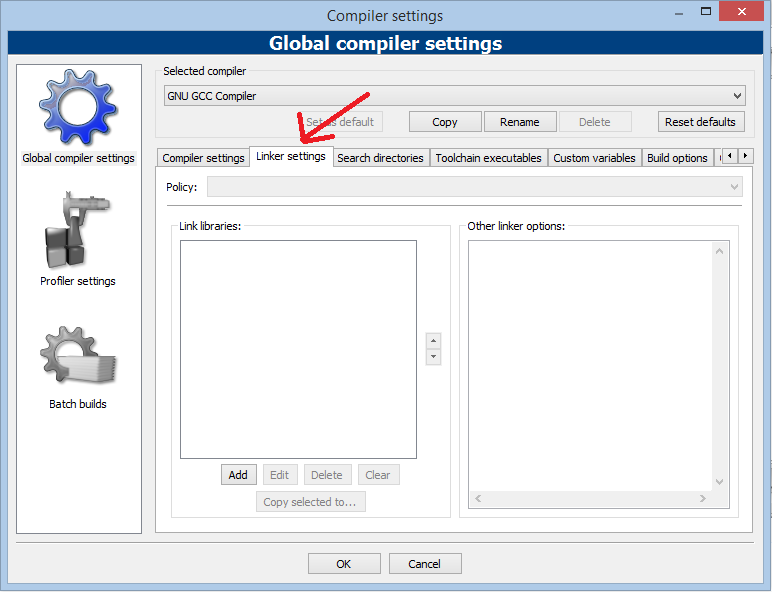
Step 5 : Open Code::Blocks. Go to Settings >> Compiler >> Linker settings.
Step 6 : In that window, click the Add button under the “Link libraries” part, and browse.
Select the libbgi.a file copied to the lib folder in step 4.
Step 7 : In right part (ie. other linker options) paste commands
-lbgi -lgdi32 -lcomdlg32 -luuid -loleaut32 -lole32
Step 8 : Click Ok
Step 9 : Try compiling a graphics.h program in C or C++, still there will be an error. To solve it, open graphics.h file (pasted in include folder in step 3) with Notepad++. Go to line number 302, and replace that line with this line : int left=0, int top=0, int right=INT_MAX, int bottom=INT_MAX,
Step 10 : Save the file. Done !
Note : Now, you can compile any C or C++ program containing graphics.h header file. If you compile C codes, you’ll still get an error saying: “fatal error: sstream : no such file directory”.