|
VOOZH | about |
|
VOOZH | about |
Creating a Google Form directly from Google Sheets is a way to collect data and responses efficiently. This integration makes it simple to gather information, whether you're conducting surveys, quizzes, or gathering feedback for a project.
By integrating Google Forms with Google Sheets, you can automate data collection, track responses in real-time, and analyze the information effortlessly. Follow the steps below to learn how to create a form in Google Sheets and gather responses in no time.
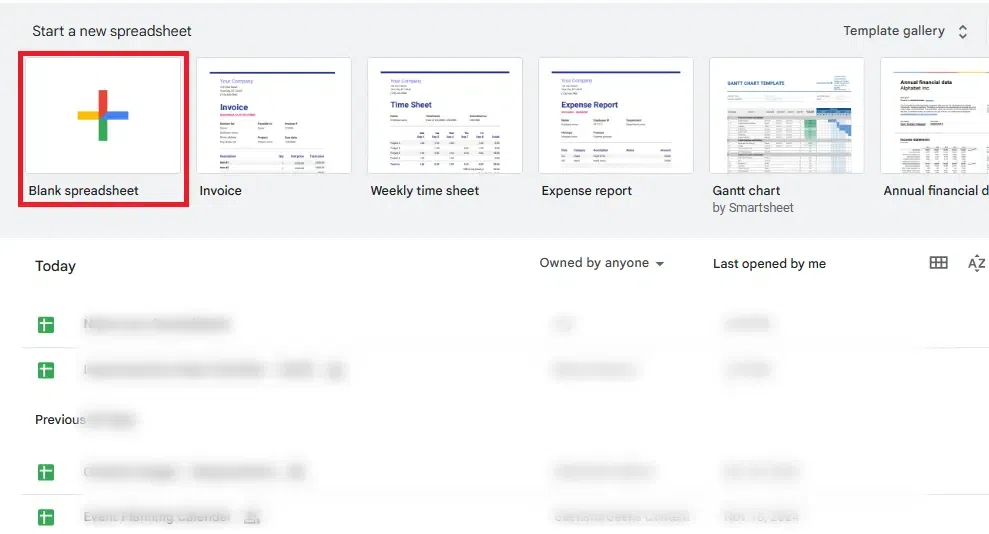
To create a form in Google sheets, start by opening Google Sheets in your browser. Sign in with your Google account, then click the "+" Blank option to create a new spreadsheet. This will be the foundation for linking your form.
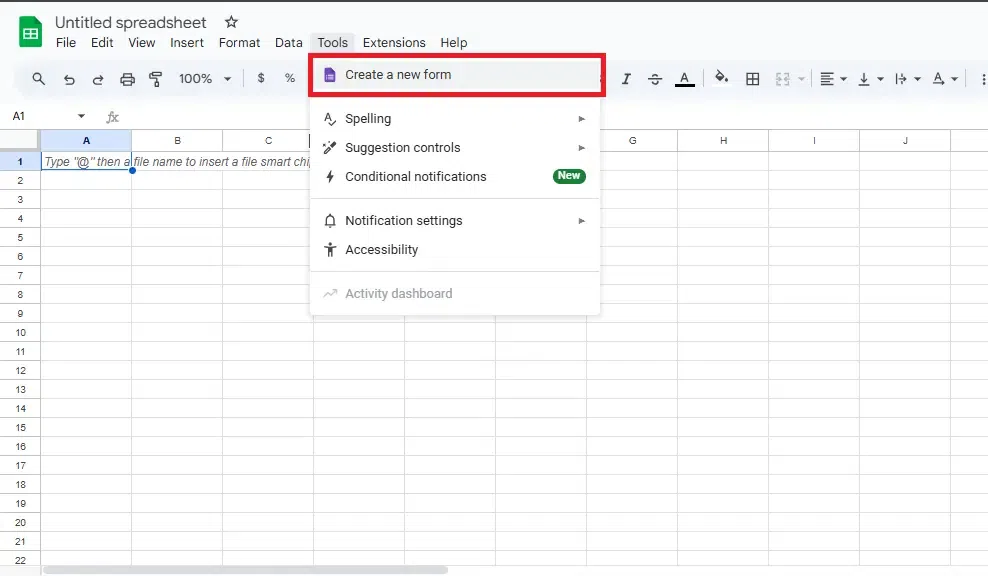
In Google Sheets, go to the Tools menu and select Create a Form. This will open Google Forms, where you can build your custom form and link it to your Google Sheets for automatic data collection.
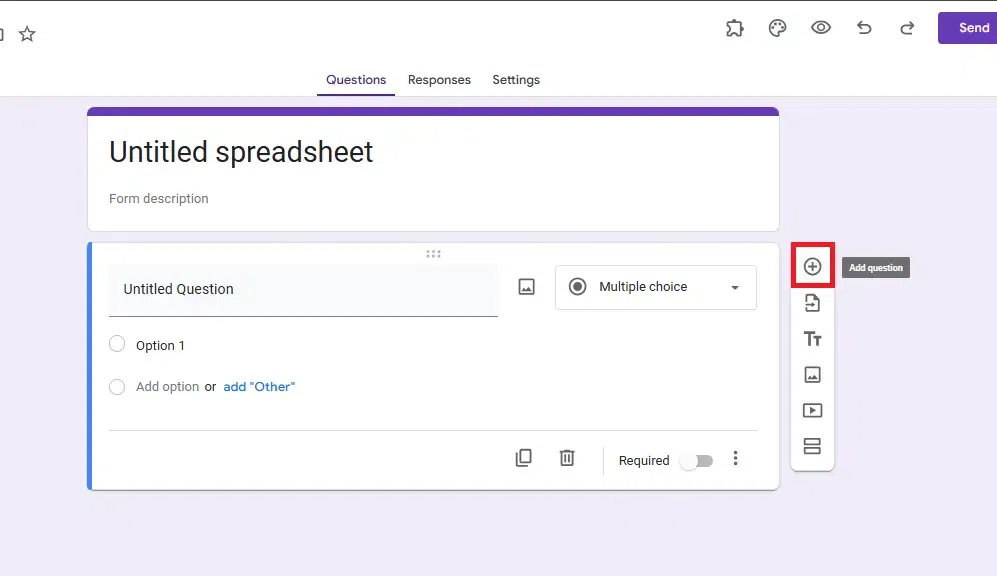
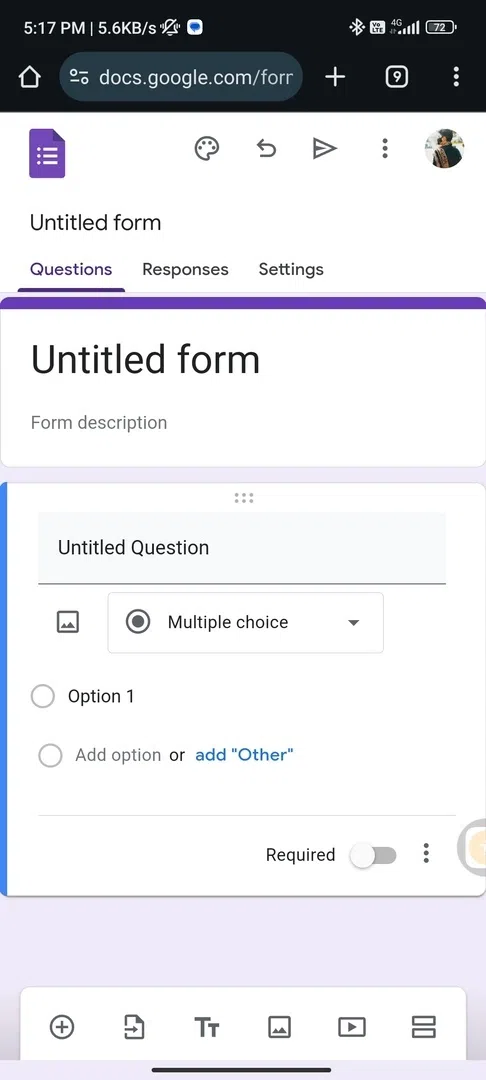
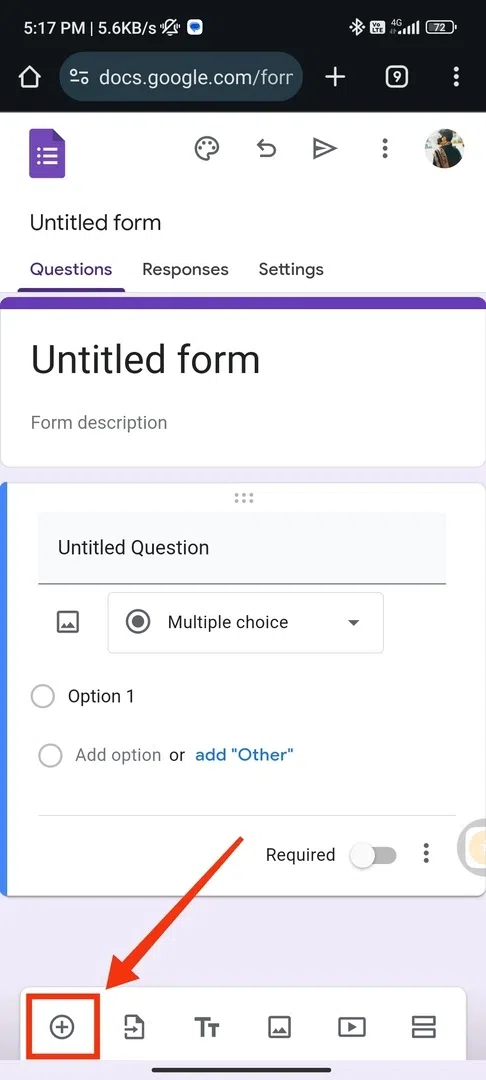
Once Google Forms opens, click the + button to start adding questions. Choose from various question types like multiple choice, short answer, or checkboxes. Customize each question to match your data collection needs, and make them required or optional as needed.
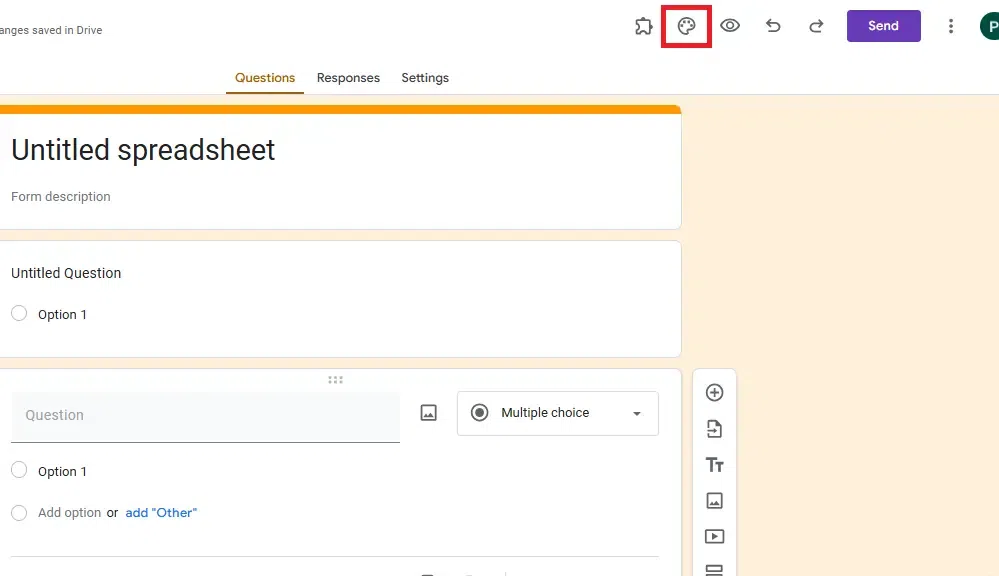
Enhance your form's look by clicking the Palette icon to change the theme and upload a custom header image. Under Settings, you can also configure options like collecting email addresses, enabling response editing, and customizing confirmation messages.
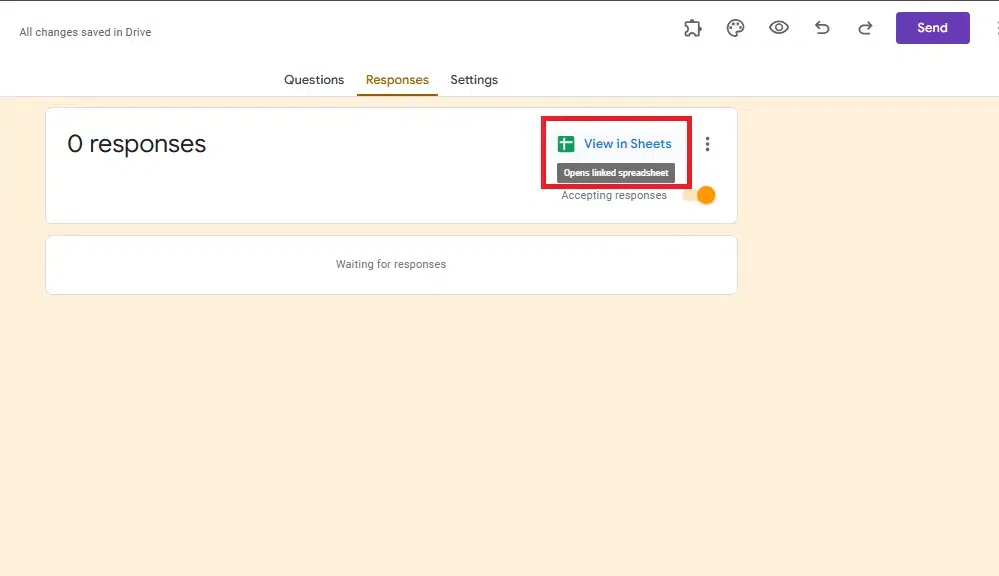
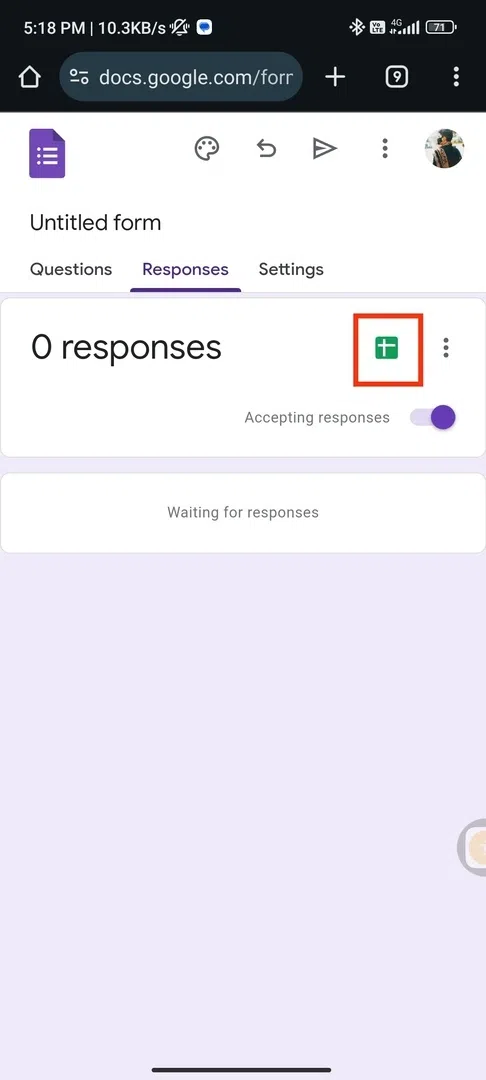
To automatically send form responses to Google sheets, click the Responses tab in Google Forms. Then, click the Google sheets icon to link your form to a spreadsheet. You can choose to create a new sheet or link to an existing one for seamless data collection.
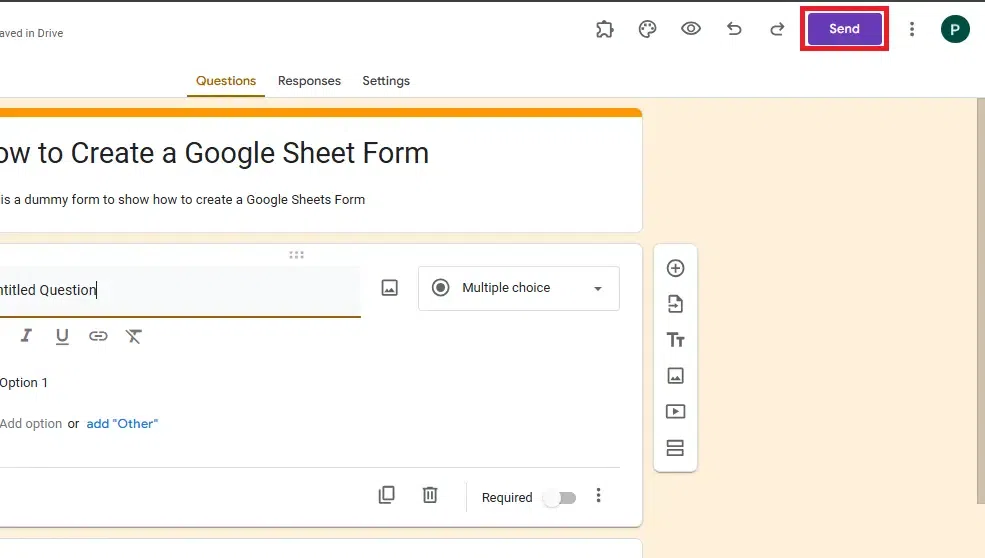
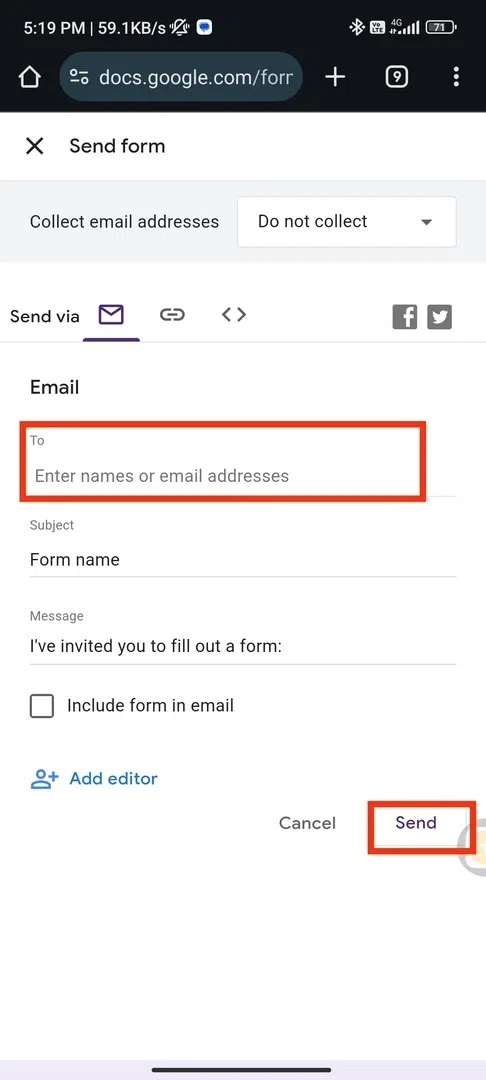
Once your form is ready, click the Send button in Google Forms to share it with others. You can share the form via email, generate a shareable link, or embed it on your website. Collect responses quickly by distributing the link.
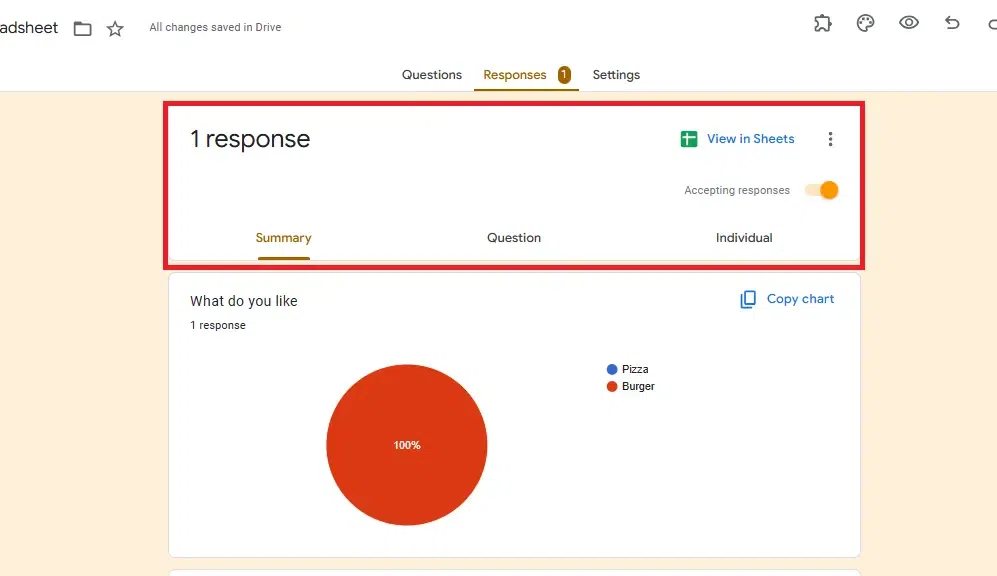
After responses are submitted, you can view them in real-time in your linked Google sheets. Organize and analyze the data using features like filters, charts, and pivot tables to extract meaningful insights from your collected information.
Creating a Google Sheets Form on your mobile device (Android or iOS) involves using Google Forms to collect data, as Google Sheets itself doesn’t have a direct form creation tool. Once the form is created in Google Forms, the responses are automatically saved to a Google Sheets spreadsheet.
Here’s how to create a Google Forms form on your mobile device and link it to Google Sheets:
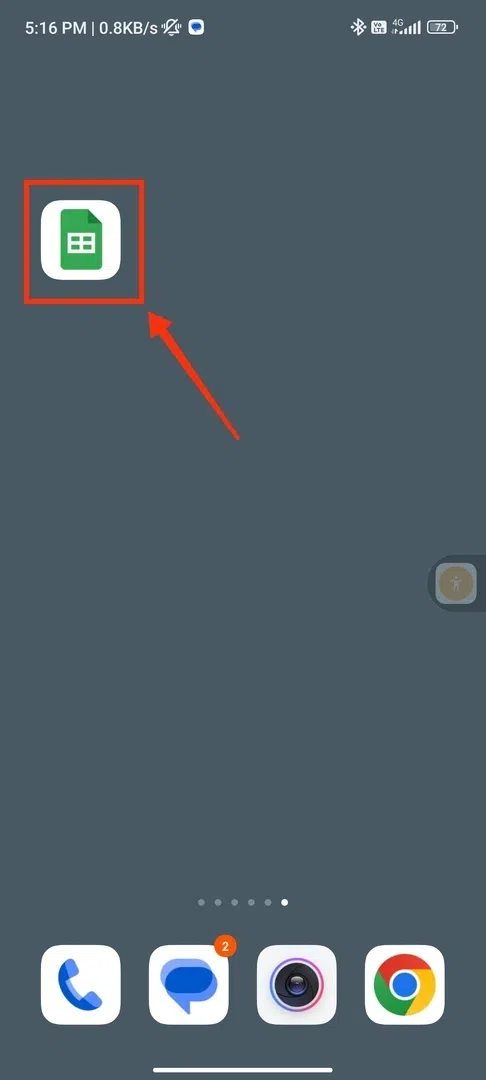
First, install the Google sheets app from the App Store (iOS) or Google Play Store (Android). Open the app and sign in to your Google account.
Google Forms doesn't have a standalone mobile app, but you can easily access it in a mobile browser. Open Google Chrome or any browser, then visit Google Forms.
Once on Google Forms, tap the "+" button to start a new form. Add questions such as multiple choice, short answer, or checkboxes, and customize it to suit your data collection needs.
After designing your form, go to the Responses tab and tap the Google sheets icon to link your form to a new or existing Google Sheets. This will store all responses in real time.
To share the form, tap the Send button. You can either share it via email, generate a shareable link, or embed it directly into a website from your mobile device.