|
VOOZH | about |
|
VOOZH | about |
The curl command in Linux is a command-line tool used to transfer data between a system and a server using different network protocols. It is widely used for fetching web content, testing APIs, and sending or receiving data over the network.
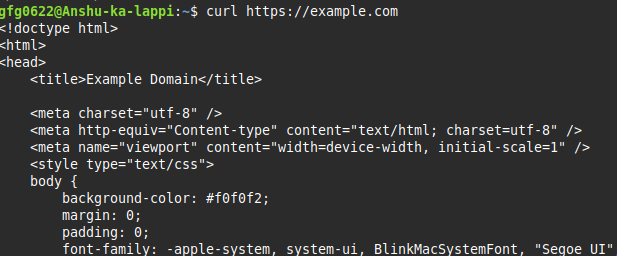
The simplest use of curl is to fetch a URL. By default, curl prints the content of the URL directly to your terminal (stdout).
curl https://example.comcurl https://www.geeksforgeeks.org//%3C/span>This should display the content of the URL on the terminal. The URL syntax is protocol dependent and multiple URLs can be written as sets like:
curl http://site.{one, two, three}.comURLs with numeric sequence series can be written as:
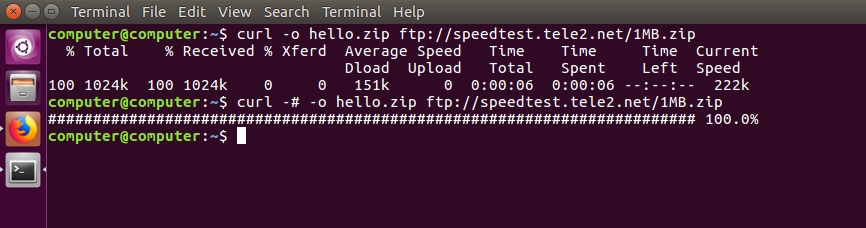
curl ftp://ftp.example.com/file[1-20].jpegProgress Meter: curl displays a progress meter during use to indicate the transfer rate, amount of data transferred, time left, etc.
curl -# -O ftp://ftp.example.com/file.zip
curl --silent ftp://ftp.example.com/file.zip
If you like a progress bar instead of a meter, you can use the -# option as in the example above, or --silent if you want to disable it completely.
Output:
👁 ImageGiven below are some examples demonstrating the use of the curl command in Linux along with their options.
| Option | What It Does |
[URL] | (No option) Prints URL content to stdout. |
-o filename | Saves output to a one, custom filename. |
-O | Saves output using the Original filename from the URL. |
-C - | Continues/Resumes an interrupted download. |
-X METHOD | Specifies the HTTP method (e.g., -X POST, -X DELETE). |
-d "data" | Sends data in a POST or PUT request. |
-H "Header" | Adds a custom HTTP Header (e.g., for JSON or auth tokens). |
-L | Follows any server redirects (e.g., 301, 302). |
-u user:pass | Provides user authentication credentials. |
-T file.txt | Transfers (uploads) a local file to a destination. |
-I | Fetches headers only (HTTP HEAD request). |
-i | Includes the HTTP response headers in the output. |
-s | Silent mode (hides progress meter). |
-# | Shows a simple progress bar. |
curl [options] [URL]Here,
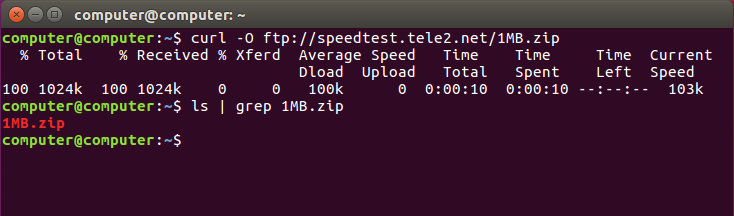
[options]: Can be various command-line flags that modify the behavior of curl[URL]: Specifies the location from which to fetch or send data.This option downloads the file and saves it with the same name as in the URL.
Syntax:
curl -O [URL...]Example:
curl -O ftp://speedtest.tele2.net/1MB.zipOutput:
👁 ImageThis option resumes download which has been stopped due to some reason. This is useful when downloading large files and was interrupted.
Syntax:
curl -C - [URL...]Example:
curl -C - -O ftp://speedtest.tele2.net/1MB.zipOutput:
👁 ImageThis option limits the upper bound of the rate of data transfer and keeps it around the given value in bytes.
Syntax:
curl --limit-rate [value] [URL]Example:
curl --limit-rate 1000K -O ftp://speedtest.tele2.net/1MB.zipOutput:
👁 ImageThe command limits the download to 1000K bytes.
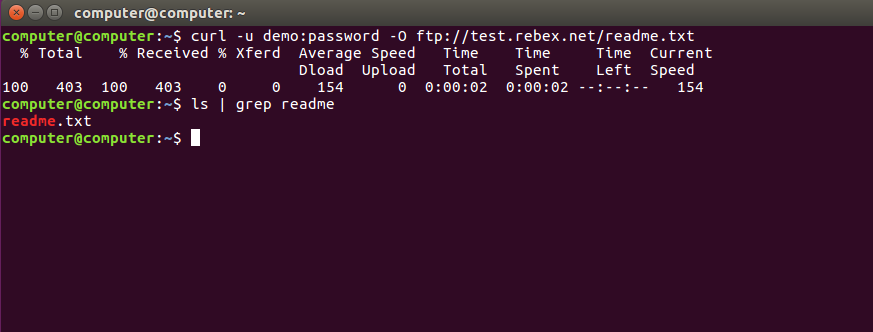
curl also provides options to download files from user authenticated FTP servers.
Syntax:
curl -u {username}:{password} [FTP_URL]Example:
curl -u demo:password -O ftp://test.rebex.net/readme.txtOutput:
👁 ImageThis option helps to upload a file to the FTP server.
Syntax:
curl -u {username}:{password} -T {filename} {FTP_Location}If you want to append an already existing FTP file you can use the -a or --append option.
This option is appended to any curl command, it outputs the C source code that uses libcurl for the specified option.
Syntax:
curl [URL...] --libcurl [filename]Example:
curl https://www.geeksforgeeks.org// > log.html --libcurl code.cOutput:
👁 ImageThe above example downloads the HTML and saves it into log.html and the code in code.c file. The next command shows the first 30 lines of the code.
The curl command supports multiple protocols, allowing it to perform tasks like sending emails and fetching dictionary meanings directly from the terminal.
If we can transfer data over different protocols, including SMTP, we can use curl to send mails.
Syntax:
curl --url [SMTP URL] --mail-from [sender_mail] --mail-rcpt [receiver_mail] -n --ssl-reqd -u {email}:{password} -T [Mail text file] DICT protocol which can be used to easily get the definition or meaning of any word directly from the command line.
Syntax:
curl [protocol:[dictionary_URL]:[word]Example:
curl dict://dict.org/d:overclockOutput:
👁 Image'curl' is the perfect tool for interacting with REST APIs. The `curl` command allows you to send custom HTTP requests with various methods such as GET, POST, PUT, DELETE, etc. For example, to send a GET request:
curl -X GET https://api.sampleapis.com/coffee/hot%3C/span>In the same way, to send a POST request with data:
curl -X POST -d "key1=value1&key2=value2" https://api.sampleapis.com/coffee/hot%3C/span>In this case, the `-d` flag is used to send data to be sent with the request.
curl is also generally used to download a file from the web. To download a file, you simply provide the URL of the file as the argument:
-o: saves the downloaded file to the local host with the specified name in parameters.
Syntax:
curl -o [file_name] [URL...]Example:
curl -o hello.zip ftp://speedtest.tele2.net/1MB.zipOutput:
👁 ImageThe above example downloads the file from the FTP server and saves it with the name hello.zip.
If you want to upload a file to a server, for example using FTP (File Transfer Protocol), curl can do that in just one line:
curl -T uploadfile.txt ftp://example.com/upload/-T uploadfile.txt: This tells curl which file to upload (in this case, a file called uploadfile.txt).ftp://example.com/upload/: This is the destination FTP URL where the file will be uploaded.Sometimes the API or site you're trying to access is protected with a username and password. In those cases, you can put your credentials in the command itself using the -u flag.
curl -u username:password https://example.com//api%3C/span>-u username:password: This sends your login details securely with the request.https://example.com//api%3C/strong>: The protected API or resource you want to access.