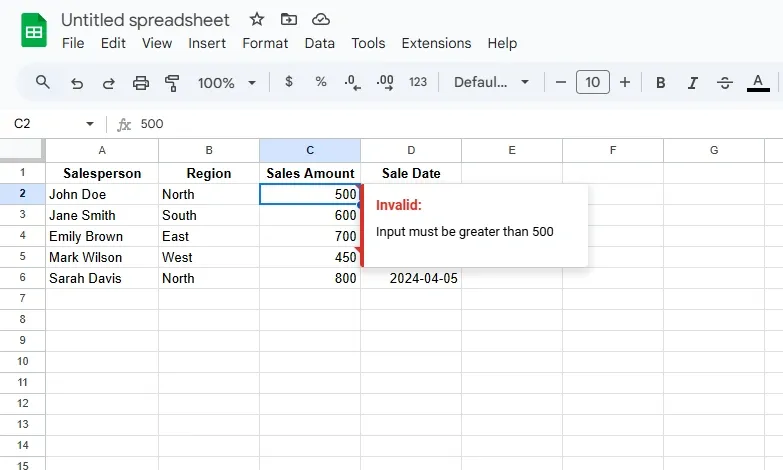
Data validation in Google Sheets is a feature that ensures data consistency and accuracy by setting rules for acceptable entries, improving data integrity, and reducing errors.
Restrict input to specific types like numbers, text, or dates.
Automatically flag incorrect data entries with customizable error messages.
Ensure users enter valid information based on set criteria.
Apply rules across ranges to streamline data input processes.
Types of data validation
Google Sheets offers powerful data validation features to ensure users input accurate and consistent data into cells. Here are the main types of data validation you can use in Google Sheets:
Custom Formula
Validates data based on a custom formula.
Example: Allow only even numbers using =MOD(A1,2)=0.
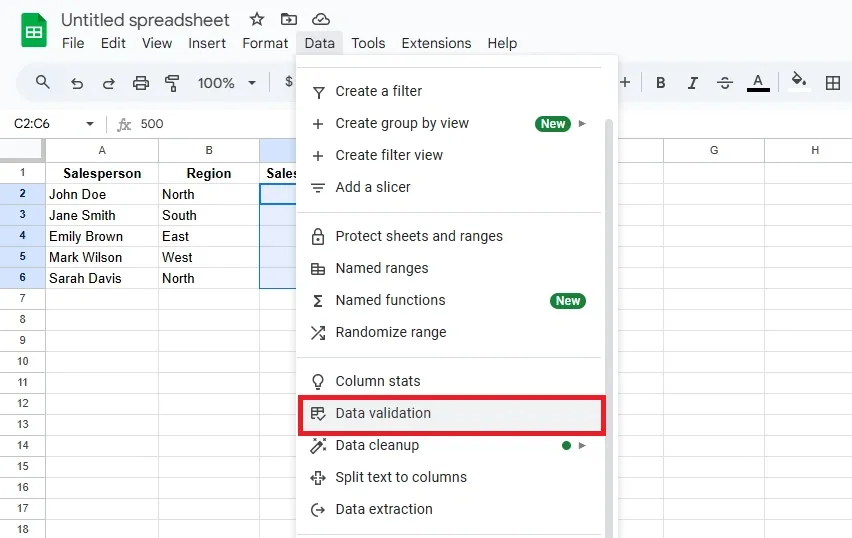
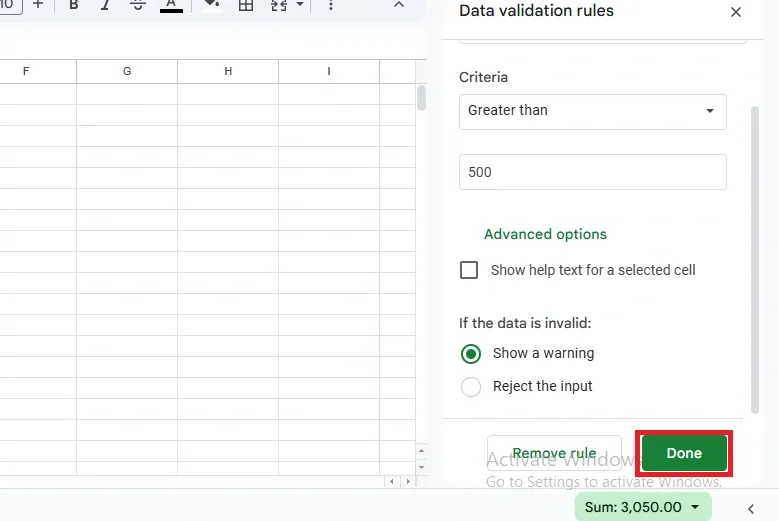
Data validation in Google Sheets helps ensure that the data entered into a cell meets specific criteria, reducing errors and maintaining consistency. Here's how to apply data validation:
Step 1: Select the Range for Data Validation
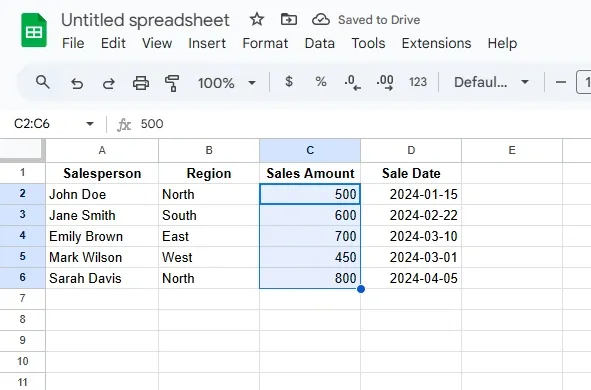
First, select the cells or range where you want to apply data validation. For example, if you want to limit entries in the "Sales Amount" column, select the relevant cells in that column.
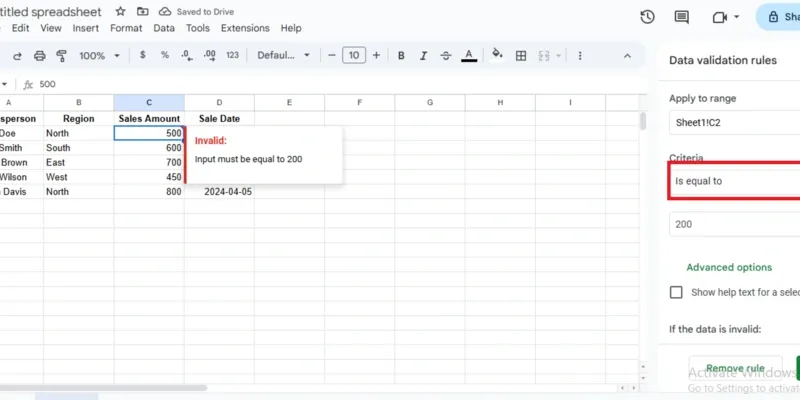
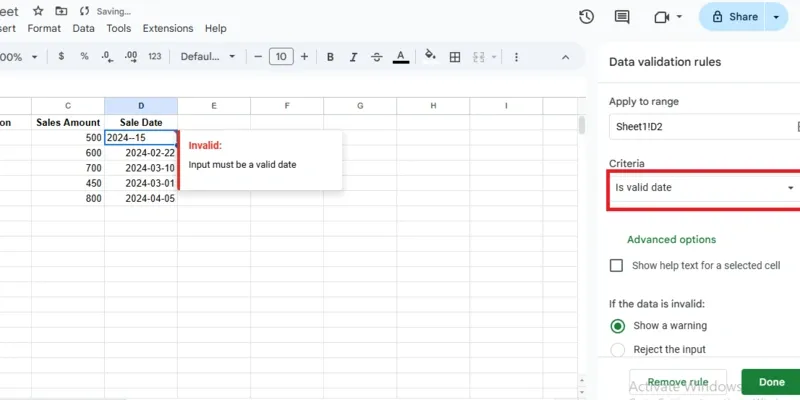
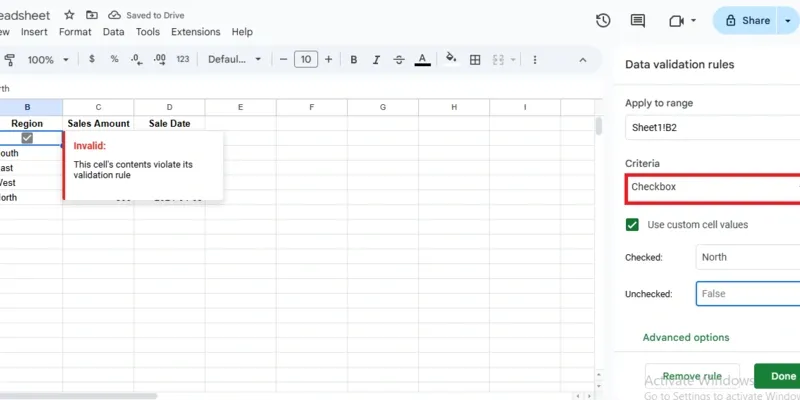
Now, try entering data into the validated cells. If you attempt to enter invalid data (e.g., a number when only text is allowed), you’ll see an error message, and Google Sheets will prevent the invalid entry.