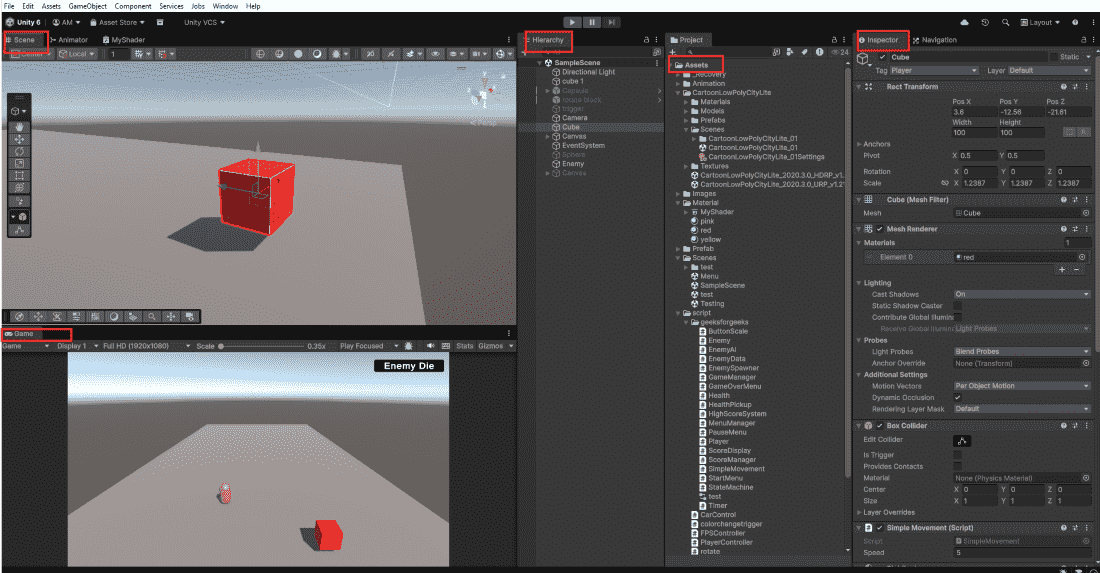
When you create or open a project, the Unity Editor opens with a default layout. The interface has several windows arranged for easy access.
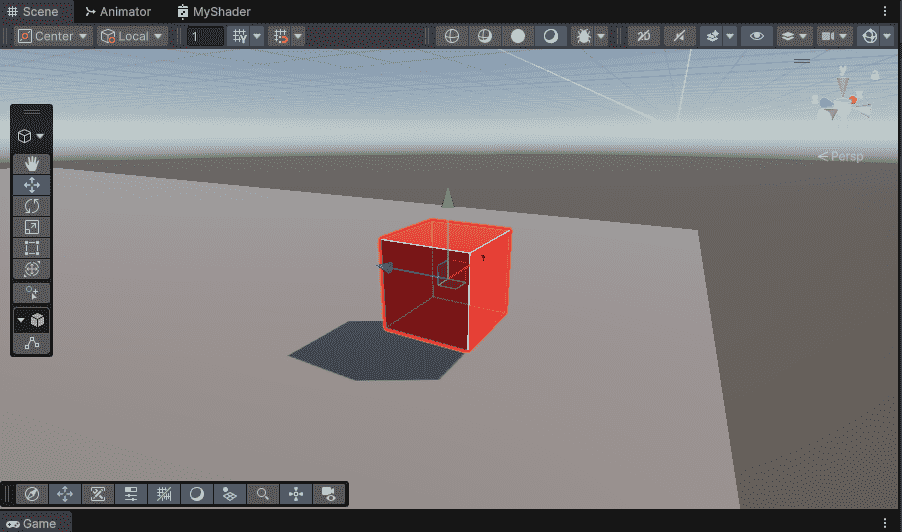
👁 Unity-Editor-default-layout Unity Editor default layout The Main Windows Scene View: Where you build your game visually. Game View: What the player sees during gameplay. Hierarchy : List of all GameObjects in the scene. Project Window: All assets and files. Inspector: Properties of selected GameObject. 1. Scene View The Scene View is your workspace. You build your game here.
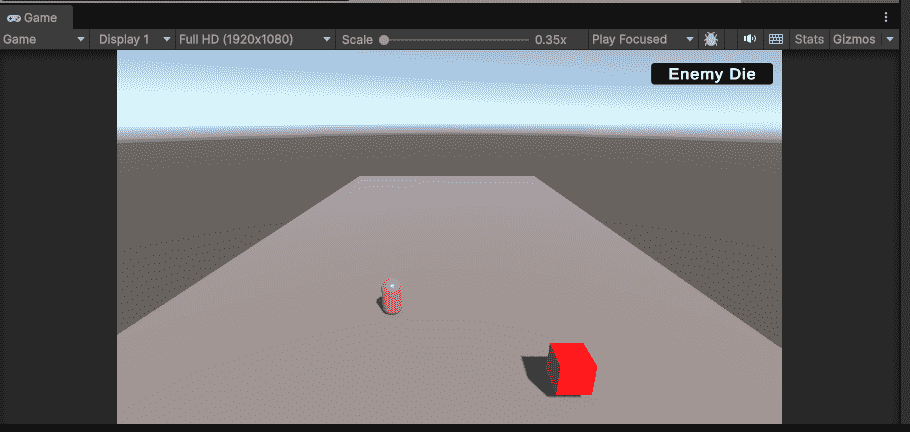
Place, move, and arrange objects. Right-click + drag to rotate camera. Middle-click + drag to pan. Use Transform tools (W = move, E = rotate, R = scale). 👁 Scene-View-In-Unity Scene View In Unity 2. Game View The Game View shows what the player sees through the camera.
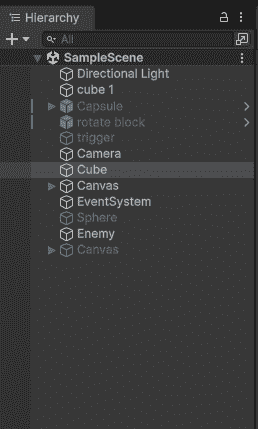
Press Play button to test your game. Shows the final game output. Changes made during Play mode are temporary. 👁 Game-View-In-Unity Game View In Unity 3. Hierarchy Window The Hierarchy Window lists every GameObject in the current scene.
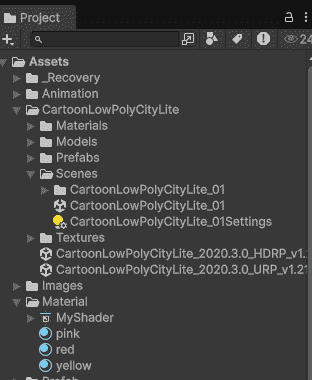
Click any object to select it. Drag objects onto each other to create parent-child relationships. Hidden objects appear greyed out. 👁 Hierarchy-In-Unity Hierarchy In Unity 4. Project Window The Project Window shows all files and folders in your project.
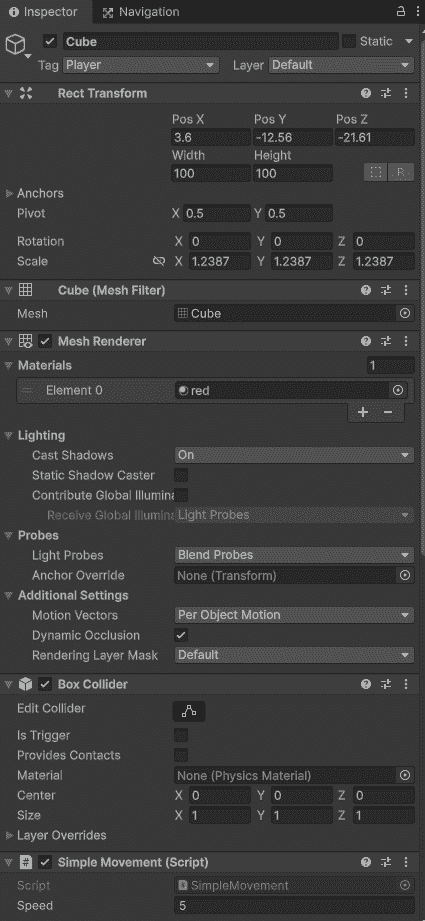
Left panel: Folder structure. Right panel: Contents of selected folder. Double-click any asset to open or select it. 👁 Project-View-In-Unity Project View In Unity 5. Inspector Window The Inspector Window shows properties of whatever is selected.
Select a GameObject to see its components. Change values directly here. Click "Add Component" to add new functionality. 👁 Inspector-In-Unity Inspector In Unity The Toolbar The Toolbar sits at the top center.
Tool Shortcut Function Hand Q Pan Scene View Move W Move objects Rotate E Rotate objects Scale R Scale objects Play Ctrl + P Run the game Pause Ctrl + Shift + P Freeze the game
Note : Never build your game in Play mode. When you press Play, everything you change is temporary. Press Play to test, stop Play to build. Changes made in Play mode disappear when you stop.