|
VOOZH | about |
|
VOOZH | about |
Different Ways to Add Leading Zeros in Excel
- Using Text Function
- Updating the Number Category
- Custom Formatting
- Using Formulas
Excel is one of the widely used tools adapted by organizations and businesses today. Excel is truly a life savior in data management and analysis. One of Excel's less well-known but crucial features is the ability to prefix a number with zeros. It is helpful when dealing with numerical data with fixed length restrictions, and it's also called adding leading zeroes. The significance of adding leading zeros to Excel calculations and the various ways to do it are discussed in this article.
Why are Leading zeros important?
- You utilize leading zeros to make numerical data in Excel a constant length.
- Working with time values is another major area where leading zeroes are useful in Excel. Seeing as how it guarantees the proper ordering of the values.
- Additionally, Excel allows you to append leading zeros to text values. Useful for handling data consisting of letters and numbers, like product codes or serial numbers.
- You can create different formats for text values with the help of leading zeroes. It makes your data look organized and easy to read and interpret.
When working with Excel, the most direct and easy approach to add leading zeroes is via the Text function. Numerous formatting options, including the addition of leading zeros, are available with this function.
Using the Text function will save you time if you wish to maintain your numbers for calculations and display them as text for convenience. Values can be transformed into text strings using the TEXT function.
For example, to add leading zeros using TEXT(value, format_text), use the same format codes as custom number formats. However, remember that the TEXT function always produces a text string, even if it resembles a number.
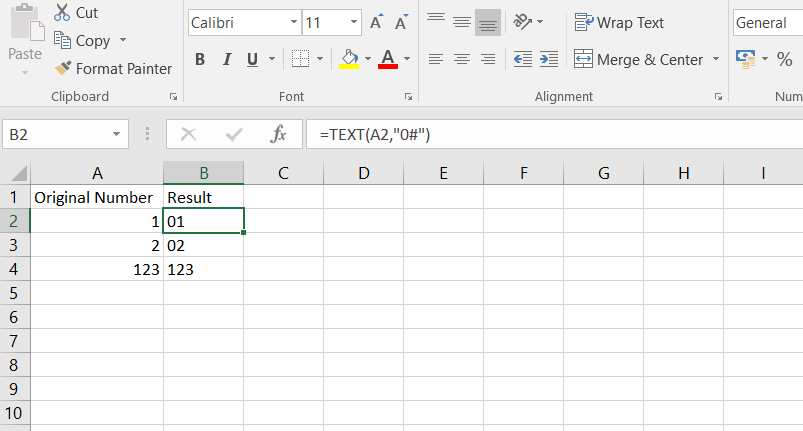
For instance, to insert 0 before a value in cell A2, use:
=TEXT(A2, "0#")
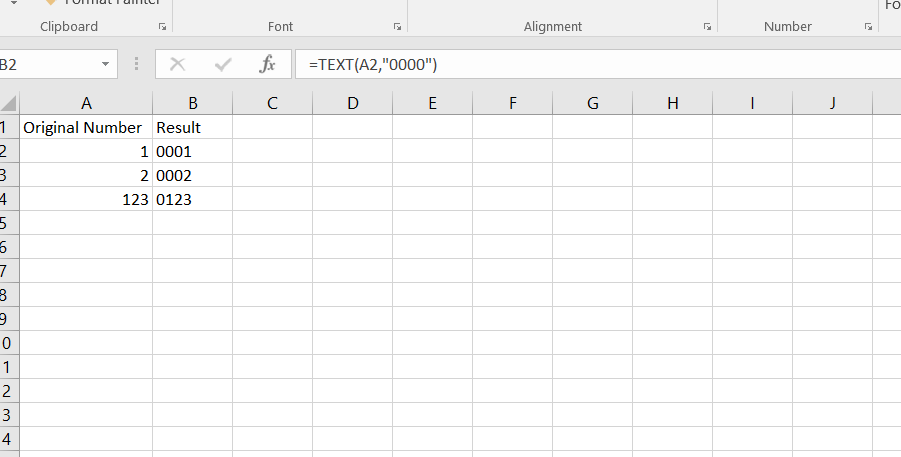
To generate a fixed-length string with leading zeros, like a 5-character string, use:
=TEXT(A2, "00000")
Select the Microsoft Excel spreadsheet at the bottom left corner of your Windows home screen and open the file.
Select a range of cells and type numbers to which you want to add leading zeroes.
Note:
Place your cursor on the cell, drag the right corner to copy the formula into the other cells, and the numbers will appear with leading zeros.
To generate a fixed-length string with leading zeros, like a 5-character string, use:
=TEXT(A2, "00000")
To convert a numerical dataset to a numerical output rather than text, update the number category to include leading zeros. No matter how you show the number, its value remains constant.
Select the Microsoft Excel spreadsheet at the bottom left corner of your Windows home screen and open the file.
To add leading zeroes to the cells, select a cell range.
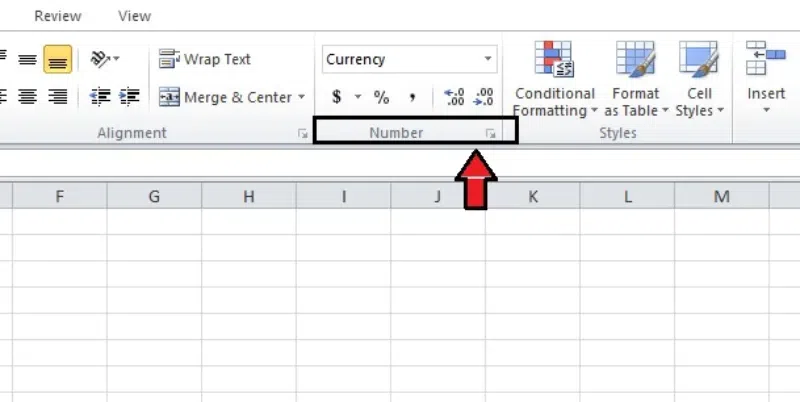
In the "Home" tab, go to the "Number Group" and click on the tilted arrow in the bottom right. A Format Cells dialogue box appears. You can also press the shortcut keys "Control + 1".
In the Number tab, select "Custom" from the Category list.
In the "Type" bar, enter 00000 and click "OK". Enter your desired number of leading zeros into the selected cells.
Add Leading Zeroes
Select the Microsoft Excel spreadsheet at the bottom left corner of your Windows home screen and open the file.
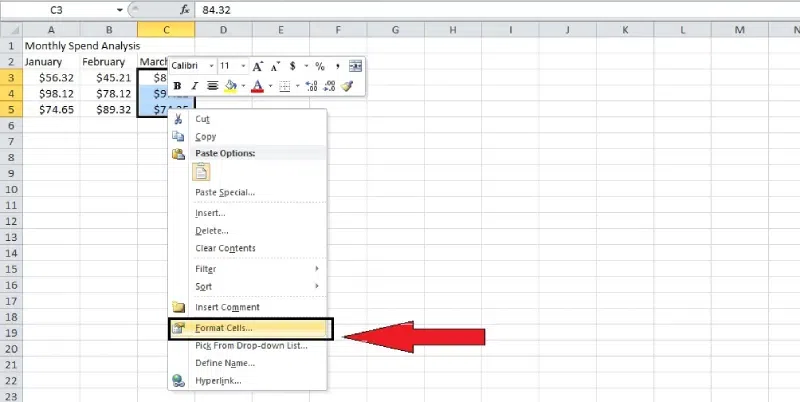
Move the mouse's cursor over the cells you want to format. Now, right-click on the selected cells and choose "Format cells" from the drop-down menu.
From the "Format" option's drop-down menu, click the "Custom" option.
In the "Type box", enter the formula "000000" to apply leading zeroes. Click on "OK" to use the formatting of the cells.
One way to personalize Excel is using custom formatting, which lets you format cells in any way you like.
Select the Microsoft Excel spreadsheet at the bottom left corner of your Windows home screen and open the file.
Move the mouse's cursor over the cells where you want to insert the leading zeroes.
In the "Home tab", click on the arrow at the bottom of the "Number Group" to open the "Format Cells" dialogue box. You can also press the Ctrl+1 keyboard shortcut to open the Format Cells dialogue box.
From the "Format cells" dialog box, click on the "Numbers tab". Now tap on the "Custom" category.
In the "Type" box, enter the desired number of digits to add leading zeroes and press "OK".
With this setting, Excel will automatically add the given amount of leading zeros to the numbers you enter.
To arrange the dates, just pick out the cells with them and follow the abovementioned steps. Adding leading zeros is generally unnecessary for dates because they are already formatted with a certain number of digits.
Cells can be automatically formatted using this method when particular conditions are met.
Select the Microsoft Excel spreadsheet at the bottom left corner of your Windows home screen and open the file.
Move the mouse's cursor over the cells and select the cells you want to format.
In the "Home tab", in the “Style” menu click on the "Conditional formatting" to choose "New Rule".
Select the "Use a formula to determine which cells to format" option and enter the formula =LEN(A1)<7 in the formula box that appears.
Once done, click the "Format" option and select "Custom." The type box appears. Enter the formula "0000000" and click "OK". The formatting is applied to the cell.
Excel offers formulas to dynamically add leading zeros based on specific conditions.
Formula 1: =TEXT(A1, "00#") (assuming leading zeros for numbers with less than three digits)
Formula 2: =REPT("0", n) & A1 (where n is the desired number of leading zeros and A1 is the cell reference)
Dates: Dates in Excel usually don't require leading zeros as they are already formatted with a specific number of digits.
Time Values: Similar to dates, time values generally have built-in leading zeros. However, you can use custom formatting if a specific length is necessary.
Text: Leading zeros can be added to text data using the same methods mentioned above. Remember that adding leading zeros might not always be necessary for text.
When dealing with numerical data that has defined length restrictions, the most important function in Excel is adding leading zeroes. Simple, the procedures given here will have you adding leading zeros in no time. Excel possesses all the tools for accurately handling data requiring a specific length, such as IDs, zip codes, or other information.