|
VOOZH | about |
|
VOOZH | about |
Excel AGGREGATE Function: Quick Steps
- Enter the Data
- Enter the Aggregate Formula
- Press Enter
Have you ever spent hours cleaning up errors in your Excel data or struggling to calculate values in a filtered list? The AGGREGATE function in Excel is here to rescue you from those headaches. Unlike basic functions, AGGREGATE Excel lets you perform calculations while automatically ignoring errors, hidden rows, or other messy data issues—saving you time and frustration.
In this guide, you’ll learn how to use the AGGREGATE function in Microsoft Excel with real-world examples. We’ll cover how to sum data while ignoring errors, find the maximum value in a filtered list, and count non-empty cells without manual cleanup. Whether you’re analyzing large datasets or working with dynamic reports, mastering AGGREGATE Excel will make your workflow smoother and more efficient.
Table of Content
The AGGREGATE function performs calculations while allowing you to control how Excel handles hidden rows, errors, and other data anomalies. It can execute up to 19 different functions such as SUM, AVERAGE, MIN, and more. This function is especially useful when working with filtered datasets or when errors are present, as it can exclude these elements from the calculations.
The general syntax of the AGGREGATE function is as follows:
=AGGREGATE(function_num, options, ref1, [ref2], …)Parameters:
This table lists the types of calculations you can perform using the AGGREGATE function in Excel. Each function is identified by a unique function number, allowing you to specify the desired operation in your formula.
| Function Number | Function | Reference (if applicable) |
|---|---|---|
| 1 | AVERAGE | |
| 2 | COUNT | |
| 3 | COUNTA | |
| 4 | MAX | |
| 5 | MIN | |
| 6 | PRODUCT | |
| 7 | STDEV.S | |
| 8 | STDEV.P | |
| 9 | SUM | |
| 10 | VAR.S | |
| 11 | VAR.P | |
| 12 | MEDIAN | |
| 13 | MODE.SNGL | |
| 14 | LARGE | k |
| 15 | SMALL | k |
| 16 | PERCENTILE.INC | k |
| 17 | QUARTILE.INC | quart |
| 18 | PERCENTILE.EXC | k |
| 19 | QUARTILE.EXC | quart |
The AGGREGATE function lets you choose options to ignore errors, hidden rows, and other functions. You can set these options using the options argument, with values ranging from 0 to 7 as shown in the table below.
| Option | Behavior |
|---|---|
| 0 | Ignore SUBTOTAL and AGGREGATE functions |
| 1 | Ignore hidden rows, SUBTOTAL, and AGGREGATE functions |
| 2 | Ignore error values, SUBTOTAL, and AGGREGATE functions |
| 3 | Ignore hidden rows, error values, SUBTOTAL, and AGGREGATE functions |
| 4 | Ignore nothing |
| 5 | Ignore hidden rows |
| 6 | Ignore error values |
| 7 | Ignore hidden rows and error values |
Note: The AGGREGATE function was introduced in Excel 2010. If you are using a version older than 2010, the function will not be available
The AGGREGATE function Excel is a versatile tool that performs calculations like SUM, AVERAGE, or COUNT while ignoring errors, hidden rows, or filtered data. Below are practical examples to demonstrate how to effectively use the AGGREGATE function for accurate data analysis.
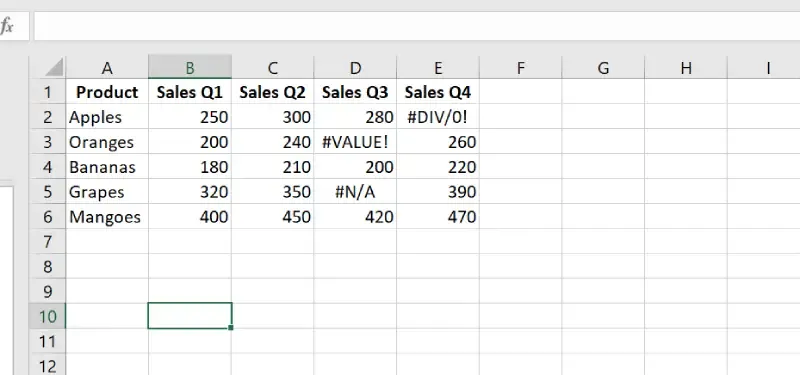
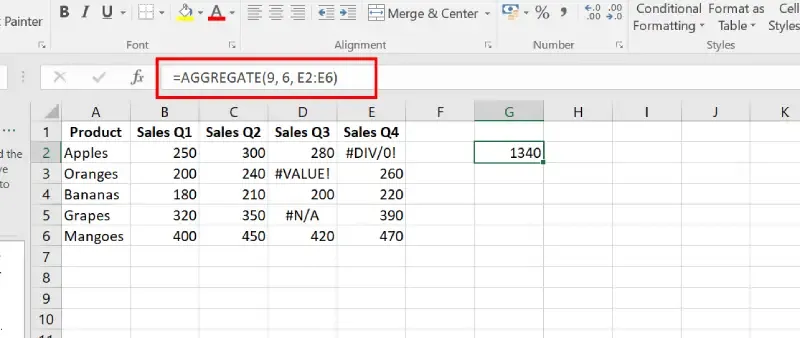
Sum all sales values in Sales Q4 (E2:E6 ) while ignoring errors like #DIV/0! and #VALUE!.
Click on an empty cell where you want the sum result to appear (e.g., G2).
Type the following formula:
=AGGREGATE(9, 6, E2:E6)Press Enter and Preview Results. The Result is 1340.
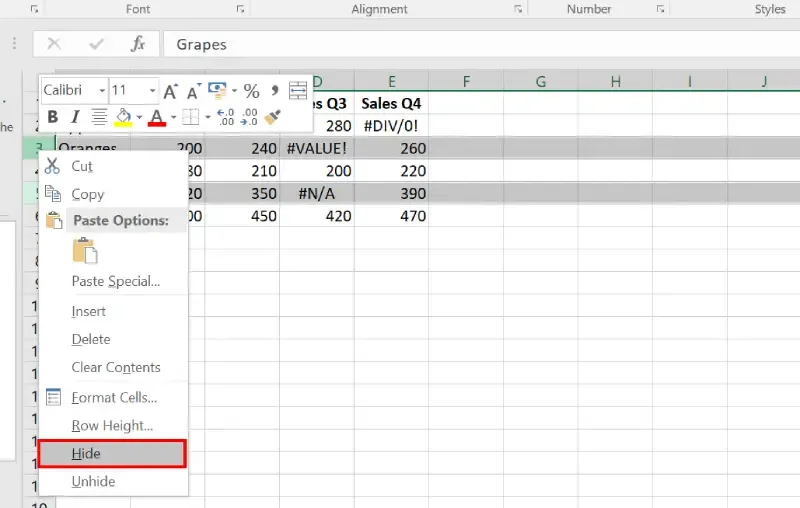
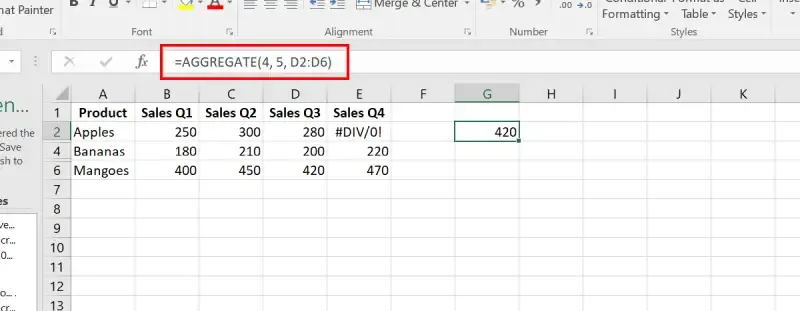
We want to find the maximum value in Sales Q3 (D2:D6) after applying a filter. The function should only consider visible rows and ignore hidden rows.
Apply a filter to the dataset to hide certain rows.
Click on an empty cell where you want the maximum value to appear (e.g., G2).
Type the following formula:
=AGGREGATE(4, 5, D2:D6)Press Enter to calculate the maximum value from visible rows.
Press Enter and Preview the Result. The maximum value (e.g., 420 if all rows are visible).
Count the number of non-empty cells in a range while excluding cells with errors.
Choose an empty cell to display the count (e.g., G4).
Type the following formula:
=AGGREGATE(3, 6, C2:C6)3: Specifies the COUNTA function (counts non-empty cells).6: Ignores errors.C2:C6: The range to evaluate.Press Enter and Preview the Results the result is 5.
function_num for the operation you want to perform.options argument to ignore errors, hidden rows, or nested functions as needed.The AGGREGATE function in Excel is a powerhouse for handling complex calculations in messy or dynamic datasets. By learning to sum while ignoring errors, calculate maximum values in filtered lists, or count non-empty cells effortlessly, you’ll spend less time fixing data and more time gaining insights.
Ready to simplify your Excel tasks? Start using the AGGREGATE Excel function today and see how it transforms your spreadsheets. Whether you’re a beginner or a seasoned user, this tool is a game-changer for smarter, faster data analysis.