|
VOOZH | about |
|
VOOZH | about |
Excel Formatting Shortcuts
If you have closely followed the previous parts of this tutorial, you already know most of the Excel formatting shortcuts. The table below provides a summary.
Shortcut Format
Ctrl+Shift+~ General format
Ctrl+Shift+! Number format with a thousand separators and two decimal places.
Ctrl+Shift+$ Currency format with two decimal places and negative numbers displayed in parentheses
Ctrl+Shift+% Percentage format with no decimal places
Ctrl+Shift+^ Scientific notation format with two decimal places
Ctrl+Shift+# Date format (dd-mmm-yy)
Ctrl+Shift+@ Time format (hh: mm AM/PM)
Excel opens with all the cells looking the same. Things can get hard to understand if you have a lot of them. Changing Excel's look is as simple as changing the font and size parameters to modify the appearance of your written work. The key points become more apparent, and the material becomes more accessible.
Excel also lets you choose whether the numbers are money ($) or percentages (%). Then, it will know just what to display to them. After these easy changes, your Excel file will look better and be easier for everyone to understand.
Table of Content
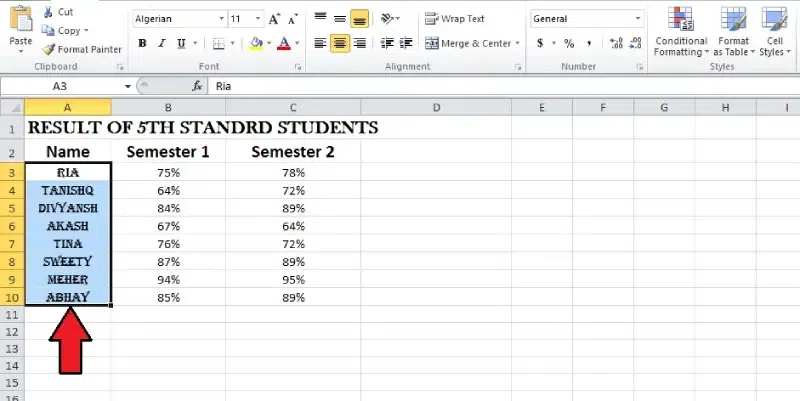
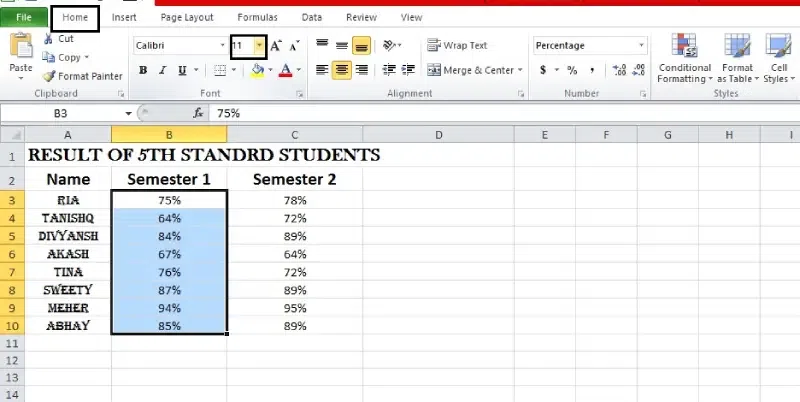
Click on the cell or drag to select multiple cells where you want to change the font.
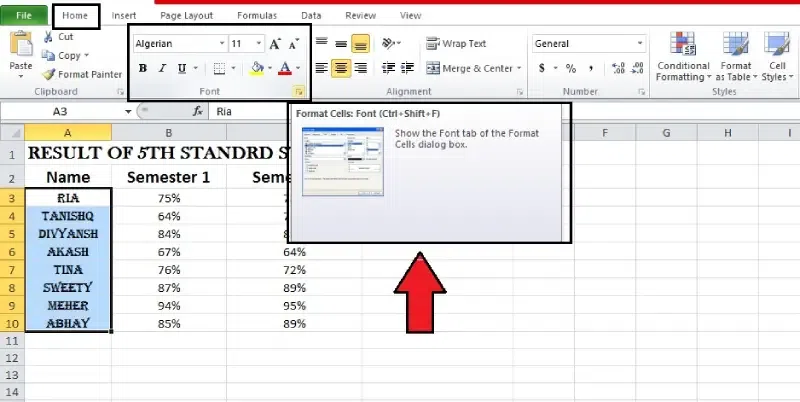
To access the Font menu, go to the Home tab and click the arrow near the dropdown.
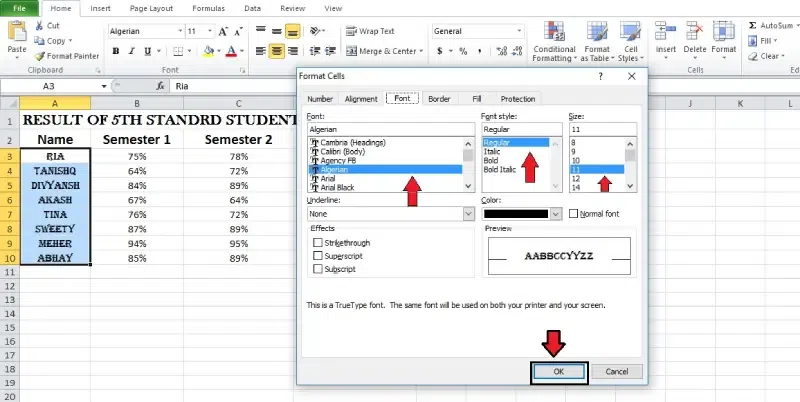
You can pick one from the list of available fonts.
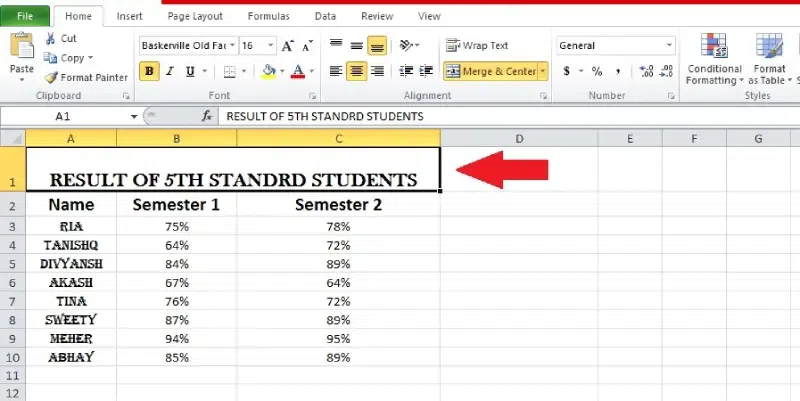
The text in the chosen cells will immediately change to reflect the new font style after you've picked a font.
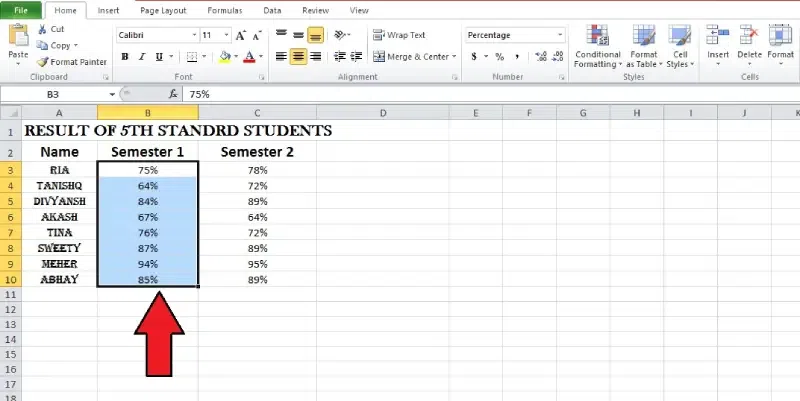
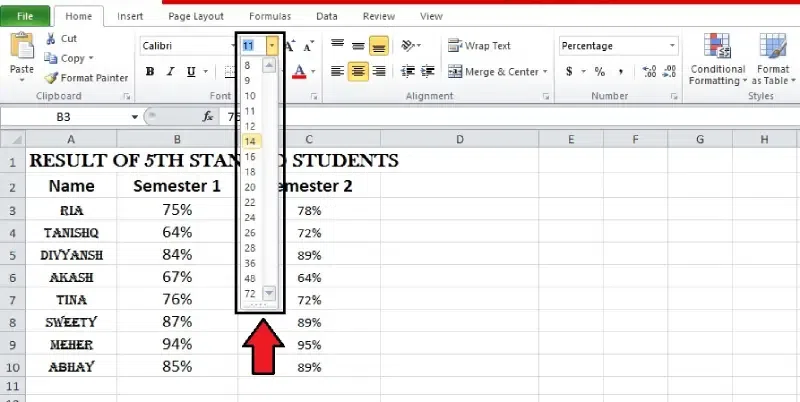
Select the cell to change the font size of it.
Click the dropdown arrow next to the Font Size command on the Home tab.
Select a font size from the list of available options.
Note: You may adjust the font size using the keyboard keys "Increase" and "Decrease" or by navigating the controls on your keyboard.
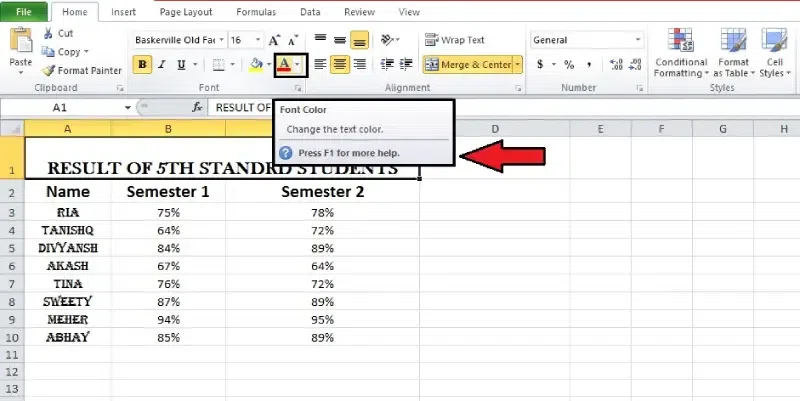
Click on one cell or drag to select multiple cells.
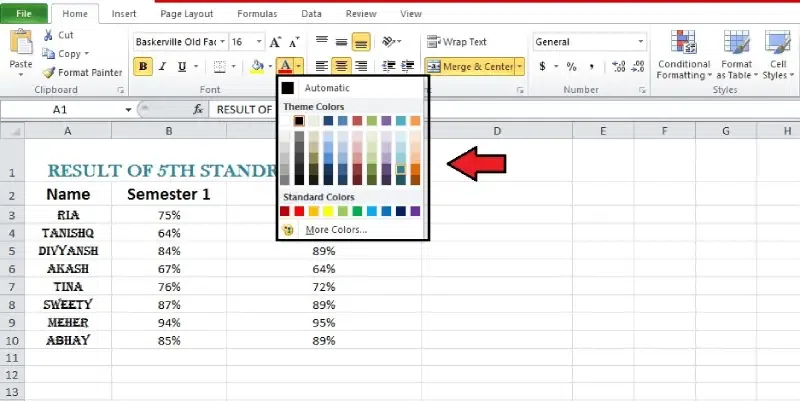
Simply click the down arrow next to Font Colour on the Home to change the font colour.
Pick a colour from the spectrum that works for you.
The text in the chosen cells will be changed to match the new colour of the font.
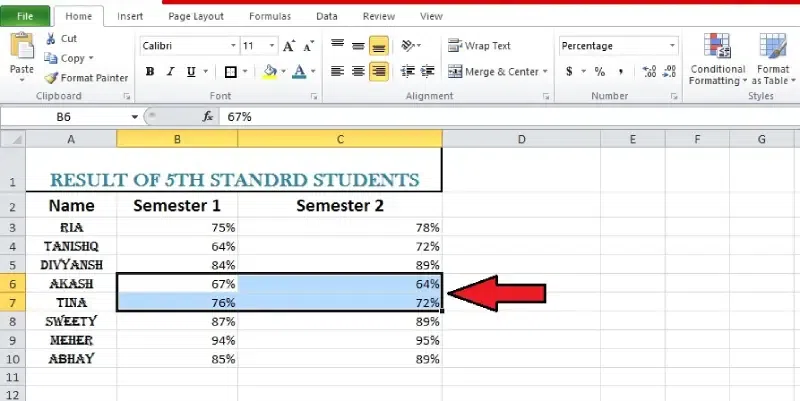
Press and hold or drag to choose several cells for formatting.
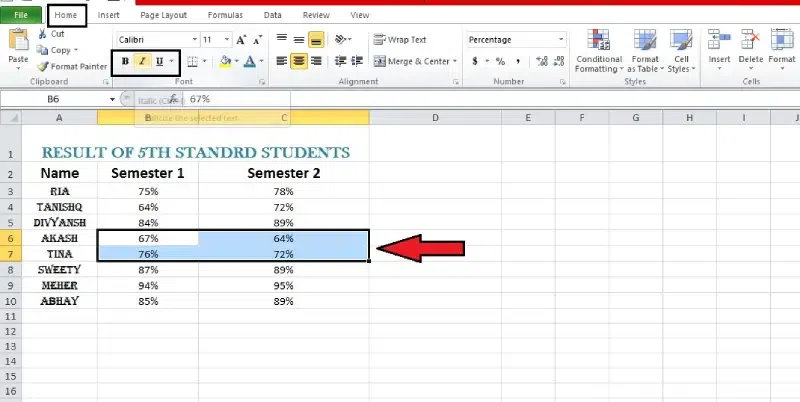
From the Home menu, choose Bold (B), Italic (I), or Underline (U). This will change the style of the text you have chosen.
The highlighted, italicised, or bolded text will be the one you choose.
Note: Pressing Ctrl+B, Ctrl+I, and Ctrl+U on the keyboard will correspondingly bold, italicise, and underline the chosen text.
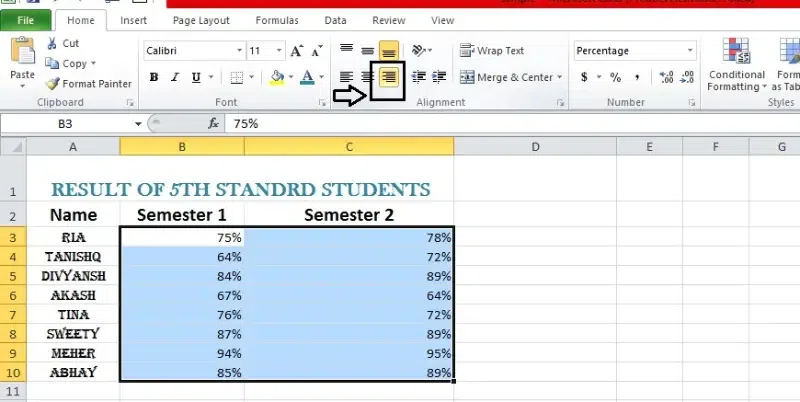
Numbers will be aligned to the bottom-right of a cell and text to the bottom-left of a cell in your worksheet by default. You may arrange cell information to make it simpler to read.
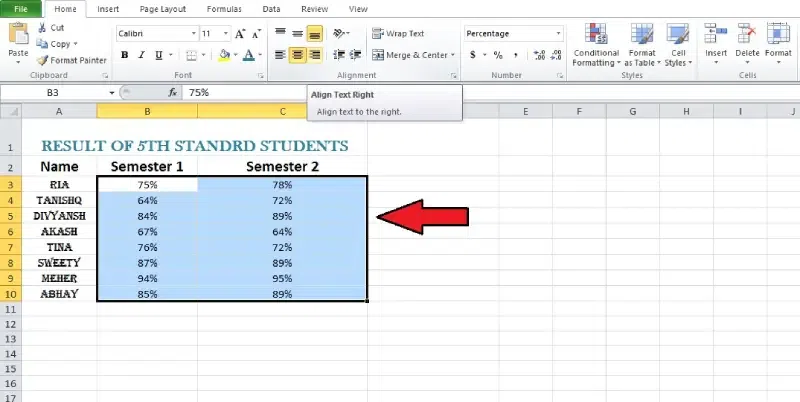
Click or drag to select multiple cells to change text alignment.
To access the Home tab in Excel, go to the ribbon. Various alignment choices may be found in the "Alignment" category.
Choose one of the three horizontal alignment commands from the Home tab: left, centre, or right.
Text in the selected cells will be aligned after you make your selection.
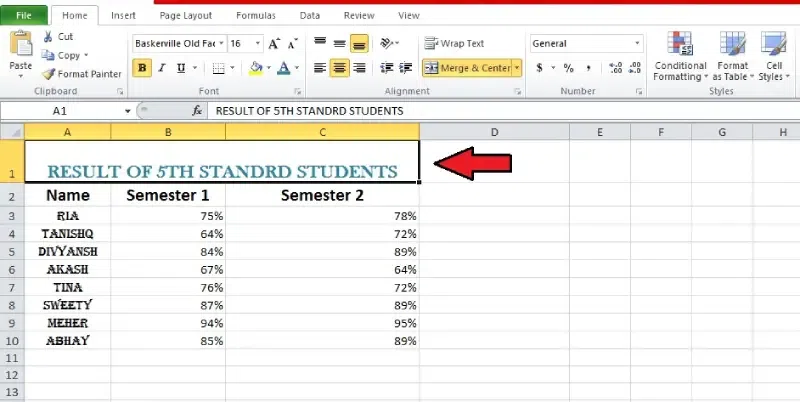
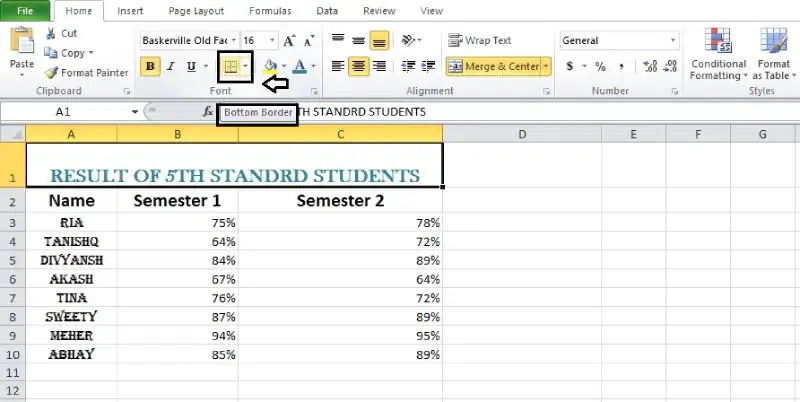
To add a border, click on the cell or groups of cells that you want to border.
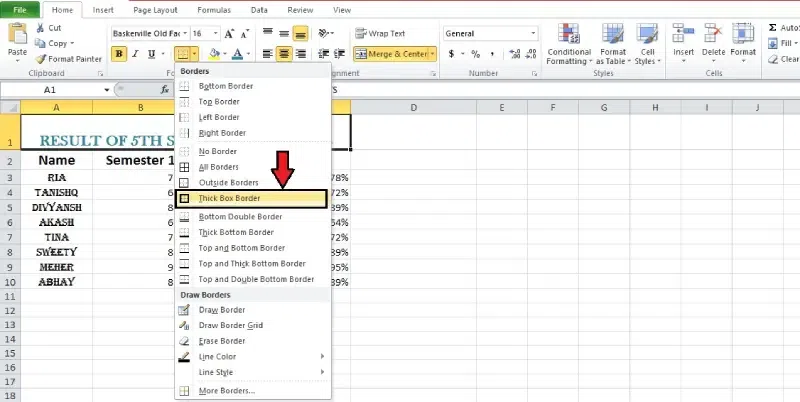
On the Excel menu, go to the Home tab. The "Borders" button is in the "Font" group. It looks like a grid with borders.
From the dropdown box, pick the border style you want to use. Some options are: There are no borders, all borders, outside borders, thick box borders, and more borders.
Click on the border style option to apply it to the selected cells.
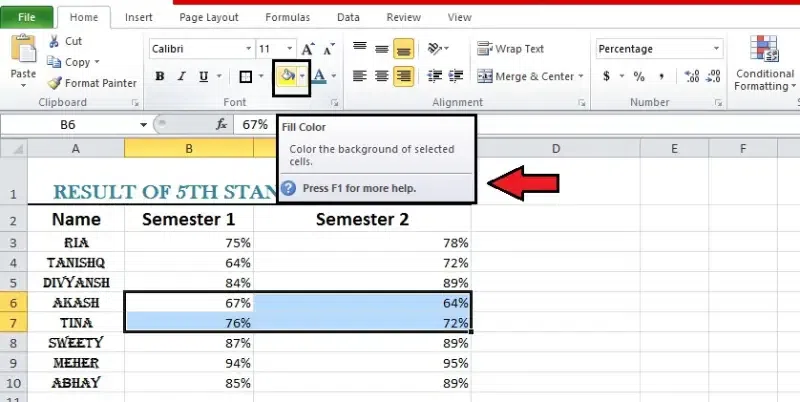
Click on the cell where you want to fill in the colour.
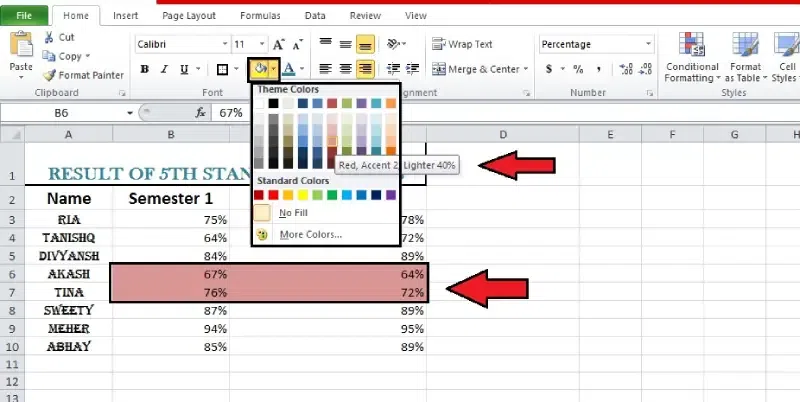
On the Excel menu, go to the Home tab. The "Fill Colour" button is in the "Font" group. Like a paint bucket, it usually has a colour label.
Please choose the colour you want to use as the fill colour by clicking on it in the palette.
Choose a colour, and then the cells will be filled with that colour.
Applying formatting to several cells at once is easy with the Format Painter. Copying the formatting of a specific cell or range to another location in your spreadsheet is simple with this helpful function.
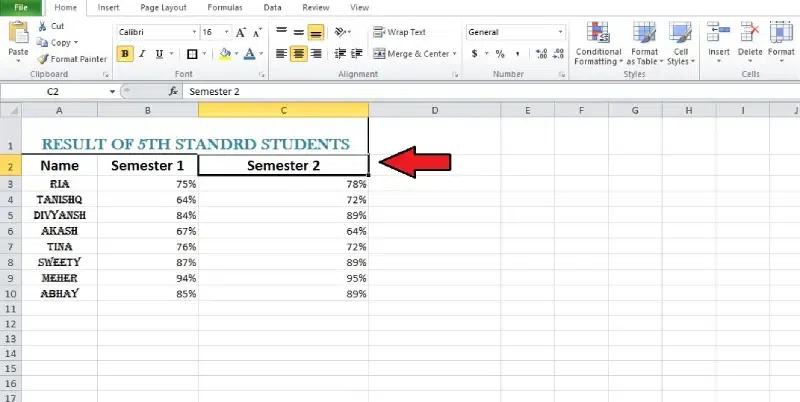
Pick out the cell that features the style you wish to copy.
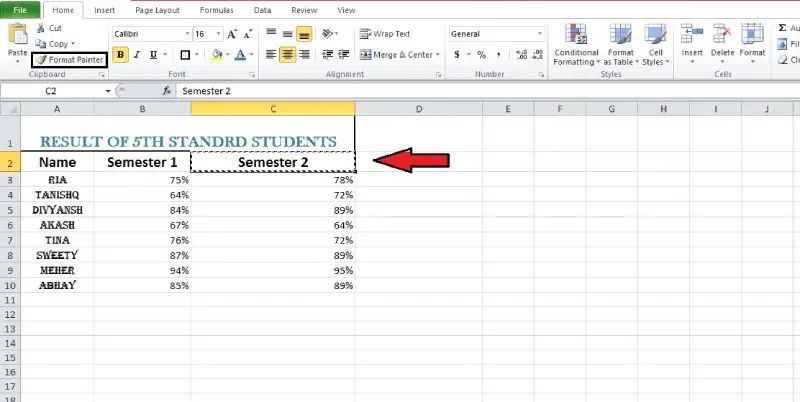
Go to home and find the Format Painter section.
Click on the format painter when you find it.
Select the cells you want to format or a range of cells, and then click and drag to apply the style.
Like the other cell, the format of the selected one will be modified.
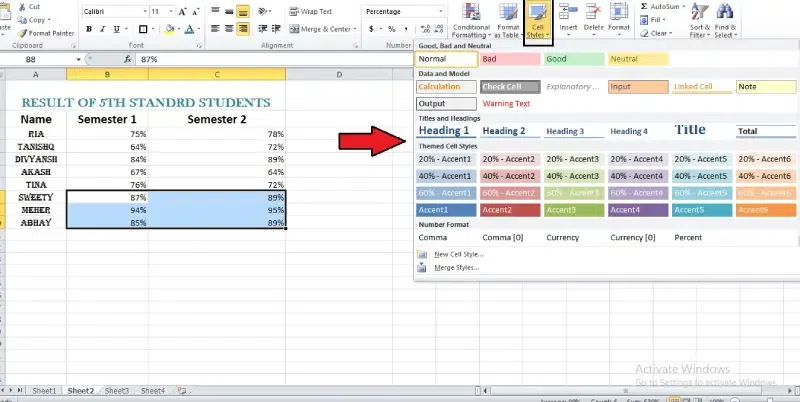
Excel has built-in cell styles, so you can forget to manually format cells. Cell styles in Excel make it easy to professionally arrange the contents of cells, like titles and heads.
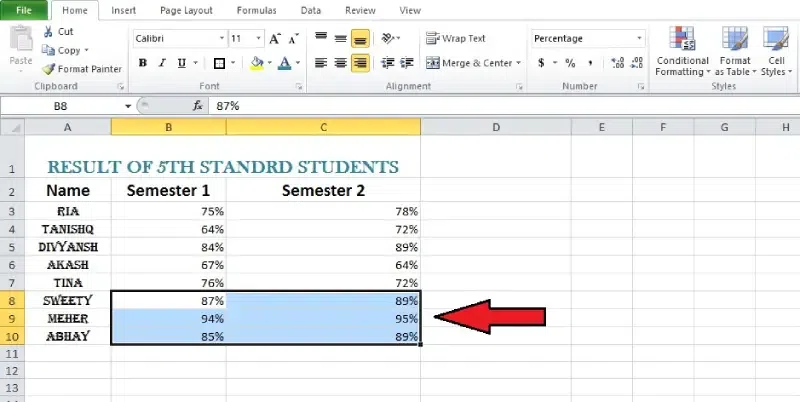
Select cells where you want to apply a cell style.
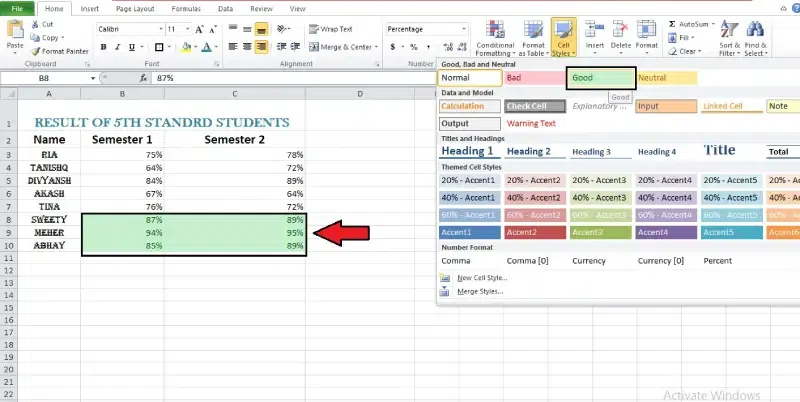
On Home, click Styles and choose the style from the dropdown menu.
Select a cell style and press enter to apply it to selected cells.
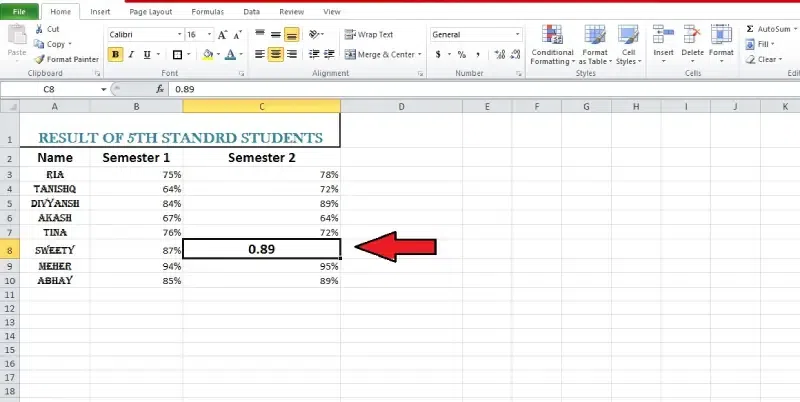
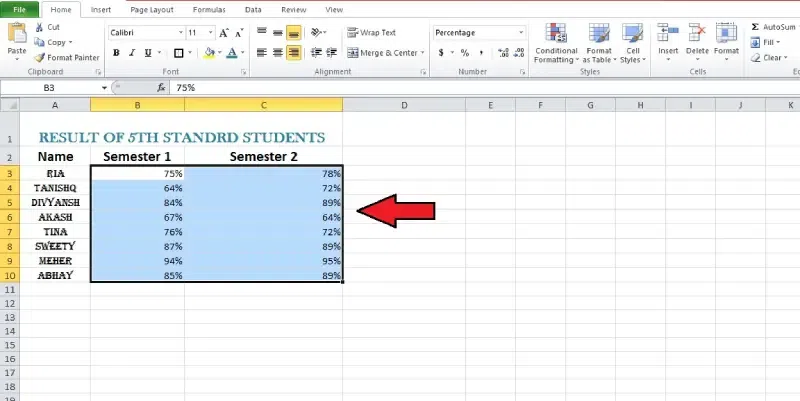
One of Excel's powerful features is applying specific formatting to numbers. Formatting allows you to vary the look of dates, times, decimals, percentages, currency ($), and much more rather than presenting all cell information similarly.
Select cells to apply formatting.
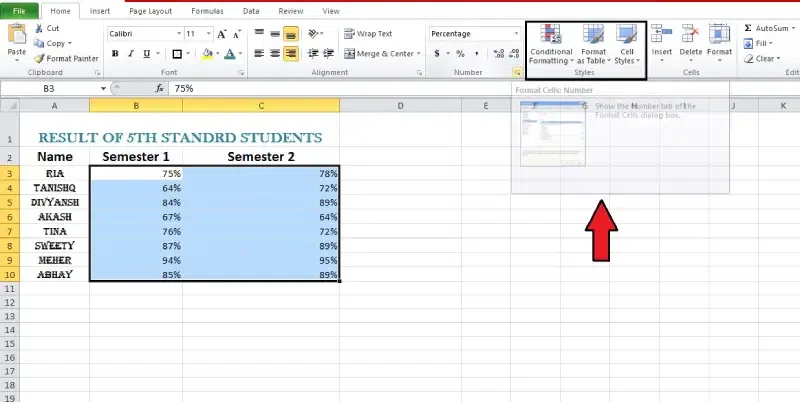
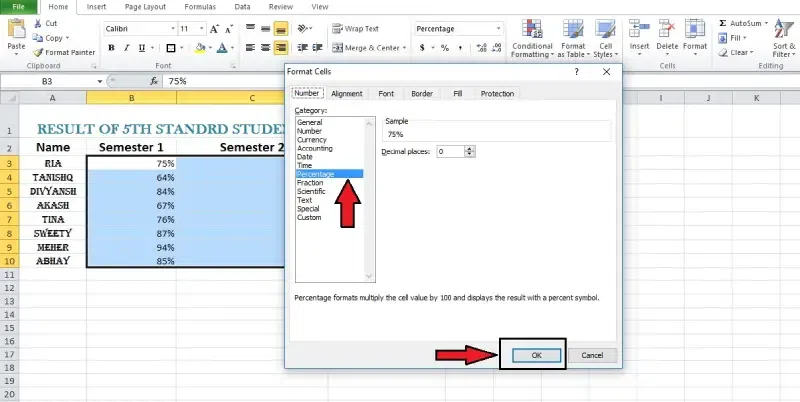
Click the dropdown menu in the "Number" group to choose a number format.
Choose from the available choices (Date, Time, Currency, Percentage, etc.) by scrolling down the page.
Once you've chosen a formatting option, it will be applied to the selected cells.
Excel-style rules can help your data look better and be easier to understand. For neat and professional-looking spreadsheets, learn how to use the Format Painter, change fonts, sizes, and colours, align text, add borders and colours, and apply cell styles. The skills listed here make your work look better and help you organise knowledge so it's easier to understand.