|
VOOZH | about |
|
VOOZH | about |
Have you ever spent hours scrolling through rows in Microsoft Excel, searching for that one typo or outdated number buried in your spreadsheet? You’re not alone. Manually hunting for data is time-consuming and error-prone—but what if you could fix mistakes or update information in seconds? That’s where Excel’s Find and Replace tool shines.
This article teaches you how to use Find and Replace in Excel like a pro. Whether you need to find and change Excel entries across multiple sheets, correct formatting issues, or even replace * in Excel (yes, wildcards work!), we’ll cover practical steps to save you time and frustration. By the end, you’ll know how to tackle everything from simple text swaps to bulk edits, making your workflow faster and more accurate.
Table of Content
The Find and Replace feature in Excel allows users to locate specific data within a spreadsheet and, if necessary, replace it with something else. This tool is invaluable for editing large datasets, correcting typos, or applying formatting changes to multiple entries simultaneously.
The Find function is perfect when you need to locate specific text, numbers, or formulas in your workbook.
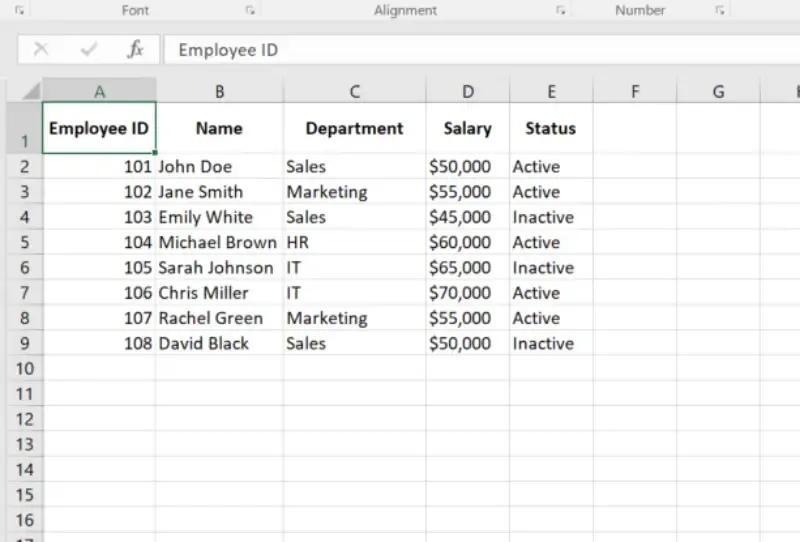
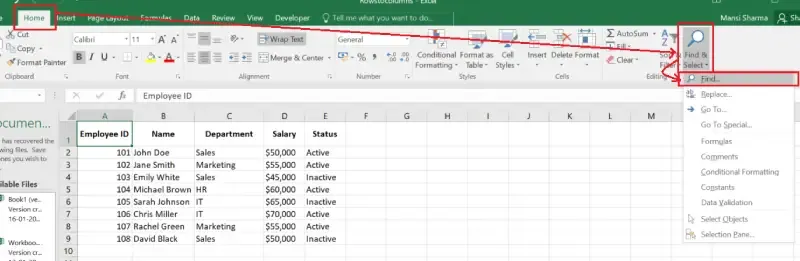
Open Microsoft Excel spreadsheet in which you want to use Find and Replace feature.
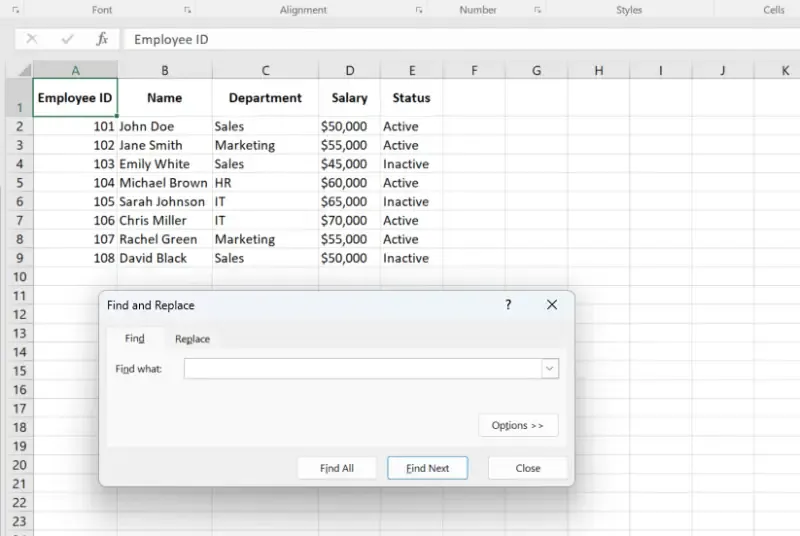
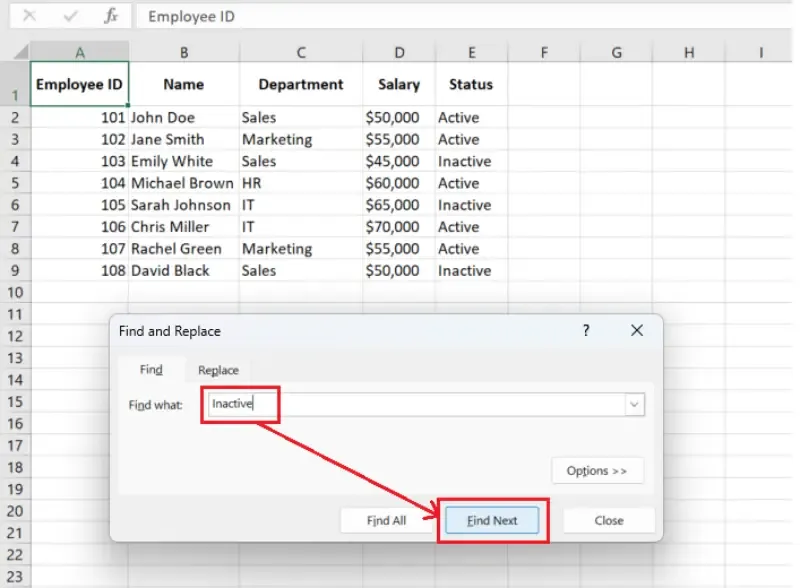
Press Ctrl + F (Windows) or Command + F (Mac) to open the Find dialog box.
In the "Find what" field, type the value you want to search for.
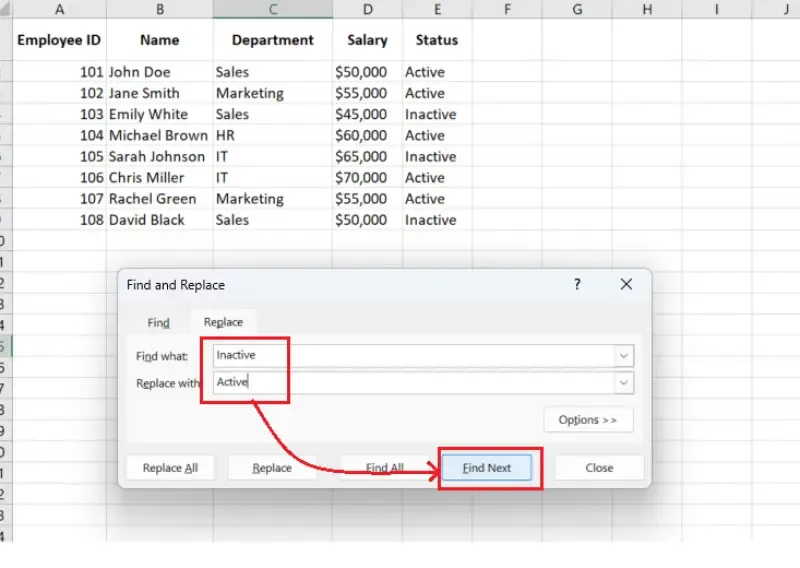
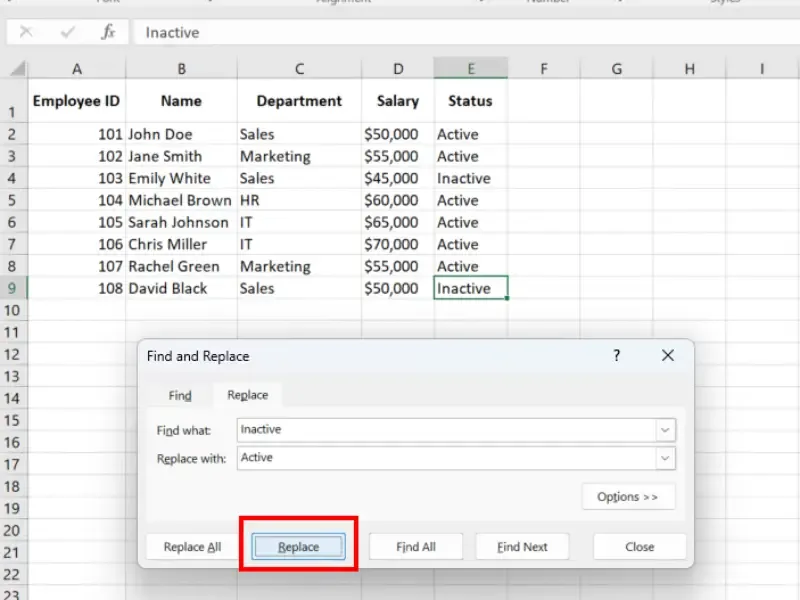
The Replace function lets you update values quickly, making it perfect for correcting errors or applying changes across a dataset.
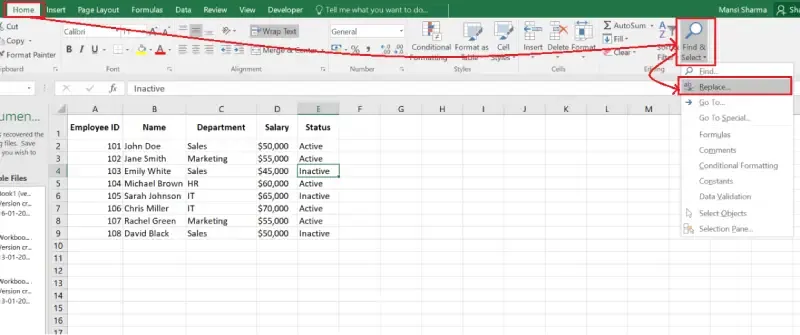
Replace Text in Excel Shortcut
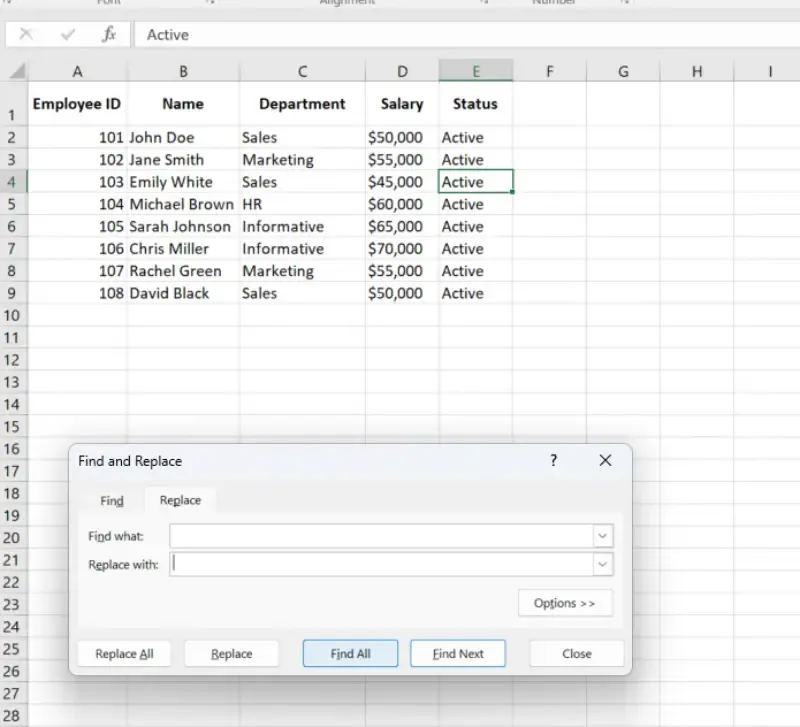
Alternatively, press Ctrl + H (Windows) or Command + H (Mac) to open the Replace dialog box.
Wildcards in Excel make it easier to search for patterns or partial matches. Here's a quick guide:
| Wildcard | What It Does | Example |
|---|---|---|
* | Matches any number of characters | A* finds "Apple" or "Asia". |
? | Matches one character | T?m finds "Tom" or "Tim". |
~ | Escapes special characters | 10~* finds "10*". |
Press Ctrl + F (Find) or Ctrl + H (Replace).
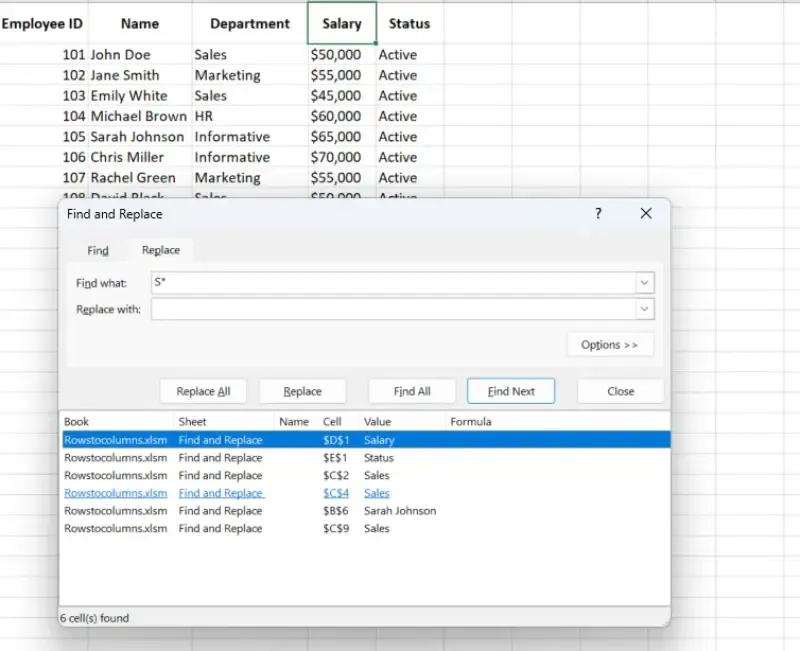
Type your search term with wildcards in Find what. Example: S* to find all words starting with "S".
Optional: Replace Text
Type the replacement in Replace with if needed.
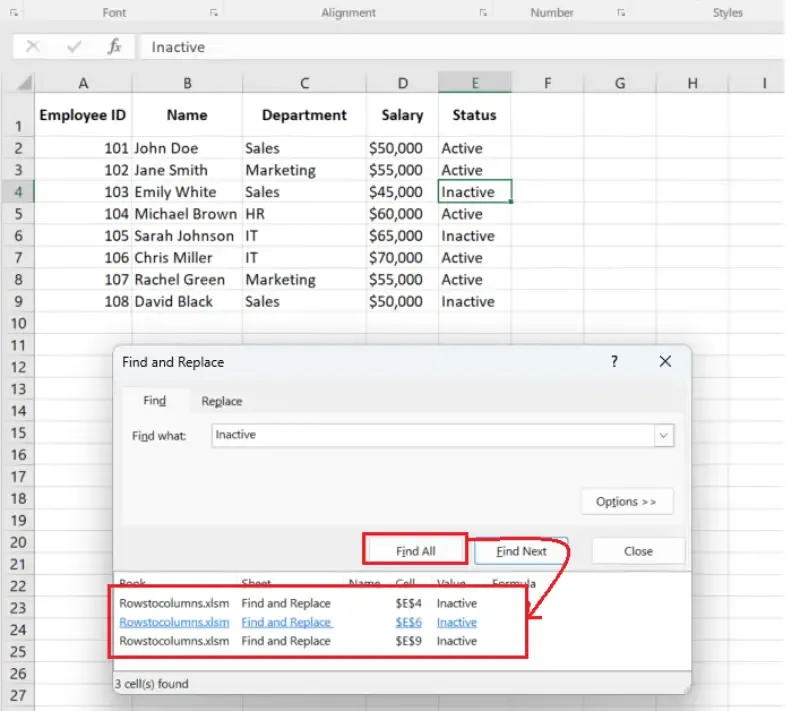
Click Find All to locate matches or Replace All to update all.
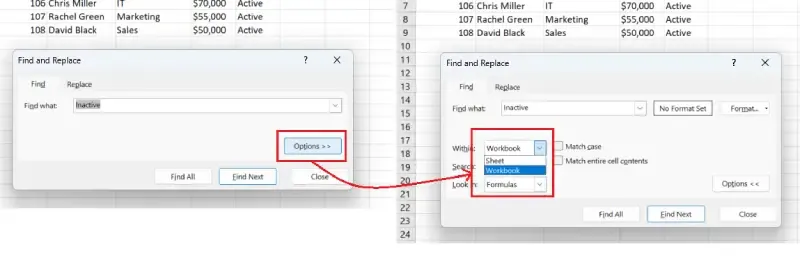
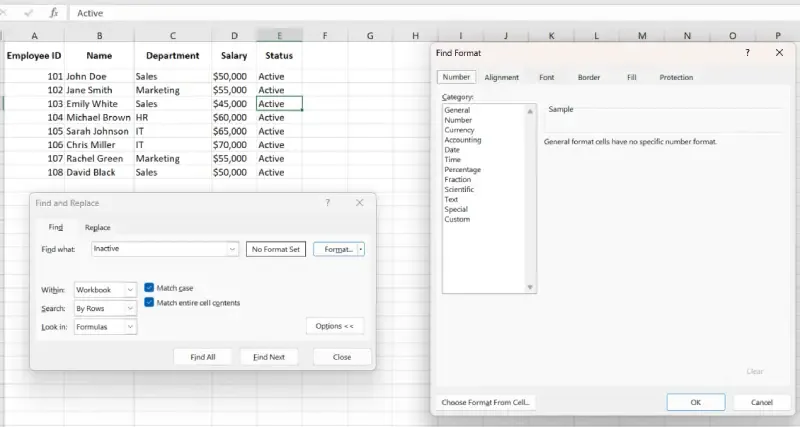
Excel’s Find and Replace tool offers several advanced settings for targeted searches and updates:
| Option | Description |
|---|---|
| Within | Choose to search either in the current sheet or across the entire workbook. |
| Search | Specify the direction of the search: by rows (left-to-right) or by columns (top-to-bottom). |
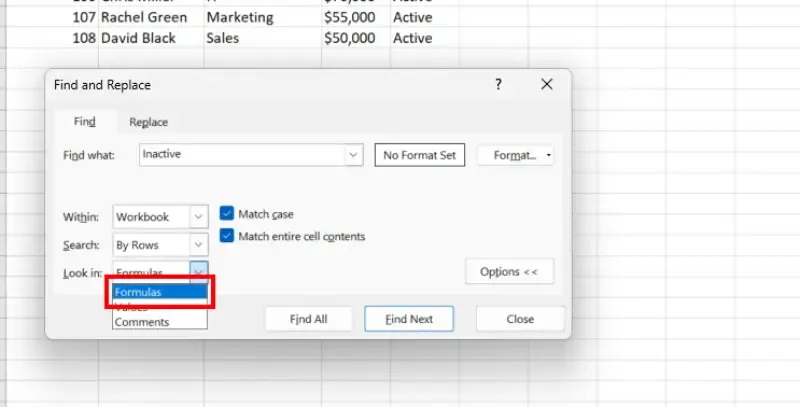
| Look in | Select the type of data to search for, such as formulas, values, or comments. |
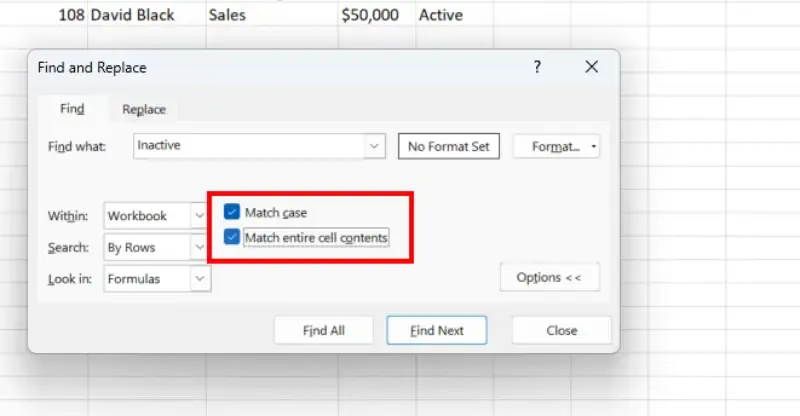
| Match case | Perform case-sensitive searches to differentiate between uppercase and lowercase letters. |
| Match entire cell contents | Find only exact matches that fully match the search text, ignoring partial matches. |
| Format | Locate and replace text along with specific formatting, like font style, size, or highlighting. |
You have a column with outdated product codes, and you want to replace them with updated ones:
Extra spaces can cause errors in formulas. Use Find and Replace to remove them:
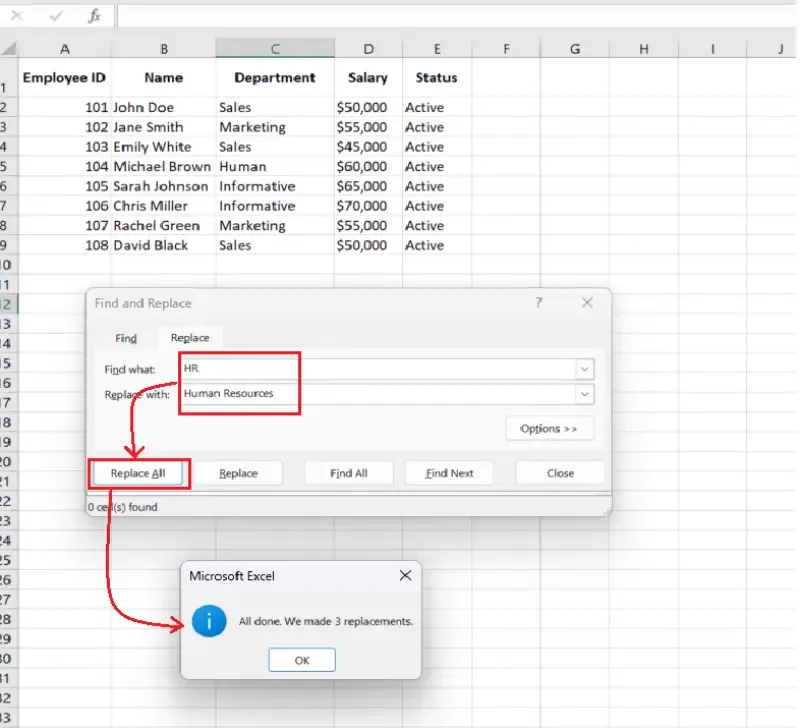
To replace "HR" with "Human Resources":
| Action | Shortcut (Windows) | Shortcut (Mac) |
|---|---|---|
| Open Find Tool | Ctrl + F | Command + F |
| Open Replace Tool | Ctrl + H | Command + H |
| Find Next | Shift + F4 | Command + G |
| Close Dialog Box | Esc | Esc |
* and ? for advanced searches. For example:A* finds all entries starting with "A".?e finds "be", "me", etc.Mastering Excel Find and Replace is like having a magic wand for your spreadsheets. Instead of manually combing through thousands of cells, you can instantly update data, fix errors, or standardize formatting—whether you’re working with numbers, text, or symbols like the asterisk (*). Need to replace * in Excel to clean up imported data? No problem. Want to find and change in Excel entries across an entire workbook? Done.
Stop wasting time on tedious edits. With these tips, you’ll transform how you handle Excel tasks, leaving more room for analysis and creativity. Ready to put these tricks to work? Open your spreadsheet and start experimenting—your future self will thank you!