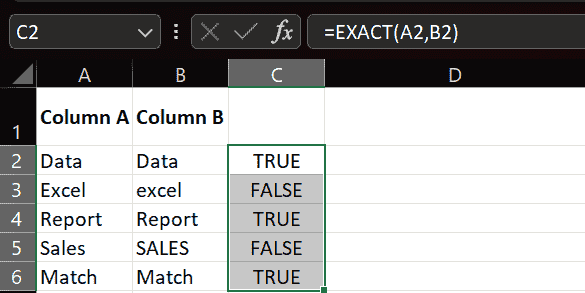
Finding Exact Matches in Excel Using the EXACT Function
Last Updated : 17 Feb, 2026
An exact match means two values have identical content and identical letter case. The EXACT function compares text values and determines whether they are perfectly identical.
The EXACT function checks: Text content, Letter case (Uppercase / Lowercase)
It does NOT check: Cell formatting, Font style, Cell color, Alignment
Understanding the EXACT Function
The EXACT function compares two text strings and returns a Boolean result:
TRUE: If values are exactly the same
FALSE: If values are different
Syntax:
=EXACT(text1, text2)
Step-by-Step Guide to Using the EXACT Function
Step 1: Setting Up Your Workbook
Assume you are comparing two columns of data.
Column A: Original Data
Column B: Data to Compare
Column C: EXACT Function Result
Step 2: Enter Sample Data
Enter the following text values:
Column A
Column B
Data
Data
Excel
excel
Report
Report
Sales
SALES
Match
Match
Step 3: Apply the EXACT Function
In Column C (Cell C2), enter:
=EXACT(A2,B2)
This compares values in A2 and B2.
Step 4: Drag the Formula Down
Use the fill handle to apply the formula to remaining rows.